"How do I download a PowerPoint presentation to my computer?" If you've ever asked this question, you're not alone! Whether you're a student, professional, or educator, downloading a PowerPoint presentation ensures offline access, easy sharing, and smooth presentations without an internet connection.
Depending on where the presentation is stored—Microsoft PowerPoint, OneDrive, Google Slides, or other platforms—the download process may differ. In this guide, we’ll walk you through the quick and easy steps to download a PowerPoint presentation on different devices and platforms.
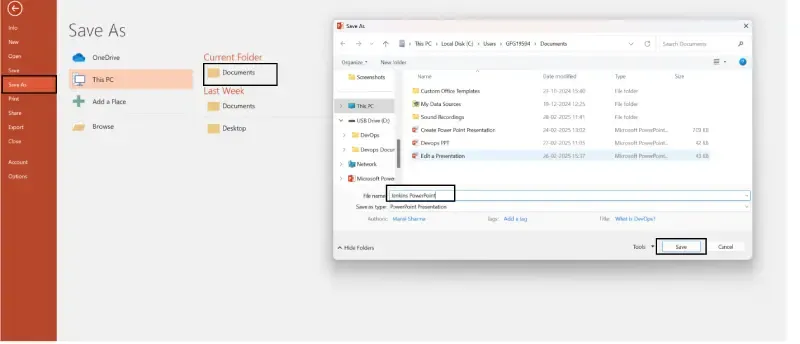
Your PowerPoint presentation is now downloaded and saved to your chosen location.
How to Download a PowerPoint from Microsoft PowerPoint Online (Web Version)
Microsoft PowerPoint Online is a web-based version of the popular presentation software. Here’s how to download a PowerPoint presentation from the online platform:
Step 1: Access PowerPoint Online
Go to Office.com and sign in with your Microsoft account.
Click on the PowerPoint icon to open PowerPoint Online
Step 2: Open or Create a Presentation
Open an existing presentation or create a new one.
Once your presentation is ready, click on the File tab in the top-left corner.
Step 3: Download the Presentation
Select Download As from the dropdown menu.
Choose PowerPoint Presentation (*.pptx).
The file will be downloaded to your computer’s default download folder.
How to Download a PowerPoint from Email Attachments
PowerPoint presentations are often shared via email as attachments. Here’s how to download a PowerPoint file from an email:
Step 1: Open the Email
Log in to your email account and open the email containing the PowerPoint attachment.
Step 2: Locate the Attachment
Look for the attachment icon (usually a paperclip) in the email.
Click on the attached PowerPoint file.
Step 3: Download the Attachment
Depending on your email client (e.g., Gmail, Outlook, Yahoo), you may see a Download button or an option to open the file.
Click Download to save the PowerPoint file to your computer.
How to Download a PowerPoint from Cloud Storage Services (e.g., OneDrive, Google Drive)
Cloud storage services like OneDrive and Google Drive are popular for sharing PowerPoint presentations. Here’s how to download a PowerPoint from these platforms:
From OneDrive
Log in to your OneDrive account.
Navigate to the folder containing the PowerPoint file.
Click on the file to select it.
Click the Download button (usually represented by a downward arrow).
The file will be downloaded to your computer.
From Google Drive
Log in to your Google Drive account.
Locate the PowerPoint file you want to download.
Right-click on the file and select Download.
The file will be downloaded in .pptx format.
How to Download a PowerPoint from Websites or Online Platforms
Sometimes, PowerPoint presentations are hosted on websites or online platforms. Here’s how to download them:
Step 1: Locate the Download Link
Navigate to the website hosting the PowerPoint presentation.
Look for a Download button or link associated with the file.
Step 2: Download the File
Click on the Download button or link.
If prompted, choose a location on your computer to save the file.
The PowerPoint presentation will be downloaded to your selected location.
How to Download a PowerPoint from Learning Management Systems (LMS)
Many educational institutions use Learning Management Systems (LMS) like Canvas, Blackboard, or Moodle to share course materials, including PowerPoint presentations. Here’s how to download a PowerPoint from an LMS:
Step 1: Log in to the LMS
Access your institution’s LMS and log in with your credentials.
Step 2: Navigate to the Course Materials
Go to the course or section where the PowerPoint presentation is located.
Step 3: Download the Presentation
Click on the PowerPoint file to open it.
Look for a Download option (usually represented by a downward arrow or a "Save As" option).
Click Download to save the file to your computer.
Conclusion
Downloading a PowerPoint presentation is a simple yet important task that ensures easy access, offline editing, and seamless sharing. Whether you’re working with Microsoft PowerPoint, Google Slides, or cloud-based storage, following the right steps will help you secure your file for future use. Now that you know how to download a PowerPoint presentation, you can stay productive, present confidently, and work without interruptions!