|
VOOZH | about |
|
VOOZH | about |
Ever wished your presentations could go beyond just slides? Well, good news – they can! Imagine making your audience sit up and take notice with not just pictures and words but actual videos. Embedding videos in your Google Slides presentations can make them more dynamic and engaging. In this guide, we'll show you how to embed a video in Google Slides using simple steps. Let's dive in and make your next presentation unforgettable with our easy-to-follow instructions!
Table of Content
Learn how to insert a video in Google Slides with our easy step-by-step guide, making your presentations more dynamic and engaging.
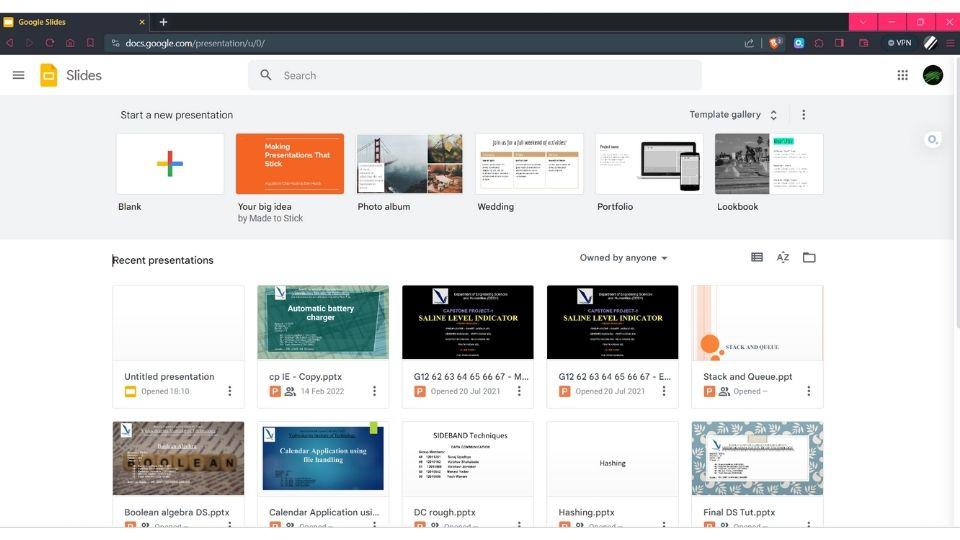
You may search for Google Slides on the Internet or you can simply go to Google Slides
The next step is to sign in to the Google account on which you want to save the presentation, also you have to take care that this account should be the same on which your video is stored.
Choose the template from the options below, here I am selecting blank for the demo purpose.
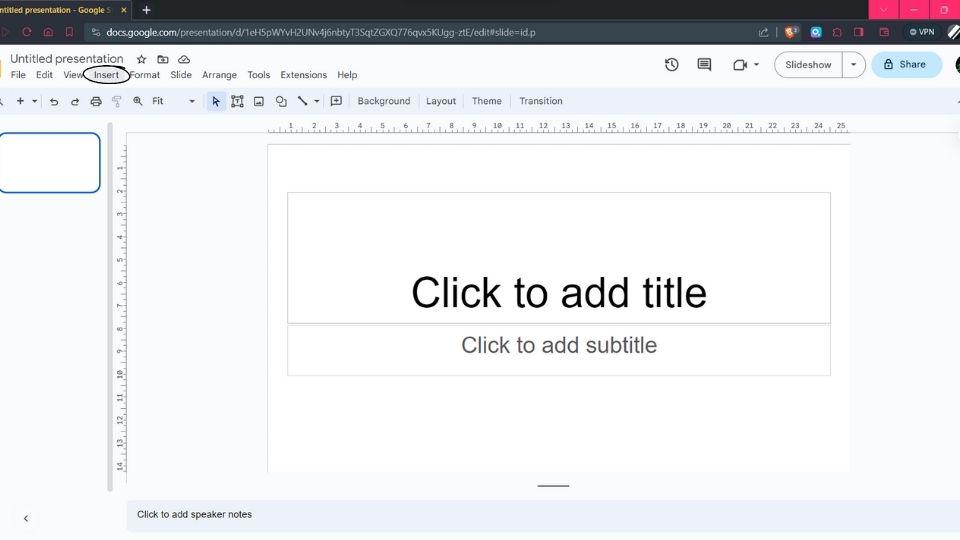
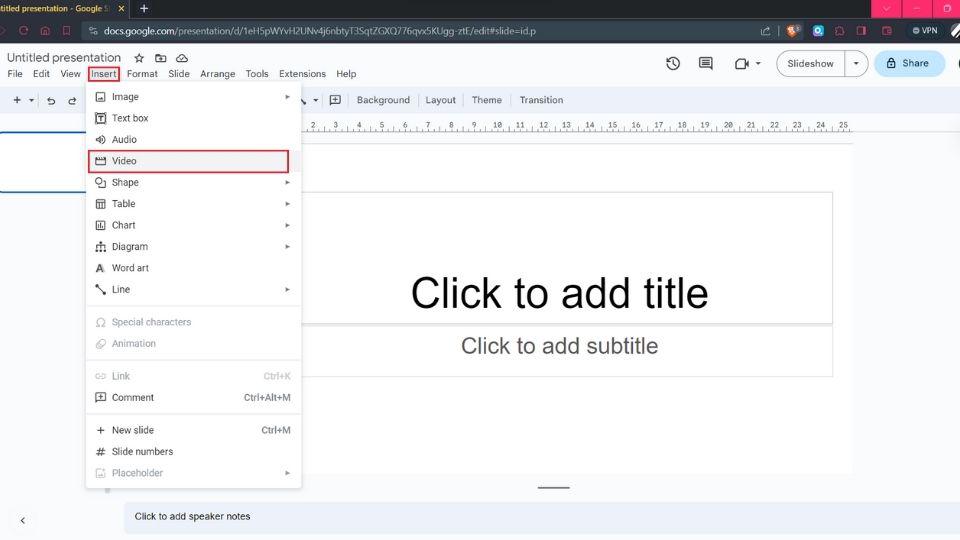
From the insert menu choose the video option
Learn how to embed a YouTube video in Google Slides to make your presentations more engaging.
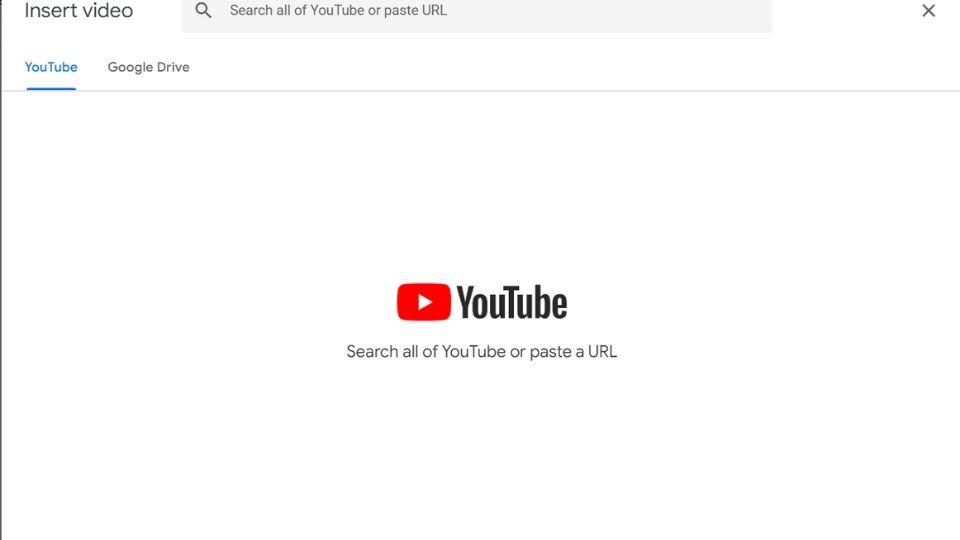
From two options 1. YouTube and 2. Google Drive, choose one
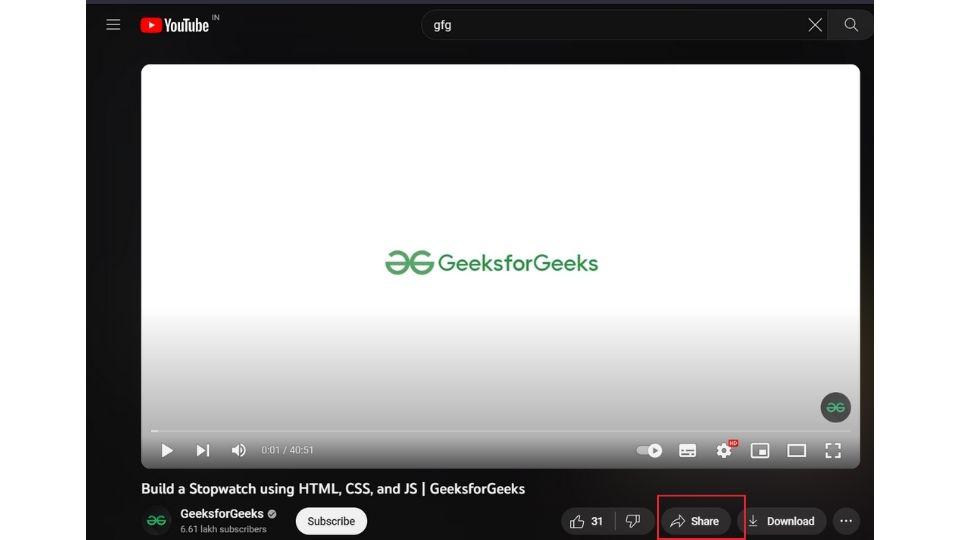
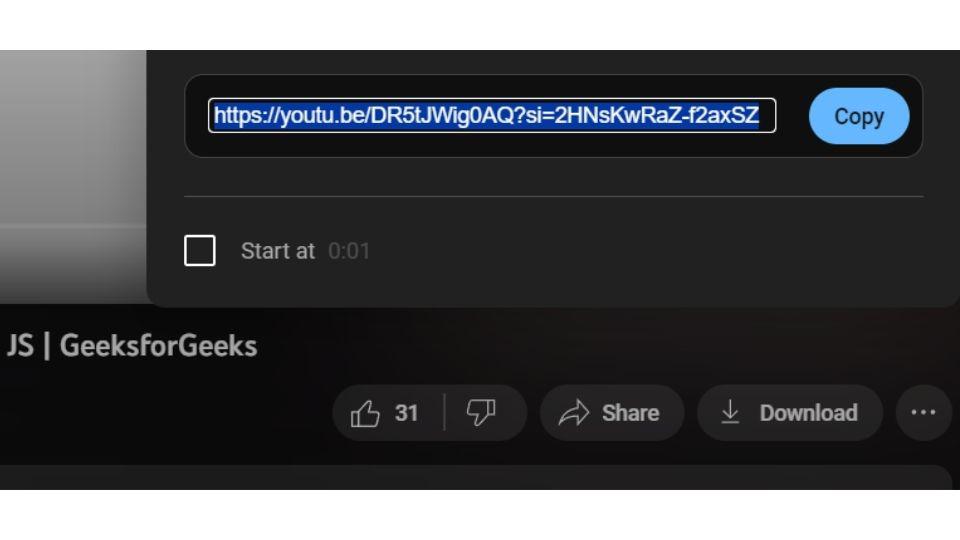
For example, let's assume that I have to embed this particular video
Copy the link from the share tab and copy it to the clipboard.
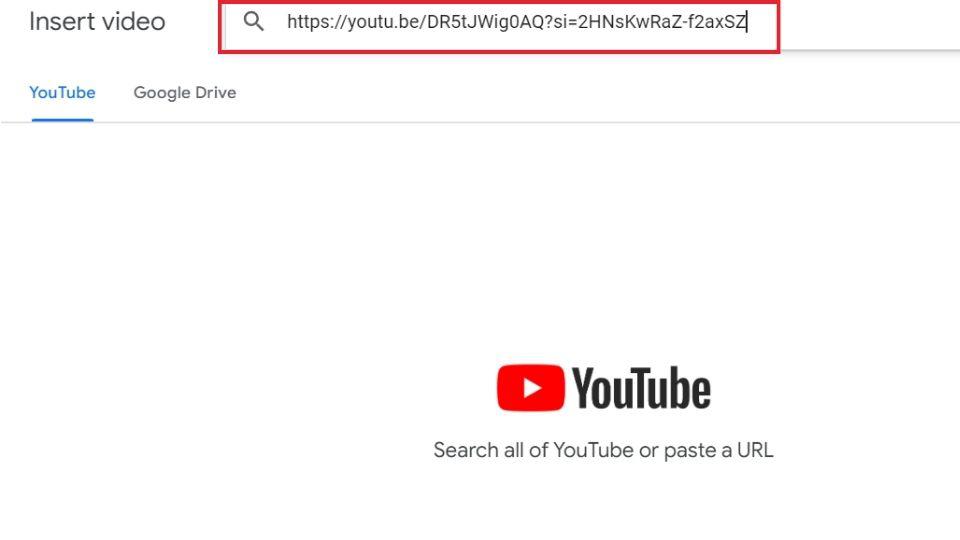
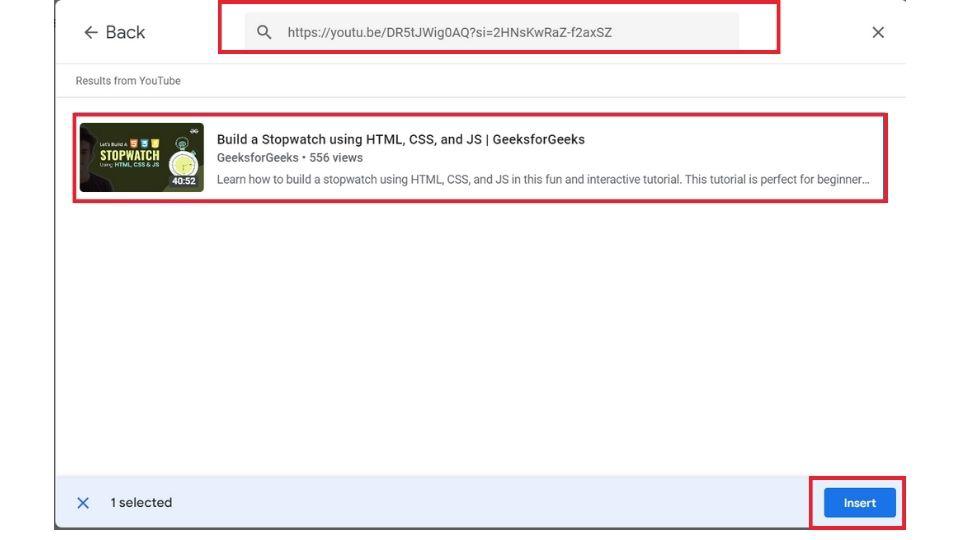
Paste the copied link into the desired box in Google Slides and search for the video.👁 Embed a Video in Google Slides
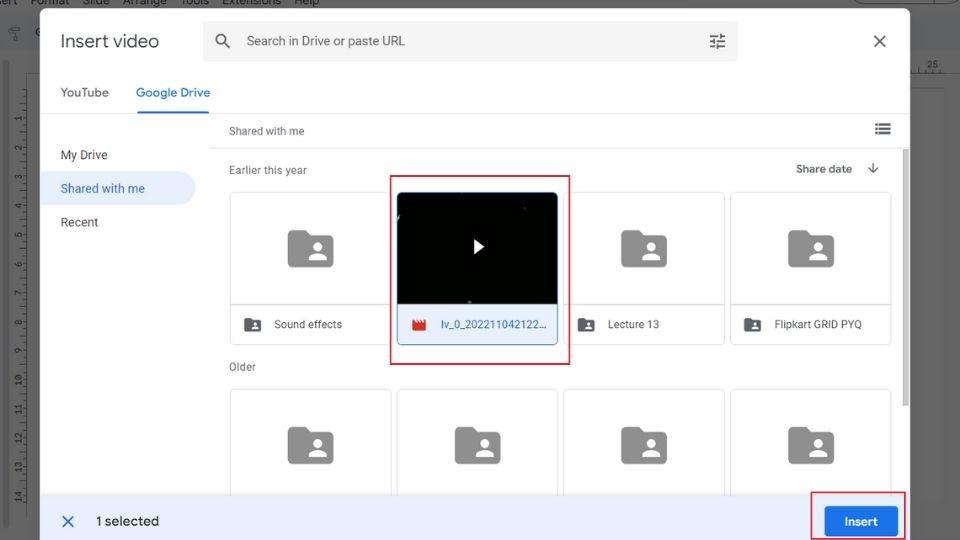
Click on Insert to embed the video into your presentation
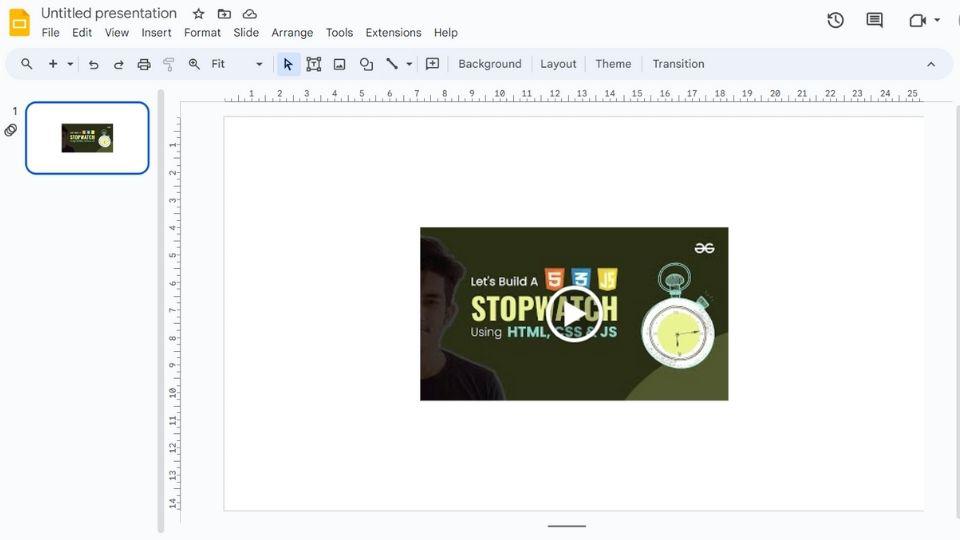
and yes this video will be embedded into your Presentation.
Discover how to embed a video from Google Drive in Google Slides for a seamless integration.
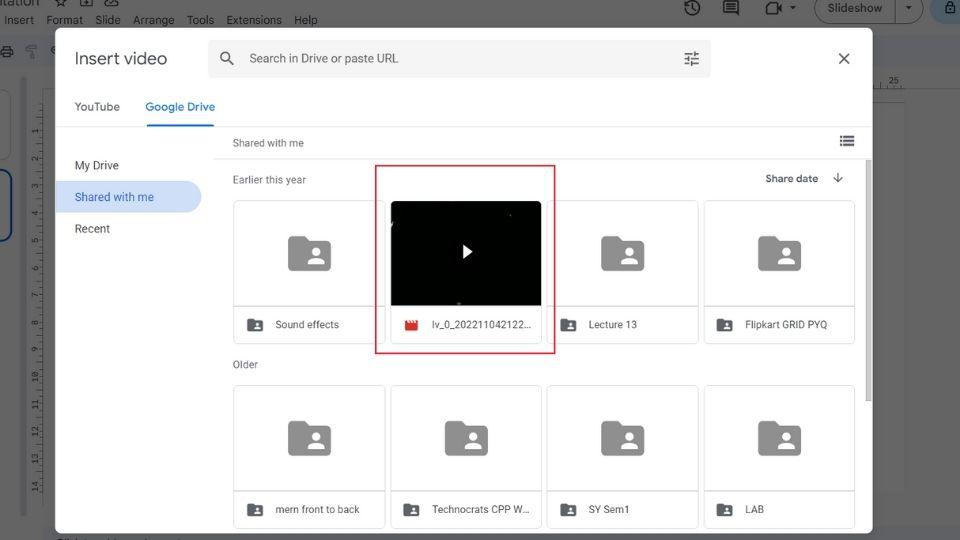
To embed from Google Drive, select the option select the video and open it. After choosing Google Drive as an option, your drive will be opened here. and you just have to click on the video you want to embed.
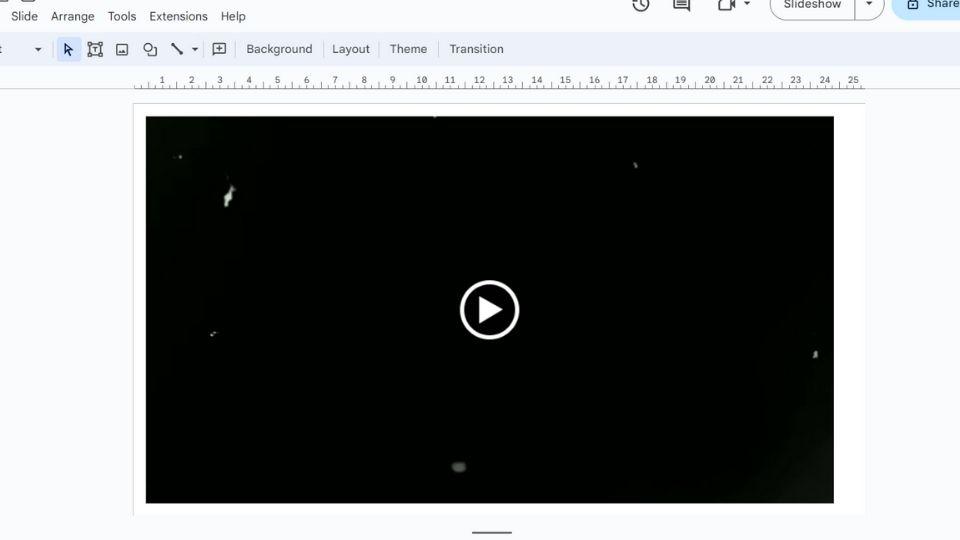
And here your video will be added to the presentation.
Learn how to cut and edit a video in Google Slides to fit your presentation needs.
Click on the embedded video in your Google Slides presentation to select it.
In the toolbar, click on Format options to access video editing tools.
Under Video playback, set the start and end times to trim your video.
After adjusting the playback settings, close the Format options panel to save changes.
Find out how to mute a video in Google Slides to avoid background noise during your presentation.
Click on the video in your Google Slides presentation.
In the toolbar, click on Format options to access video settings.
Under Video playback, check the Mute audio option to mute the video
Embedding videos in Google Slides is a fantastic way to make your presentations more engaging and dynamic. Follow the steps outlined above to embed videos from YouTube or Google Drive seamlessly. Enhance your presentations and keep your audience captivated.


.jpg)