|
VOOZH | about |
|
VOOZH | about |
Need to view two websites at once in Microsoft Edge? The split screen feature lets you see webpages side by side, making it easier to compare information or do multiple tasks without switching tabs. Whether you're on a Windows computer or Mac, this guide shows you how to turn on split screen and use it with simple keyboard shortcuts.
Split screen in Microsoft Edge allows users to view and interact with two tabs simultaneously within the same browser window. This feature is ideal for comparing information side-by-side, researching, or simply enhancing multitasking by eliminating the need to switch between tabs constantly.
Using split screen in Microsoft Edge can enhance productivity and multitasking capabilities by allowing users to view and interact with multiple web pages simultaneously. Here are some key benefits:
Enabling the split screen option entirely depends on whether a user has the updated Microsoft Edge version or not. Here are the steps to activate split screen in Microsoft Edge (latest) for Windows 11.
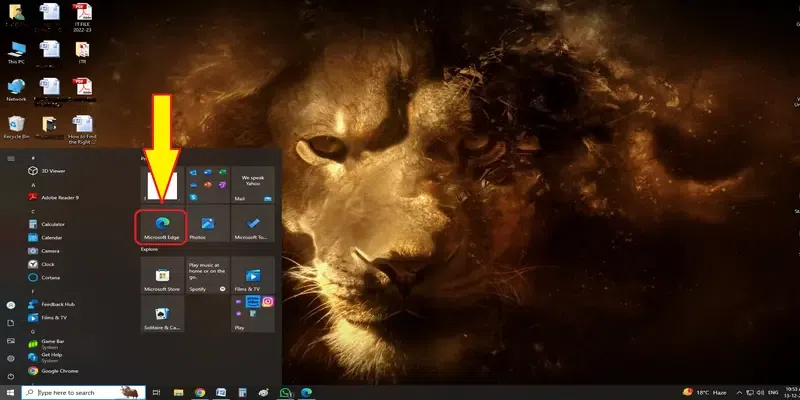
Launch the Microsoft Edge browser on your desktop.
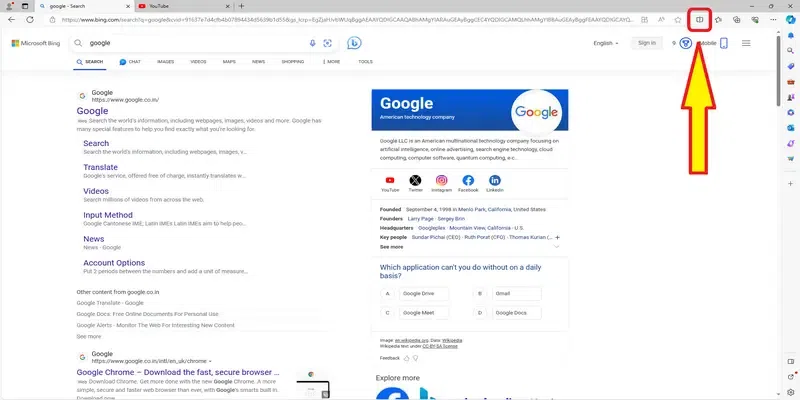
Look for the sidebar on the right side of the address bar.
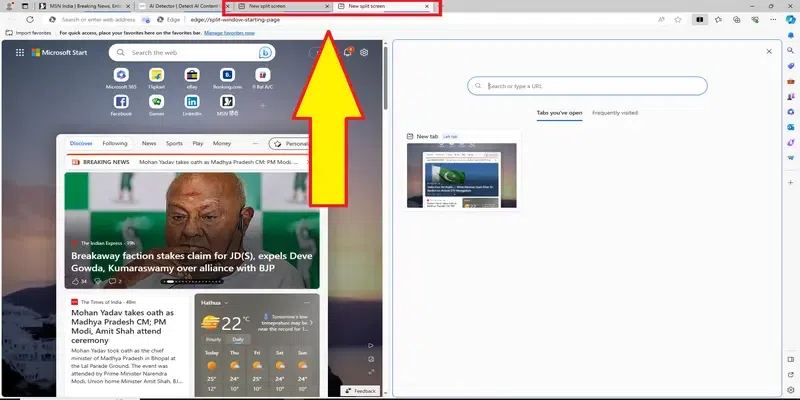
Click on the Split Screen icon in the sidebar. The browser will split into two halves.
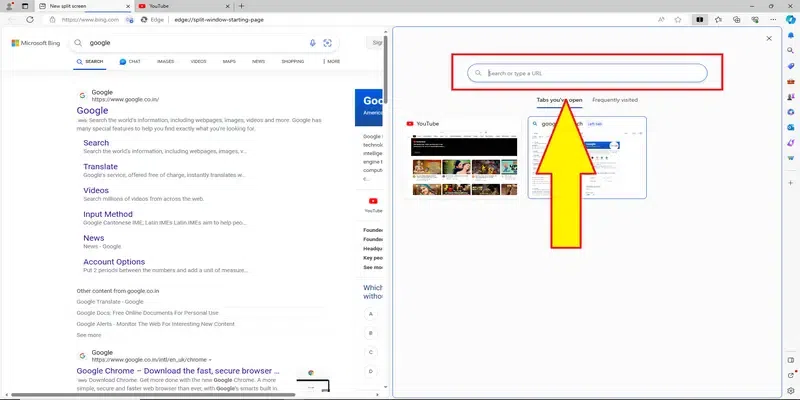
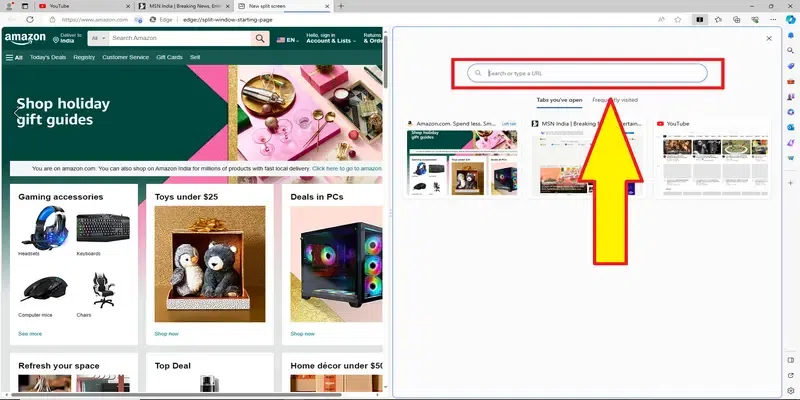
Open a link or select an existing tab for the right half of the screen.
This is how you can split your Microsoft Edge screen into two visible halves. If you don’t see the ‘Split Screen’ option in the side menu bar, here is what you need to do.
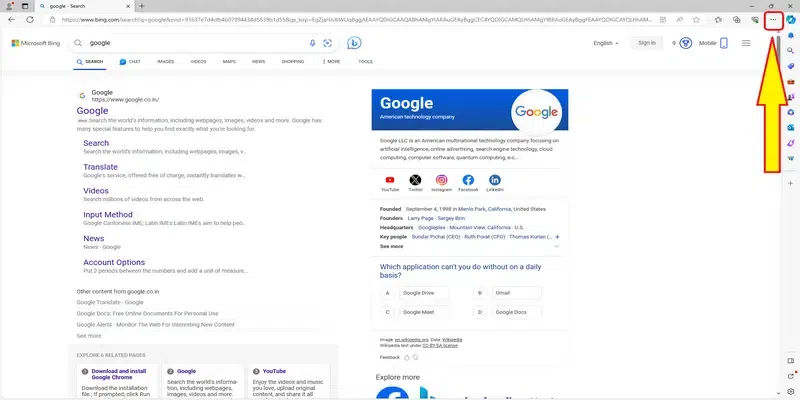
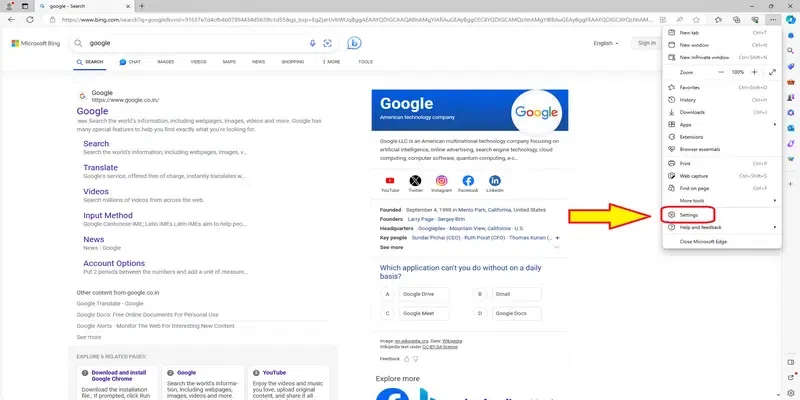
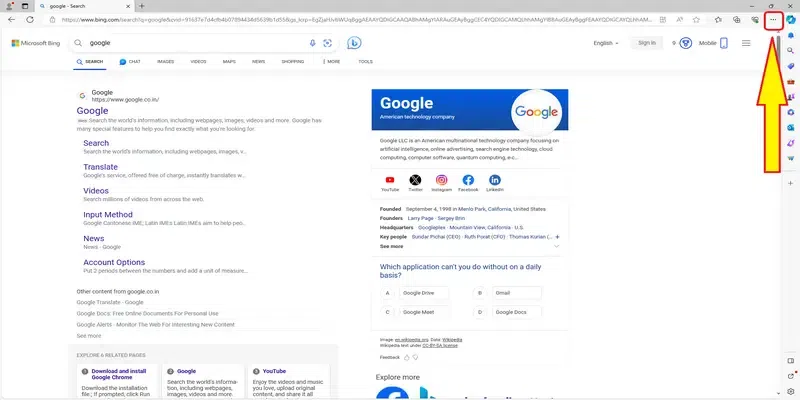
Click on the three dots (menu icon) located at the right side of the address bar.
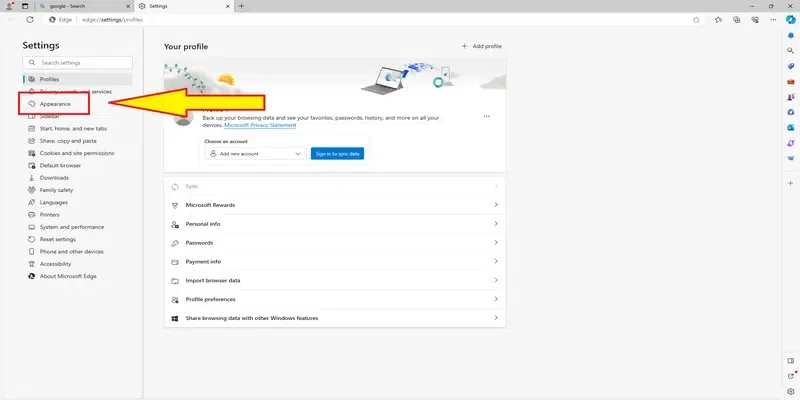
You will be redirected to a new tab on the same browser.
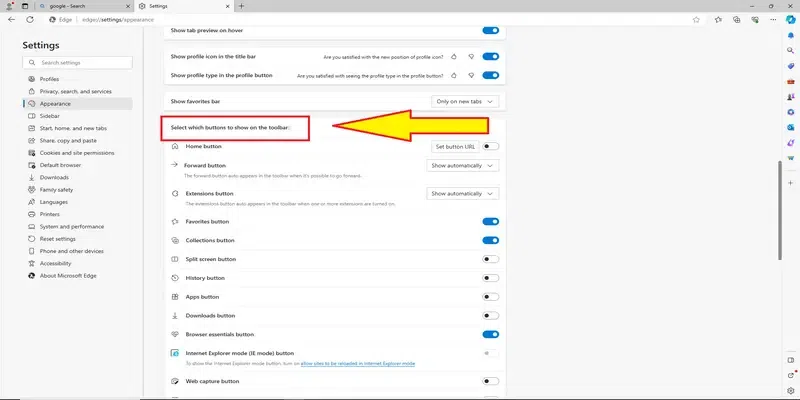
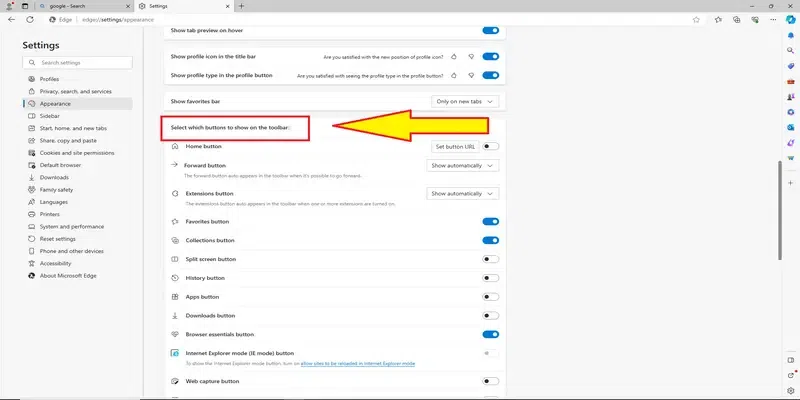
A new section will appear on the same window. Scroll down to find more options.
Find this section to customize the toolbar.
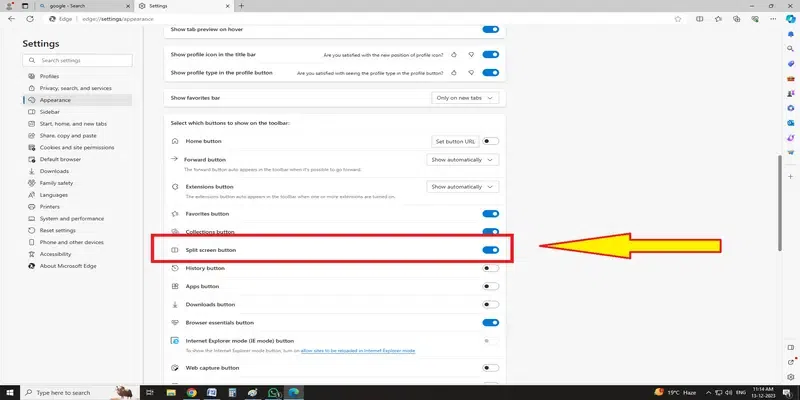
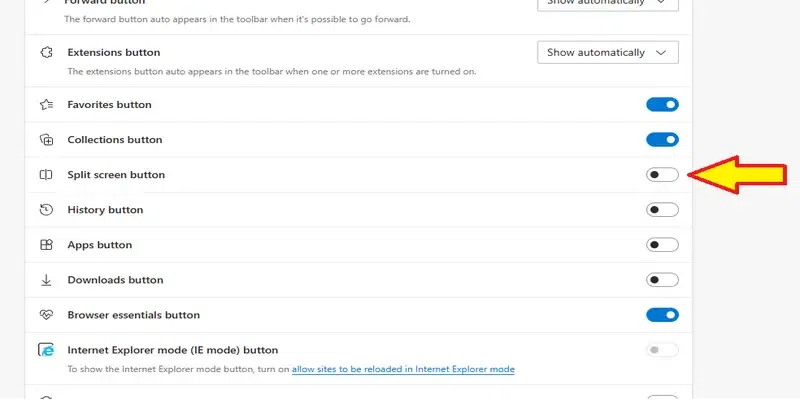
Toggle the Split Screen option to make it visible on the toolbar.
We have learned how to activate the ‘Split Screen’ option on an updated Microsoft Edge browser installed in Windows 11. Let us find out how to activate this option on a backdated version.
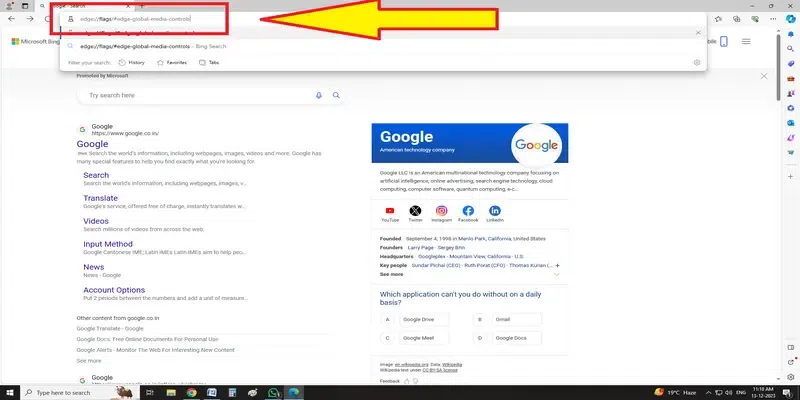
Start with your browser open.
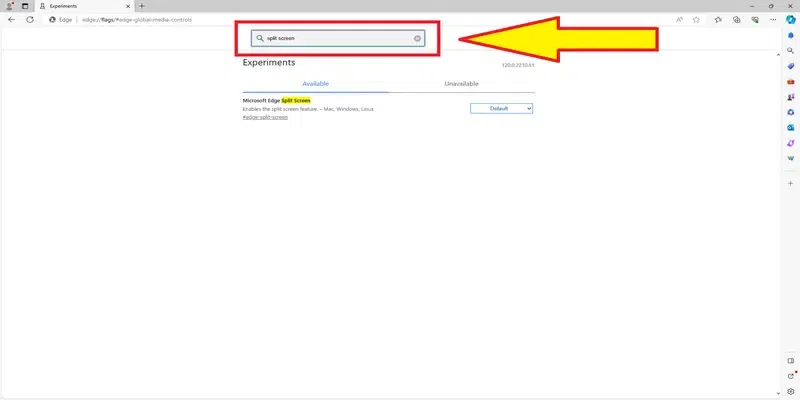
You will enter the experimental mode of the Microsoft Edge browser.
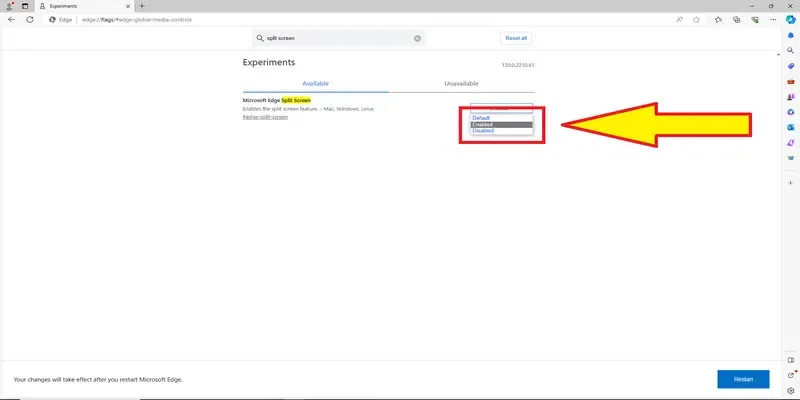
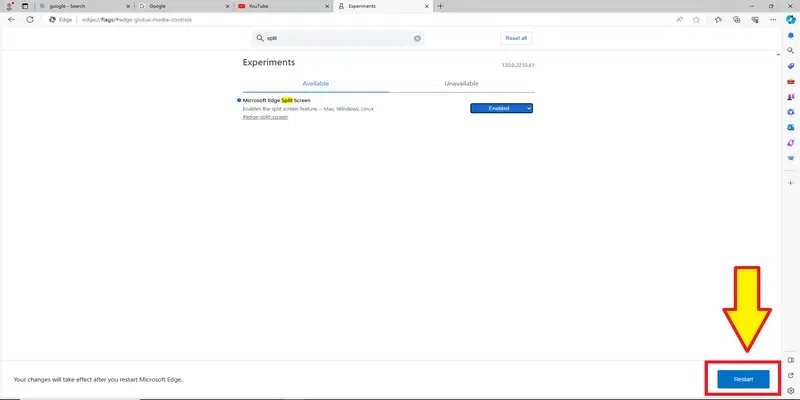
The Microsoft Edge Split Screen option will appear on the screen.
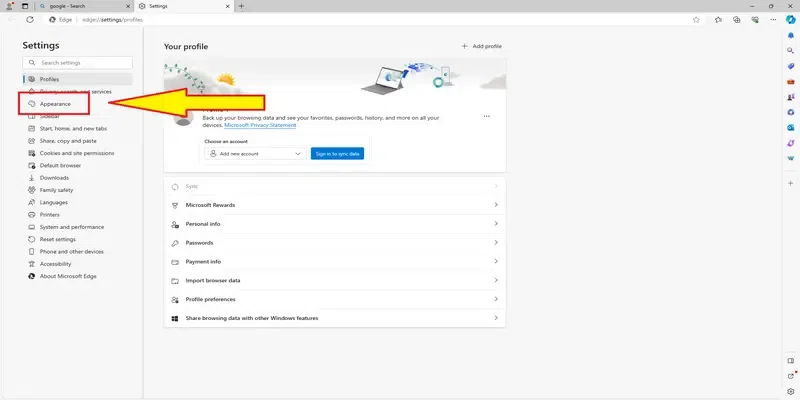
The option will appear in Settings > Appearance section.
Now that we have learned how to enable the Split Screen option in Microsoft Edge, here is how you can use it to open and operate two tabs at the same time on the same screen.
You can also choose from the ‘frequently visited’ section on the new split-screen section. It fetches the most recently visited websites for ease of operation. Remember, the Split Screen tab will act as two tabs on the same screen.
If you have opened more than two split-screen tabs then it will appear on the tab menu at the top. You can select any of them at your convenience.
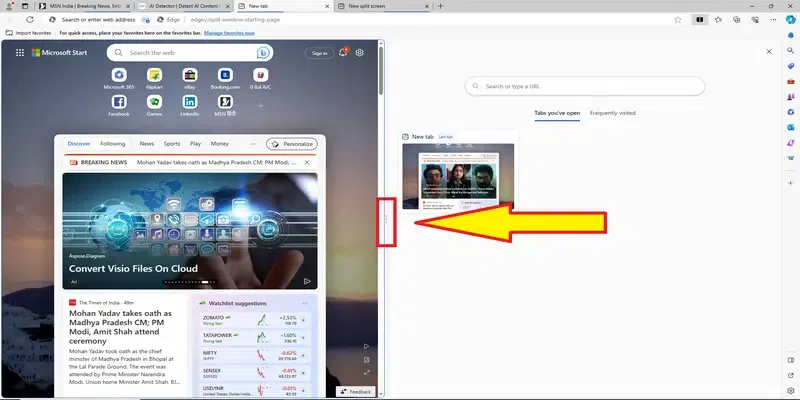
To adjust the width of the split screens, hover your cursor right in the middle of the partition of two halves. A drag option will appear. You can hold and drag the vertical bar right or left to adjust the screen size dedicated to each tab.
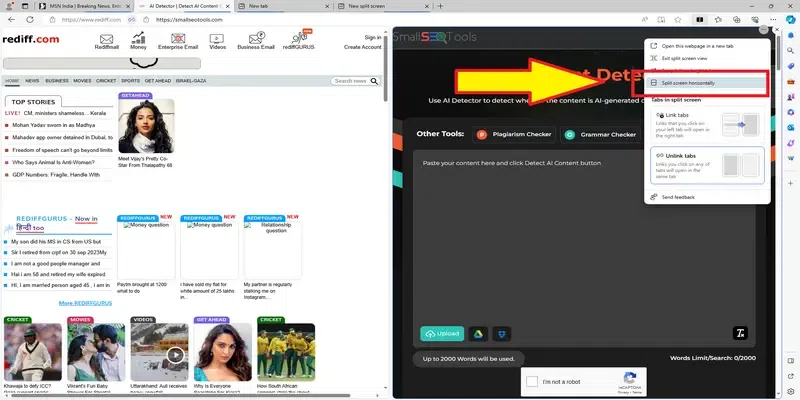
Here is what you need to do to use tabs on a split screen vertically.
The screen will automatically adjust two chosen tabs and split into two horizontal halves.
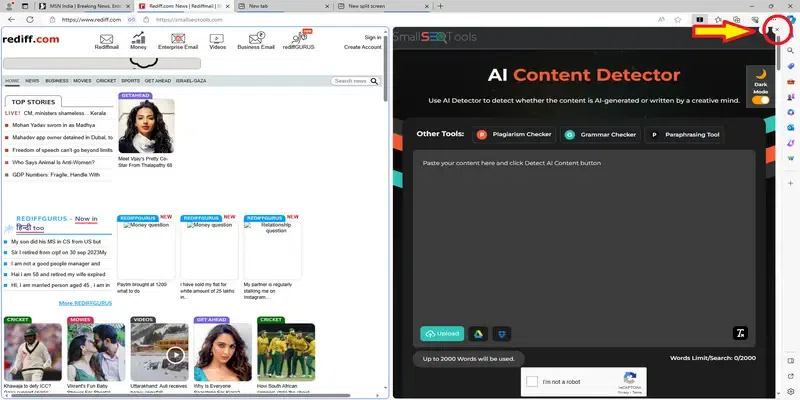
A cross sign will appear at the top right corner.
By doing so, the remaining tab will expand and the split screen mode will automatically turn off. To turn it on, you can press the Split Screen mode again and an empty tab will appear at the right side of your screen.
To close the current Split Screen mode in Microsoft Edge+, click the option at the right side of the address bar of your browser. The current split-screen tabs will open individually in separate tabs.
If you want to disable the Split Screen mode then follow these steps.
You will find this menu icon on the right side of the Address Bar.
You will be redirected to a new tab on the same browser.
A new section will appear on the same window. Scroll down to find more options.
Once done, this option will not appear on the top menu bar of your Microsoft Edge+ browser.
To disable the Split Screen mode permanently:
Click on the three dots at the right side of the address bar.
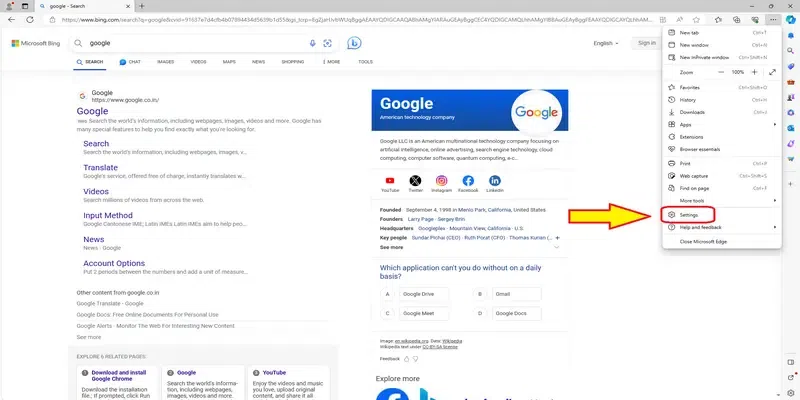
Navigate to the settings tab.
Scroll down to the Appearance section.
Find this section to customize the toolbar.
Toggle off the Split Screen button to remove it from your toolbar.
Choose the Split Screen option located in the Edge Sidebar or utilize the shortcut key "Ctrl+Shift+2" to split the selected tab into two parts. This feature allows you to divide the content of the tab for enhanced multitasking.
Now you know how to use split screen in Edge to work with two pages at the same time. This feature is perfect when you need to reference documents while writing, check prices across shopping sites, or follow tutorials while practicing. You can adjust the divider to give more space to either page, and even open links from one side in the other panel. For students, it's great for taking notes during online research, and professionals will find it useful for comparing data or reports.