|
VOOZH | about |
|
VOOZH | about |
Finding folders in Outlook can sometimes be a challenge, especially when they seem to have disappeared or become hard to locate. Whether you're trying to locate a missing folder in Outlook, using the built-in search function to find folders in Outlook, or dealing with a lost or deleted folder, there are effective methods to retrieve or access your important files. In this guide, we will walk you through the steps to locate a missing folder in Outlook, demonstrate how to find folders in Outlook using search, and explain how to recover a lost or deleted folder in Outlook. By the end of this article, you'll have the tools you need to quickly resolve any folder-related issues and stay organized in Outlook.
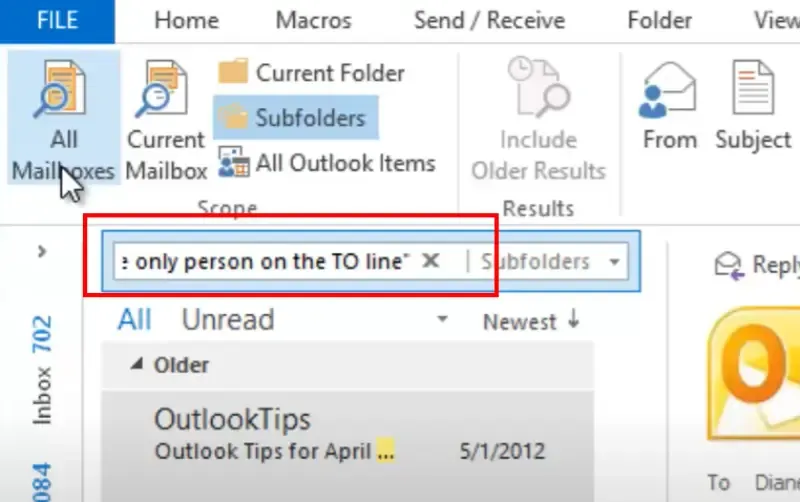
Outlook does not have a built-in folder search tool, but you can still search for emails within a folder and track down where they are located.
Launch Outlook on your desktop or web browser and ensure you're signed in.
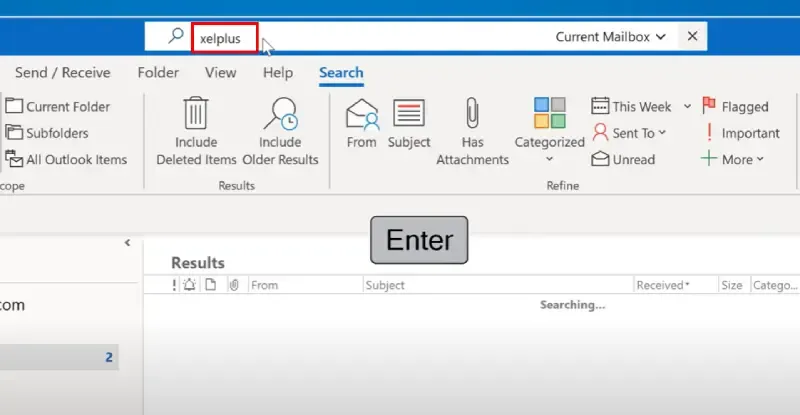
Locate the Search Bar at the top of the Outlook window to activate the search function.
Or Press
- Alt + Q
- Ctrl + E
This will Open a Drop Down where outlook will make some personalized suggestions based on your recent activity.
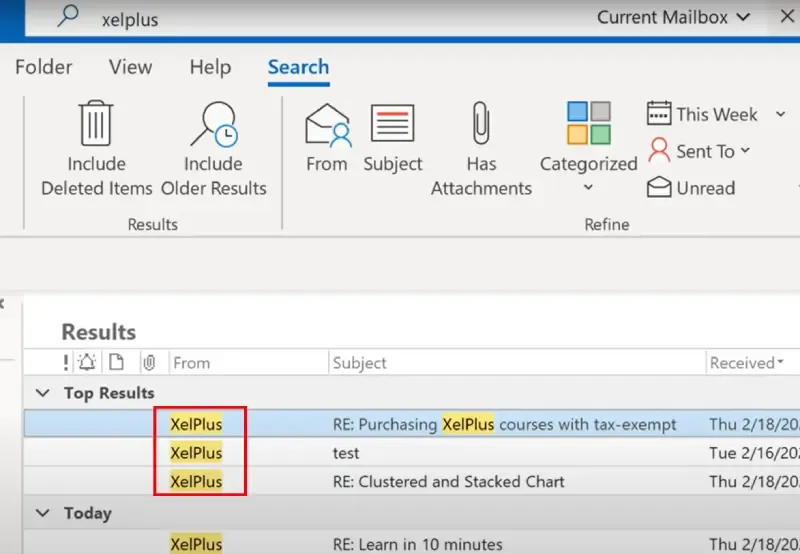
Type a relevant keyword or subject from an email you know is stored in the missing folder. You can also search using the sender’s name or a specific phrase from the email.
Check the “In Folder” column in the search results to see where the email is located. This column shows the folder name where the email is stored.
Manually navigate to the folder in the folder pane on the left side of the Outlook window and access your emails.
Pro Tip: If the “In Folder” column is not visible in the search results, right-click the column headers, select Field Chooser, and add the "In Folder" field to display the folder location.
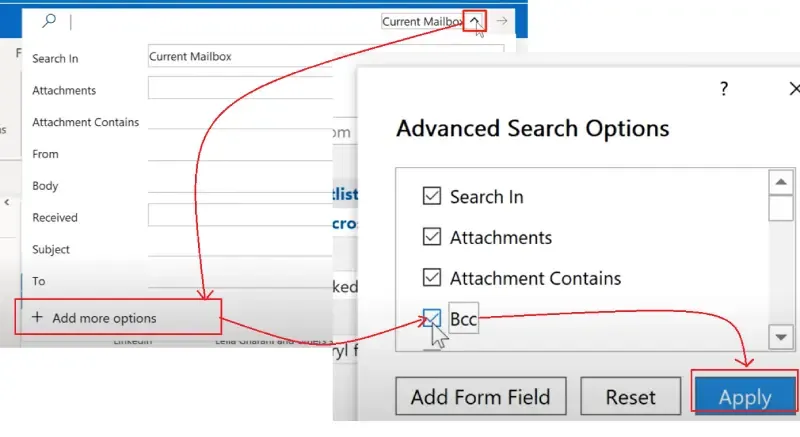
For further optimize and simplify your search, you can use the "Advanced Search" feature.
If you can’t find a folder in Outlook, it may have been accidentally moved, hidden, or deleted. Try the following methods to locate it.
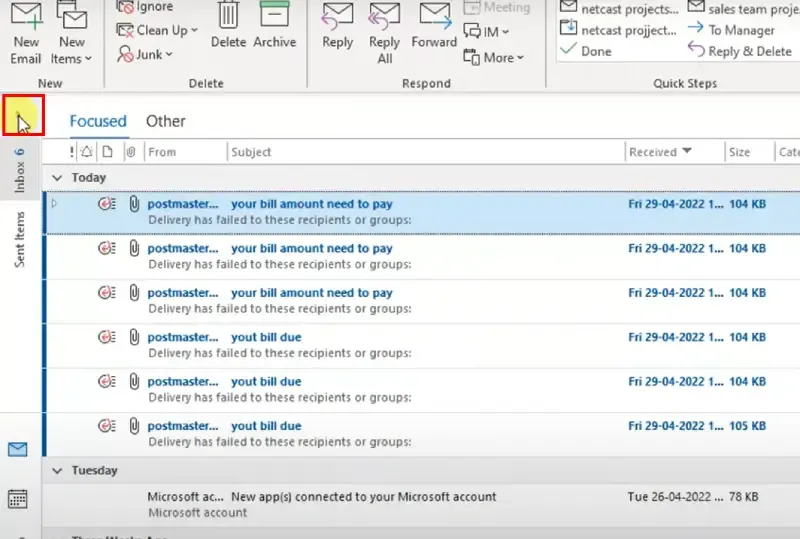
Sometimes, a folder may be nested inside another folder, making it harder to find. Follow the below steps to expand all outlook folders.
Click the small arrow next to "Inbox" in the left panel to display all folders.
Look inside other folders, as your missing folder may have been unintentionally dragged into a different location.
If the folder was deleted by mistake, check the Deleted Items or Trash folder for recovery.
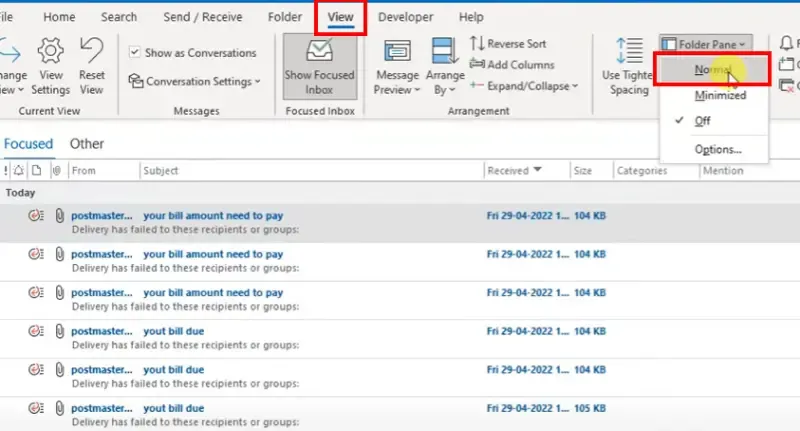
If the Outlook folder pane is hidden, you might not see all available folders.
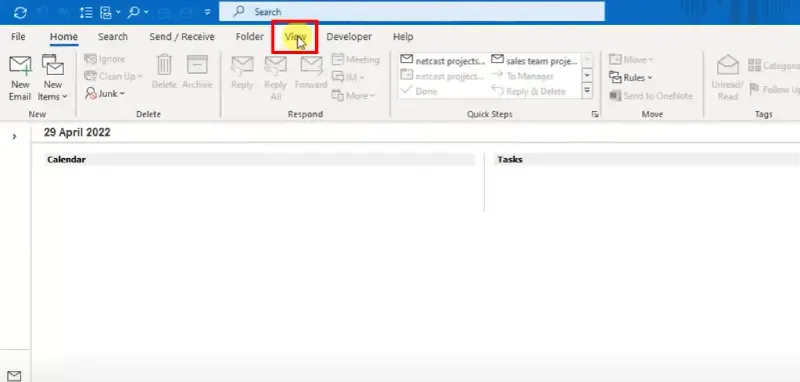
Click on the View option in the Outlook menu.
Select Folder Pane > Normal to ensure all folders are displayed.
Navigate through the folder pane to check if the missing folder is now visible.
💡 Pro Tip: If your folder structure is too complex, drag and drop frequently used folders to a more accessible location for easy access in the future.
If you're using Outlook Web, some folders may be hidden or collapsed within the folder pane. Follow these steps to find folders in in Outlook Web (Outlook.com & Office 365).
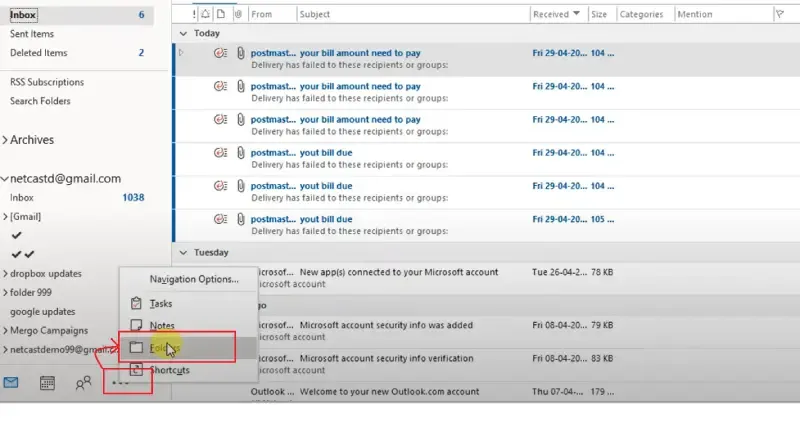
Click the "More" button at the bottom of the folder pane to display additional folders.
Expand the folder list by clicking the small arrow icons next to folder names to reveal any hidden subfolders.
Use the Search Bar at the top to find emails stored within the missing folder and identify its location.
Pro Tip: Be cautious when using drag-and-drop in Outlook Web, as folders can easily be moved unintentionally, making them harder to locate.
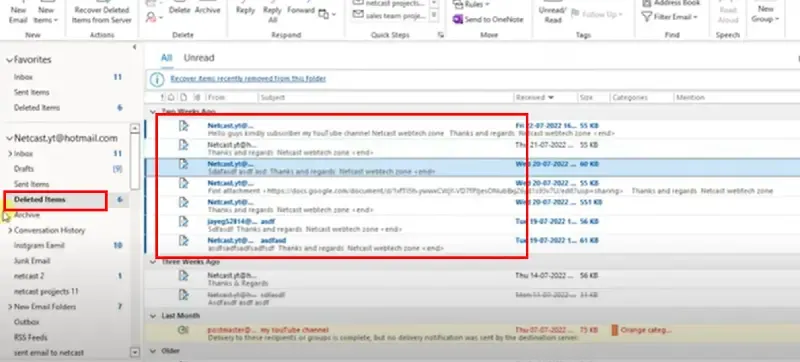
If you accidentally deleted a folder in Outlook, you can restore it from the Deleted Items or Trash folder. Follow these steps to recover it.
Open Outlook and navigate to the Deleted Items or Trash folder in the left panel.
Locate the Lost Folders by scrolling through the list of deleted items.
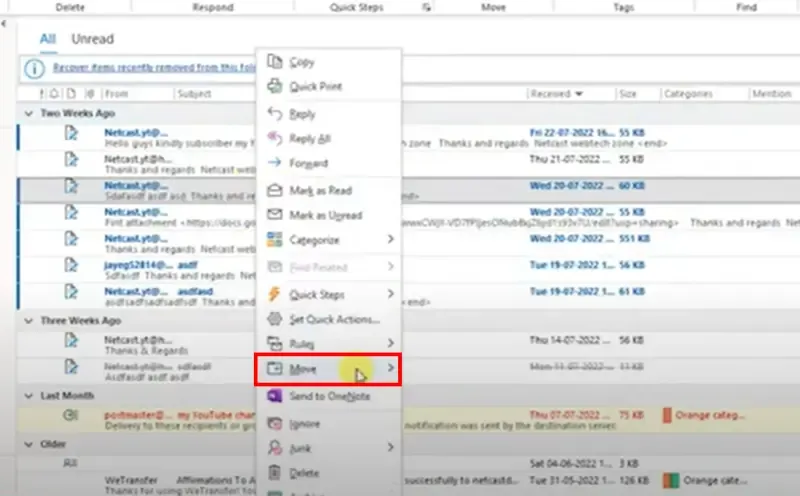
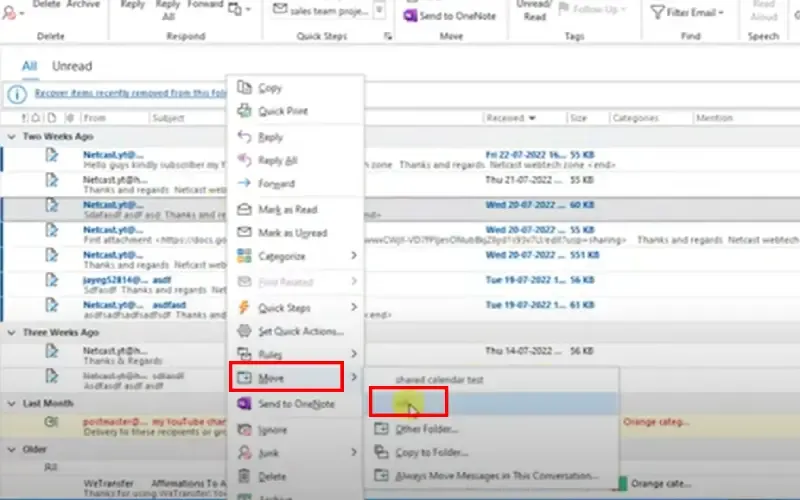
Right-click the folder and select Move Folder from the options.
Choose the Destination to restore the folder, either back to its original location or a different folder of your choice.
Pro Tip: If the folder is not in Deleted Items, use Outlook’s Recoverable Items feature by selecting "Recover Deleted Items" inside the Deleted Items folder to retrieve permanently deleted content.
If you frequently struggle to locate important folders, you can pin them to Favorites for quick and easy access.
Right-click on the desired folder in the folder pane.
Select "Add to Favorites" from the menu.
The folder will now appear in the Favorites section at the top of the folder pane.
Pro Tip: You can drag and drop folders within the Favorites section to rearrange them in your preferred order for better organization.
If Outlook is not displaying all folders, follow these troubleshooting steps.
Step 1: Press Windows + R and type:
outlook.exe /safe Step 2: Click OK and check if the missing folders appear.
Pro Tip: If your Outlook folders are missing after an update, resetting the folder view may help. Click View > Reset View in Outlook settings.
Now that you know how to find folders in Outlook, you can tackle any folder-related issues with confidence. Whether you need to locate a missing folder in Outlook, use search to quickly find your folders, or recover a lost or deleted folder in Outlook, these methods will ensure that your email organization remains intact. By applying these techniques, you can keep your Outlook environment organized and efficiently manage your emails, making your workflow much smoother.