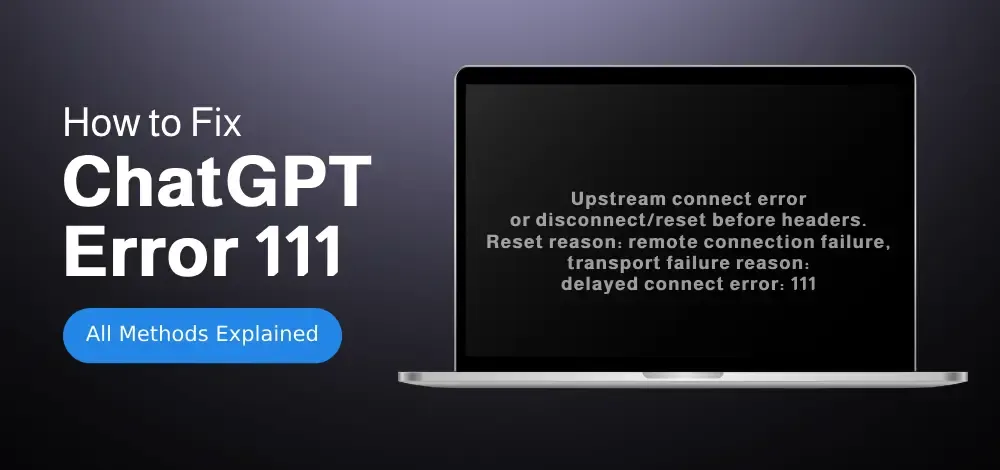
ChatGPT Error Code 111: How to Fix "Upstream connect Error" (Quick Fixes)
Last Updated : 11 Apr, 2025
Are you thinking, "Why is ChatGPT not loading?" - Getting ChatGPT Error Code 111: Upstream Connect Error can be frustrating—especially when you're in the middle of an important task or trying to generate content. This error typically indicates a failure in the connection between your client and the server, often due to server overload, unstable network, or proxy/gateway issues.
In this quick-fix guide, we’ll understand and explore the most effective solutions to resolve Error 111 on ChatGPT. Whether it’s caused by a backend outage, local network problem, or browser settings, these steps will help you reconnect and restore access quickly on any device like Mac or Windows laptop.
Understanding Common Causes of Error Code 111
Server-Side Issues: Temporary outages or maintenance on OpenAI’s servers.
Network Restrictions: Firewalls, VPNs, or proxies blocking the connection.
Docker/Container Misconfigurations: Incorrect network settings in Docker deployments (e.g., port conflicts).
IP Blocking: Shared or flagged IP addresses triggering security restrictions.
Client-Side Errors: Outdated browsers, cached data, or unstable internet connections.
How to Fix Upstream Connection Errors in ChatGPT? All Methods and Fixes
Explore these proven methods to fix the Upstream Connect Error and get ChatGPT working smoothly again without interruptions:
Method 1: Check OpenAI Server Status
Visit the OpenAI Status Page to confirm if there’s an ongoing outage.
If the status shows operational, proceed to troubleshoot your local setup.
The Upstream Connect Error 111 is usually fixable with basic troubleshooting. Start with internet checks and cache clearing, then move to advanced steps like DNS adjustments or firewall tweaks. If all else fails, contact OpenAI support. With this guide, you’ll minimize downtime and get back to using ChatGPT smoothly!