|
VOOZH | about |
|
VOOZH | about |
How to Highlight Words in PowerPoint: Quick Steps
- Open PowerPoint >> Select Text
- Home Tab >> Click the Highlight Button
- Choose the Highlight Color
PowerPoint presentations are often used to convey important information quickly and clearly. Highlighting key words or phrases in your slides can help emphasize the most important points and guide your audience's attention. Whether you're presenting for business, education, or personal projects, mastering how to highlight words in PowerPoint can make your slides more engaging and impactful.
In this guide, we’ll walk you through the different ways you can highlight text in PowerPoint, from using built-in highlighting tools to customizing your own text effects.
Table of Content
While PowerPoint doesn’t have a native highlighter tool like Word, there are several ways to effectively highlight text. Let’s look at the most common methods:
PowerPoint 2019 and Office 365 now have a built-in text highlight feature that is easy to use and effective. Follow the below steps to highlight text using the Text highlight tool:
Open your PowerPoint presentation and navigate to the slide where you want to highlight text.
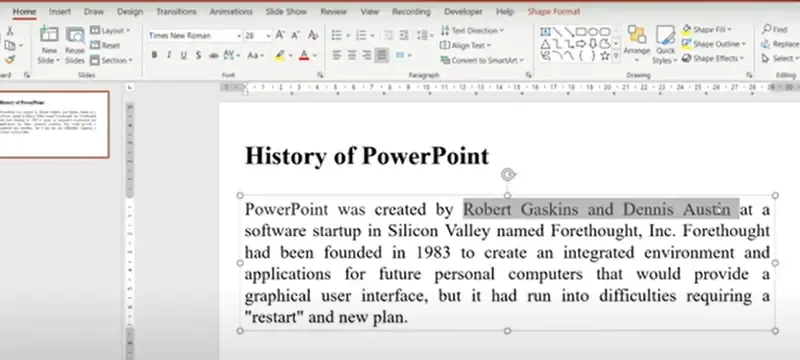
Click and drag to select the text you want to highlight.
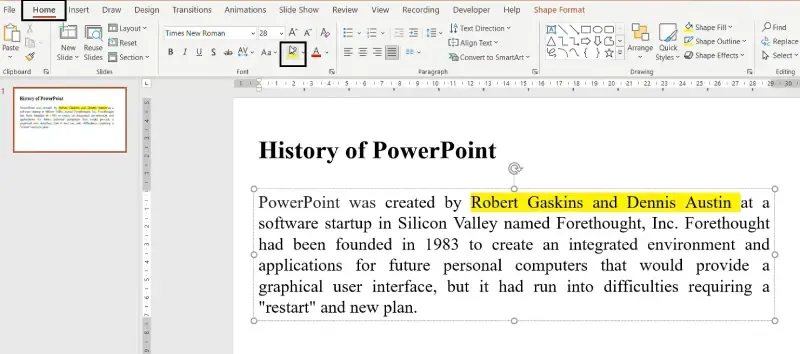
Go to the "Home" tab on the ribbon at the top of the screen. In the Font group, click the "Text Highlight Color" button (the icon looks like a pen with a yellow background).
From the dropdown, choose your preferred color.
This is the quickest and easiest way to highlight text in PowerPoint and works just like highlighting text in Word.
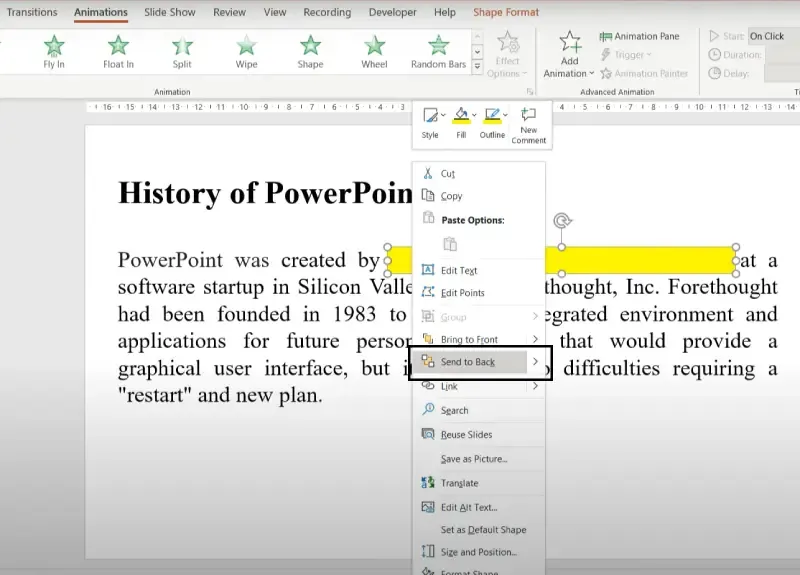
For earlier versions of PowerPoint or if you want more design flexibility, you can use shapes (rectangles) to simulate highlighting.
Select the text you want to highlight.
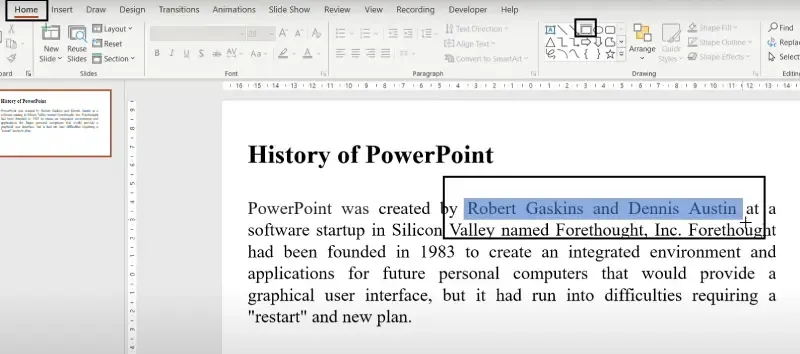
Go to the "Insert" tab and click on "Shapes". Select the Rectangle shape and draw it over the text.
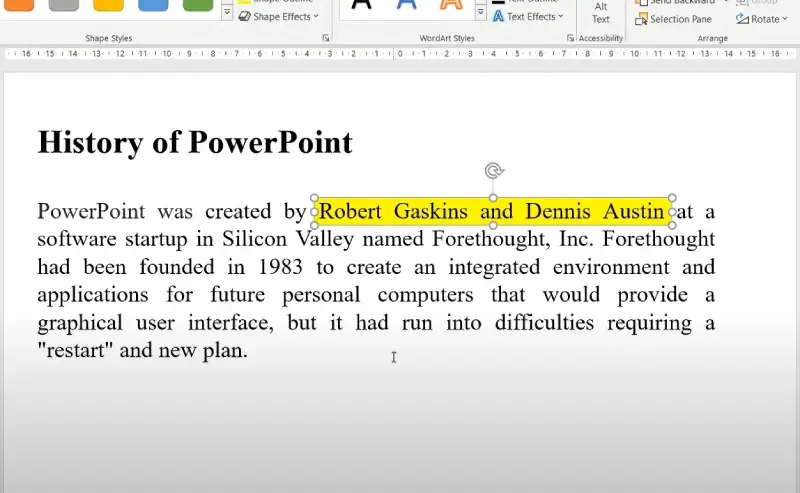
Right-click the rectangle and choose "Format Shape". In the Format Shape pane, click Fill, choose a color (e.g., yellow), and adjust transparency to about 50%.
Now, The text is highlighted.
Adding text effects can help your highlighted words stand out even more, making them bolder and more eye-catching.
Select the text you want to highlight.
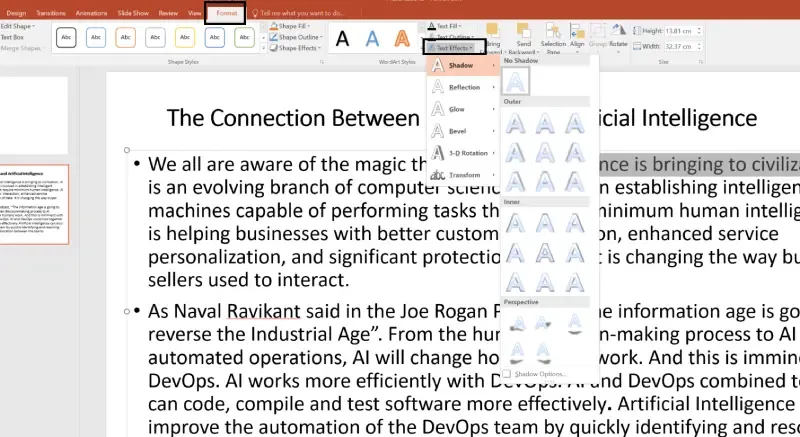
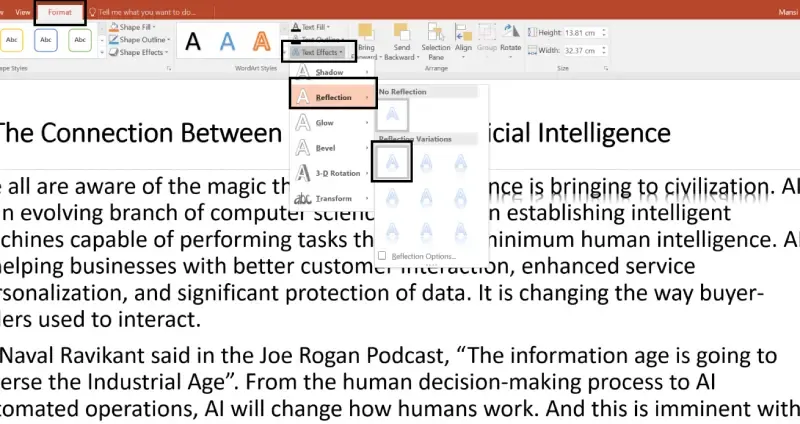
Go to the "Format" tab and click on the "Text Effects" button (the “A” with a glow effect).
From the dropdown, choose "Glow", "Shadow", "Outline", or "Reflection".
Adjust the settings for the effect to make the text more prominent.
Mastering how to highlight text in PowerPoint is a simple yet effective way to make your presentations more engaging. Whether you're using the built-in highlight tool, shapes, text effects, or animations, each method adds emphasis to key points and ensures your audience stays focused on what matters most. By applying these techniques, you can create polished, professional presentations that capture attention and communicate your message clearly.