|
VOOZH | about |
|
VOOZH | about |
Have a Word file you need to work on using Google Docs? You're not alone. Many users frequently switch between Microsoft Word and Google Docs for editing, sharing, or collaborating. The good news? You can import a Word document into Google Docs quickly—without losing formatting or content.
Whether it's a resume, a school assignment, or a collaborative project, this guide walks you through how to upload, open, and edit Word documents in Google Docs with ease. It also highlights what you can expect when converting a .docx file and how to manage compatibility.
Open Google Docs in your web browser.
Once you've launched Google Docs, start by generating a new blank document to serve as your editable workspace.
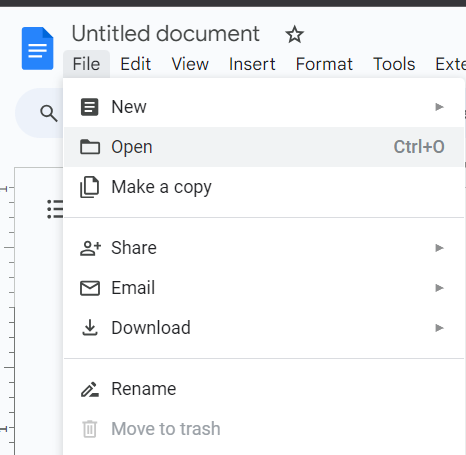
After creating a blank document, the next step involves opening your Word document within Google Docs. Begin by navigating to the "File" menu, and then select the "Open" option to access and import your Word document from your system.
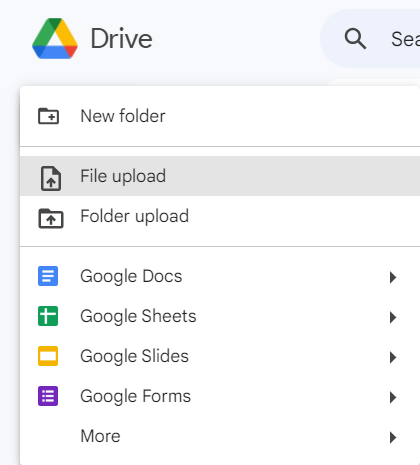
Start by uploading your document to Google Drive. This can be accomplished by going to Google Drive, clicking the "+ New" button, and selecting "File upload." Locate and upload the desired document from your local system.
Tip : To upload the file on Google Drive > Click New button > Choose File Upload option > Select your file and upload it.
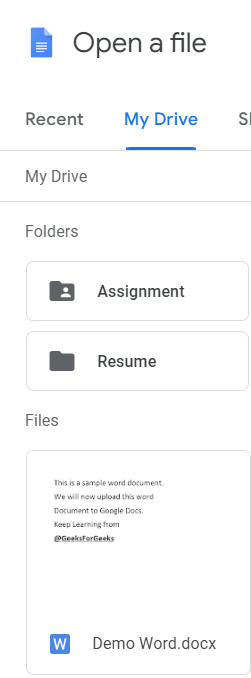
After successfully uploading the file to Google Drive, now find the uploaded file. Simply click on the file to open it within Google Docs.
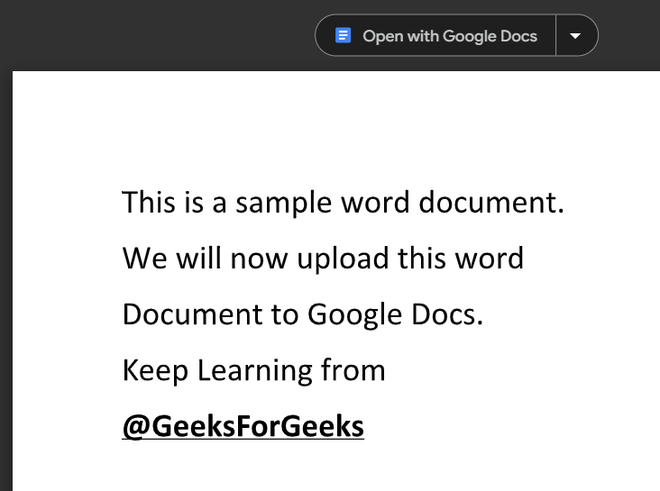
Now, just select the "Open with Google Docs" option, conveniently located at the top of your screen. You'll observe that your file is promptly transferred to Google Docs, allowing you to commence your work seamlessly within the platform.
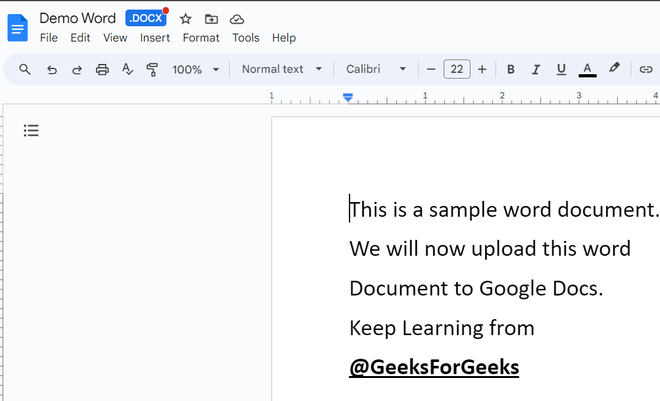
The Word document is now successfully opened in Google Docs and you can now proceed with getting your work done by making use of the tools and services offered by Google Docs.
To maintain the formatting of the Word document during the conversion to Google Docs, simply upload and directly convert the Word file into Google Docs. Here's a step-by-step guide on how to do it.
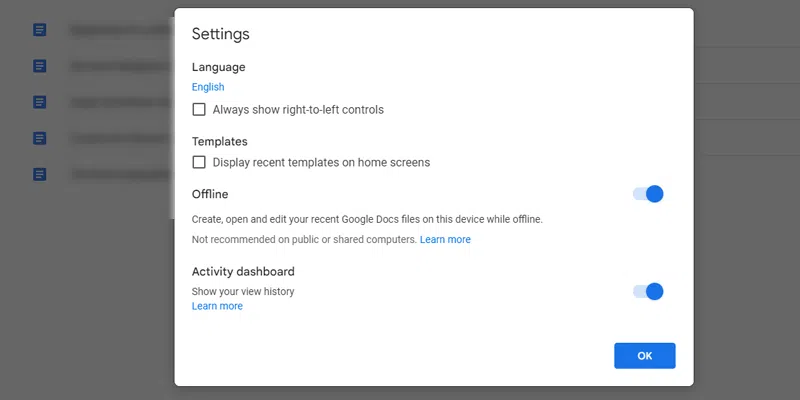
Navigate to the top left corner of Google Docs. Click the three bars and then select Settings.
Now Enable the Offline Function.
Any Word document you convert will retain its initial formatting when working offline in Google Docs.
Opening a Word document in Google Docs is necessary to get your work completed if you want to edit a pre-existing document while you are working in a team or if you are working alone. It is a very easy process and can be completed in just a few clicks. As discussed earlier, to work on a pre-existing document on your system in Google Docs, we must first learn how to open a Word document in Google Docs.
For example, you have a Word document in your system and you want to make changes to it or you are working in a team and want to open a document to work in the document collaboratively with your team partner. So in this case you can simply open that Word document in Google Docs and there you can edit it and complete your work.
Bringing your Word documents into Google Docs is simple, efficient, and ideal for real-time editing and sharing. Once uploaded, you can edit, collaborate, and save changes seamlessly in Google Docs, or even export back to Word format if needed. With just a few clicks, your files are ready for cloud-based access and teamwork anytime, anywhere.

-768.png)