|
VOOZH | about |
|
VOOZH | about |
How to Add GIF in PowerPoint: Quick Steps
- Open Your PowerPoint Presentation >> Select the Slide
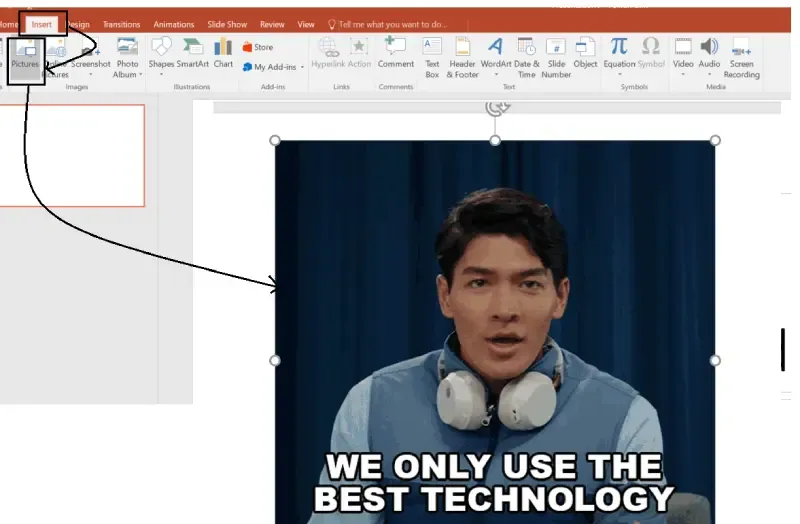
- Go to Insert Tab>> Choose Pictures
- Select your GIF >> Press OK
GIFs are a fun and engaging way to enhance your PowerPoint presentations. Whether you're presenting a business report, explaining a concept, or adding some humor to a topic, GIFs can bring your slides to life and capture your audience’s attention. However, many people don’t know how to add GIFs to PowerPoint presentations effectively.
This guide will walk you through the process of embedding a GIF in PowerPoint, allowing you to insert or put a GIF into PowerPoint slides, customize the animations, and make your presentations more dynamic. Whether you’re creating a professional presentation or an educational one, learning how to insert a GIF on PowerPoint will make your slides stand out.
Table of Content
Before getting into how do you add gifs to powerpoint, here are some key reasons why you might want to add GIFs to a PowerPoint presentation:
Whether you're a student presenting a project, a marketer sharing a pitch, or a business professional giving a report, embedding GIFs in PowerPoint can dramatically improve the delivery and engagement of your content.
PowerPoint offers simple and easy ways to embed GIFs in PowerPoint. Here’s how you can do it:
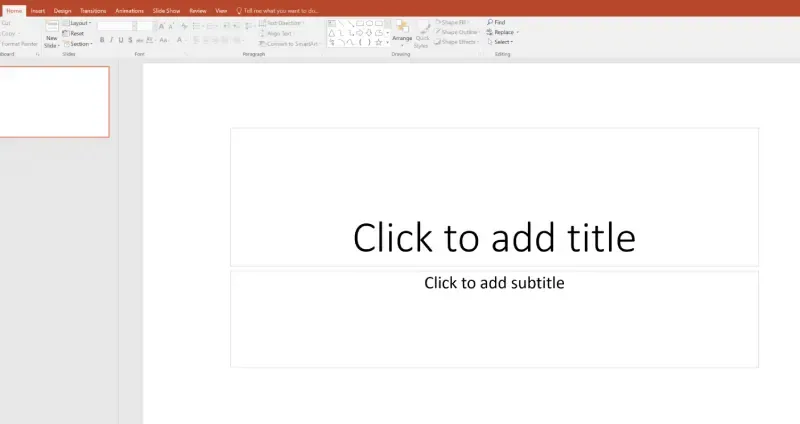
Start by opening Microsoft PowerPoint on your computer. You can either create a new presentation or open an existing one. Then, select the slide where you want to place your GIF. Make sure to choose a slide that makes sense for a visual element like a GIF.
If you already have a GIF saved on your computer or an external storage drive, make sure it's accessible. If not, you can always download GIFs from websites like Giphy or Tenor.
To make sure your GIF is properly integrated, check that the file format is .gif (not .jpg, .png, or other formats).
Once you have your GIF ready, here’s how you can insert it into PowerPoint:
The GIF will now appear on your selected slide.
Once your GIF is inserted, you can resize and position it on your slide. Simply click on the GIF, then drag the corner handles to adjust its size. You can also move the GIF around to place it where you want it on the slide.
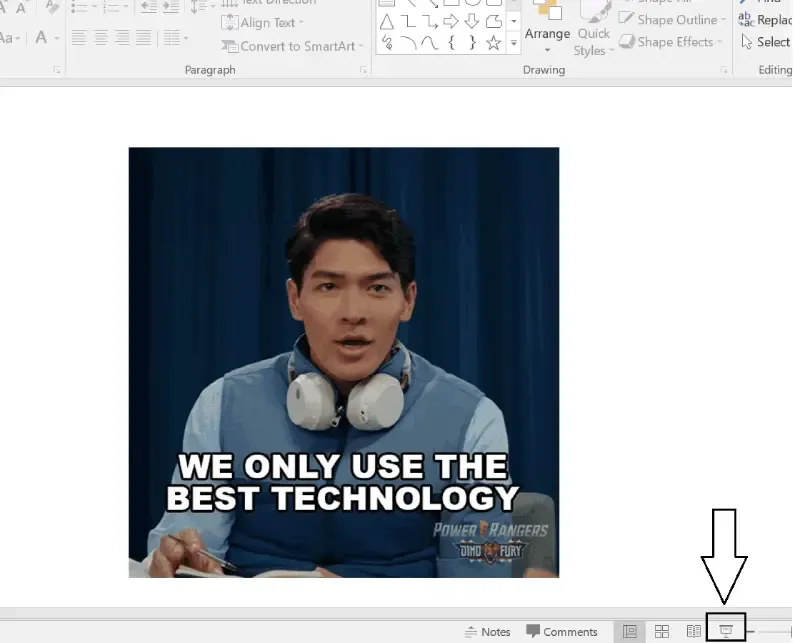
To check how the GIF will appear during the presentation:
If you want to control how the GIF plays during the presentation, you can adjust the settings in PowerPoint’s Animation Pane:
Pro Tip: Keep the animation duration consistent to maintain a professional flow. Don’t overuse animations or GIFs, as they can be distracting if applied too frequently.
Here are some common problems you might encounter when embedding a GIF in PowerPoint, along with how to fix them:
This could happen if the "Loop until Stopped" option is not selected:
If the GIF appears distorted or out of proportion, adjust the size using the corner handles while holding Shift to maintain its aspect ratio.
If the GIF doesn’t start when the slide is shown:
While GIFs can enhance your presentation, it’s important to use them wisely. Here are some best practices for adding GIFs to PowerPoint:
Incorporating GIFs in PowerPoint can transform your slides from static to dynamic, engaging your audience and making your message clearer. Whether you’re explaining complex data, adding humor, or simply spicing up a presentation, GIFs are an effective tool to captivate your audience. By following the simple steps in this guide, you’ll be able to insert a GIF in PowerPoint and use it to its full potential, making your presentations more engaging and impactful.
Start adding GIFs to your next PowerPoint presentation and watch your audience’s reaction!