|
VOOZH | about |
|
VOOZH | about |
Want to log out of Outlook but can’t find the option? Whether you're using Outlook on a Windows PC, Mac, iPhone, Android, or web browser, signing out properly is crucial for protecting your email privacy—especially on shared or public devices.
This step-by-step guide will walk you through how to log out of Outlook on any device, including Microsoft Outlook 365, the Outlook app, and Outlook Web. We’ll also show you how to remotely log out of Outlook from all devices and fix common logout issues.
Table of Content
If you use Outlook via a web browser, signing out is straightforward. This method applies to users accessing Outlook.com or Office 365 on Chrome, Edge, Firefox, or Safari.
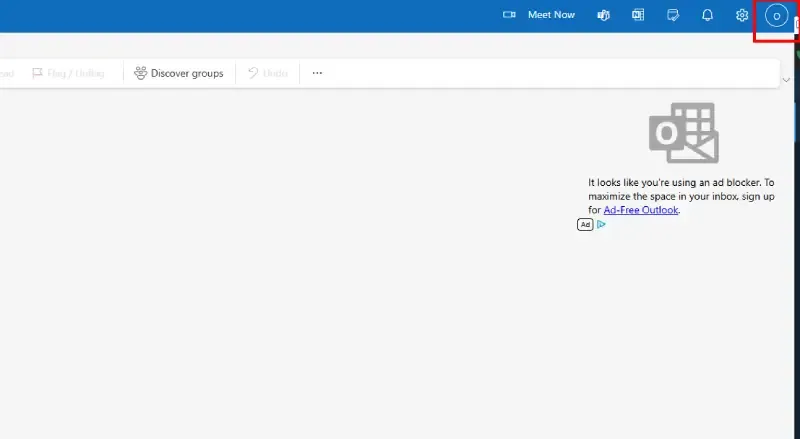
Go to Outlook.com and log into your account.
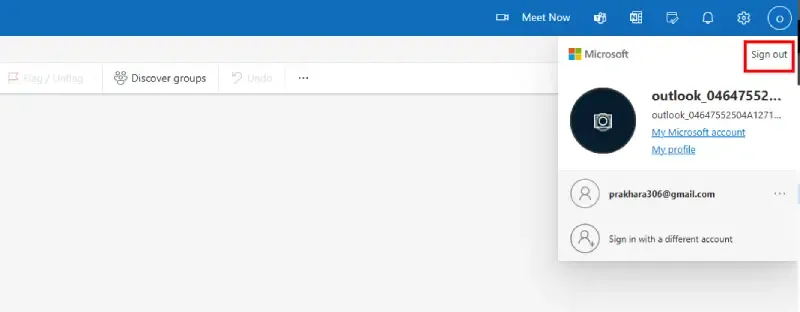
In the top-right corner of the screen, locate and click on your profile icon or initials.
From the dropdown menu, click "Sign Out" to disconnect your account.
If you’re using a public or shared computer, clear the browser’s cache and close the tab to prevent auto-login.
Pro Tip: If Outlook keeps logging you in automatically, uncheck "Keep me signed in" when entering your credentials.
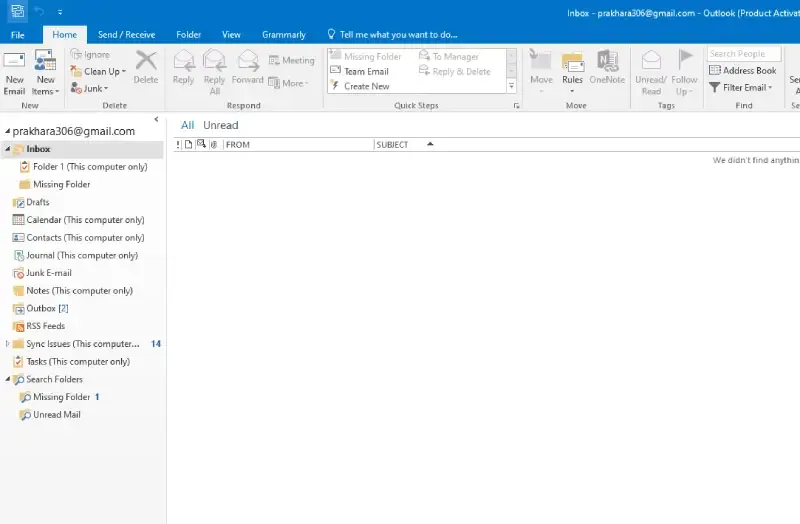
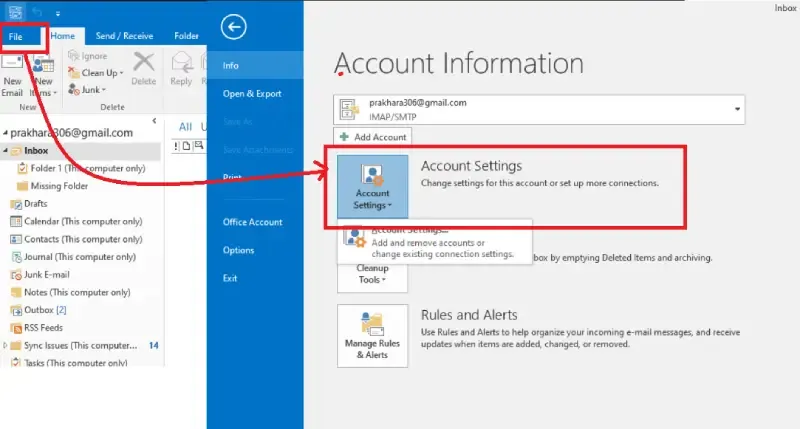
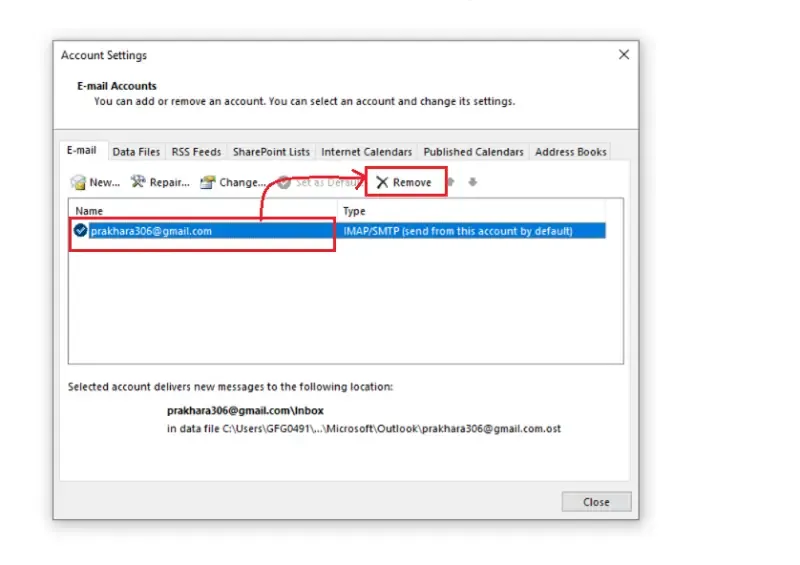
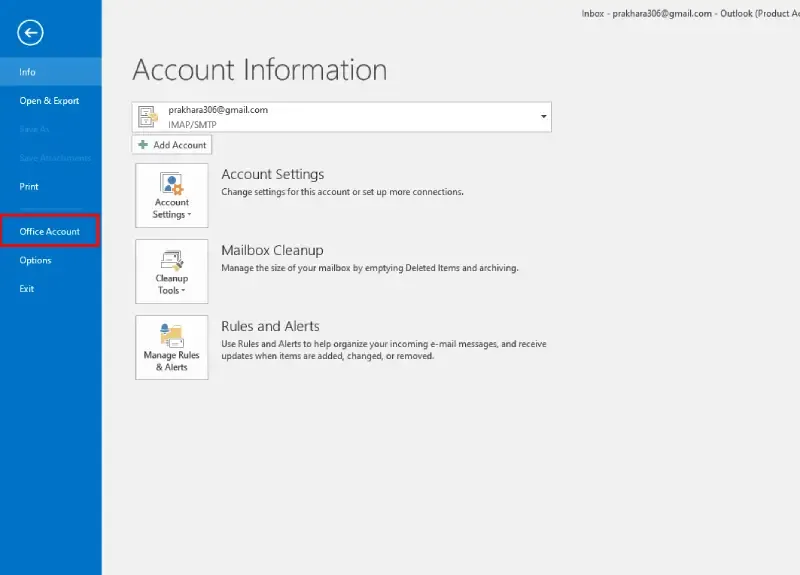
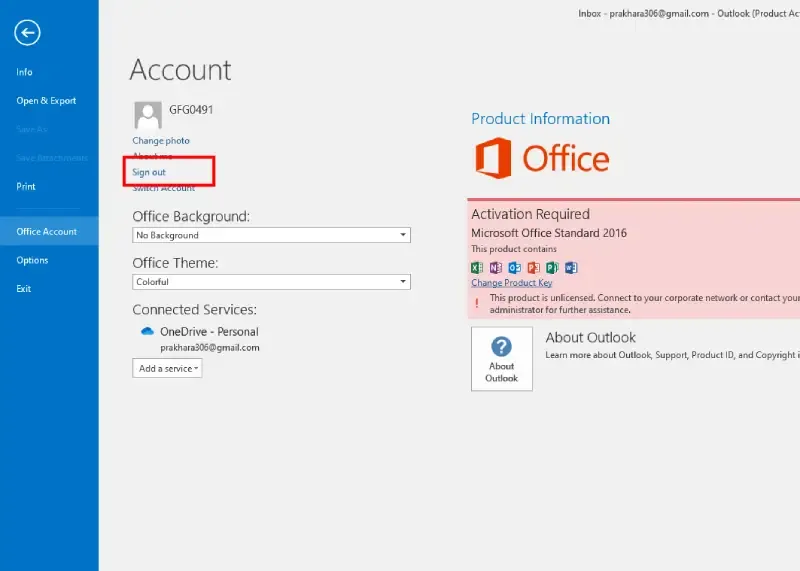
Unlike the web version, the Outlook desktop app for Windows does not have a dedicated "Sign Out" button. Instead, you need to remove the account or sign out of your Microsoft account.
If you want to log out without affecting your Microsoft account, follow these steps:
If you’re using Outlook with a Microsoft 365 account, follow these steps to sign out completely:
Pro Tip: Removing your account does not delete your emails—you can always re-add your account later.
Logging out of Outlook on Mac requires removing the email account or signing out of your Microsoft account.
Pro Tip: If you use Microsoft 365, logging out of Outlook will also sign you out from other Office apps like Word and Excel.
The Outlook mobile app (iOS & Android) does not have a direct “Sign Out” button. You must remove the account to log out completely.
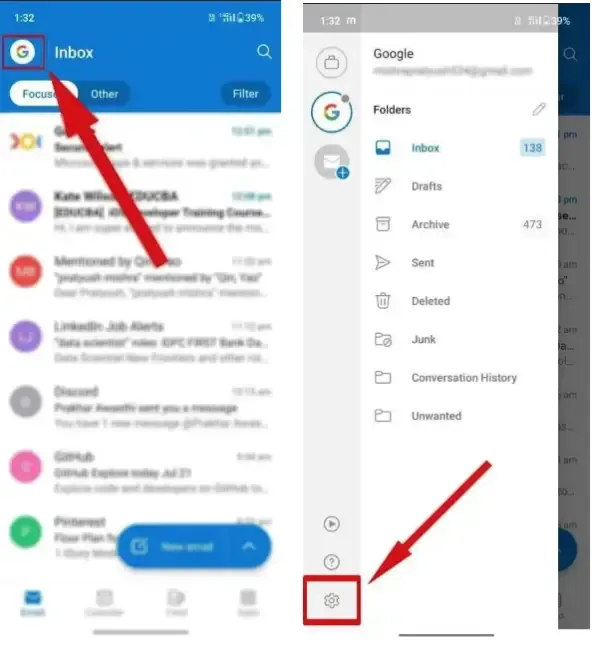
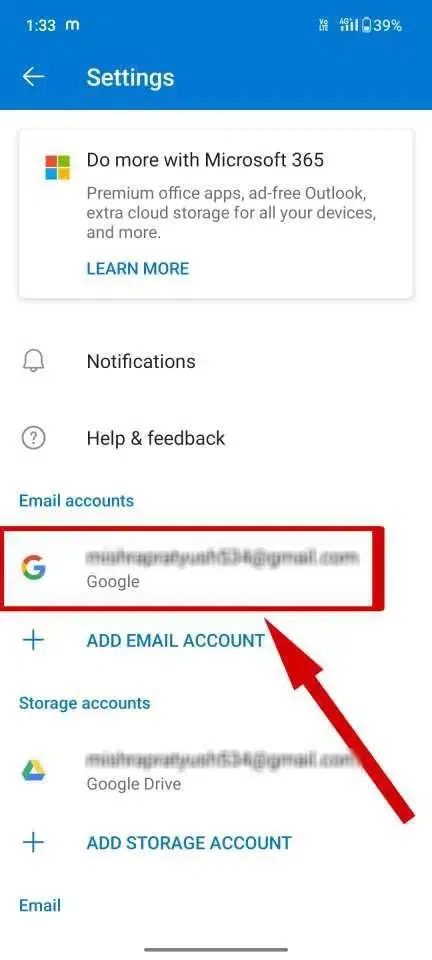
Follow the below steps to remove your email account from the outlook Mobile app:
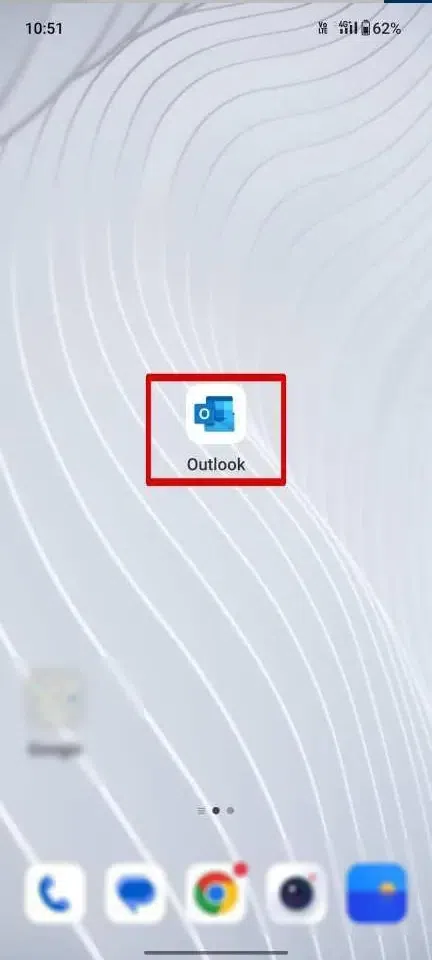
Open the app by tapping on the Mobile Outlook App on your mobile phone.
Now, choose the email account you wish to sign out from within the mobile Outlook app.
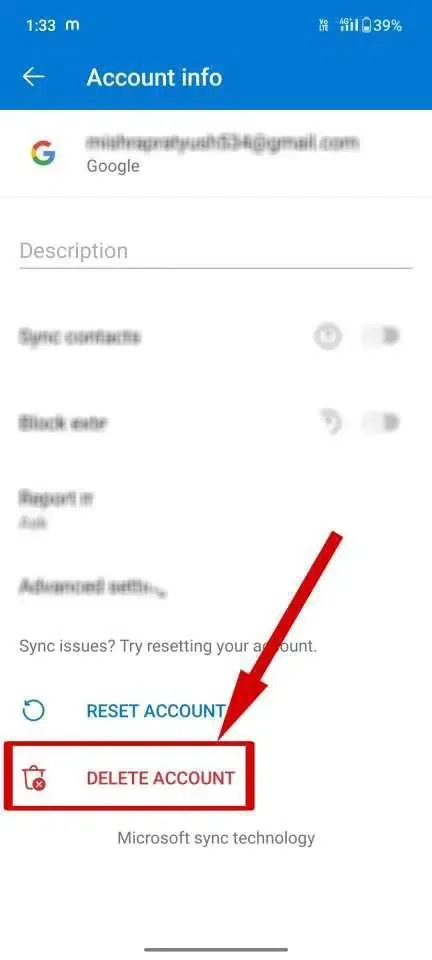
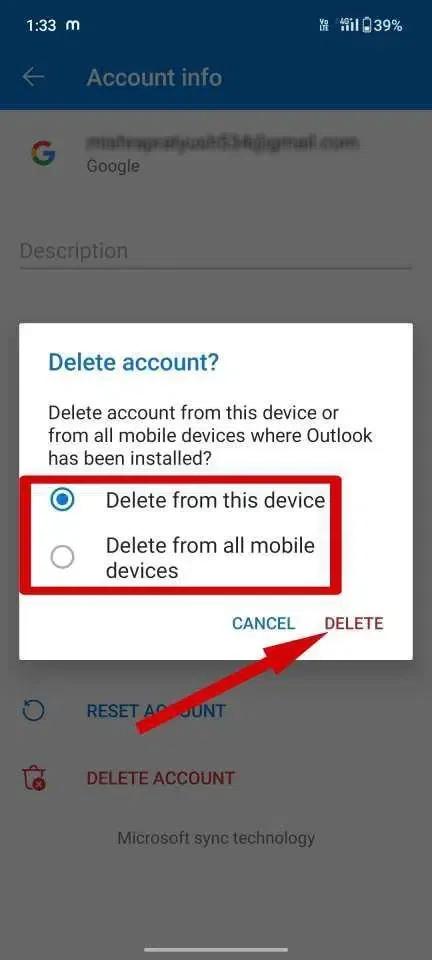
To sign out from Microsoft Mobile Outlook, go ahead and choose the "Delete Account" option.
Once you choose the "Delete Account" option, you will be presented with two choices: "Delete from this Device" or "Delete from all mobile devices." Pick your preference and then proceed to fully sign out from the Microsoft Outlook app on your mobile phone.
If you don’t want to remove your account but need to log out, you can clear the app data:
Pro Tip: If you only want to switch accounts, go to Settings > Add Account instead of deleting the current one.
If you forgot to log out from Outlook on a public or shared device, you can sign out remotely using your Microsoft account security settings. Follow the below steps to Log Out of Outlook Remotely:
Pro Tip: If your device was lost or stolen, change your Microsoft password immediately for added security.
Fix:
- Clear browser cookies & cache (for web users).
- Uncheck "Keep me signed in" when logging in.
- Disable auto-login in your Microsoft account settings.
Fix:
- Outlook desktop does not have a direct logout option. Instead, remove your account via File > Account Settings.
Fix:
- Force-close the app and restart your phone.
- Uninstall and reinstall Outlook if the issue persists.
Signing out from Microsoft Outlook on both a laptop and mobile device involves a straightforward process. knowing how to logout of Outlook is essential for securing your account across devices. Whether you're figuring out how to sign out of Outlook on desktop or mobile, following the correct steps ensures a smooth and secure Outlook logout process.
On a laptop, navigate to the account menu, click on your profile picture, and select "Sign Out." Ensure that you have properly exited the application to ensure the sign-out process is complete. On a mobile device, open the Microsoft Outlook app, tap the profile picture icon, and then select "Sign Out" from the account menu. Confirm your choice to successfully sign out from the app.