|
VOOZH | about |
|
VOOZH | about |
Discord, a widely utilized free communication application, facilitates voice, video, and text interactions, fostering social connections among communities and friends. Due to its widespread usage as a hub for various communities, managing a server independently can pose challenges. Discord is an ideal platform for podcasting due to its live session hosting capabilities, robust communication stability, and inclusion of voice channels. Utilizing the stage channel simplifies podcasting on Discord, where a designated speaker hosts the show and invites members to participate.
So, in this article, we will explore how we can create a podcast using Discord's stage channel.
Here in this section, we have discussed the detailed steps to do a podcast over Discord. So, follow the steps given below to create a podcast on Discord.
To launch the Discord application on your desktop, locate the Discord icon and give it a click or you can simply access Discord directly through any web browser on your desktop.
To make a podcast in Discord you will need a server in which you can organize your podcast, so first of all create your by following the steps.
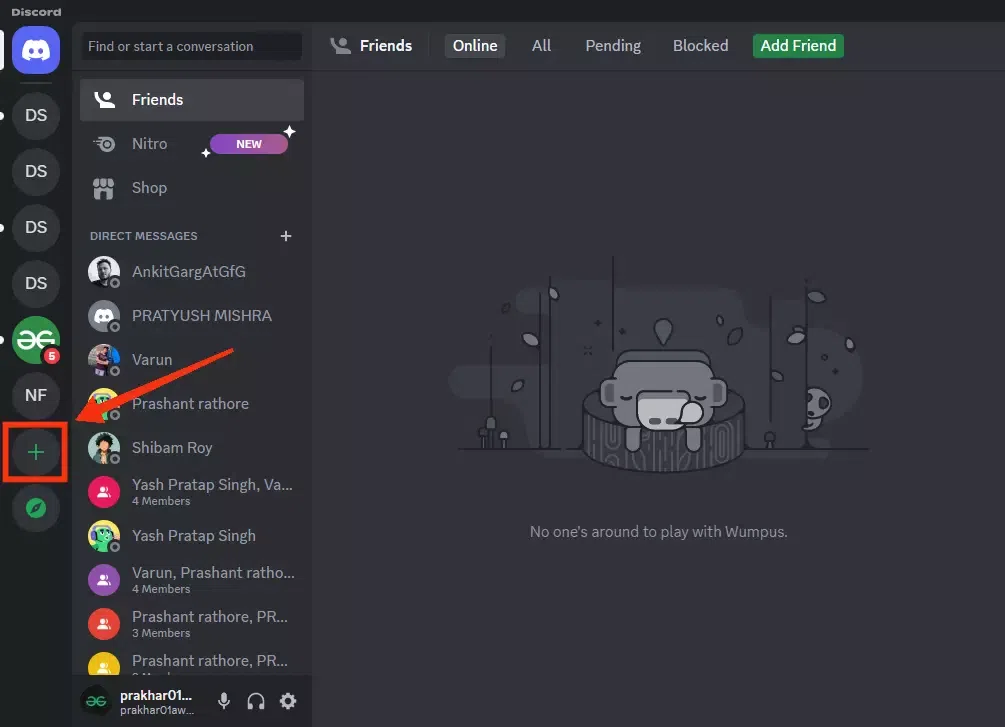
In your Discord's home page find the "+" icon present at the bottom of your server list and give it a click.
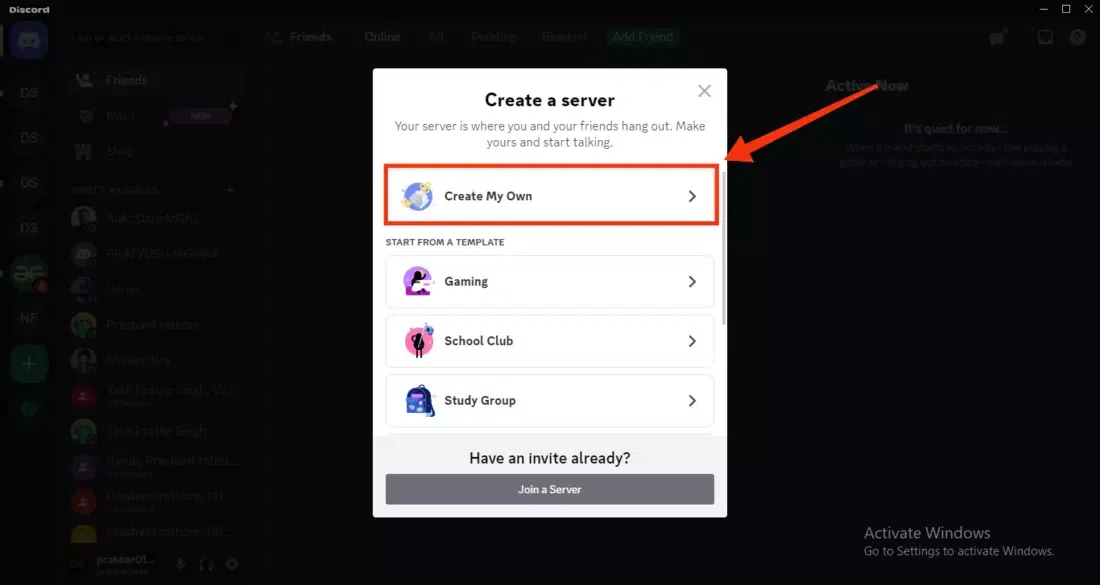
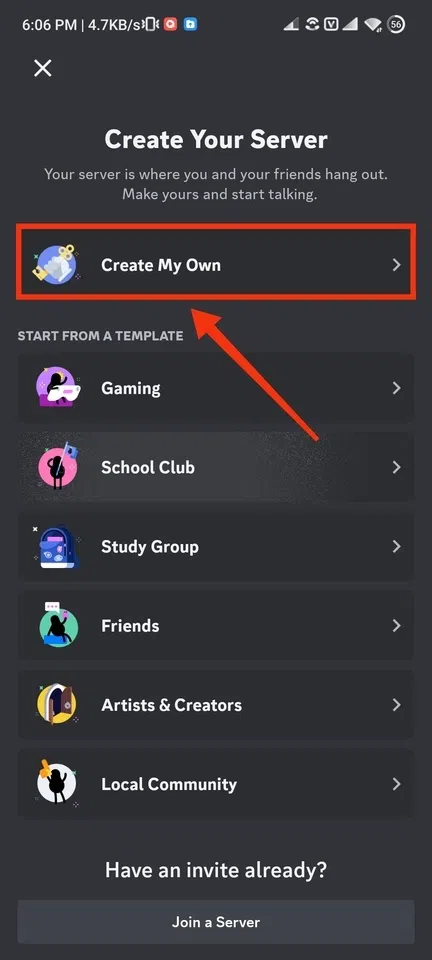
Now select the field or work for which you are creating the server or you can go with the "Create My Own" button and it will create your server in which you can perform anything you want.
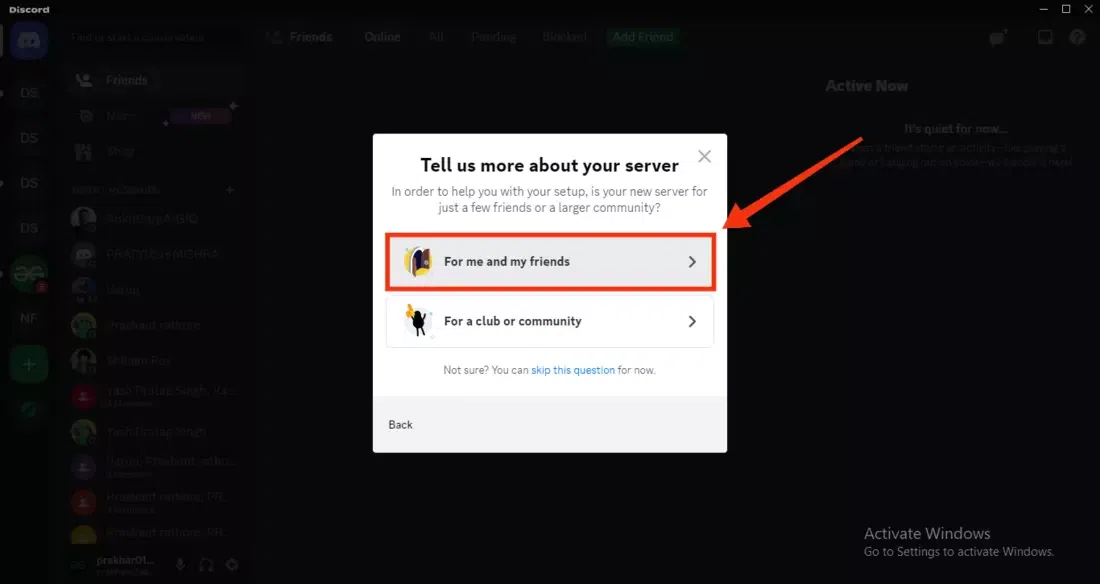
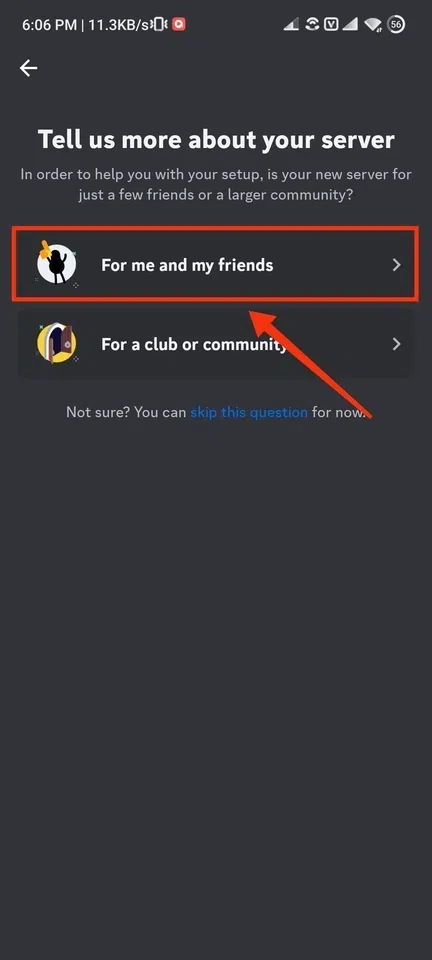
Now select "Me and my Friends" from the options available.
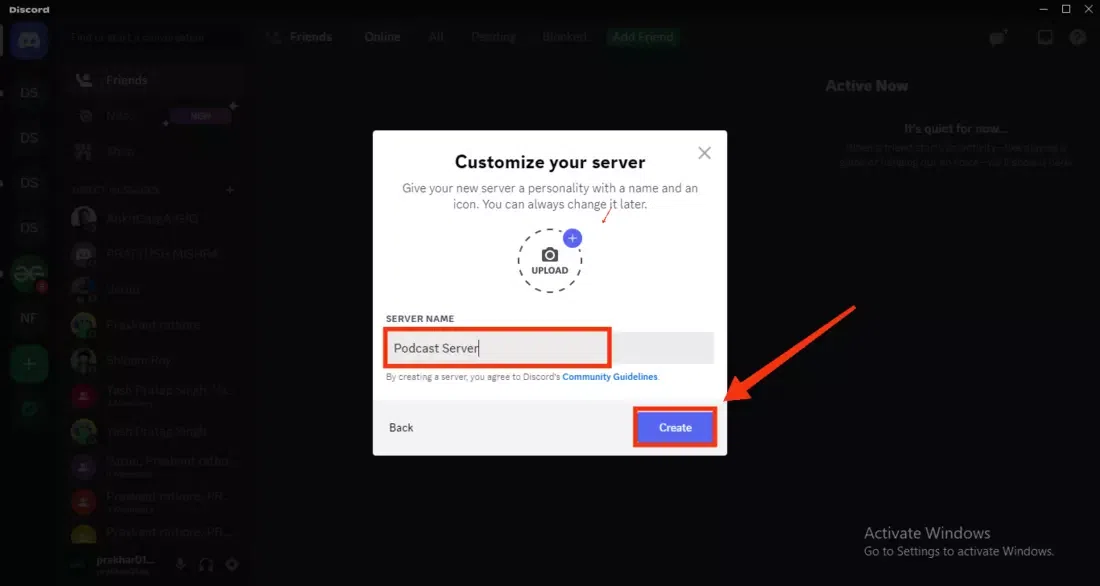
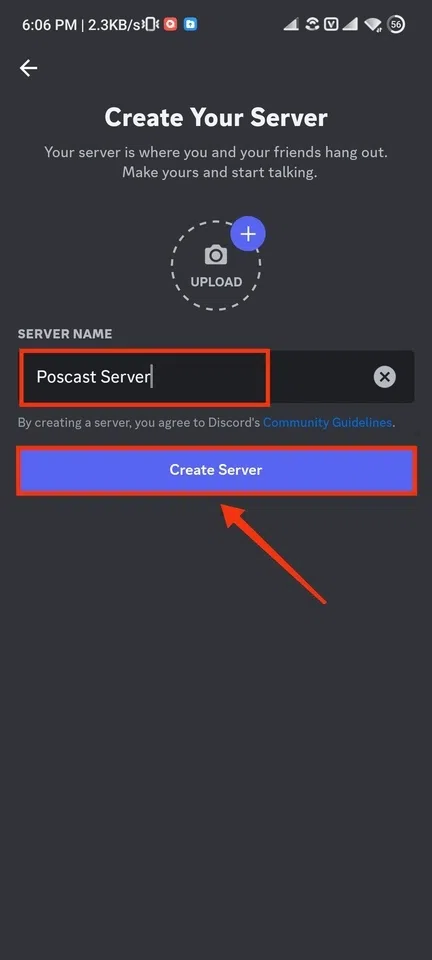
Now give your server a name and click on the "Create" button to create a server for your podcast.
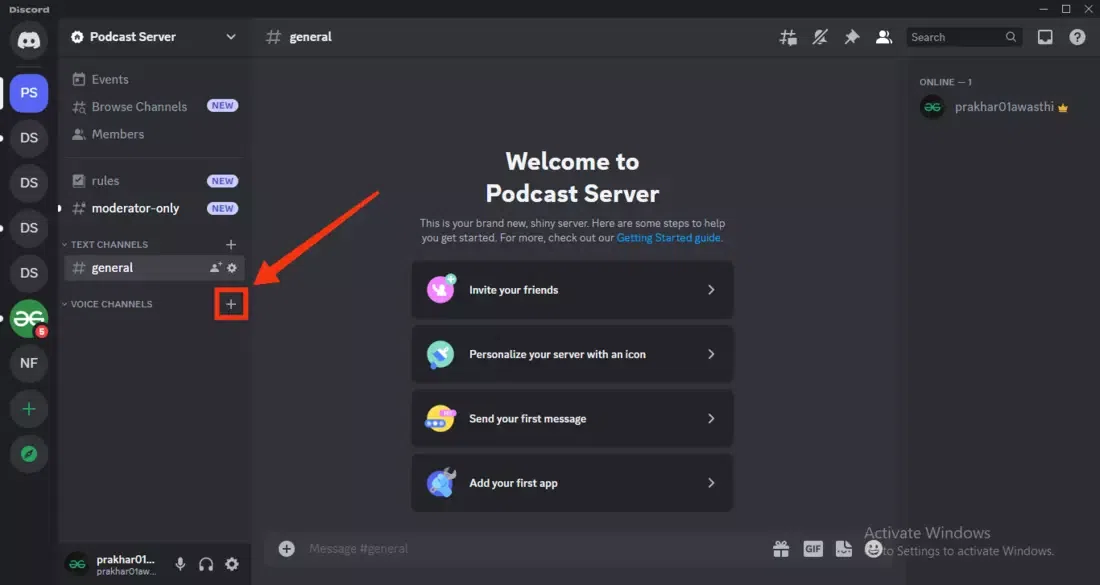
Now you also need a channel in which host can speak in for long time and in a great audience, so create a voice channel along with the stage facilities. To do so click on the "+" icon present next to the Voice Channel heading and it will take you for creating a text channel.
Now in the first step of creating a channel select the "Stage" from the channel type and also give a name your channel a name. After selecting the channel type and giving a name to your channel click on "Create" button to create a channel.
Now in this step select any of your role that will be the speaker for the podcast you can go with the roles created in the server or you can directly type the username of the person you want to be the speaker of the podcast.
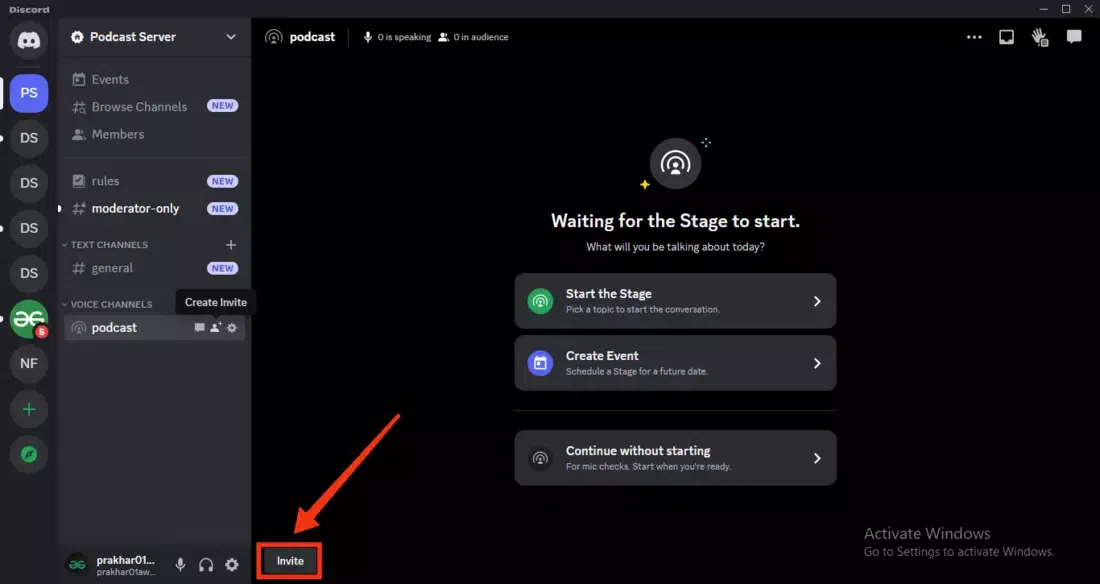
Now you will also need an audience for the podcast so after creating a stage voice channel click on the "Invite" button to invite the members and your friends for the podcast.
Choose the people whom you want to invite for the podcast as an audience and click on the "Invite" button present next to your friend's name.
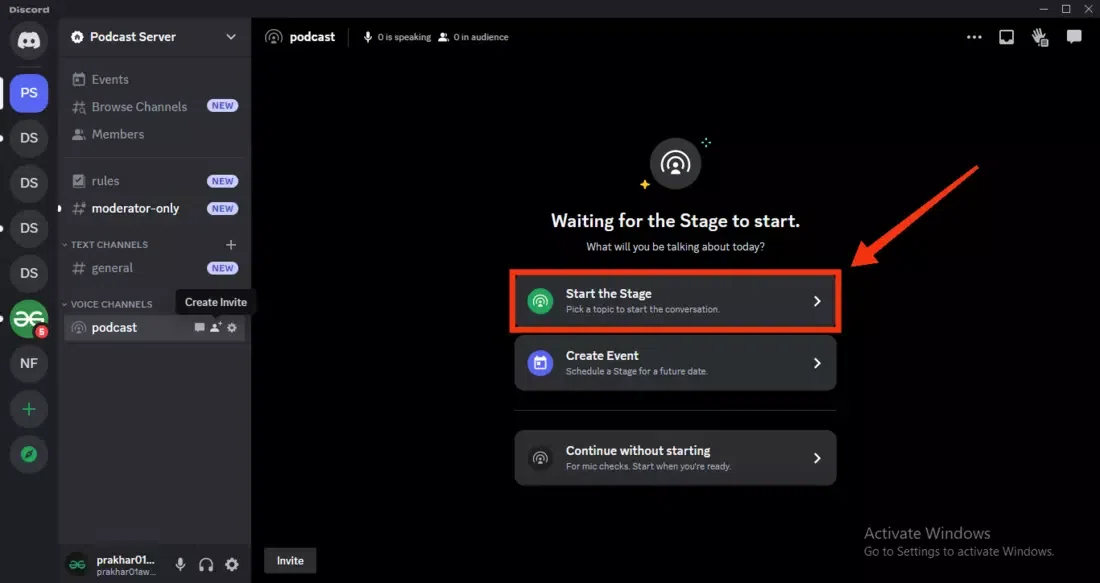
After performing all the necessary steps for creating a podcast click on "Start the Stage" button to start your podcast.
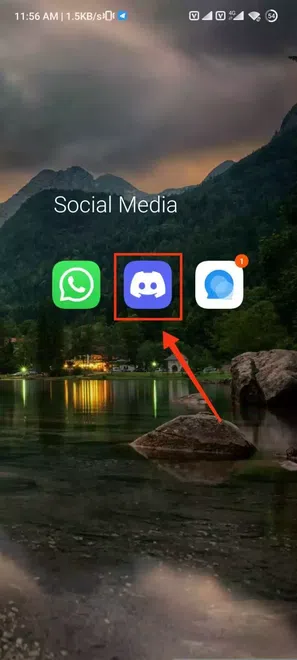
To launch Discord icon on your mobile, locate the Discord icon to open Discord app.
In Discord Mobile also you need a server first to make a podcast, so perform the steps which are used to create a server in Discord.
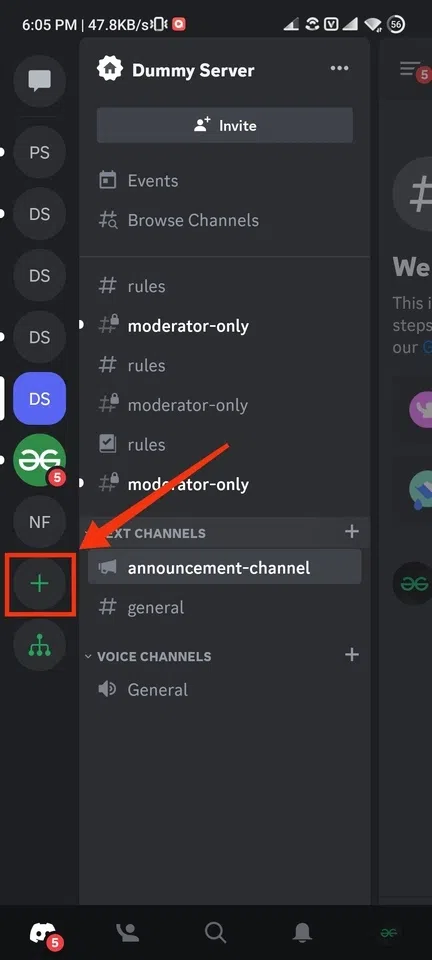
To create a server in Discord, click on the "+" icon present at the bottom of Server list.
Now you also need a channel for your podcast in which a speaker can speak, and a large number audience can listen to the speaker. So just create a stage voice channel for your podcast, to do so click on the "+" icon present next to the Voice Channels heading.
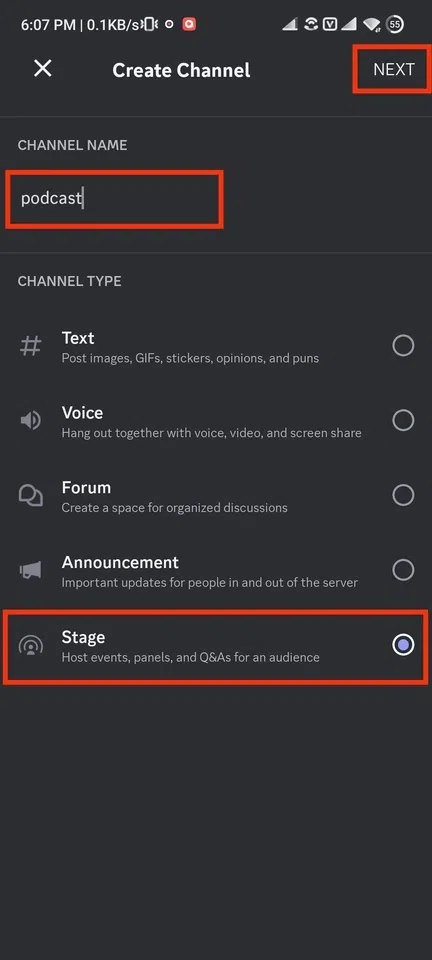
In the next step give your channel a name and select the "Stage" from the channel as you are creating a podcast. After selecting the channel type and giving a name to the channel click on the "Next" button.
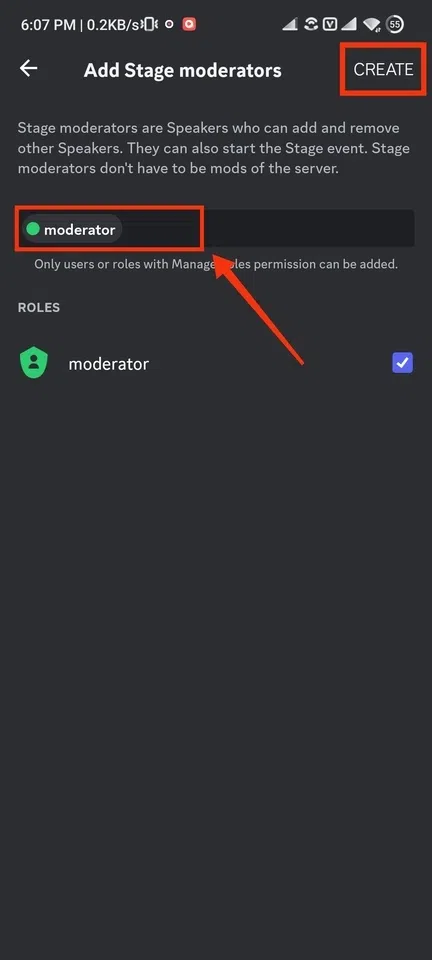
Now select a speaker for your podcast from the roles created in your channel or you can directly type the username of the person whom you want to make the speaker of the podcast.
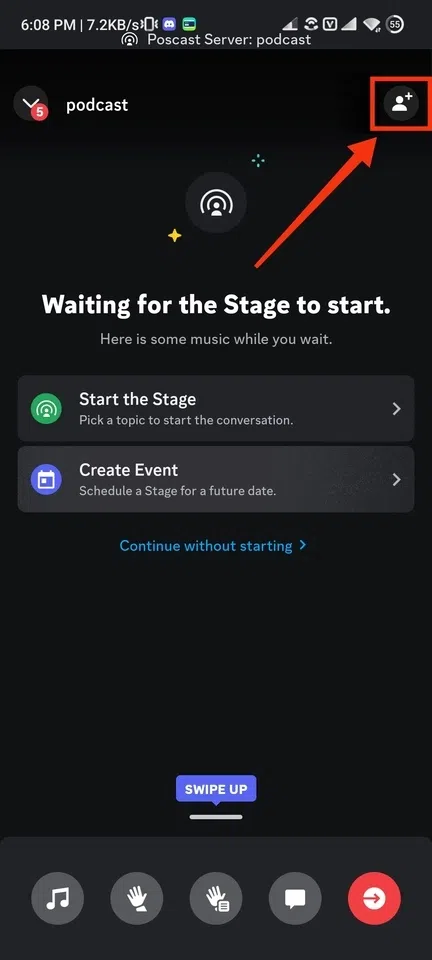
After creating a voice channel for your podcast invite the people for podcast by clicking on the "Invite" icon to invite the people you want.
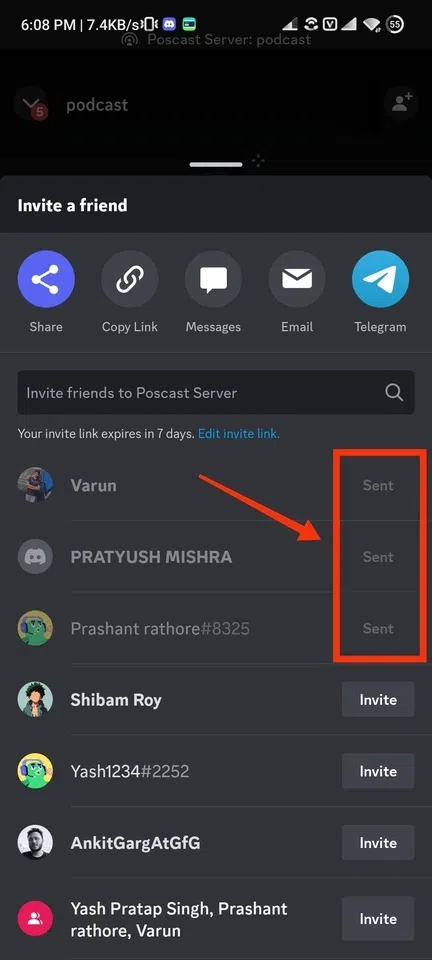
Click on the Invite button present next to your friend's name .
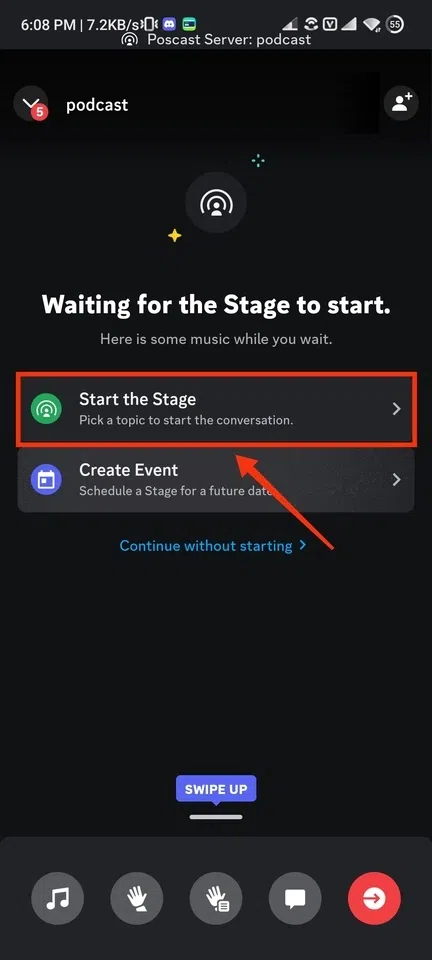
After performing all the necessary steps for your podcast click on the "Start the Stage" button to start the podcast.
Creating a podcast on Discord is made simple with its voice channels. To host a podcast, you'll need a speaker addressing the audience, and this can be facilitated through the Stage Voice channel. To set up a podcast on Discord, follow the outlined steps, allowing you to easily organize your podcast. Begin by creating a server dedicated to the podcast and establish a voice channel for hosting it. Invite your audience by clicking on the Invite icon and wait for both your speaker and audience to join before commencing the podcast.