|
VOOZH | about |
|
VOOZH | about |
Whether you're working on a school project, a business report, or a presentation, merging cells in Google Docs can significantly improve the layout of your tables. This simple yet powerful feature allows you to combine multiple cells into one, giving your documents a cleaner and more organized look.
In this article, you’ll learn how to merge cells in Google Docs using various methods across different devices, ensuring your documents are visually appealing and easy to navigate!
👁 How-to-Merge-Cells-in-Google-Docs
Table of Content
Merging cells in Google Docs involves combining two or more cells in a table into one single cell. You can merge cells horizontally (across rows) or vertically (down columns). This feature is particularly useful when you want to create headers, titles, or group similar data under one section in a table.
Note: Merging cells can be done in any part of a table in Google Docs. The data within the cells are retained safely on merging.
Merging cells helps:
Organize Data: Combine header cells to make titles clearer.
Improve Readability: Simplify complex tables by merging redundant cells.
Create Visual Sections: Divide data visually by grouping relevant information
Follow these steps to easily merge cells in Google Docs using the right-click method:
Open Google Docs in your web browser.
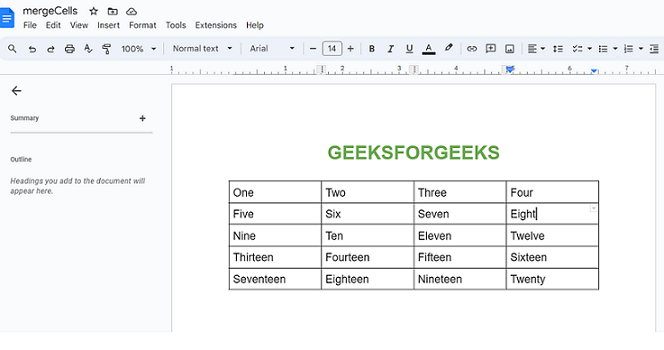
Open a document in Google Docs with a table to merge cells, or create a new document in Google Docs and create a table.
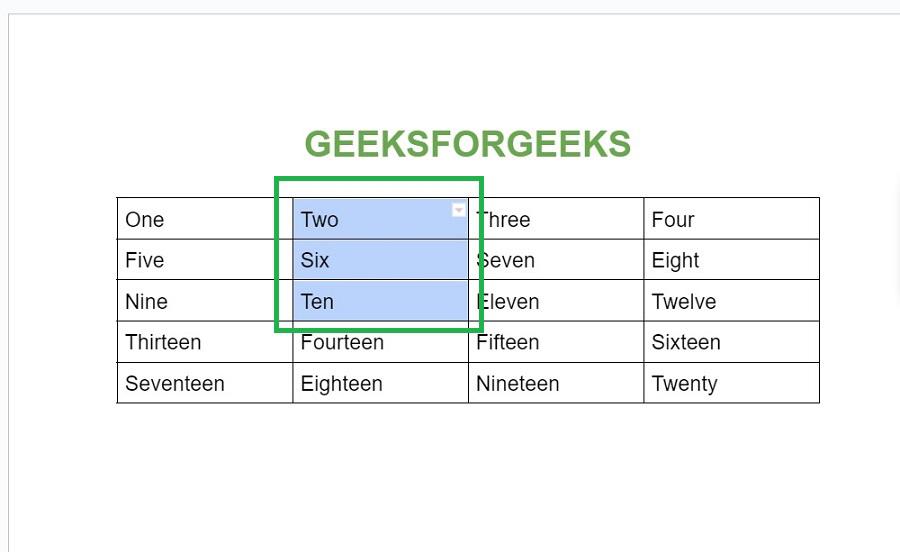
In the table in Google Docs, select the group of cells that you want to merge either horizontally or vertically.
Right-click on the selected cells. A dropdown appears. Select "Merge cells" in it.
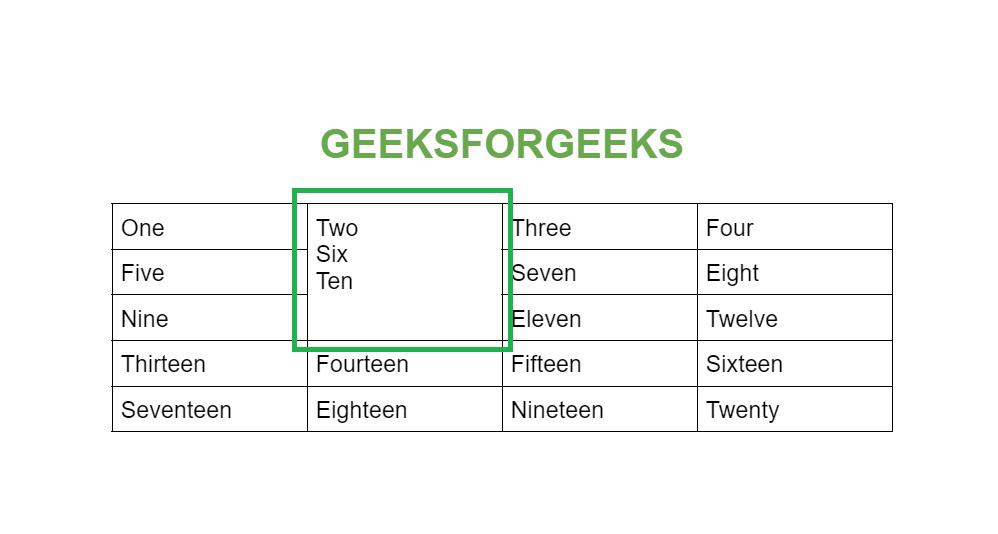
Now the selected cells are merged as a single cell in the table successfully.
Follow the below steps to Merge Cells of Table in Google Docs
Open Google Docs in your browser.
Open a document in Google Docs with a table to merge cells, or create a new document in Google Docs and create a table.
In the table in Google Docs, select the group of cells that you want to merge either horizontally or vertically.
Go to the menu bar, and select the 'Format' tab. A dropdown appears. Select "Table" in it.
Another sub dropdown opens. Select "Merge cells" in it.
Now the selected cells are merged as a single cell in the table successfully.
If you’re using the Google Docs app on your Android device, follow these steps:
Open the Google Docs app on your Android device.
Open the document in which the merging of cells in the table needs to be done.
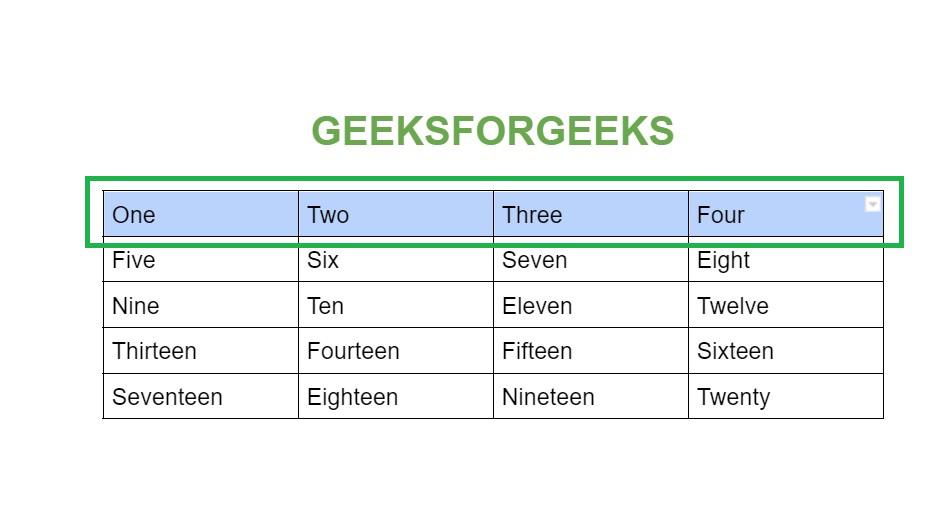
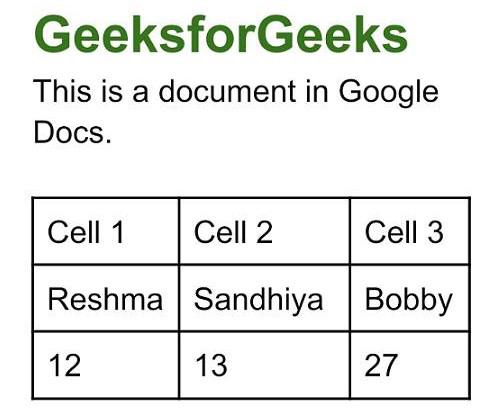
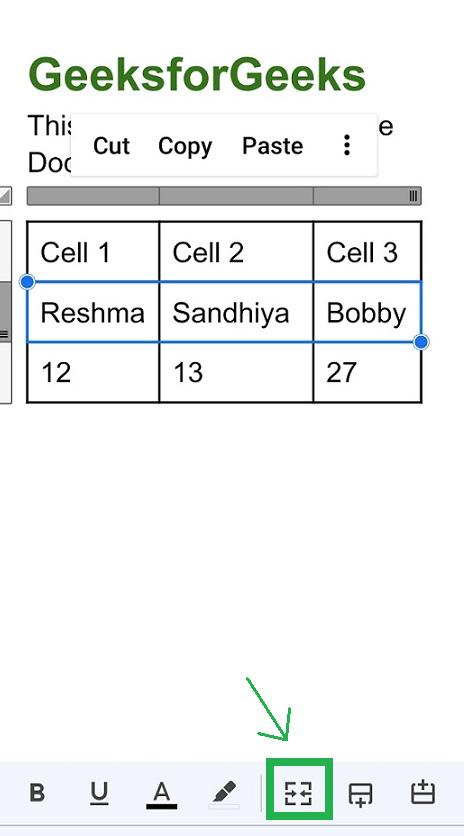
Select the cells you want to merge. Here we have selected three cells horizontally in the table.
Now on selecting the cells from the table, a horizontal list of options appears on the bottom side of the app. Select the 'merge cells' icon which is present at the bottom of the app.
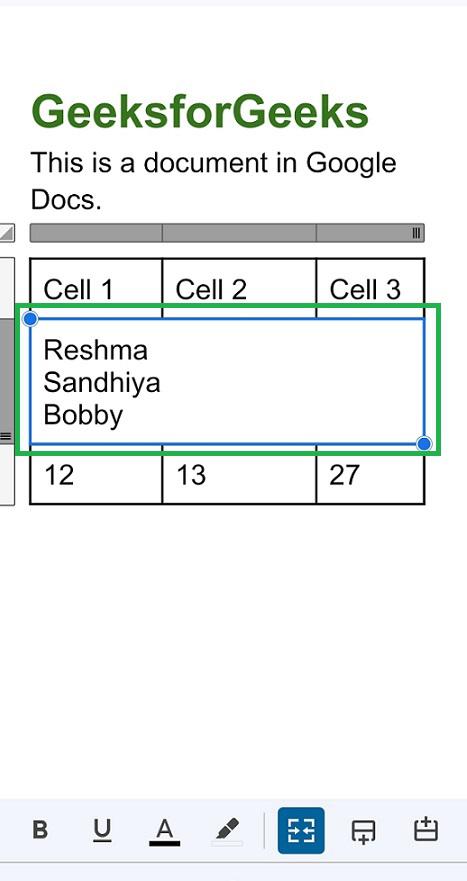
Now the selected cells are merged into a single cell in an Android device successfully.
For iPhone users, the steps are similar:
Open the Google Docs app on your iOS device such as your iPhone.
Open the document in which the merging of cells in the table needs to be done.
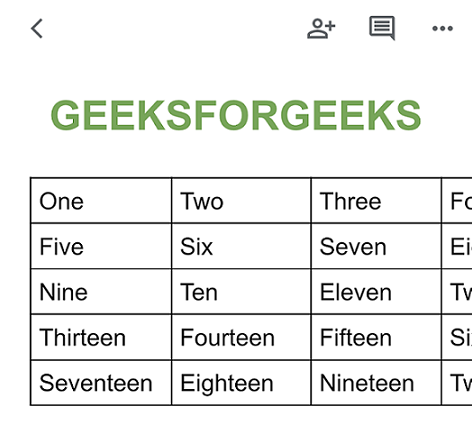
Select the cells you want to merge. Here we have selected three cells vertically in the table.
Once you've chosen the cells, a horizontal list will show up at the bottom of the Application. Select the 'merge cells' icon which is present at the bottom rightmost corner of the app.
Now the selected cells are merged into a single cell in the iOS device successfully.
If you’re working on a Mac:
Open Google Docs in the browser and open the document in which the merge cells are to be done.
Select any cell in the table and drag row-wise or column-wise till all the cells to merge are selected. Now the selected cells are selected and highlighted.
Right-click on the selected cells and a dropdown appears. Select 'Merge cells' in it.
Now the selected cells are merged successfully in Google Docs.
If you are a Chromebook user, merging cells in Google Docs is much easier.
Launch Google Docs in your browser.
Highlight the cells you want to merge.
Right-click on the selected cells and a dropdown appears. Select 'Merge cells' in the dropdown.
Now the selected cells are merged successfully in Google Docs on Chromebook.
Suppose we made a merge in the table, and now we may be thinking of undoing it. In such a case, it is possible to remove the merging of cells done in the table in Google Docs. By unmerging cells, the cells that have vanished become formed again in the table. Then the user can select the data and place it in the cells of their choice. Let us see how to remove the merging from cells in Google Docs below.
Unmerging Cells in Google Docs can be done by two methods:
- Unmerging Cells by Right Clicking,
- Unmerging Cells using Format tab.
If you need to undo a merge:
Access the document where cell merging needs to be performed.
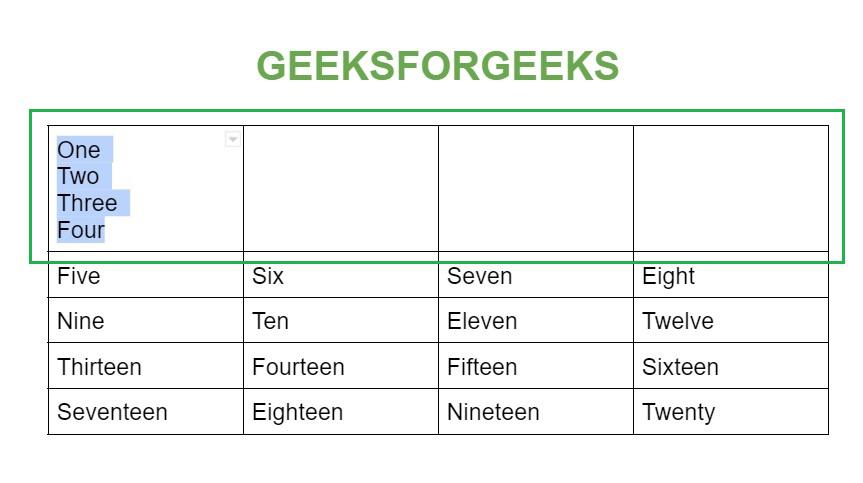
Select by highlighting the merged data in the table.
Right-click on them. A drop-down appears. Select "Unmerge Cells" in it.
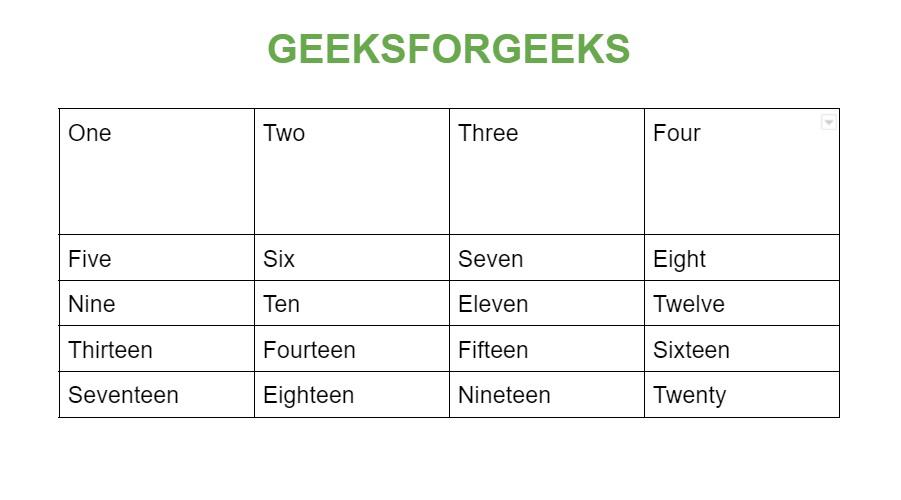
Now the cells that have vanished on merging before are formed again. It is visible in the table.
Note: The data which is merged still remains in the same cell as it is when merged.
Step 6: The user can select the data of their choice and paste it into the cell they want it to appear in the table. Thus the merged cells are unmerged in Google Docs successfully.
If you need to undo a merge:
Click the Format tab in the menu bar in Google Docs and a dropdown appears. Select 'Table' and another sub drop-down appears. Select 'Unmerge Cells' in it.
Now the cells that have vanished before merging are formed again. It is visible in the table. But the data which is merged remains in the same cell as it is when merged.
Note: User can select the data of their choice and paste it in the cell they want it to appear in the table. Thus the merged cells are unmerged in Google Docs successfully.
IMerging cells in Google Docs is a simple yet effective way to create clean, organized tables. Whether you’re using a desktop, mobile device, or tablet, the steps are easy to follow. With this guide, you can quickly enhance the structure of your documents and improve the readability of your tables. Keep exploring Google Docs features to unlock even more possibilities for your projects.
Can cells be merged even though there is no data present in it?
Yes, cells can be merged even though the cells are empty in a table.
Can cells be merged both horizontally and vertically in the same table?
Yes, in the same table, cells can be merged in both vertical and horizontal direction.
What is the maximum number of cells that can be merged in table in Google Docs?
Any number of rows or columns within a table can be merged in Google Docs. There is no limit for selecting cells within a table in Google Docs.
How to Merge Cells in Google Docs without right-click?
Using the 'Format' tab in the menu bar of Google Docs, we can merge cells without right-clicking. Select the 'Format' tab in the menu bar, then dropdown appears. Select 'Table' in the dropdown. Another sub dropdown appears, select 'Merge cells' in it.
How to merge columns in Google Docs?
In Google Docs, start by selecting any cell in the table. Then select the columns to merge by selecting and dragging one cell covering each column. Then select and drag downwards until the cells you need to merge are selected. Now the cells to be merged are selected and highlighted. Right-click and select 'Merge cells'. Now the columns are merged.