|
VOOZH | about |
|
VOOZH | about |
Merging cells in Google Sheets is a powerful way to enhance the readability and organization of your spreadsheets. Whether you're creating headers, combining data, or designing a clean layout, merging cells helps you present information clearly.
Follow these steps to merge cells in Google Sheets on a desktop:
Start by opening the Google Sheets document where you want to merge cells.
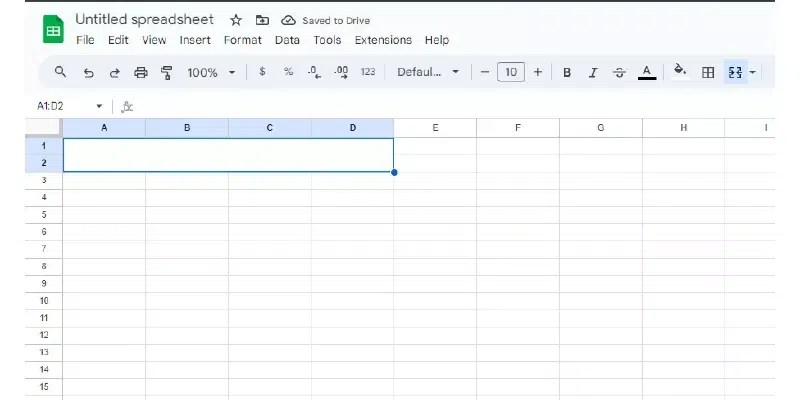
Click and drag your mouse over the cells you want to merge. You can also click the first cell, hold down the Shift key, and then click the last cell in the range you want to select.
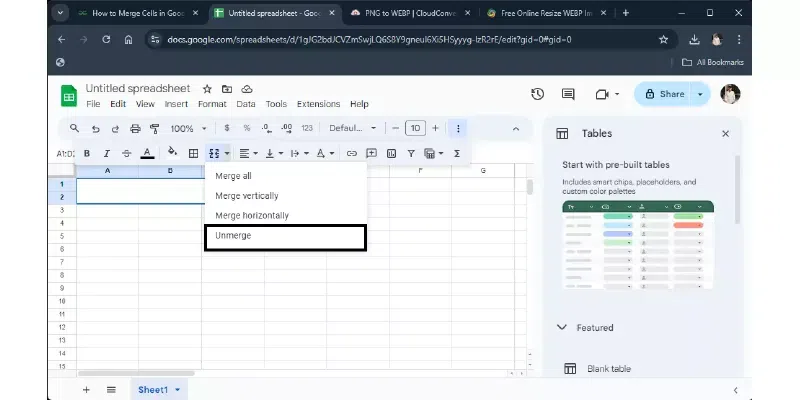
Go to the toolbar at the top of the page. Look for the “Merge cells” button. It looks like a rectangle with a line dividing it into smaller parts. It’s usually near the text alignment and formatting options.
Click the “Merge cells” button to open a drop-down menu. You’ll see different options such as:
Select the merge option that fits your needs. Your cells will combine based on the option you chose.
Tips
- If you’re creating a header for a table, merging cells can help center your title across multiple columns.
- Merging cells removes data from cells other than the top-left one. Ensure important information isn’t lost.
If you prefer using shortcuts, merging cells in Google Sheets can be done quickly with a few keyboard shortcuts. Unfortunately, Google Sheets does not have a dedicated shortcut key for merging cells, but you can use the Alt key (on Windows) or Option key (on Mac) with the letter "O," then "M" to open the merge options quickly.
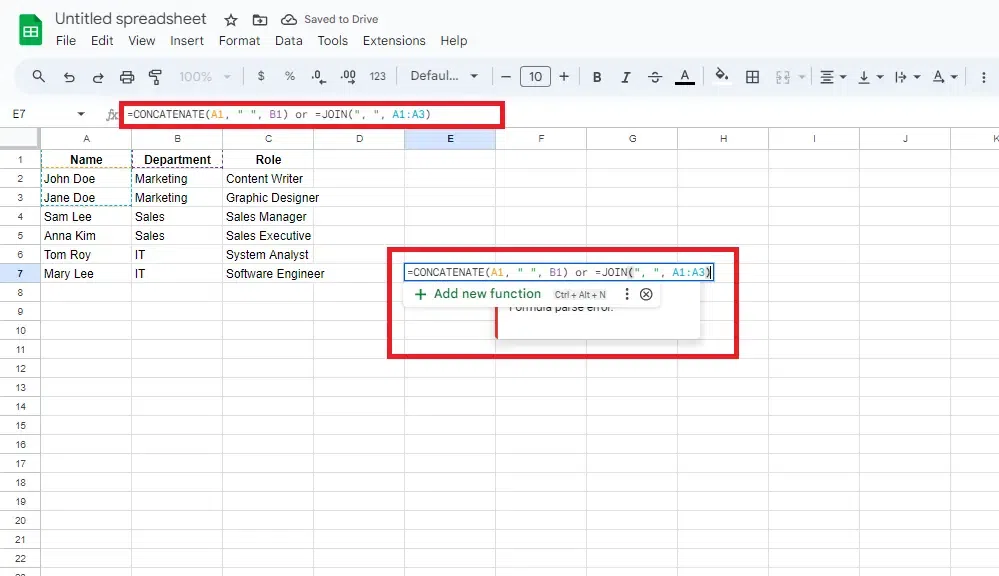
A common challenge when merging cells in Google Sheets is losing data from all but the top-left cell. To avoid losing important information, consider these alternatives:
If you want the look of merged cells without actually merging them, you can use center across selection by:
This center the text across the selected range without merging the cells, keeping all your data intact.
Here’s how to merge cells using the Google Sheets app on your mobile device such as Android or iPad.
Open the Google Sheets app on your mobile device and select the spreadsheet where you want to merge cells.
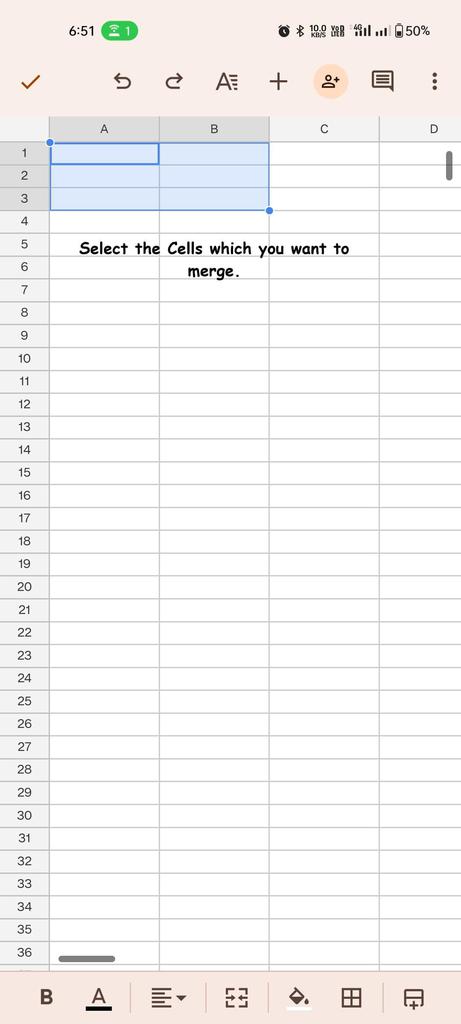
Tap and hold on the first cell you want to merge, then drag the selection handles to cover all the cells you want to merge.
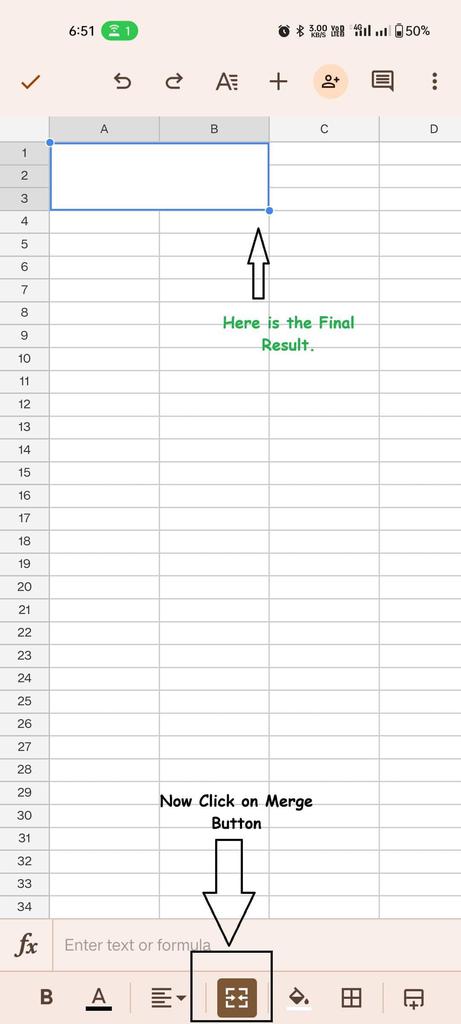
Scroll down and select "Merge cells" from the menu options. The selected cells will merge based on your choice.
Check the merged cell to ensure it appears as you intended. If necessary, you can unmerge it by clicking the merge button again.
Unmerging cells is simple and can be done in a few quick steps:
Click or tap on the merged cell that you want to unmerge.
For desktop, go back to the “Merge cells” button in the toolbar. For mobile, open the menu by tapping the three vertical dots in the top-right corner.
In the drop-down menu, select “Unmerge.” The merged cell will split back into the original separate cells, with the content staying in the first cell.
Also Read: