|
VOOZH | about |
|
VOOZH | about |
Numbering rows in Google Sheets can be done quickly to help organize and reference data efficiently. This guide will walk you through simple ways to automatically or manually number rows, making it easier to track, sort, and analyze data in your spreadsheets. Whether you’re creating a list, managing inventory, or preparing reports, this step-by-step approach ensures accurate row numbering without hassle.
Table of Content
To automatically number rows in Google Sheets, you can use these methods:
This is the easiest way to add serial numbers.
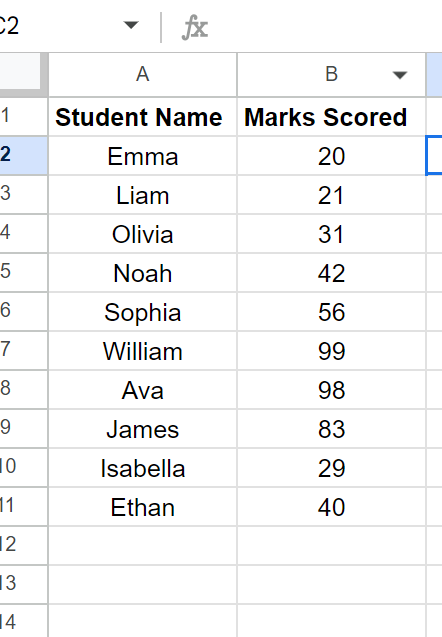
Let's understand by an example suppose you want to add serial numbers in column A.
👁 How to Easily Number Rows in Google Sheets
Follow the steps below to fill in the serial numbers
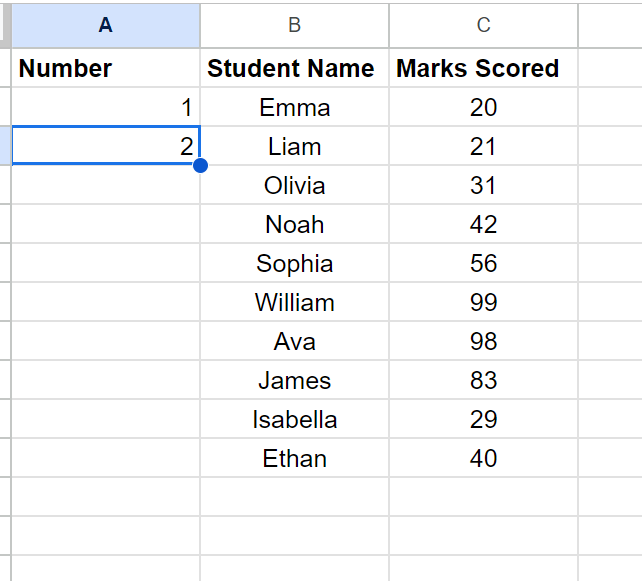
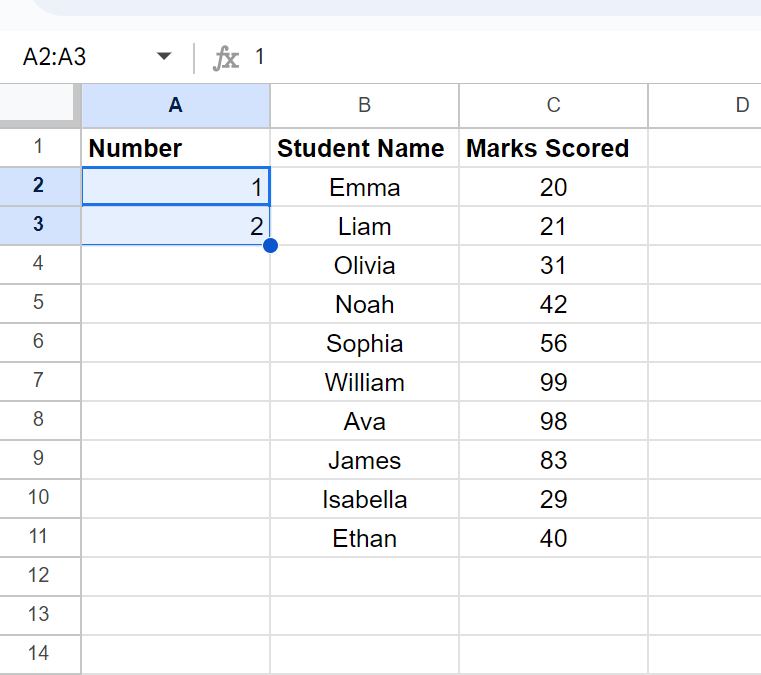
To get started, right-click on any cell in column A, then select "Insert Column". Add a heading to the new column. In cell A2, type '1,' and in A3, type '2.'
👁 How to Easily Number Rows in Google Sheets
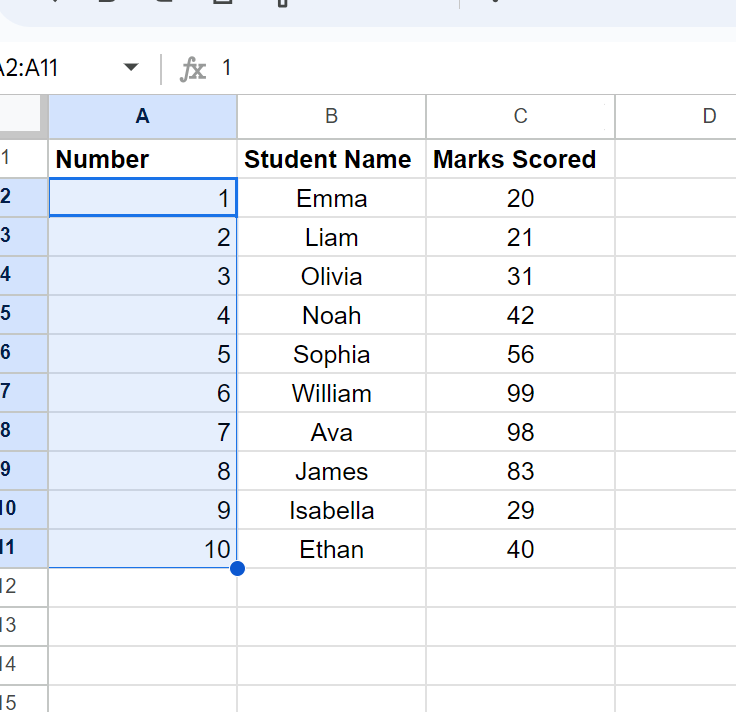
👁 How to Easily Number Rows in Google Sheets
The above steps would give you serial numbers in the additional column you inserted.
The ROW function in Google Sheets gives you the row number of the cell you give to it.
Follow the steps below to fill in the serial numbers
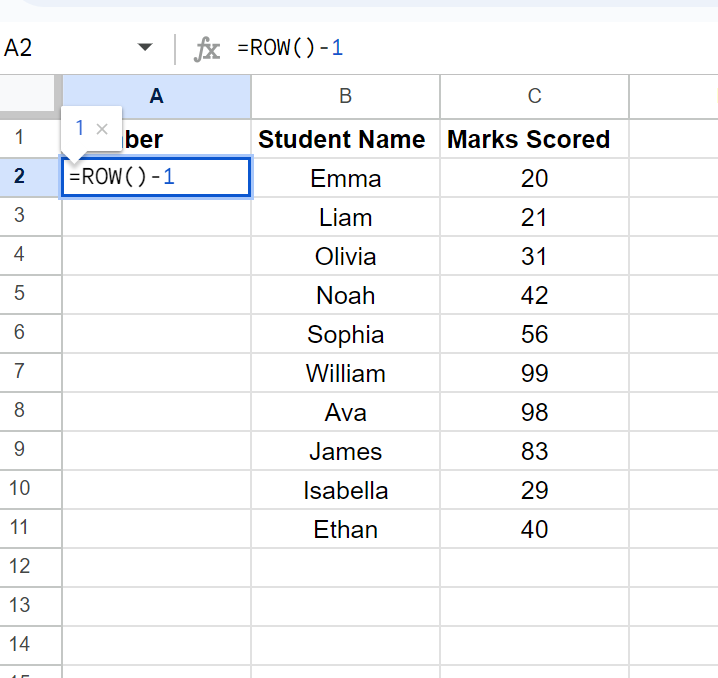
In Cell A2 enter the formula:
=ROW()-1
👁 How to Easily Number Rows in Google Sheets
Copy and paste for all the cells where you want the serial number
👁 How to Easily Number Rows in Google Sheets
The above formula uses the ROW function to get the current row number and then subtracts 1 from it as we are starting from the second row onwards. In case you’re starting from the first row, you can simply use the ROW function.
Another way you can number rows in Google Sheets is by using the COUNTA function.
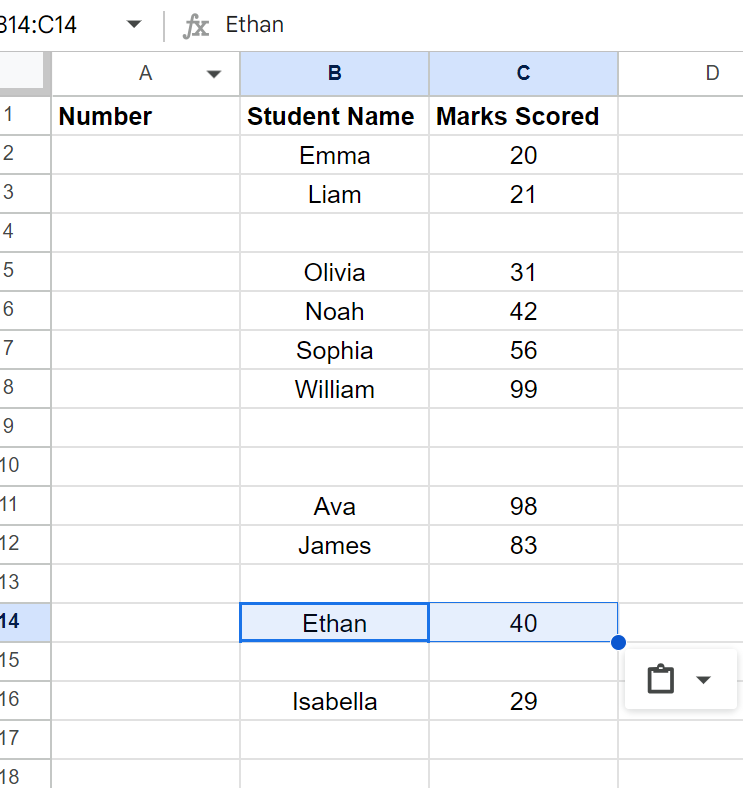
For Example, you have to only number the rows that are filled.
👁 How to Easily Number Rows in Google Sheets
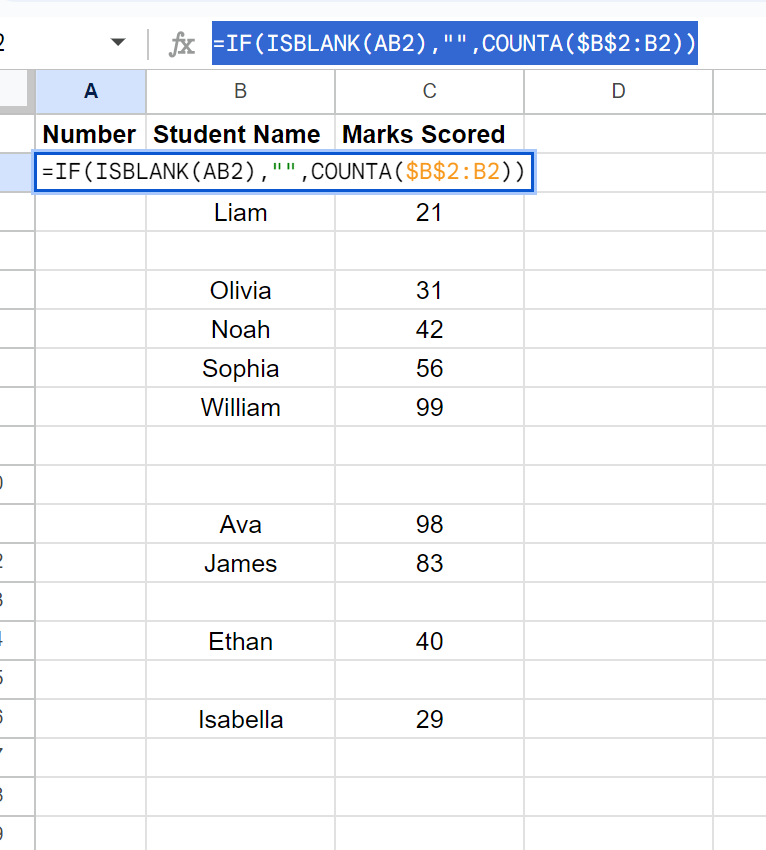
Use this Formula:
=IF(ISBLANK(AB2),"",COUNTA($B$2:B2))
Follow the steps below to fill in the serial numbers
👁 How to Easily Number Rows in Google Sheets
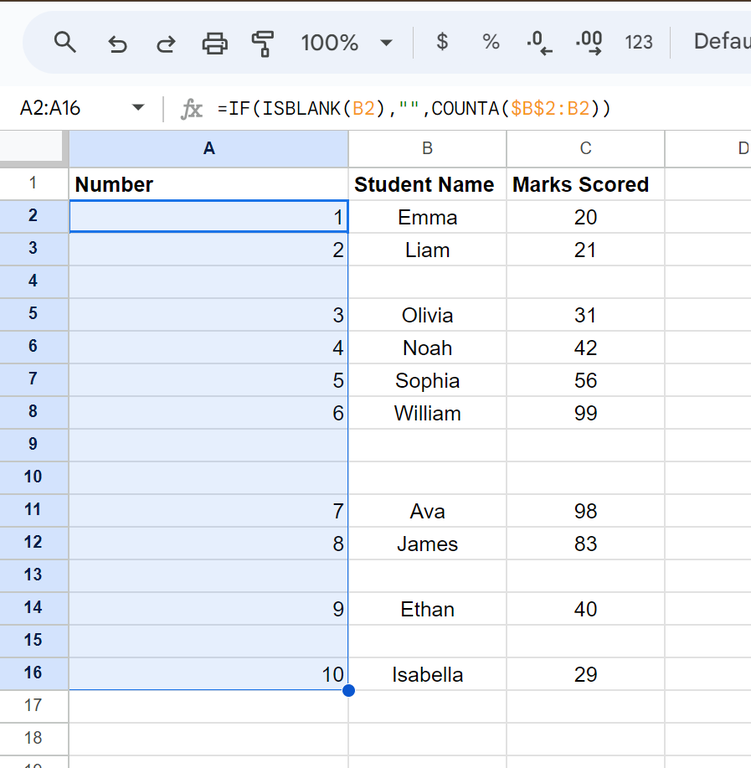
Put the cursor at the bottom right of the cell A2 and drag the plus sign till which you want the numbering
👁 How to Easily Number Rows in Google Sheets
Understand the formula
- In the formula "IF" function checks whether the adjacent cell is blank or not If it’s blank, the IF formula would return a blank and if it isn’t, it will count all the filled rows in the specified range and give that number.
- Here, We are using $B$2:B2 as the range where we have locked the first B2 (by having dollar sign before the column alphabet and row number) but not the second one.
- It allows us to expand the range when we copy it to other cells.
Note: This method is best when you have no blank rows in the Sheet
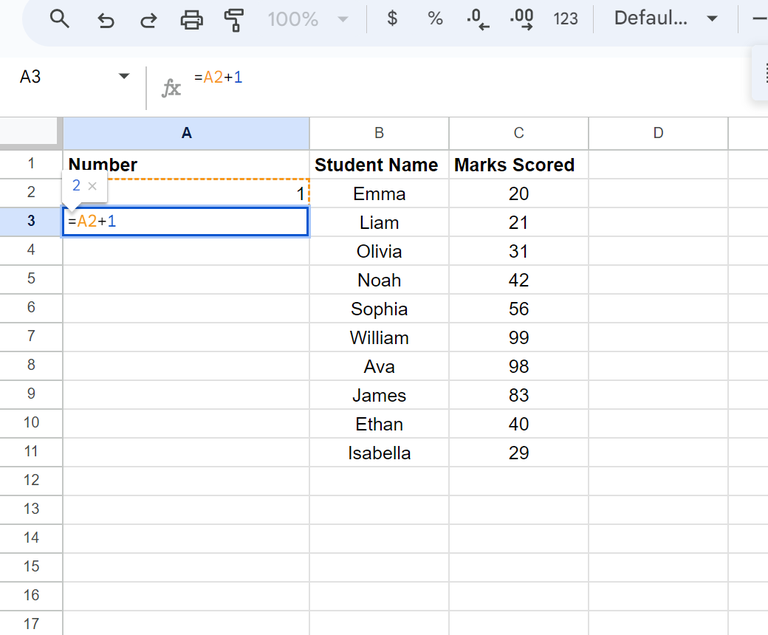
Follow the steps below to fill in the serial numbers
Type '1' in cell A2.
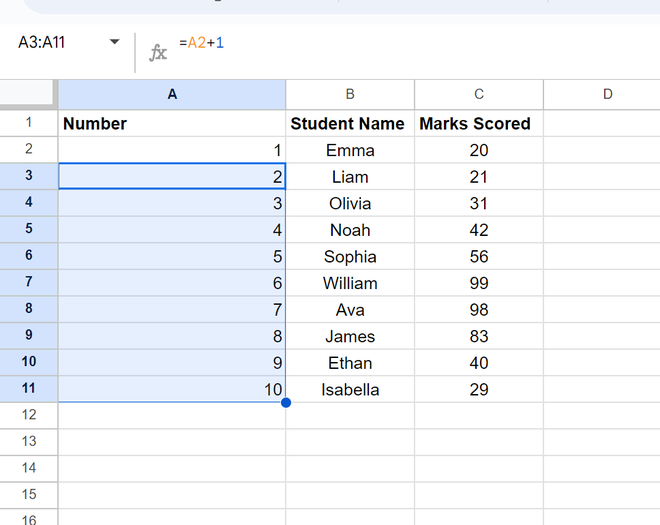
In cell A3, enter the formula =A2+1
Copy and paste this formula for all the cells in the column where you want the numbers
👁 How to Easily Number Rows in Google Sheets
Note:
- This would assign a number irrespective of whether there are blank rows or not.
- In case you delete a row, all the values below it would return a reference error (#REF!)
- When you insert a new row, it will not update the row number automatically.
Another efficient way to create a numbered list is to use the SEQUENCE function:
In cell A1, enter the formula:
=SEQUENCE(ROWS(A:A)-1, 1, 1, 1)
In conclusion, learning how to number rows in Google Sheets can make your work much easier and your data clearer. These were some easy and effective methods to create a numbered list in a spreadsheet. We have learned to number rows by 4 methods including using Fill Handle, the ROW Function, the COUNTA Function and even adding 1 to the serial number.