|
VOOZH | about |
|
VOOZH | about |
Ever find yourself scrolling endlessly to find that one important WhatsApp chat? Whether it’s a group for work, a family thread, or a close friend’s conversation, pinning chats in WhatsApp can save you time and keep your most important messages at the top of your inbox.
This guide walks you through how to pin a chat on WhatsApp—whether you’re on iPhone or Android—and how to remove pin chat when you no longer need it. From organizing your inbox to prioritizing key conversations, you’ll learn to take control of your messaging experience in just a few taps. Let’s get started!
A pinned chat in WhatsApp allows users to keep important conversations at the top of their chat list for easy access. This feature ensures that selected chats remain visible, even when new messages arrive in other conversations.
You can pin up to three chats in WhatsApp, whether they are individual or group chats, making it easier to find and respond to priority messages quickly.
To keep important chats at the top of your WhatsApp conversations for quick access. Here are the following steps to pin a chat on WhatsApp on both iOS and Android:
Launch the WhatsApp app on your smartphone. Ensure you are on the "Chats" tab, where all your conversations are listed.
Scroll through your chat list and find the conversation you want to pin at the top.
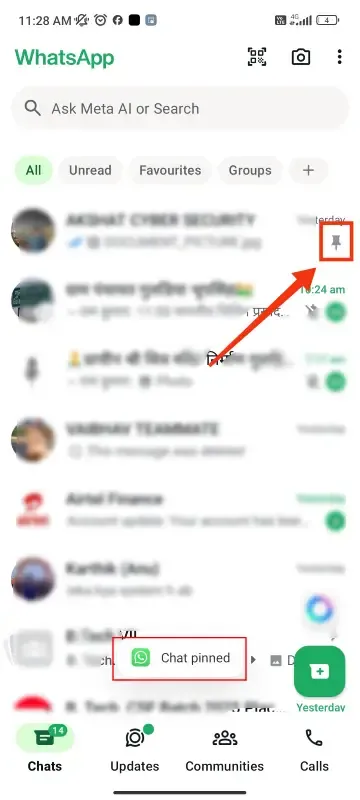
Once you select the chat, a pin icon will appear at the top of the screen (on Android). Tap it to pin the chat.
The chat will now stay at the top of your conversations, even if you receive new messages from other contacts. You can pin up to three chats.
Need to remove a pinned chat? Here’s how to unpin a chat on WhatsApp on both iOS and Android. Unpinning a chat moves it back to its normal position in the chat list.
Launch the WhatsApp app on your smartphone and go to the Chats tab.
Look at the top of your chat list to locate the conversation that you previously pinned.
On Android, a pin icon with a slash will appear at the top of the screen. Tap it to remove the pinned chat.
The chat will now return to its regular position in the chat list based on the most recent messages.
Pinning chats in WhatsApp is a simple yet powerful way to stay organized and keep your most important conversations within easy reach. By learning how to pin or unpin a chat, you can streamline your inbox and focus on what matters most—whether it’s work updates, family plans, or daily check-ins with friends.
Ready to declutter your WhatsApp? Start pinning chats today and enjoy a cleaner, more efficient messaging experience. Your inbox will thank you!