How to Print Email from Outlook: Step by Step Guide
Last Updated : 23 Jul, 2025
How to Print Email from Outlook - Quick Steps
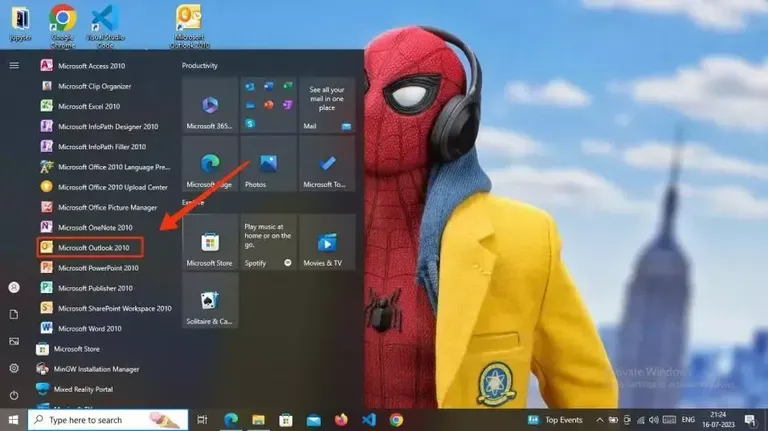
Open Microsoft Outlook
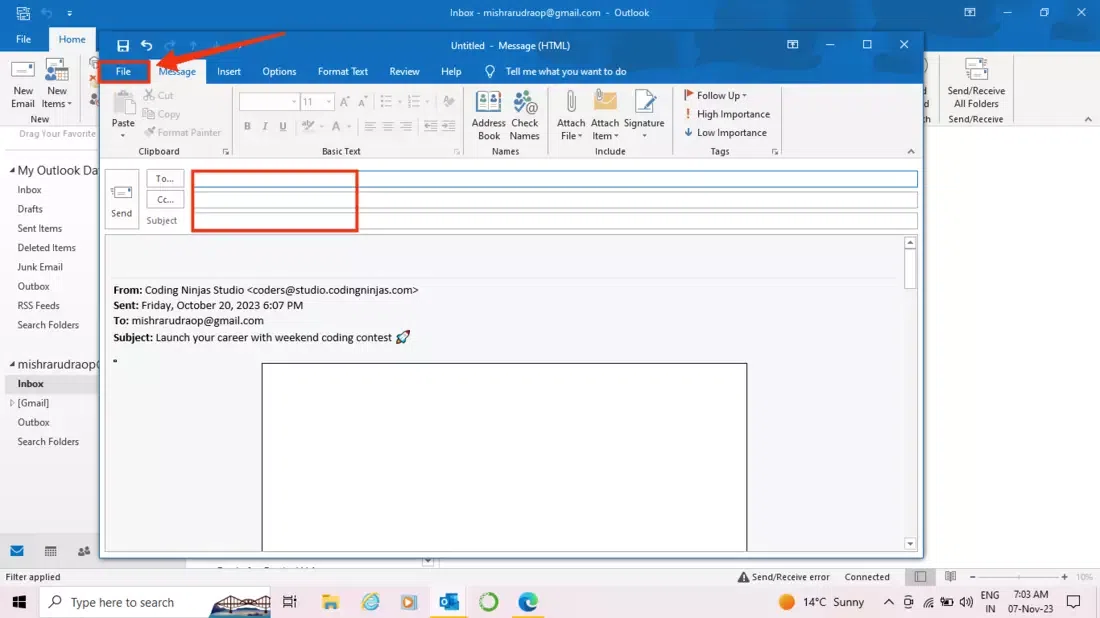
Click on "File"
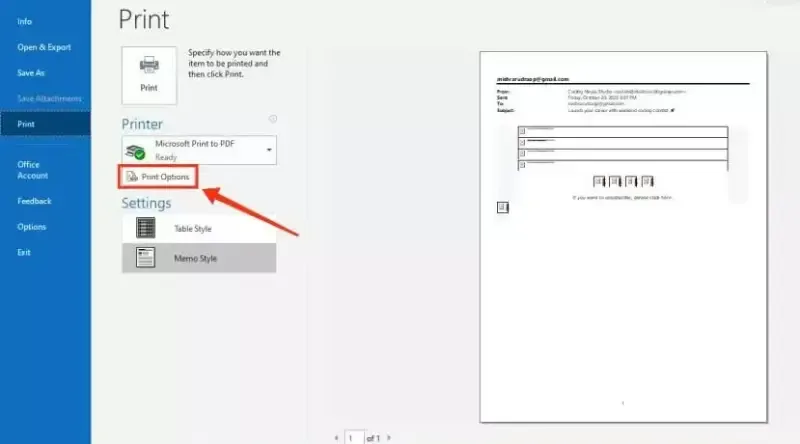
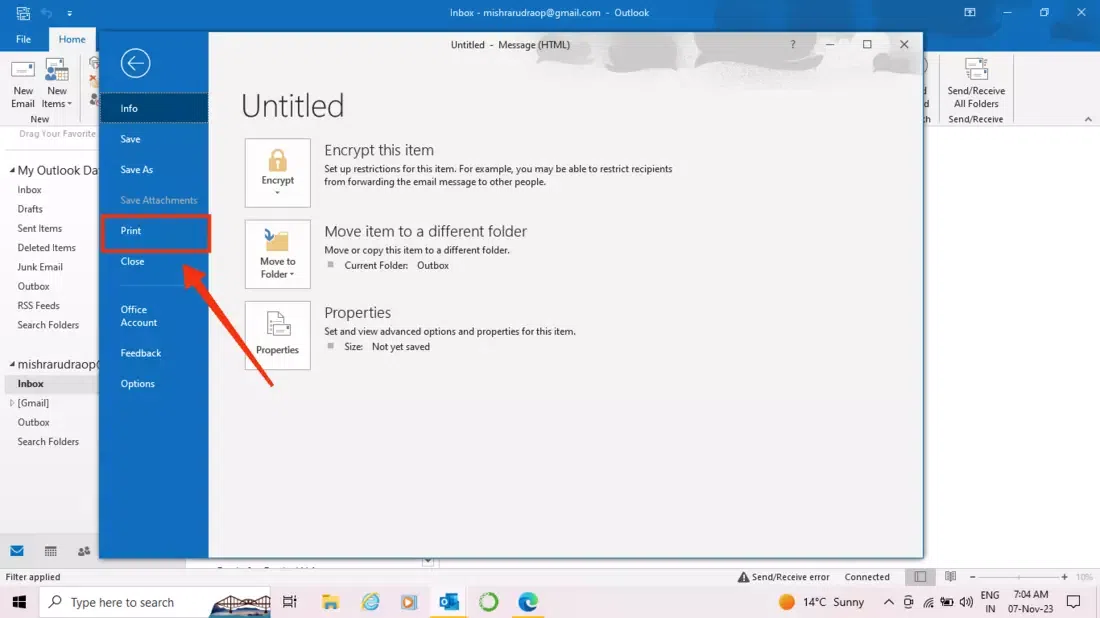
Select "Print" Tab
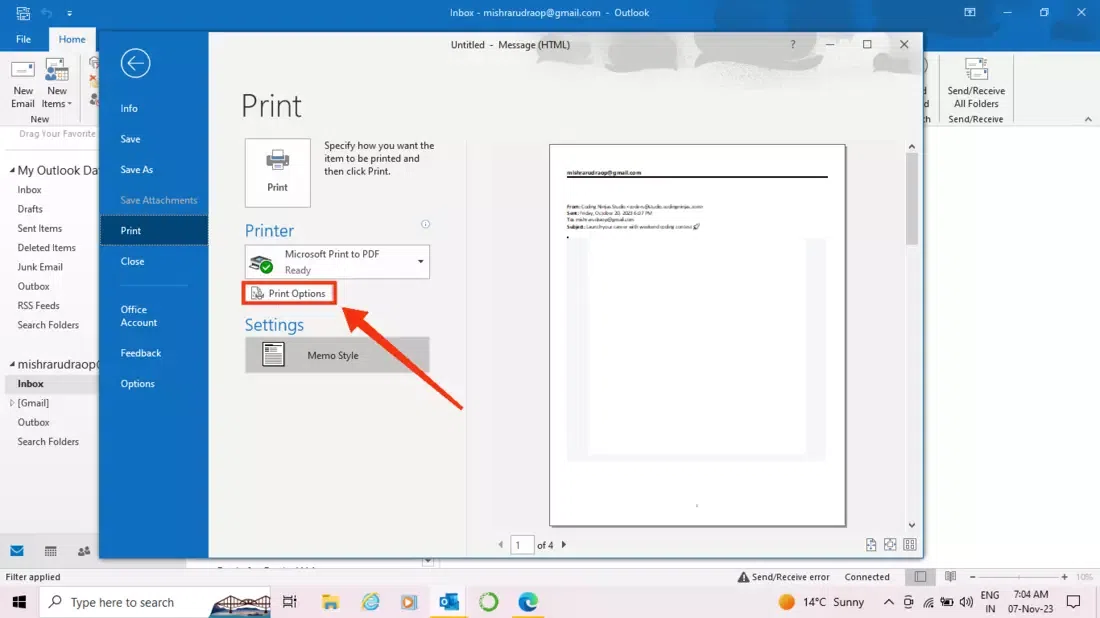
Click "Printing Option"
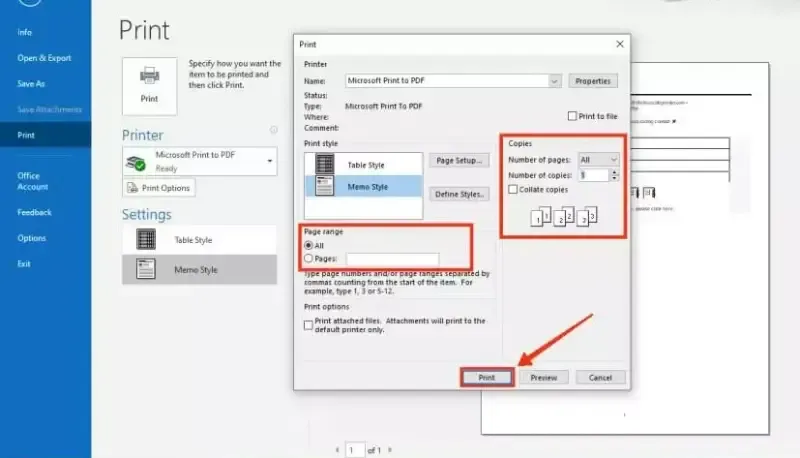
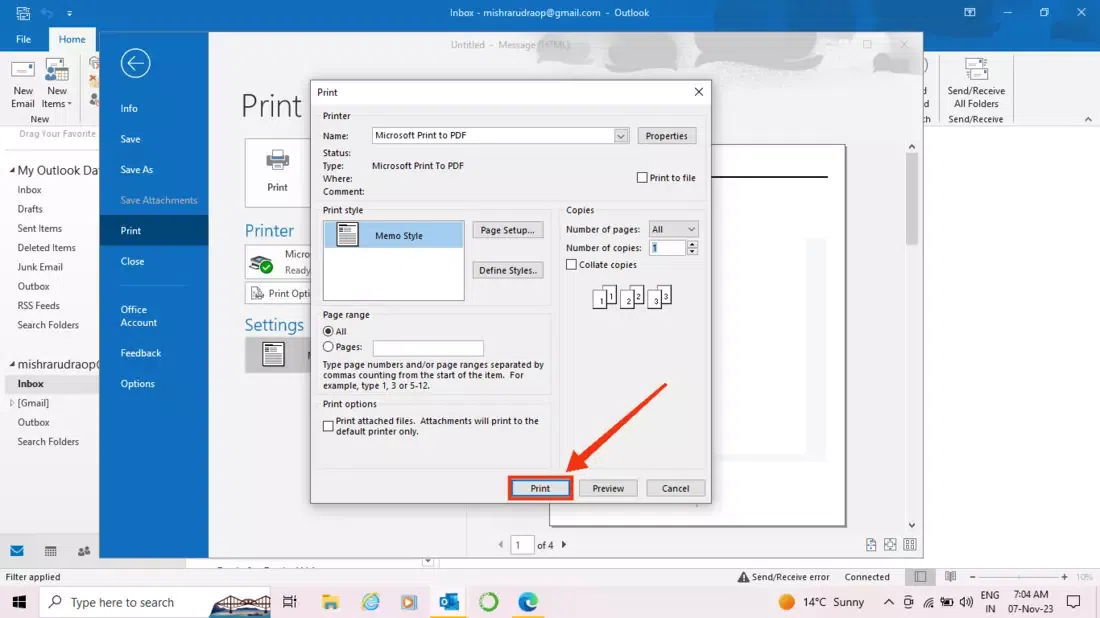
Select Page Range >> Number of Copies
Click "Print" button
Printing emails in Microsoft Outlook is essential for keeping hard copies, maintaining records, and sharing important communications. Whether you are using Outlook 365, Outlook 2019, 2016, Outlook Web App (OWA), or Outlook Mobile, knowing how to print emails and attachments efficiently can enhance your productivity.
This step-by-step guide will show you how to print emails from Outlook on Windows, Mac, Outlook Web, and Mobile. We’ll also cover how to print emails without headers, save Outlook emails as PDFs, and fix common printing issues.
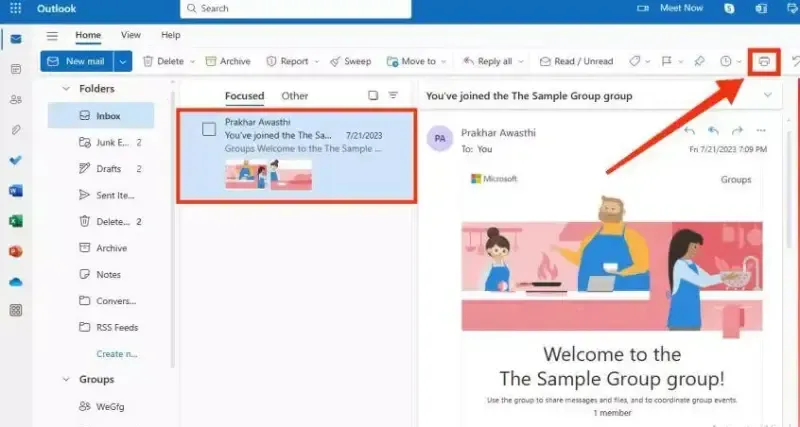
If you're using Outlook on a web browser, you can easily print an email with a few clicks. Follow these steps to print emails directly from Outlook Web App (OWA).
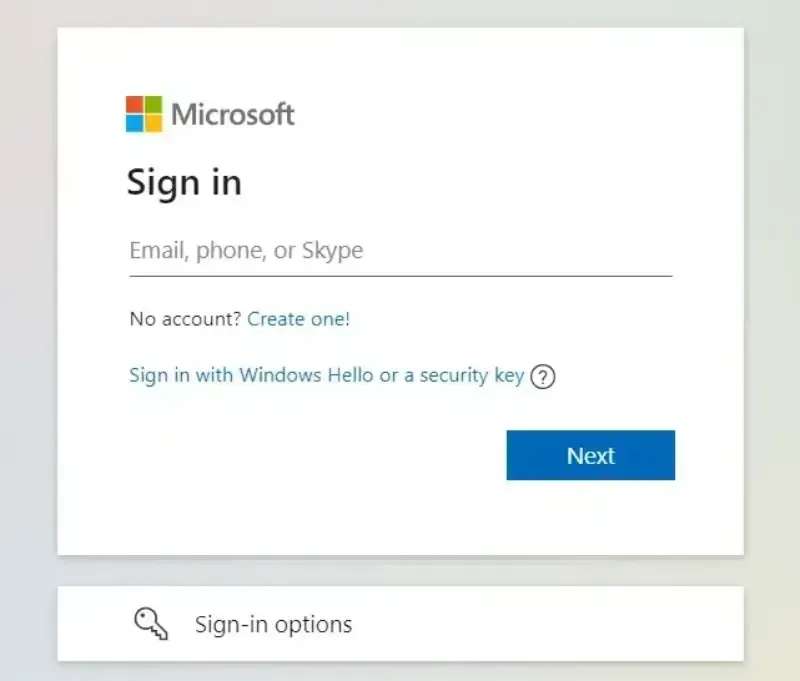
Step 1: Sign into Outlook on the Web
Open your preferred web browser and go to https://outlook.live.com/mail/
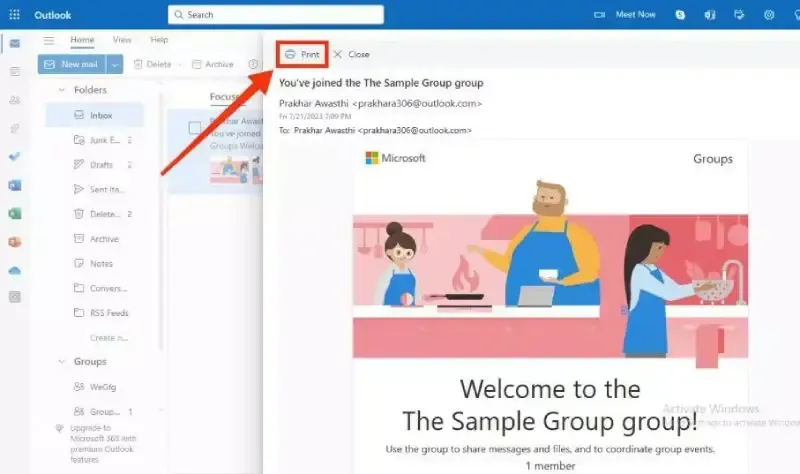
Step 5: Select Pages, Number of Copies and Click "Next"
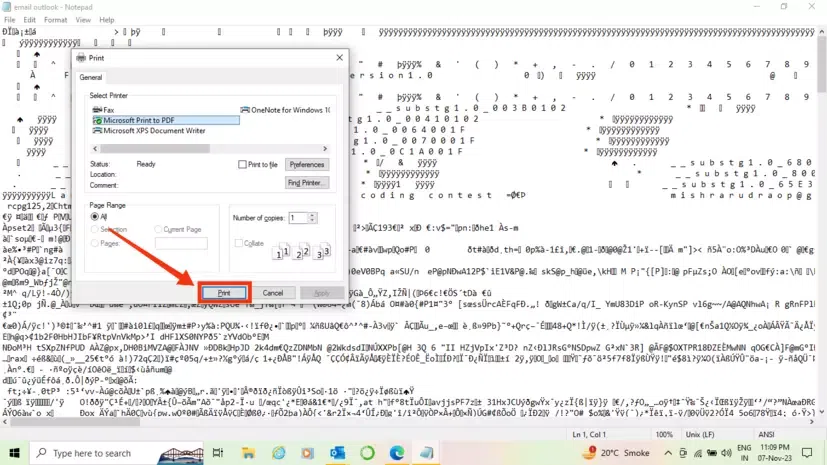
In the Print section, you will observe all the details related to the printing such as Page Range, Copies, and so on so just select the Page range you want to print and enter the number of copies you want to print. After entering all the details click on the "Print" button to print the email you selected.
Pro Tip: If you want to print only the body of an email without the header, use the Reply Feature or a Text Editor (explained below).
How to Print Outlook Emails Without Header & Sender Details
Sometimes, you may want to print only the email body without sender details, timestamps, or subject lines. Use these methods to remove headers before printing.
Method 1: Using the Reply Feature to Remove Headers
This method is ideal if you want a quick way to remove headers before printing. By using the reply feature, you can easily delete unwanted details before proceeding with printing.
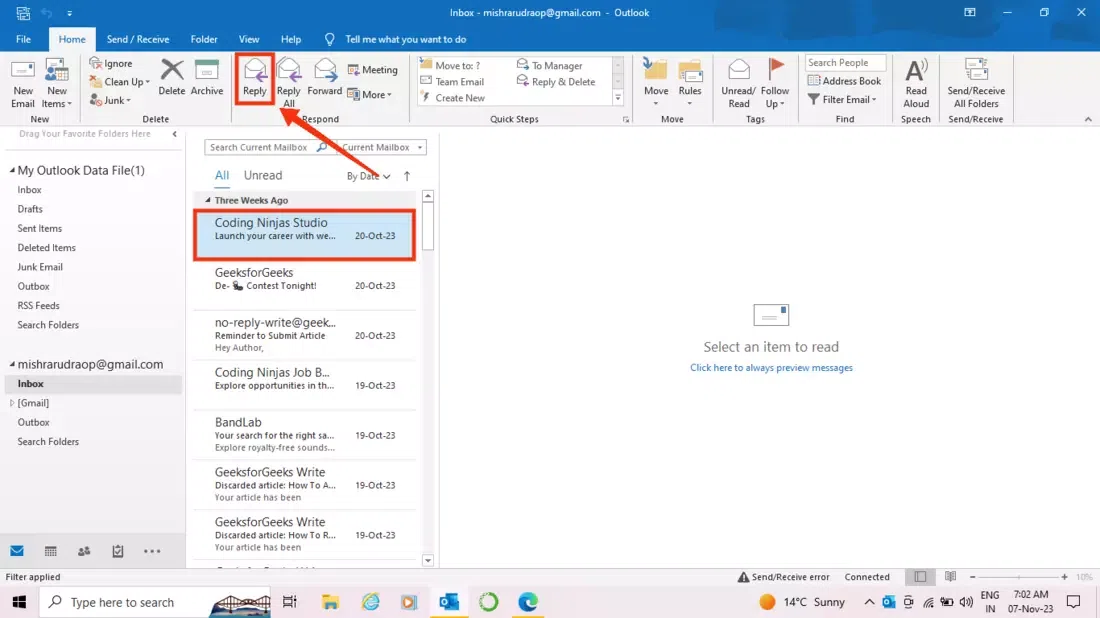
Step 1: Select Email and Click the Reply Button
To print your email with the reply feature, select your desired email and click on the Reply button present in the toolbar.
Method 2: Using a Text Editor Like Notepad or Word
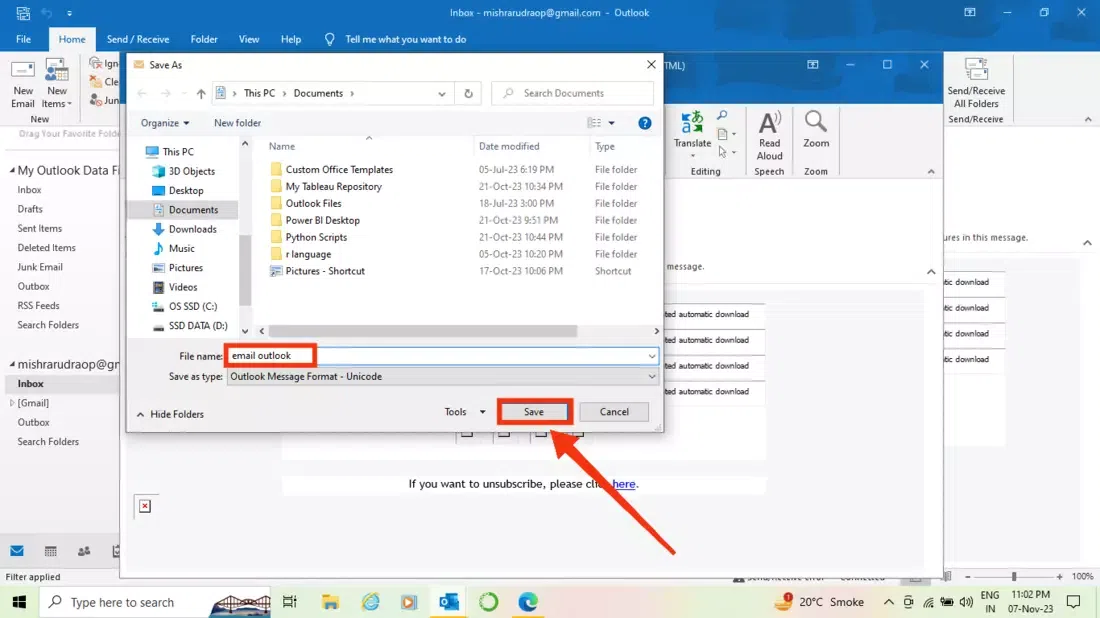
This method is best if you need more formatting control before printing. By saving the email as a text file, you can edit and customize it before printing.
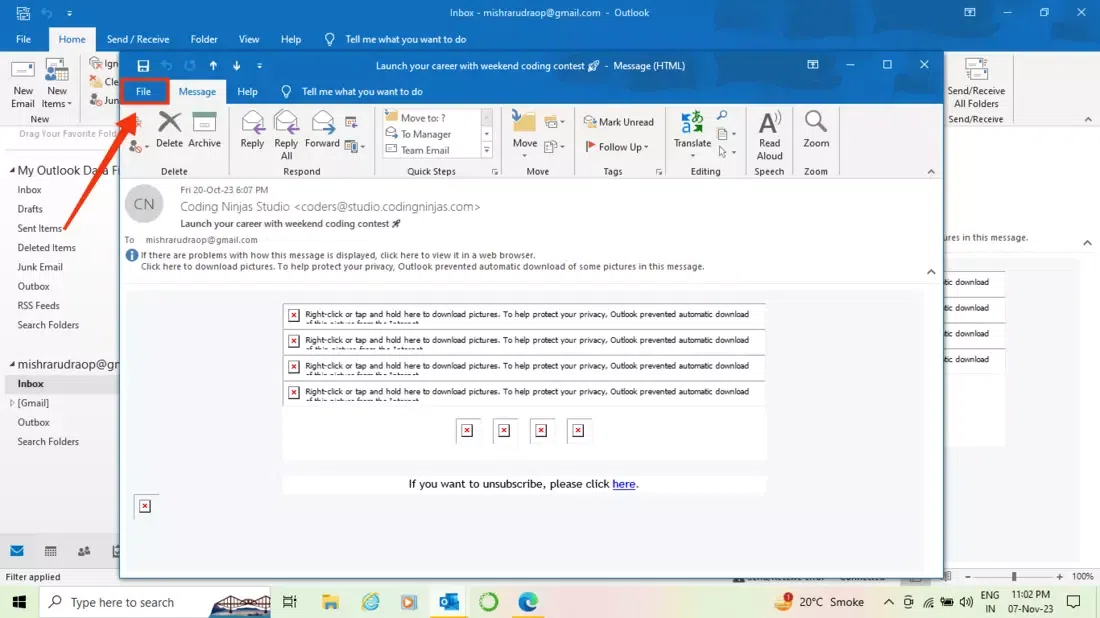
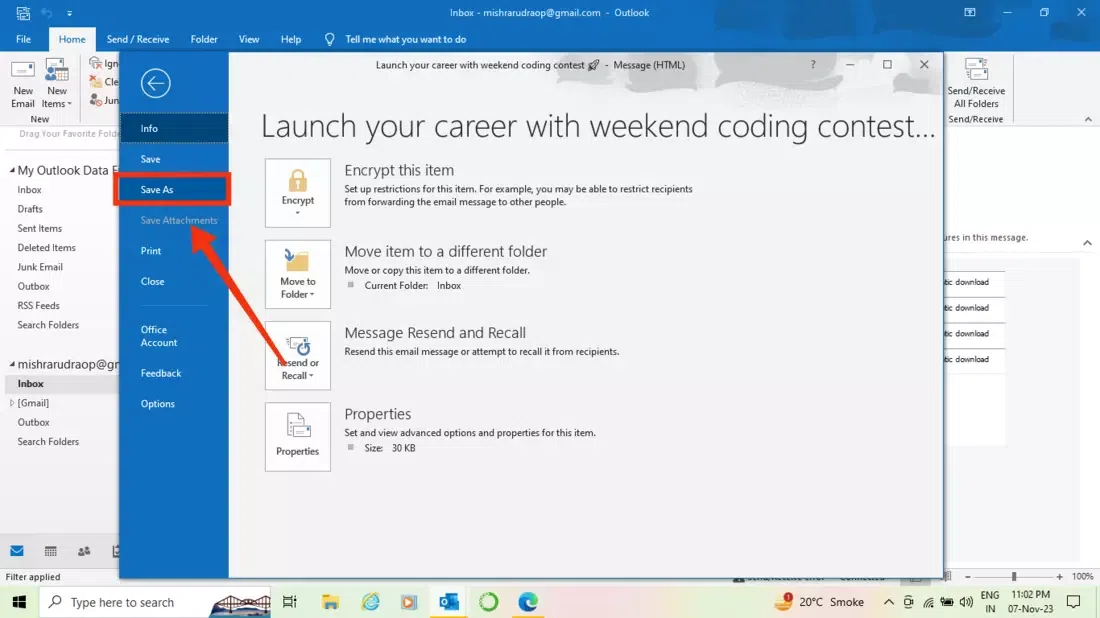
Step 1: Open your Email and Click on "File Option"
First, open your email by clicking on it and then click on the "File Option".
Pro Tip: If the print option is not visible, save the email as a PDF first and print it using your device’s file manager.
How to Print Email Attachments in Outlook
Printing attachments from Outlook requires additional steps depending on the file type (PDF, Word, Images & More). Follow these methods to print attachments seamlessly.
Method 1: Using Quick Print in Outlook
Open the email containing the attachment.
Right-click the attachment and select "Quick Print".
The file will open in its default application (Word, PDF Viewer, etc.).
Click "Print" from the respective application.
Method 2: Saving Attachments Before Printing
Open the email and download the attachment to your computer.
Open the file using the appropriate software.
Click "File" > "Print" and follow the usual steps.
Pro Tip: If you need to print multiple attachments, use the "Save All Attachments" feature to organize and print them together.
Troubleshooting Common Outlook Printing Issues
If you’re facing problems printing emails in Outlook, here are quick fixes for common issues.
Issue 1: Outlook Print Button Not Working
Restart Outlook and your printer.
Ensure your printer is connected and set as default.
Issue 2: Outlook Not Printing Attachments
Download the attachment before printing.
Check for security settings blocking the file.
Issue 3: Can’t Print from Outlook Web App
Use Google Chrome, Edge, or Firefox instead of Safari.
Disable browser extensions or ad blockers that might interfere.
Conclusion
Printing emails in Microsoft Outlook is a quick and effective way to keep physical records of important conversations. Whether you’re using Outlook on a desktop, web browser, or mobile device, following the steps outlined in this guide will help you print emails seamlessly and without formatting issues. From printing emails with attachments to removing headers for a clean printout, Outlook offers multiple options to customize your printing experience. Additionally, if you encounter any printing errors or missing print options, troubleshooting tips can quickly resolve the issue.
By mastering these Outlook printing techniques, you’ll be able to stay organized, enhance productivity, and ensure you have hard copies of crucial emails whenever needed.


.webp)
.webp)
.webp)
.webp)
.webp)
.webp)
.webp)
.webp)