|
VOOZH | about |
|
VOOZH | about |
Losing important changes in Google Docs can be a frustrating experience, especially if you've spent hours working on a document. However, Google Docs makes it easy to restore previous versions of your documents with just a few clicks. Whether you accidentally deleted a section of your document, made unwanted changes, or simply want to revisit an earlier draft, Google Docs version history has you covered. This feature allows you to go back to any version of the document that has been saved, ensuring that you never have to worry about losing important work.
In this step-by-step guide, you'll learn exactly how to restore previous versions in Google Docs, and how to efficiently use version history to manage your documents and collaborate with others. By understanding this feature, you can work more confidently, knowing that every edit is tracked and can be easily reverted to if needed.
Using the Google Docs version history, you can track document changes in Google Docs and revert to earlier drafts when needed. Follow these steps to restore a previous version:
Open the Google Docs document you want to restore a previous version for.
At the top left of the document, click on File in the menu bar.
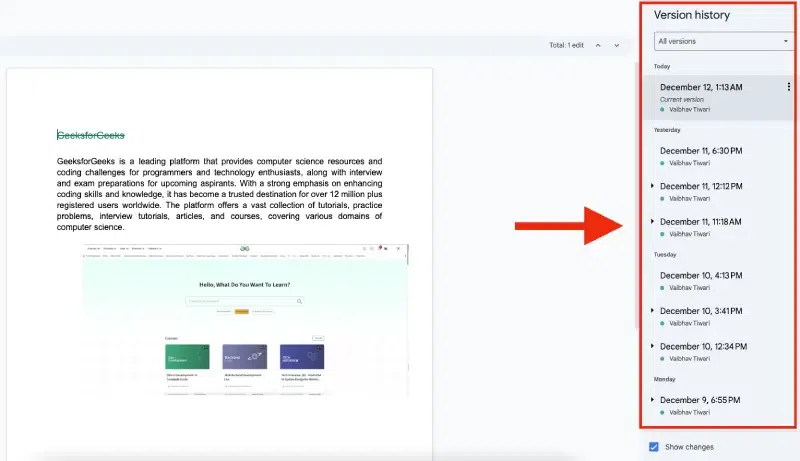
From the drop-down menu, hover over Version history, then click on See version history. This will open the version history panel on the right side of the document.
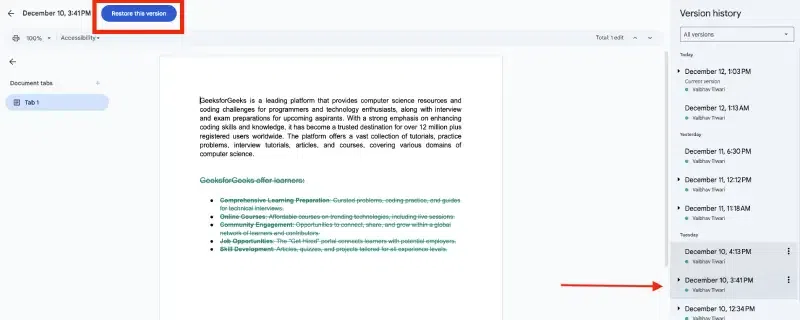
In the version history panel, you will see a list of previous versions of the document, organized by date and time. Click on any version to preview it. You’ll be able to see the exact changes that were made.
Once you've found the version you want to restore, click the Restore this version button at the top of the panel. This will replace your current document with the selected version.
After restoring, your document will be reverted to the previous version. You can continue editing, or the version history will remain available for future reference.
When using version history in Google Docs, follow these best practices to make it easier to restore previous versions and keep your document organized:
By following these practices, you can manage version history effectively and maintain a clear editing timeline.
Having the ability to restore previous versions in Google Docs ensures that you can easily recover lost work, compare drafts, and track changes made by collaborators. The version history feature offers a flexible and powerful way to manage your documents, especially when working on collaborative projects or complex documents. By following the steps outlined in this guide, you can confidently work in Google Docs, knowing that your edits are safe and you can always go back to a previous version if necessary.
Now that you're equipped with the knowledge of how to restore previous versions in Google Docs, you can make the most of this feature to improve your document management and editing process. Use this tool to safeguard your work and enhance your productivity, knowing that version history is there to keep your documents secure and organized.