 |
VOOZH | about |
|
VOOZH | about |
In today's digital world, sharing your location has become an essential part of communication. Whether you're planning a meet-up, giving directions, or letting friends and family know where you are, sharing your location through WhatsApp and Google Maps is quick and convenient.
In this article, you will learn the simple steps to share your Google Maps location on WhatsApp, making navigation and coordination easy and efficient.
👁 How-To-Share-Google-Map-Location-On-Whatsapp
Table of Content
Understand the benefits of sharing your location using WhatsApp and Google Maps.
To share the Google Map location on WhatsApp, one may go with any of the three ways mentioned below, according to their needs.
Learn how to share your live location on WhatsApp to keep others updated in real time.
Open the WhatsApp application by clicking on its icon, present on your mobile phone. Open the chat of the person with whom you want to share the live location.
Click the attachment icon present right next to the message box and select "Location" from the options available.
Select Share Live Location and choose the duration for which you want to share your location (15 minutes, 1 hour, or 8 hours). Add a caption if desired and tap the send button. Your live location will now be visible to the chosen contact.
Follow these steps to share your current location instantly via WhatsApp.
Open the WhatsApp application by clicking on its icon, present on your mobile phone. Open the chat of the person with whom you want to share the live location.
Click the attachment icon present right next to the message box and select "Location" from the options available.
👁 Share Google Map Location On WhatsApp
Click on the "Send your current location".Your current location will be visible to the person with whom you want to share your location.
Find out how to share any specific location using Google Maps on WhatsApp.
Open WhatsApp and navigate to the chat of the person you want to share the location with.
Click the attachment icon present right next to the message box and select "Location" from the options available.
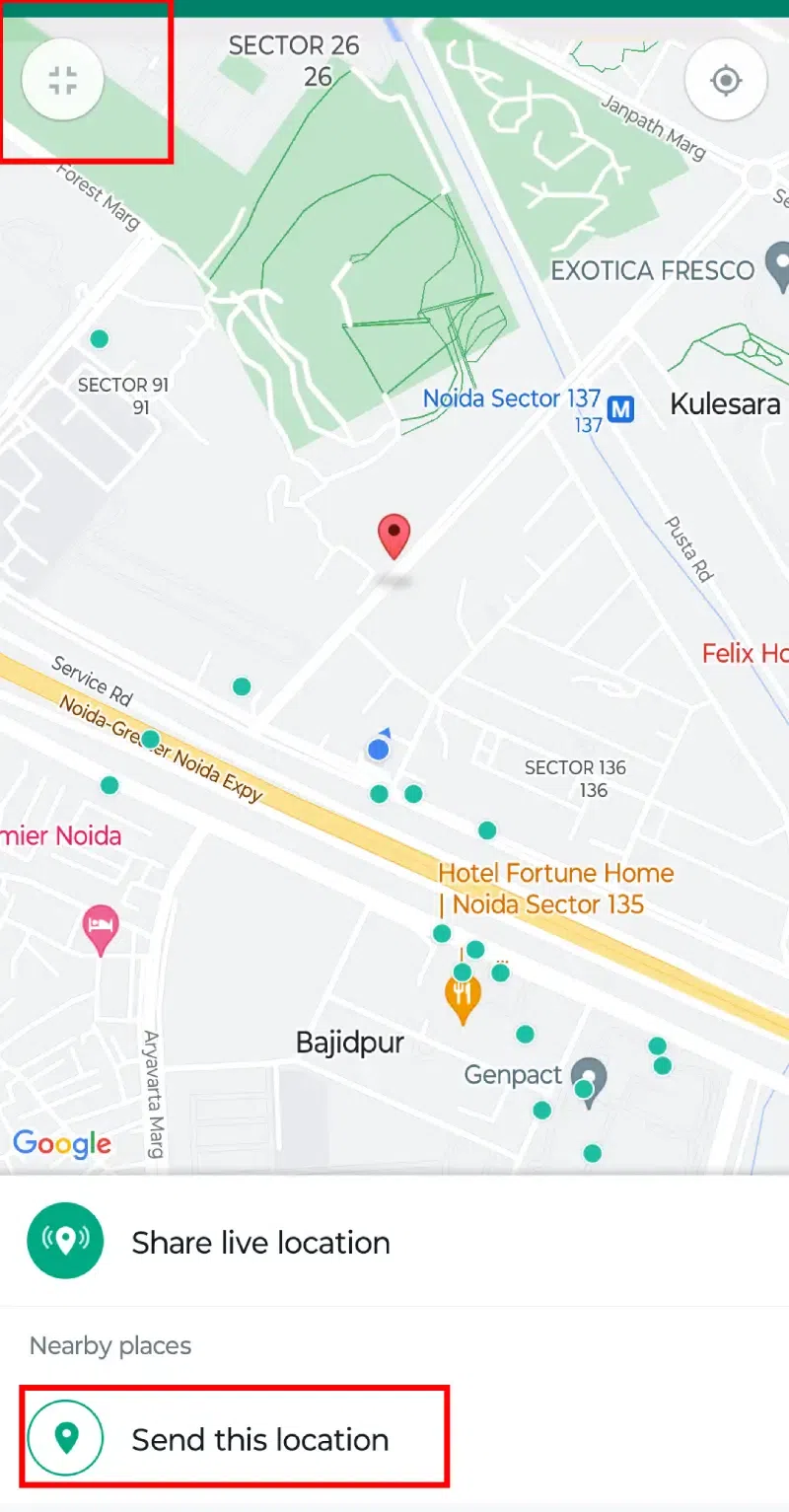
Click on the Fullscreen option present at the top left corner of the map. This will enlarge the map and let you share any location on WhatsApp. Here as an example, we selected sharing; live location. Click on "Send this location" and the location you wish to share with the receiver will be sent.
You can also Drag the pin on the map to the location you want to share. You may use the pinch gesture to zoom in and out of the map. Alternatively, you can search for a location by typing the location on the search bar at the top of the screen. Click on the correct location from the search results.
Learn how to share a location directly from Google Maps to WhatsApp.
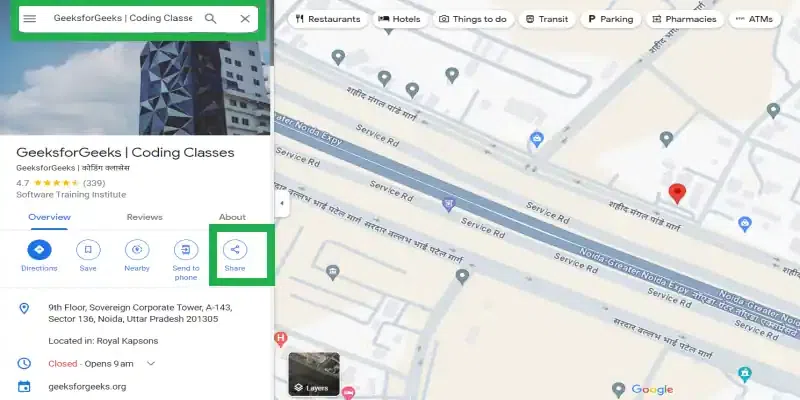
Open Google Maps on the browser application on your mobile phone and search for the location you want to share on WhatsApp. Click on the "Share" icon.
Select the WhatsApp icon from the available options. Choose the person with whom you want to share the location and hit enter or click on the "green" send arrow at the bottom right of the screen. The Google Maps location will be shared with the WhatsApp contact as a link.
Sharing your Google Maps location on WhatsApp is a simple task if you know how to do it . To do this task, you may either share live locations current location or any location from WhatsApp. Alternatively, you may share the Google map location on WhatsApp as discussed in this article. As digital communication evolves, these tools make location sharing a quick and user-friendly experience.

.webp)

.webp)
.webp)
.webp)