|
VOOZH | about |
|
VOOZH | about |
The LEN function in Google Sheets is a simple but powerful tool used to calculate the number of characters in a string of text. Whether you're working with text strings, numbers, or a mix of both, LEN helps you determine the length of any given cell content. This is particularly useful for tasks like data validation, cleaning up entries, or organizing information.
The LEN function in Google Sheets is used to count the number of characters in a cell, including spaces, numbers, and special symbols. It's a simple yet powerful tool for analyzing text length, managing data quality, or troubleshooting issues like unexpected extra spaces in your spreadsheet.
The LEN function works by taking a cell reference or text as input and returning the total number of characters within it. This includes all visible and invisible characters, such as letters, numbers, spaces, and punctuation. It's commonly used in text processing, such as validating data lengths or preparing data for export.
Here is the syntax of the LEN function in Google Sheets:
=LEN(text)
The LEN function is easy to use and helps you quickly determine the character count for any text input in Google Sheets.
The LEN function in Google Sheets is used to count the number of characters in a text string. This can include letters, numbers, spaces, and punctuation. Below is a step-by-step guide on how to use the LEN function.
The LEN function typically works for one cell at a time. To calculate the length for a range of cells (e.g., multiple rows), you will need to apply the formula row-by-row or use an array formula.
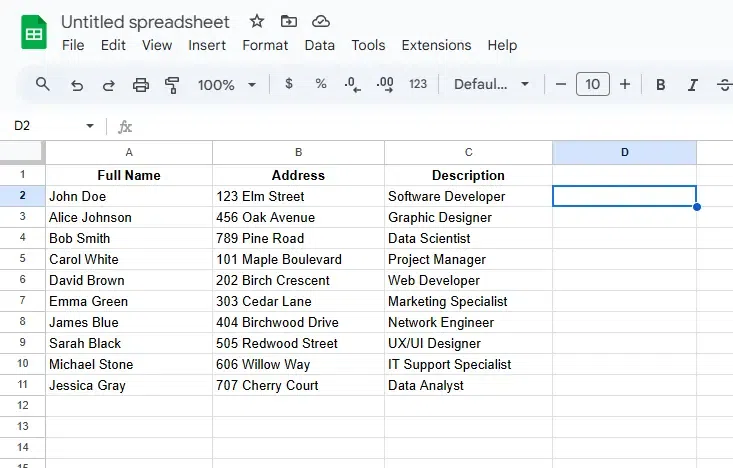
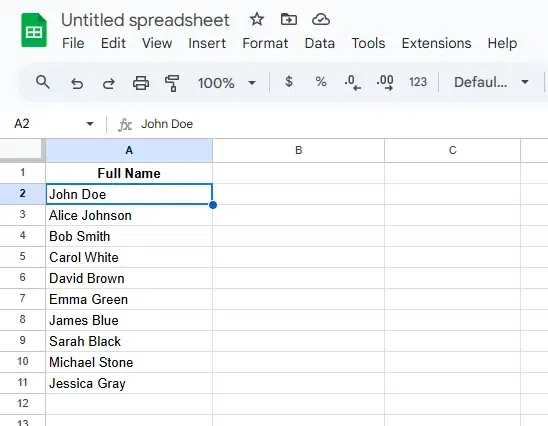
In the selected cell (D2), enter the LEN formula to calculate the character length of the name in A2.
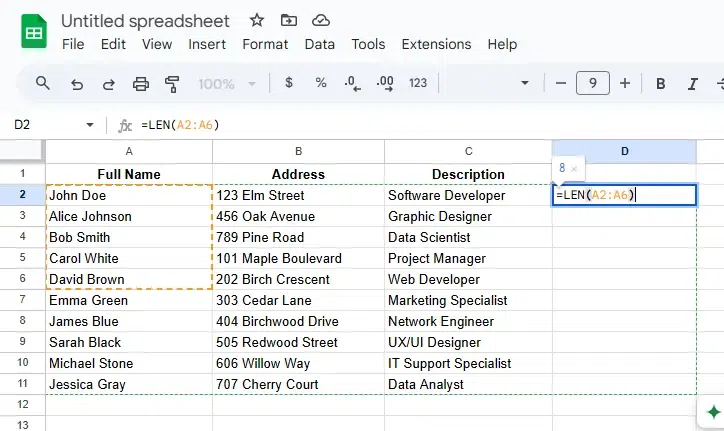
In D2, type:
=LEN(A2)
This formula calculates the length of the name in A2 ("John Doe") and returns the result (which is 8).
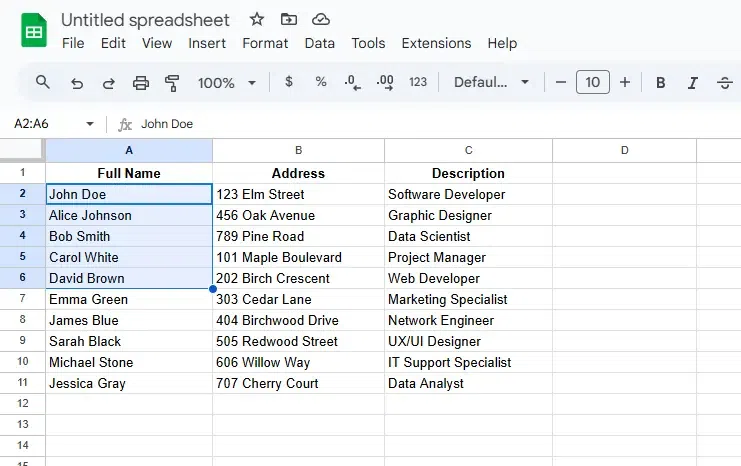
LEN is the function that calculates the number of characters in a text string.A2 is the reference to the cell containing the name whose character length you want to measure. For example, "John Doe" has 8 characters (including the space).Note: If you want to apply this to multiple cells in column A (A2:A6), you'll need to copy the formula down to other rows (D3, D4, etc.).
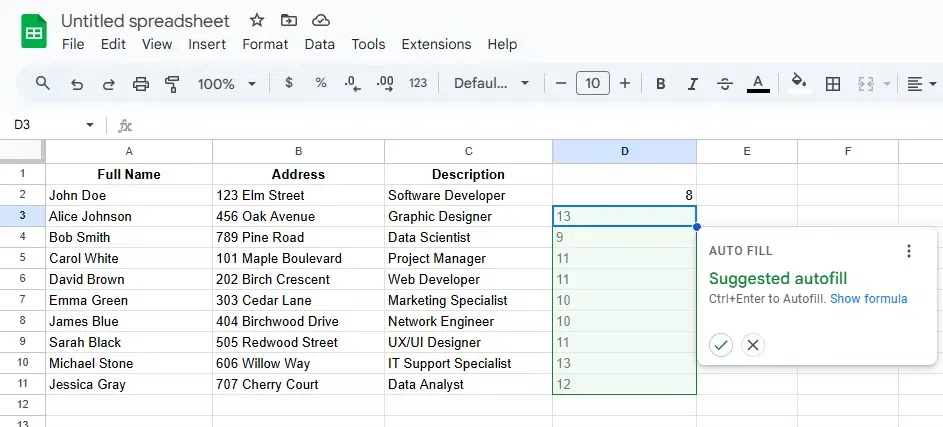
Press Enter to apply the formula. The result will be displayed in D2. After pressing Enter, the formula will display 8 in D2 because "John Doe" consists of 8 characters (including the space).
To calculate the character lengths for other names, select D2, then drag the fill handle (the small square in the bottom-right corner) down to D6. The formula will automatically adjust to reference the corresponding cells in column A (e.g., =LEN(A3) in D3).
To count how many times a specific character appears in a text string in Google Sheets, you can use a combination of the LEN and SUBSTITUTE functions.
Here's a simple step-by-step guide:
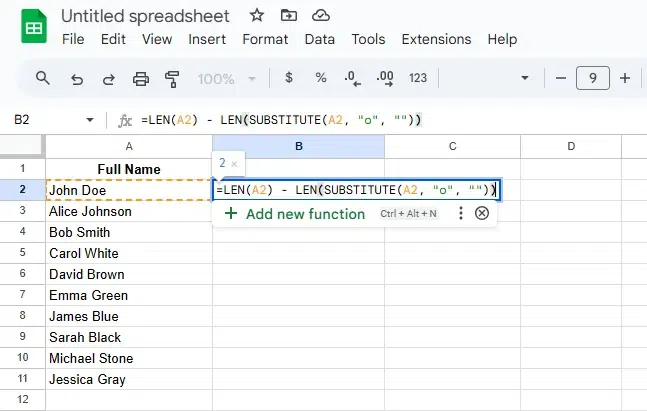
Choose the cell where you want to display the count of specific characters. Select B2 to display the count of occurrences of the letter "o" for the name in A2 ("John Doe").
Locate the cell containing the text you want to analyze, such as A2 for "John Doe".
Enter the formula to count how many times a specific character appears in the text.
=LEN(A2) - LEN(SUBSTITUTE(A2, "o", ""))
LEN(A2): This calculates the total number of characters in the text in A2.SUBSTITUTE(A2, "o", ""): This part of the formula replaces all occurrences of the letter "o" with nothing (essentially removes them) from the text in A2.LEN(SUBSTITUTE(A2, "o", "")): This calculates the length of the text after the letter "o" has been removed.The LEN(A2) minus the LEN(SUBSTITUTE(A2, "o", "")) gives the number of times the letter "o" appeared, because the difference in lengths corresponds to the number of occurrences of "o".
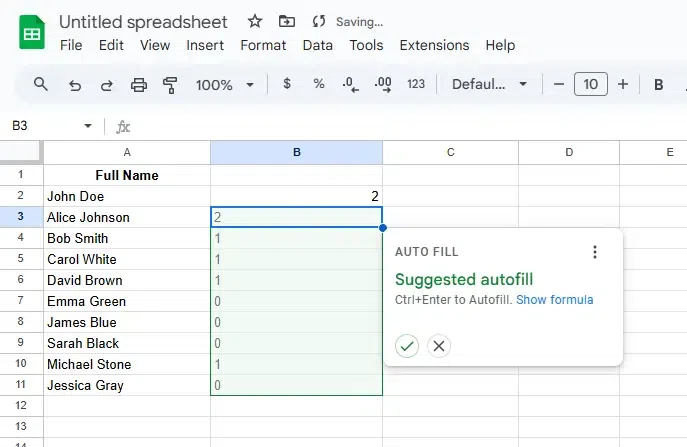
Press Enter to apply the formula in B2, then drag it down to count occurrences of the letter "o" in the other names. To apply to other rows, select B2, drag the fill handle (bottom-right corner) down to fill the cells below.
This will automatically update the formula for each row.
Also Read: