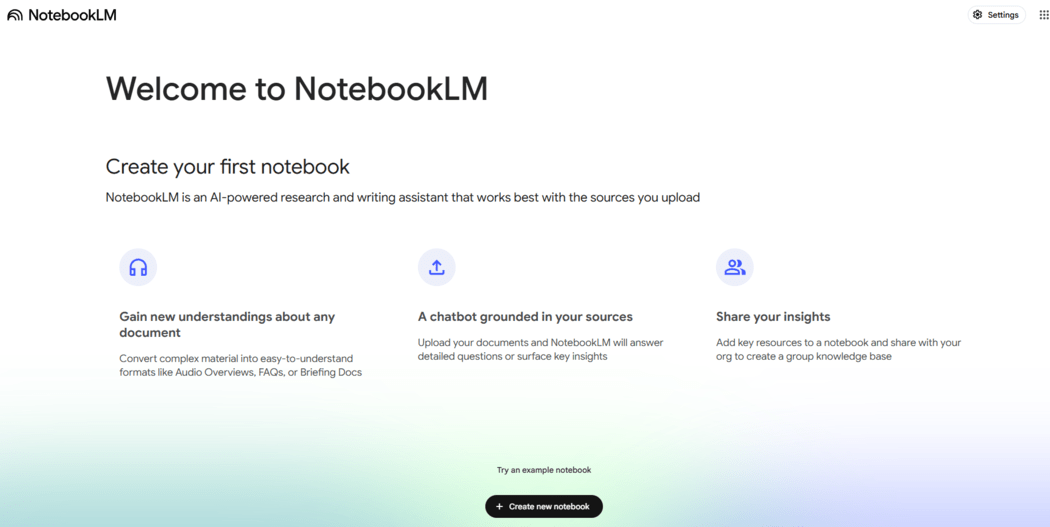
NotebookLM, launched in 2023 by Google Labs as Project Tailwind, is an AI-powered tool that transforms how you work with documents. Upload PDFs, Google Docs, or web links, and it delivers tailored insights, summaries, and answers based solely on your files no random internet data. Think of it as a smart notebook that organizes, analyzes, and brings your research to life.
Key Features of NotebookLM
NotebookLM is packed with features that make it stand out. Here’s a breakdown of what it can do:
Core Features
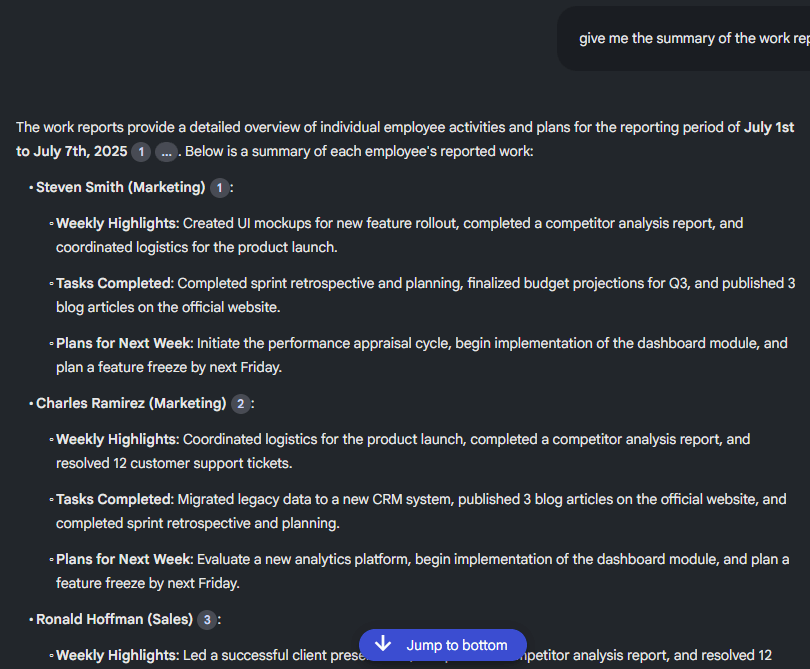
Summarization: Upload a long document, and NotebookLM will whip up a concise summary, highlighting key points in seconds. Perfect for skimming research papers or reports!
Question & Answer: Ask specific questions about your documents, and it’ll give answers backed by citations from your sources. No more digging through pages to find that one fact!
Source-Grounded Responses: Unlike chatbots that guess or pull from the web, NotebookLM sticks to your uploaded files, reducing the chance of errors.
Unique Features
Audio Overviews: This is a game-changer! NotebookLM can turn your documents into a podcast-style audio discussion between two AI hosts. It’s like listening to a fun, engaging summary while you’re on the go.
Mind Maps & Visuals: It can create visual diagrams to show how ideas in your documents connect, making complex topics easier to grasp.
Customizable Outputs: Need a study guide, FAQ, or timeline? NotebookLM can generate these formats tailored to your content, saving you tons of time.
Integration
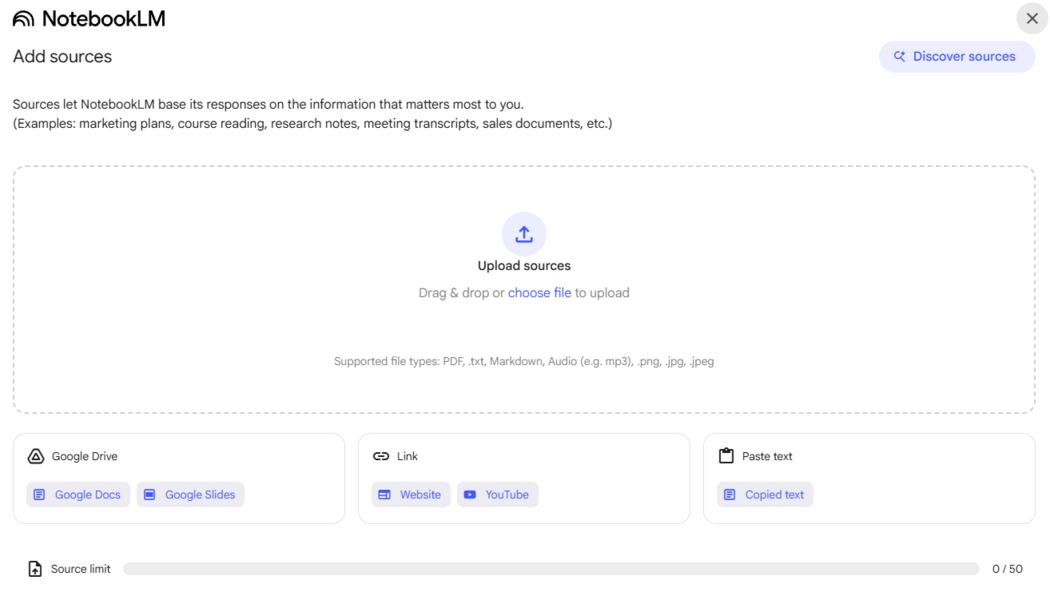
Works seamlessly with Google Workspace (Docs, Slides, Drive) for easy file uploads.
Supports multiple file types: PDFs, text files, web URLs, YouTube videos (with captions), and even audio files.
Share notebooks with teammates, just like sharing a Google Doc, for collaborative projects.
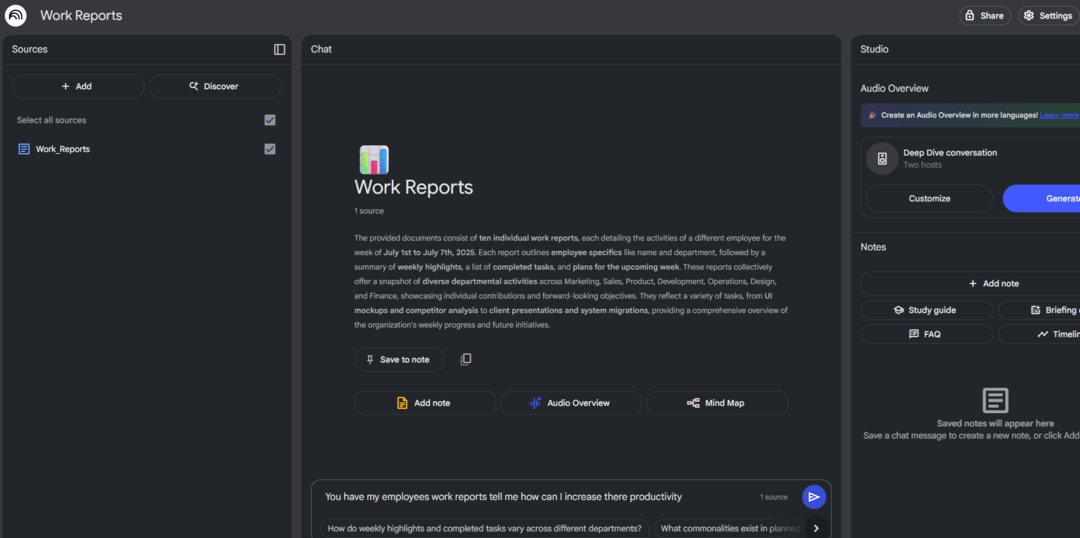
Once your files are uploaded, NotebookLM will generate a summary and suggest questions to get you started. You can also ask your own questions or request outputs like study guides.
Note: NotebookLM works on any modern browser and requires a stable internet connection. Ensure your Google account has access to Google Workspace for seamless integration.
Who Can Use NotebookLM?
NotebookLM is a versatile tool for all sorts of people. Here’s who can benefit and how:
Students: Create study guides, summarize textbook chapters, or turn lecture notes into audio summaries for quick review.
Researchers: Analyze academic papers, extract key findings, or spot connections across multiple studies.
Professionals: Summarize long reports, organize meeting notes, or generate briefing docs for presentations.
Content Creators: Turn research into blog outlines, social media posts, or even podcast scripts.
Marketers: Pull insights from data reports to craft targeted campaigns or content ideas.
For example, author Walter Isaacson used NotebookLM to dig through Marie Curie’s journals, creating summaries and timelines to spark new ideas for his work. Whether you’re tackling school, work, or creative projects, NotebookLM can save you time and effort.
Practical Applications of NotebookLM
Let’s see NotebookLM in action with some real-world examples:
Academic Research: Upload 10 research papers on climate change. Ask NotebookLM to summarize key findings or create a timeline of major discoveries. You’ll get a clear overview without reading every page.
Work Meetings: Dump meeting notes into a notebook. Request a summary of action items or a briefing doc to share with your team.
Studying: Upload your biology notes and ask for a study guide with quiz questions and a glossary. Listen to an audio overview while jogging to reinforce concepts.
Content Creation: Upload blog posts or articles, then ask for key topics to repurpose into social media posts. You can even generate a podcast script for your next episode.
Limitations and Best Practices
NotebookLM is awesome, but it’s not perfect. Here are some limitations and tips to work around them:
Limitations
File Types: It’s great with text-based files (PDFs, Docs) but struggles with spreadsheets or complex images.
Experimental Nature: Since it’s still in Google Labs, you might spot occasional inaccuracies or delays with large files.
Source Limits: Each notebook can hold up to 50 files, with a 500,000-word limit per file.
Regional Restrictions: Some features, like audio overviews, are limited to countries.
Best Practices
Be Specific: Use clear prompts like “Summarize the key findings of this paper” for precise results.
Check Outputs: Always cross-check AI-generated summaries or answers with your original documents to catch any errors.
Update Sources: Add new files regularly to keep your notebook current, especially for ongoing projects.
Optimize Audio: For audio uploads, use clear recordings to improve transcription accuracy.