 |
VOOZH | about |
|
VOOZH | about |
Layer management is an important part of designing in Figma. It helps you keep your work organized and ensures that you can easily make changes to your designs. By understanding how to manage layers effectively, you can work more efficiently and create more polished designs. In this article, we'll cover what are layers in figma and some simple tips and tricks for managing layers in Figma.
Layers in Figma are like different sheets stacked on top of each other, each containing a part of your design. Think of them as pieces of paper that you can move around, edit, and organize separately. Layers help you manage different elements of your design, such as text, images, and shapes, making it easier to control and adjust each part without affecting the others. By using layers, you can keep your work organized and make changes more easily.
Every object in the design file is referred to as a layer. For eg. The following design files has several rectangles, shapes & frames. All of these are considered as a layer.
Following image shows layers on the left panel.
All elements within the frame are also referred to as layers. For eg. The frame Design-GFG contains a text and a shape and here, the frame, the text & the shape, groups, all are layers.
The Layer Panel consists of all layers present in the Figma file. This provides us a detailed expansion of all the layers in the file, be it frames, shapes, text etc. Here is an example of a frame Design-GFG with several groups, within that rectangles and a text. All are layers here.
Left Panel looks like this:
Layers in Figma can be renamed by two ways. First is to either double click on the layer in the Layers Panel and then change the name, or click on the layer in the design file & then write it's name.
Renaming the Design:
Multiple layers can be selected all together, and they can be grouped together in the layer's panel. This multiselecting can also be achieved in the design file by clicking the cursor & dragging it onto the selected layers. The multiselecting in the layers panel can work by the shortcut Shift + Cursor.
selection in left panel:
Specific layer or element can be selected in the design file by bifurcation of several other frames, groups & they can be edited independently. For eg. Here, in the layer's panel, we have selected the Frame, then group & then the particular rectangle & now we can edit it's properties.
For those familiar with CSS, they would know z-index is the CSS property that controls which element would overlap the other. Here, we can't directly set the property of z-index, but we can use shortcuts & options to send an element front, or back. For eg. Here, if we draw a rectangle of white color in the red rectangle, we can use property of z-index, to send it front or back. When we will generate a code of the same, we will observe that the z-index of the white rectangle is higher as compared to that of the red rectangle, when it lies at the front of the rectangle.
White Rectangle:
changing index of a file:
Combining of layers, is also referred to as the Grouping of layers. This is achieved through the layer's panel, where using the shortcut Shift + Cursor, one can group more than one layers & this improves readability of the design as it calls for a good naming strategy for every element. For eg. Here we have grouped/combined the rectangles/layers with the name: Rect.
Selected on the left bar:
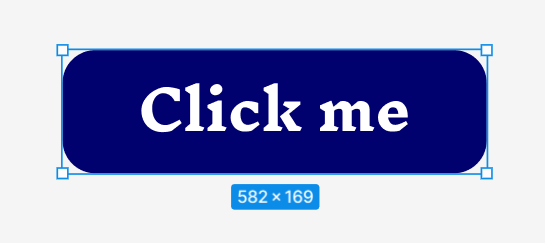
The Layers in Figma also provide an option of creating components that are reusable and their instances can be created any time that help in reducing the dependencies & increasing the availability and ease of usage of resources. Here is an example of a button component that we have made and an instance can be created from the Assets panel.
Step 1: First create the design of a button.
Step 2: Right click on the design file layer element & select Create Component option, or use shortcut Ctrl + Alt + K.
Button Component:
Step 3: Go to the Assets Panel which lies just beside the Layers panel & now you can create an instance of the button.
Pages can be created for every page if we are into UI/UX Designing. For eg. If we are creating a website with several pages such as Home Page, About Us Page, Sections, Services Page etc, we can create several Pages in layer panel that define the section. This helps improve the readability and accessibility of the pages.
In the following design file, all the below layers lie in Page 1.
Similarly, we can create another page and add the design in the page. For eg, here we have created a demo Home page & in that there is a frame with several layers in it.
Good layer management in Figma makes your design process smoother and more efficient. By keeping your layers organized, you can easily edit and refine your work, leading to better and more professional designs. Practice these layer management tips, and you'll find working in Figma more enjoyable and productive.

.png)
.png)
.png)

.png)
.png)
.png)
.png)
.png)
.png)
.png)
.png)
.png)
.png)
.png)
.png)
.png)
.png)
.png)