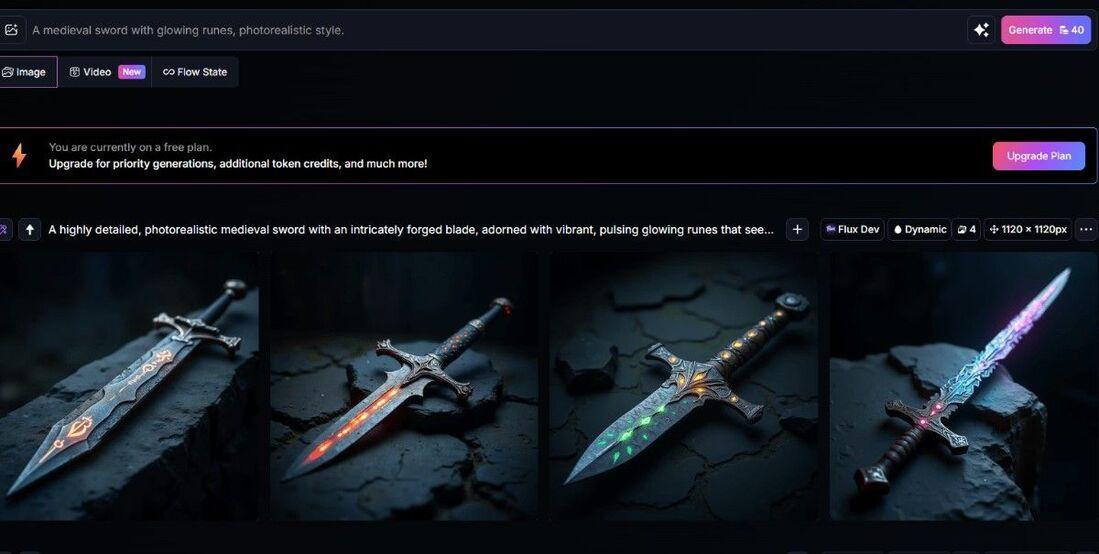
Leonardo AI is a powerful tool that uses artificial intelligence to create images from text descriptions, known as prompts. You type something like “a magical forest with glowing mushrooms,” and Leonardo AI generates a high-quality image to match. It’s designed to be user-friendly, so anyone—from beginners to pros—can create art, game assets, or marketing visuals.
How to Use Leonardo AI
Step 1: Sign Up
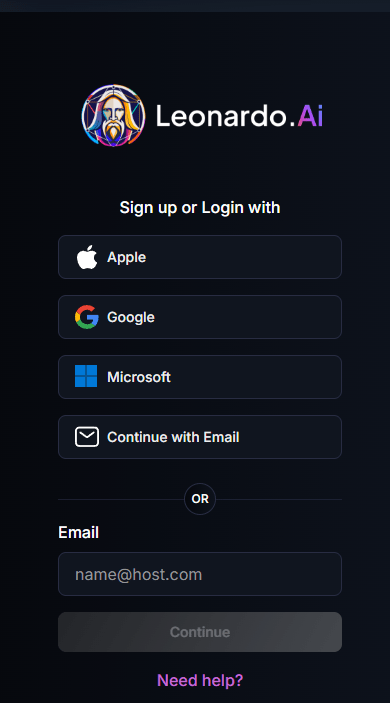
Visit leonardo.ai and create an account using Google, Microsoft, Apple, or email. You’ll get a verification code to start.
Social Media Content: “A vibrant cartoon cupcake with sparkles.” Great for eye-catching posts.
Marketing Visuals: “A sleek car on a city street at night, cinematic style.” Ideal for ads.
Concept Art: “A futuristic spaceship orbiting a planet, in digital painting style.” Helps artists brainstorm.
Personal Art: “A cozy cat in a sweater by a fireplace, watercolor style.” Fun for hobbyists.
What Can Leonardo AI Do Best?
Leonardo AI excels at:
Photorealistic Images: Creates stunning, lifelike visuals with up to 95% prompt accuracy.
Game Asset Creation: Generates characters, props, and environments quickly, saving developers time.
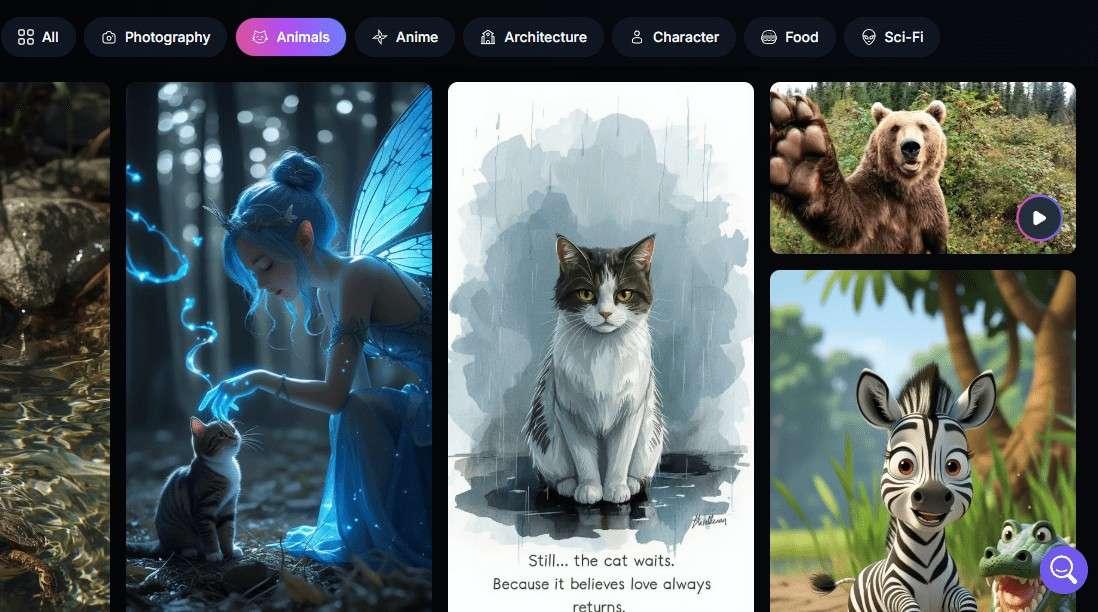
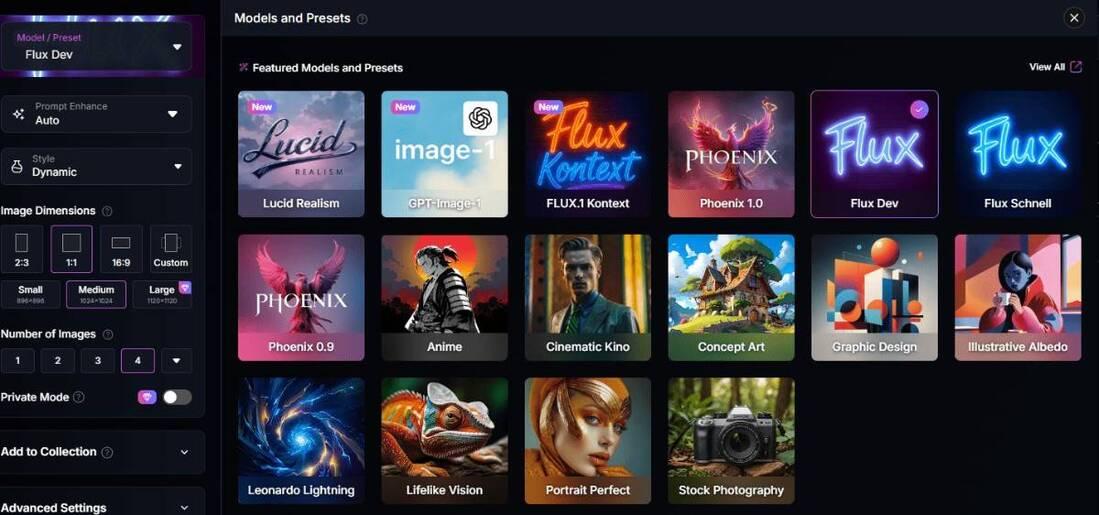
Style Variety: Offers models for anime, vintage, or cinematic art, giving you endless creative options.
Custom Training: Lets you train models on your own images for consistent, brand-specific results.It’s a game-changer for fast, high-quality visuals, especially for gaming and marketing.
Where Leonardo AI Lacks and Tips to Avoid Issues
No tool is perfect, and Leonardo AI has some quirks:
Free Plan Limits: Images are public, and you’re capped at 150 tokens daily.
Tip: Upgrade to a paid plan (from $10/month) for private images and more tokens.
Text in Images: Struggles with generating clear text, like signs or labels.
Tip: Add text later using editing software.
Complex Prompts: Too many details can lead to messy results.
Tip: Keep prompts clear and focused, like “a red dragon in a forest” instead of adding too many elements.
Copyright Concerns: Some artists worry about AI models using existing art, which could raise legal issues.
Tip: Check Leonardo’s terms of service for commercial use and consider paid plans for full ownership.
Best Practices for Best Outputs
A great prompt is key to awesome images. Here’s how to nail it:
Good Prompt: “A cyberpunk city at night with neon signs, in a photorealistic style, high contrast.” This is specific, with a clear setting, style, and vibe. Result: A vibrant, detailed cityscape.
Bad Prompt: “A city with lights.” This is vague, so the AI might pick random styles or details. Result: Could be a dull or mismatched image.
Best Practice Tips:
Be specific about style, colors, and mood.
Use negative prompts to avoid unwanted elements (e.g., “no blurry edges”).
Experiment with models like Leonardo Diffusion XL for different looks.
Start with 8-15 images when training custom models for balanced results.