|
VOOZH | about |
|
VOOZH | about |
Did you know that WhatsApp has over 2 billion users worldwide, making it one of the most popular messaging apps? Yet, despite its widespread use, many users are unaware of its chat privacy settings that can protect sensitive conversations. Whether it’s hiding work-related discussions, securing financial details, or keeping personal chats private, WhatsApp’s chat lockfeature adds an extra layer of security.
This guide walks you through how to lock chat in WhatsApp on Android and iOS in 2025, ensuring your private messages stay hidden behind a password, fingerprint, or face scan. From securing sensitive discussions to hiding them from your main inbox, you’ll learn to take control of your WhatsApp chat privacy settings in seconds. Let’s dive in!
WhatsApp’s Chat Lock feature lets you add an extra layer of privacy to your conversations. When you lock a chat, it gets hidden from your main chats list and moved to a special folder called Locked Chats. This ensures your private conversations stay secure and out of sight.
To access a locked chat, you’ll need to unlock it using your device authentication, such as your phone’s passcode, Face ID, fingerprint, or a secret code that you set. This makes sure only you can open and read your locked chats.
When a chat is locked, WhatsApp also hides the notification content and contact information. Instead of showing the message or sender’s name, notifications will simply say, “WhatsApp: 1 new message.” This keeps your chats private, even if someone else sees your phone.
Note: Depending on the language you use in WhatsApp, this feature might appear as Chat Lock or Chat Block. Either way, it’s the same feature designed to protect your privacy.
With Chat Lock, you can feel confident that your most important conversations are safe and secure!
You can lock specific chats in WhatsApp, including group chats and muted chats, to keep your conversations private. To use this feature, you need to turn chat lock on, but if device authentication (such as a fingerprint or Face ID) isn’t enabled, WhatsApp will prompt you to activate it before locking a chat.
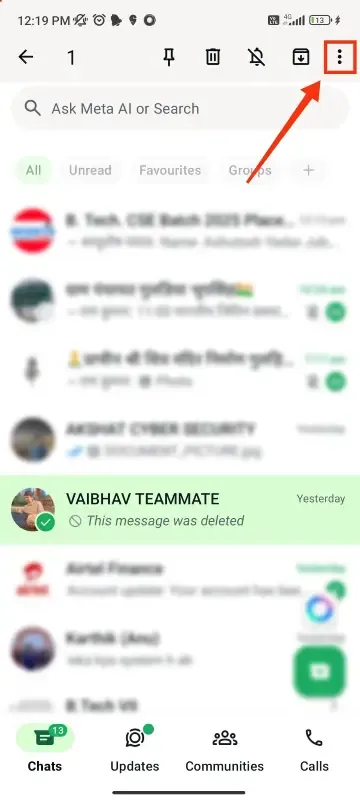
Launch the WhatsApp app on your smartphone and go to the Chats tab.
Find the personal or group chat you want to lock.
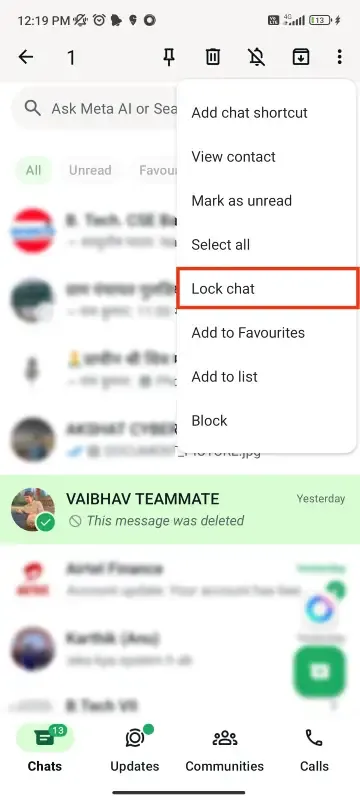
Scroll down and look for the Chat Lock option.
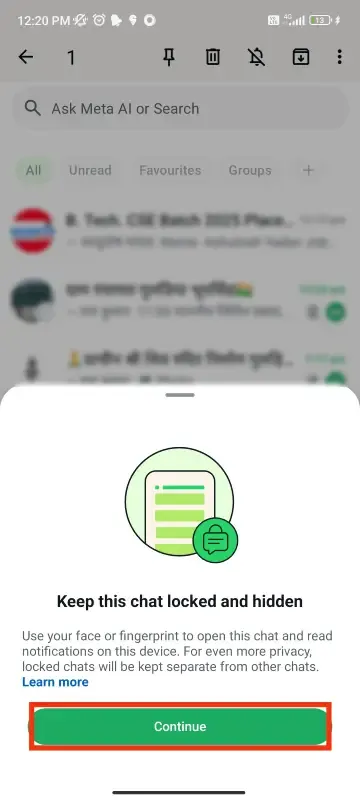
Turn on "Lock this chat with fingerprint" (Android) or Face ID/Touch ID (iPhone) by clicking on the continue button.
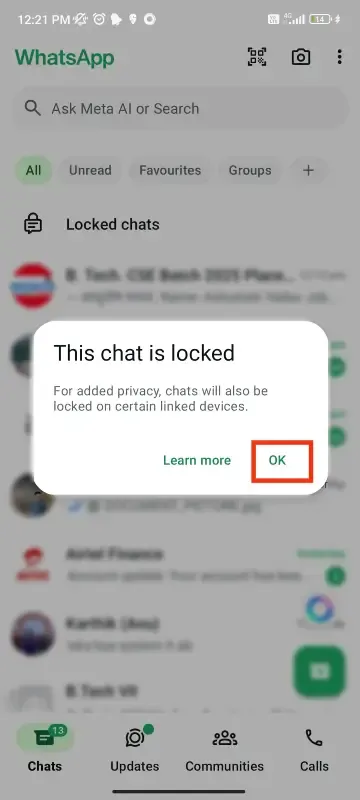
Use your fingerprint, Face ID, or passcode to confirm the lock. After entering the passcode you will prompted to that the chat is locked.
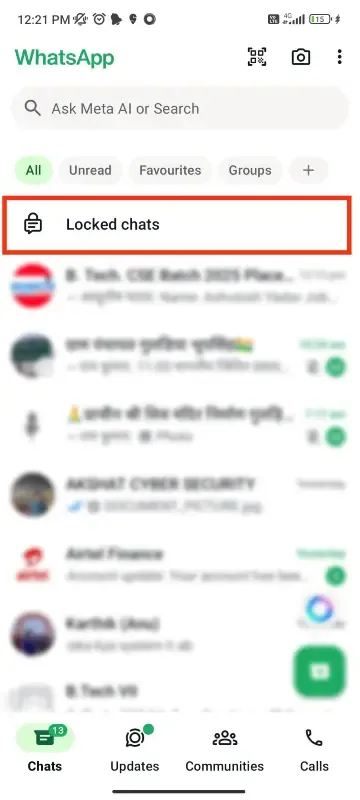
To view locked chats, swipe down on the Chats tab and tap Locked Chats to open them with authentication.
If you have locked conversations, you can easily unlock WhatsApp chats on both Android and iOS. Whether using fingerprint, Face ID, or a passcode, here’s how you can access your locked WhatsApp chats in just a few steps.
Launch the WhatsApp app and go to the Chats tab.
Swipe down on the chat list and tap on Locked Chats to open the folder.
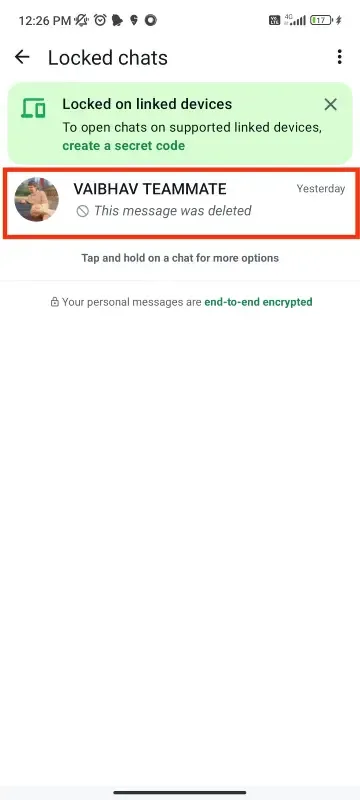
Use your fingerprint, Face ID, or passcode to unlock the folder.
Find the chat you want to remove from the locked chats.
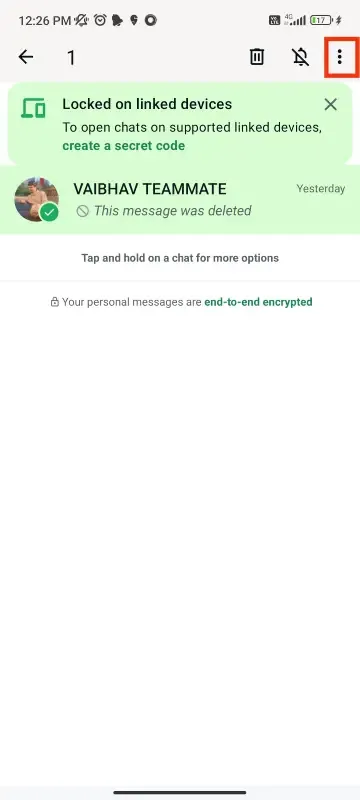
Click on Unlock Chat option from the drop down menu.
Authenticate using your fingerprint, Face ID, or passcode, and the chat will move back to the main chat list.
Locking chats in WhatsApp is a simple yet powerful way to safeguard your private conversations. By following the steps to lock chat in WhatsApp (and unlock them when needed), you ensure that personal messages stay hidden behind biometric or password protection. Whether you’re shielding financial talks, surprise plans, or heartfelt exchanges, this feature gives you peace of mind.
Turn chat lock on or off today and enjoy a safer, more confidential messaging experience. Your secrets—and your sanity—are worth protecting!