|
VOOZH | about |
|
VOOZH | about |
Is your Outlook inbox overloaded with emails? Managing your emails efficiently can boost productivity, reduce stress, and help you find messages faster. Microsoft Outlook provides powerful tools such as folders, rules, Focused Inbox, and automation to help you stay organized and keep your inbox clutter-free.
In this guide, you'll learn 12 expert Outlook tips to organize emails, automate sorting, declutter your inbox, and improve email productivity. Whether you're using Outlook 365, Outlook Web, or Outlook Desktop, these best practices will help you stay in control of your inbox.
Before we dive into the best email organization techniques, let’s explore why it’s essential to keep your Outlook inbox organized:
Keeping your Outlook inbox organized is essential for boosting productivity, reducing clutter, and improving email management. By using folders, rules, Focused Inbox, categories, and automation, you can streamline email workflows, quickly find important messages, and eliminate distractions. In this section, we’ll cover 12 expert Outlook tips to help you keep your inbox clean, efficient, and stress-free.
Creating folders in Outlook is one of the first steps to organizing your inbox. By categorizing emails into folders based on projects, clients, or priorities, you can easily track important messages without the chaos of a cluttered inbox. For an even more structured approach, you can create subfolders within main folders to further divide your categories.
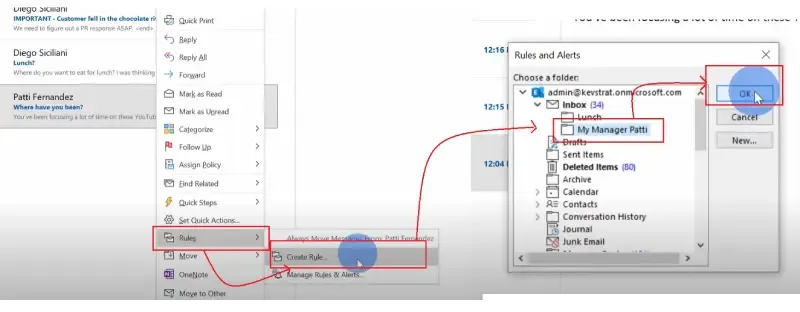
One of the most effective ways to maintain an organized inbox is by automating email management. Outlook's rules feature allows you to set up automatic sorting, filtering, and actions based on various conditions like sender, subject, or keywords. This helps you stay ahead of incoming emails and reduces the need for manual intervention.
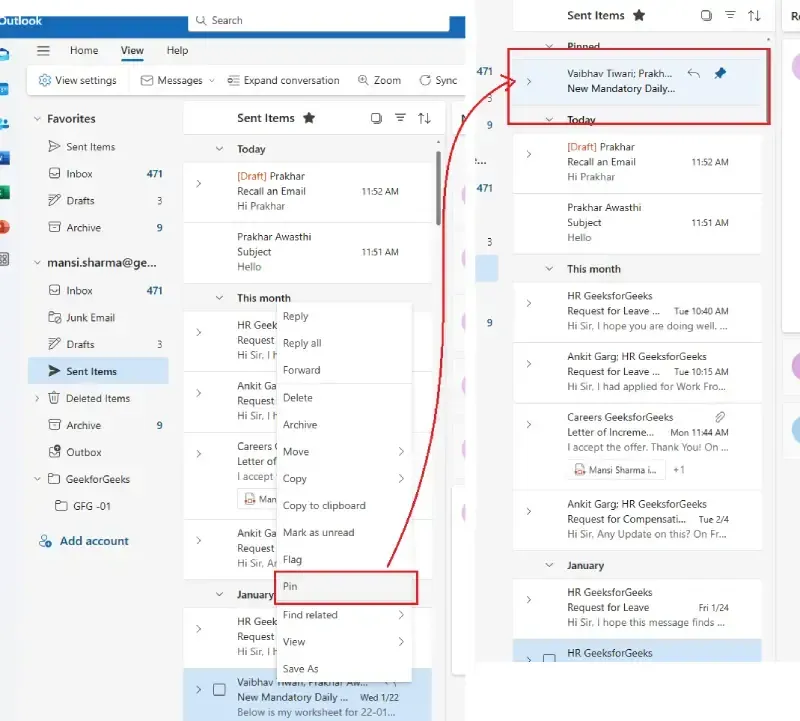
Pinning emails in Outlook ensures that the most critical emails stay at the top of your inbox, making them easy to find and respond to quickly. Whether it's a client request or an important deadline, pinning keeps these messages in your line of sight.
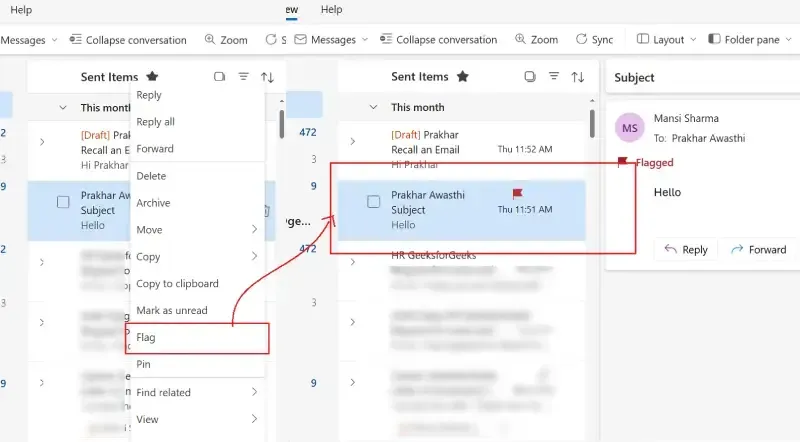
Flagging emails in Outlook helps you mark important emails that need follow-up. You can also filter emails by flags, ensuring that you never miss important tasks or deadlines. This feature is especially useful for organizing your daily to-dos without losing track of critical communication.
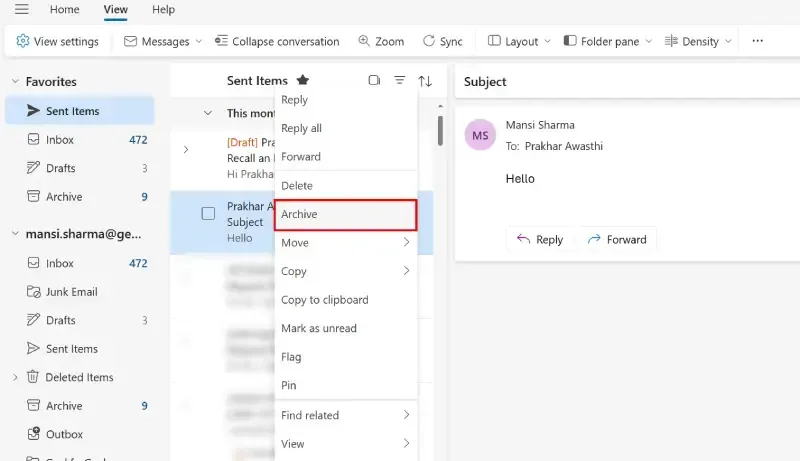
Archiving old emails in Outlook is an excellent way to reduce clutter without permanently deleting important messages. Archived emails are moved to a separate folder, keeping your inbox clear while still allowing you to search for them when necessary.
Outlook Quick Steps are a time-saving feature that automates repetitive tasks. Whether you need to forward emails, set reminders, or move messages to a folder, Quick Steps allow you to perform multiple actions with a single click. This feature is particularly useful for professionals with busy email workflows.
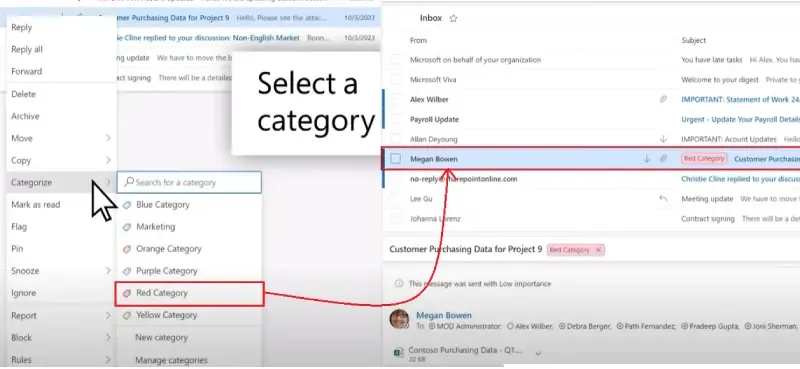
Categories in Outlook help you visually sort emails by theme, priority, or project. You can color-code categories for quick identification, making it easier to prioritize messages and stay on top of your workload. This is especially useful for managing multiple projects or clients at once.
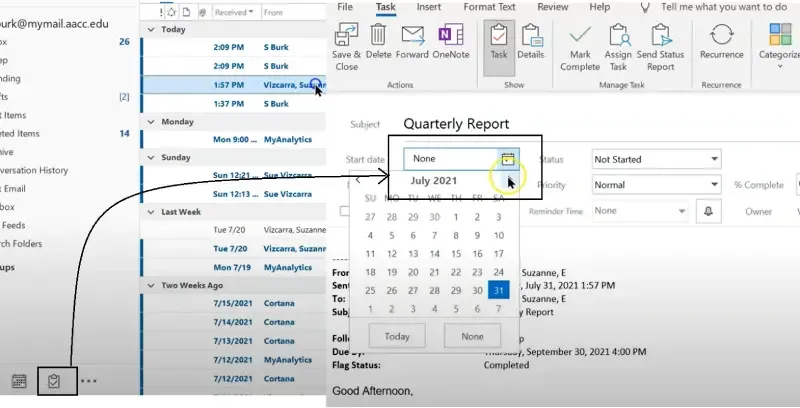
Microsoft To Do integrates seamlessly with Outlook, allowing you to convert emails into tasks with deadlines and reminders. This integration is ideal for those who manage both emails and tasks within the Microsoft ecosystem. Turn important emails into actionable to-dos and keep everything in one place.
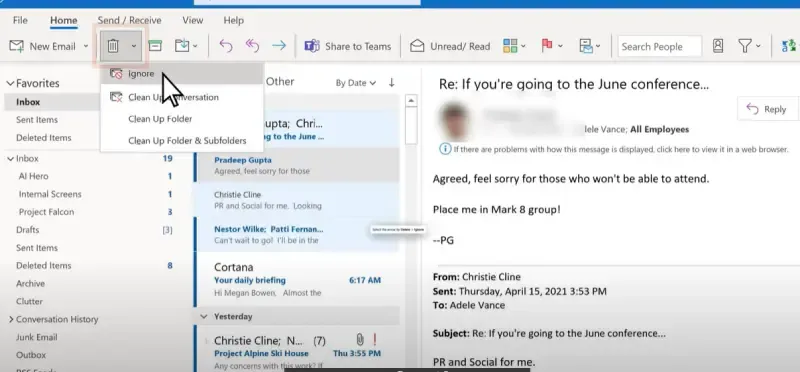
Outlook’s Ignore feature is perfect for avoiding lengthy email threads that don’t require your input. By selecting Ignore, all future responses to that thread will be automatically sent to your Deleted Items folder, saving you time and reducing inbox clutter.
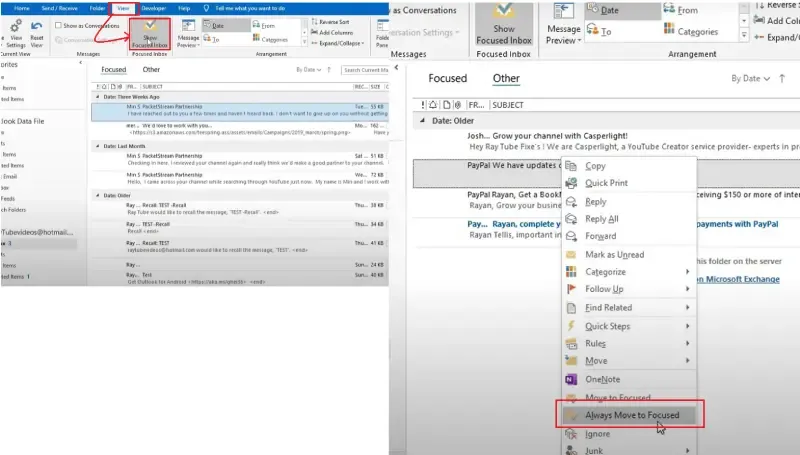
Outlook's Focused Inbox helps you focus on high-priority emails by automatically separating important messages from less critical ones. This feature works by analyzing the content of your emails and delivering them to two separate tabs: Focused and Other.
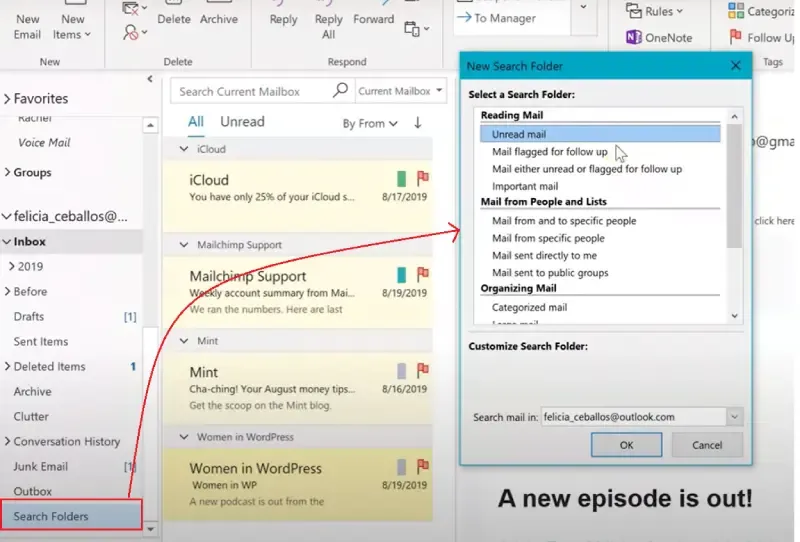
Search Folders are a powerful feature that allows you to create dynamic, real-time folders based on specific search criteria. Whether you're looking for unread emails, messages from specific senders, or emails with attachments, search folders give you instant access to exactly what you need.
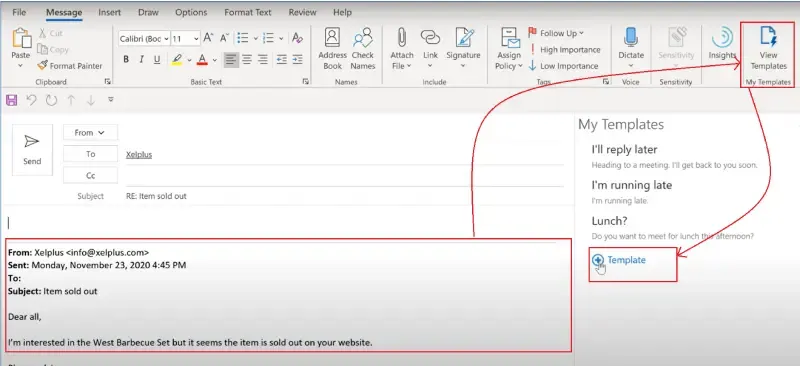
For those who send similar responses frequently, creating email templates in Outlook can save significant time. Whether you’re responding to client inquiries or sending out routine updates, templates help maintain consistency while reducing repetitive work.
Mastering Outlook's advanced features can significantly improve your email organization and productivity. From setting up folders and rules to integrating Microsoft To Do for task management, these strategies provide a comprehensive approach to maintaining an organized inbox. By automating common tasks, categorizing emails, and using features like Focused Inbox and Search Folders, you can easily manage even the busiest of inboxes and stay focused on what matters most.