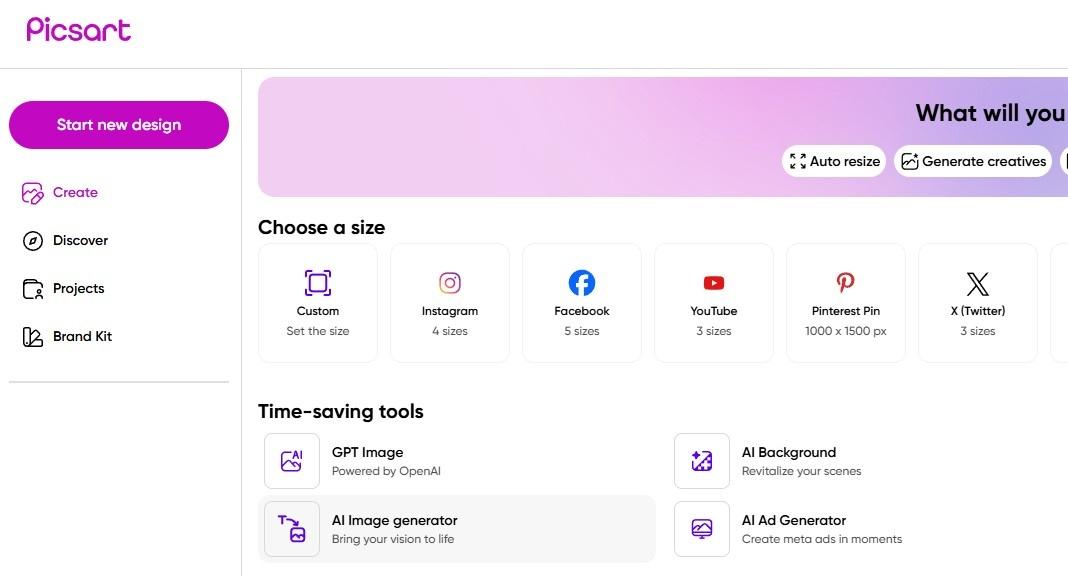
Picsart AI Image Generator is a feature within the Picsart platform that uses artificial intelligence to create images from text prompts, like “a sunny meadow with colourful flowers.” Launched in November 2022, it’s part of Picsart’s creative suite, loved by over 150 million monthly users worldwide. You type a description, and the AI whips up stunning visuals, from cartoons to landscapes. It’s like having a personal artist who works instantly, perfect for beginners and pros alike.
How to Use Picsart AI
Step 1: Access Picsart
Open the Picsart app on iOS/Android or visit picsart.com and sign in (free or with a Plus/Pro plan for more features).
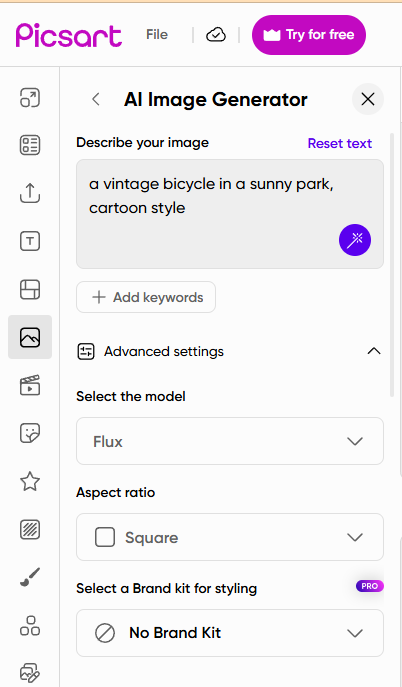
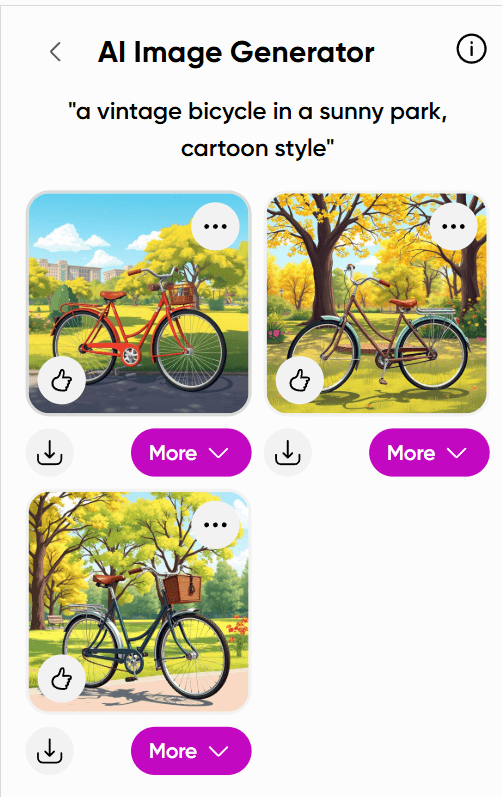
Type a clear description, like “a vintage bicycle in a sunny park, cartoon style.” For best results, include details about the subject, setting, and style.
Pick your favorite image and use Picsart’s tools to add stickers, text, or filters. You can also use AI Replace or Background Generator for further tweaks.
Step 7: Download or Share
Save your image or share it directly to social media. Note that free plan images are public and watermarked unless you upgrade to a paid plan.
Use Cases
Picsart AI Image Generator is perfect for all kinds of projects. Here are some ideas with example prompts:
Social Media Content: “A colorful unicorn in a neon city, pop art style.” Great for eye-catching Instagram or TikTok posts.
Marketing Ads: “A coffee mug on a cozy wooden table, photorealistic style.” Ideal for product promotions or e-commerce visuals.
Personal Art: “A dreamy watercolor of a starry night sky.” Fun for creating custom wall art or gifts.
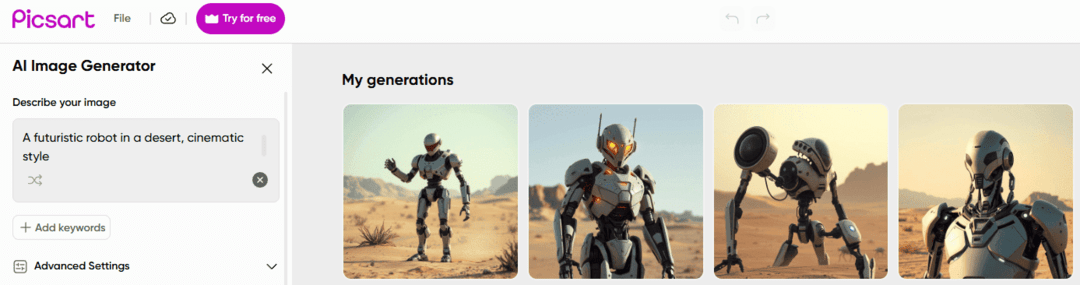
Concept Art: “A futuristic robot in a desert, cinematic style.” Helps game designers or writers visualize ideas.
Event Graphics: “A festive banner with balloons and confetti, cartoon style.” Perfect for party invites or posters.
What Can Picsart AI Do Best?
Picsart shines at:
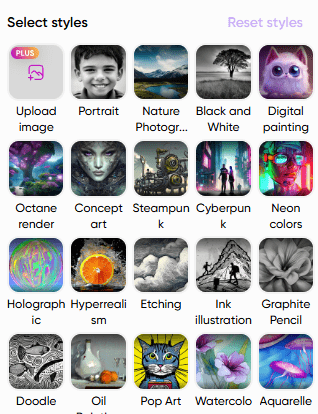
Creative Flexibility: With tons of styles like anime, neon, or vintage, it’s perfect for creating diverse visuals for personal or professional use.
Fast Content Creation: Generate images in seconds, saving time for marketers or creators needing quick visuals for ads or posts.
Community Collaboration: The free-to-edit library lets users remix images, fostering a creative community for inspiration and teamwork.
Animal and Landscape Art: It excels at generating vibrant animals and scenic landscapes, making it great for nature-inspired projects. It’s a fantastic tool for quick, fun, and collaborative creativity, especially for social media and marketing.
Where Picsart AI Lacks and Tips to Avoid Issues
Picsart has a few quirks to watch out for:
Hyperrealism Struggles: It’s not the best for hyperrealistic images, like detailed human portraits.
Tip: Stick to stylized or cartoonish prompts for better results, or use editing tools to refine.
Prompt Sensitivity: Vague prompts can lead to off-target images.
Tip: Be specific, like “a red sports car on a mountain road, photorealistic” instead of “a car.”
Public Images on Free Plan: Free plan images are public and watermarked, which may not suit private projects.
Tip: Upgrade to Picsart Plus ($5/month) for private images and no watermarks.
No Video Generation: It lacks text-to-video AI generation, unlike some competitors.
Tip: Use Picsart’s video editor for basic video enhancements instead.
Complex Prompts: Too many details can confuse the AI, leading to messy results.
Tip: Keep prompts clear and concise, focusing on one main subject and style.
Best Practices for Best Outputs
A great prompt makes all the difference. Here’s how to nail it:
Good Prompt: “A golden retriever playing in a sunny meadow, in a vibrant watercolor style, with bright greens and yellows.” This is specific, with a clear subject, setting, and style. Result: A colorful, detailed dog scene.
Bad Prompt: “A dog in a field.” This is vague, so the AI might choose random styles or details. Result: Could be a dull or mismatched image.
Best Practice Tips:
Include specific details about the subject, colors, and style (e.g., “cartoon,” “high contrast”).
Use negative prompts (e.g., “no blurry details”) to avoid unwanted elements.
Experiment with styles like “anime” or “vintage” to find the perfect look.
Edit AI-generated images with Picsart’s tools, like adding text or filters, for a professional finish.
Save favorite prompts to reuse for consistent results across projects.