|
VOOZH | about |
|
VOOZH | about |
Prototypes are interactive models of your designs that simulate how the final product will work. They allow designers to test and showcase user flows,interactions, and animations without writing any code. In Figma, creating prototypes is simple and efficient, making it a popular choice for designers to bring their ideas to life.
Prototypes are interactive versions of your designs that show how the final product will function. They help you visualize user journeys, test interactions, and communicate design ideas clearly. By using prototypes, you can gather feedback early and make necessary adjustments before development.
Figma is an excellent tool for creating prototypes because it offers real-time collaboration, allowing multiple designers to work together seamlessly. Its intuitive interface makes it easy to build and adjust prototypes quickly. Additionally, Figma’s cloud-based nature ensures your work is always accessible and up-to-date.
Following are the ways of creating a Prototype in Figma.
1. Creating Prototype for Visibility of a circle during trigger.
Step 1: Select a frame of your choice. Mobile screen preferred.
Step 2: Create a frame with a circle and a checkbox. The layout should look somewhat like this
Step 3: Create a replica of the same design by simple copying and pasting the frame side by side.
Step 4: Change the second frame's element. Change the colors of the rectangle, or the circle, such that during the functionality it will be clearly visible.
Step 5: Open the Prototypes tab which lies just beside the Design heading at the top right column.
Step 6: Click on the plus sign of frame 1 and connect it through the arrow of frame 2. Here will come the prototypes functionality options such that we can change it to our choice. If we want to click on the text, or want to hover during functionality, we can change the options and finally specify the time period and select the animation option. Smart Animate is a better option as then Figma decides the best suited option of animation for the element.
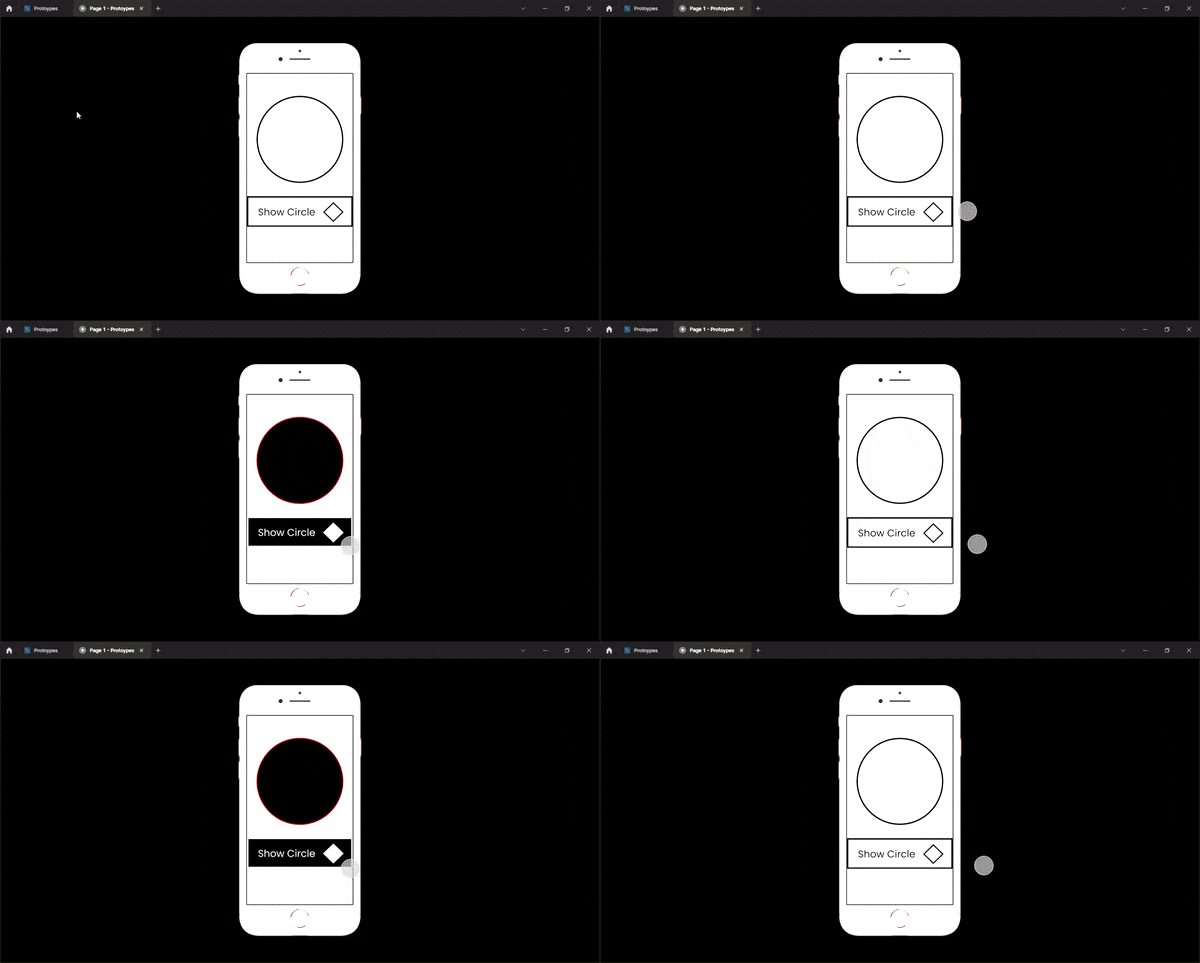
Step 7: To view the functionality now, open the presentation view and view the design. It will look like this:
2. Creating a Prototype for Color Change of a circle during trigger
Step 1: Select a frame of your choice. Mobile screen preferred.
Step 2: Create a circle and a checkbox in the frame that says the text to Hide the Circle.
Step 3: Replicate the frame and place it side by side by simply copying and pasting the frame.
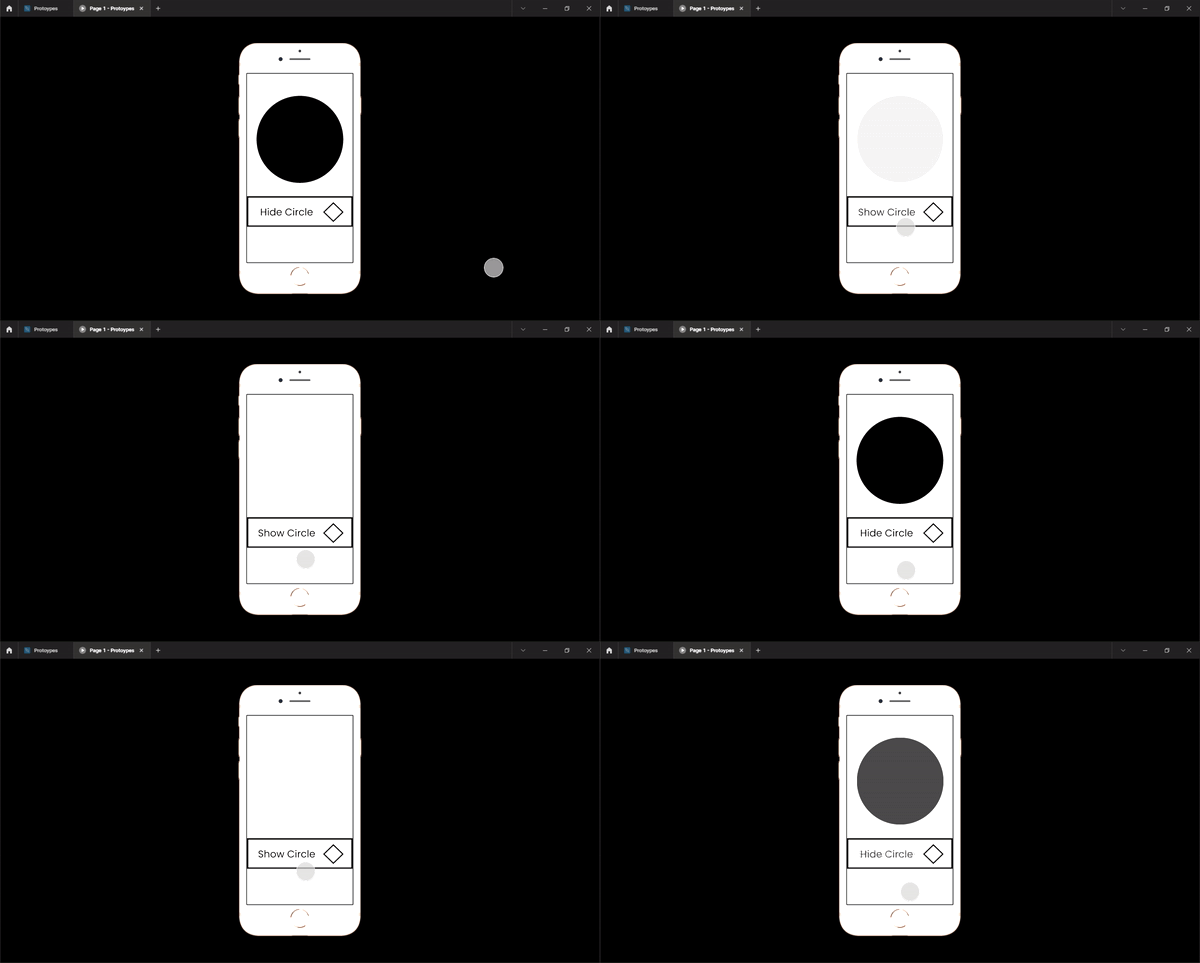
Step 4: Now change the colors and elements of the second design. Since we are working on visibility now then we will remove the circle from the second frame and change the text to Show Circle. It will now look like this:
Step 5: Now open the Prototype bar.
Step 6: Now using the prototype options, select the plus sign of the first frame and join it to the second frame through an arrow. Set the options accordingly.
Step 7: Here's the final view in the presentation mode:
Prototypes are essential for visualizing and testing design concepts. Figma’s powerful and user-friendly features make it an ideal tool for creating effective prototypes. By using Figma for prototyping, you can streamline your design process, enhance collaboration, and ensure your final product meets user expectations.

.png)
.png)
.png)
.png)
.png)
.png)
.png)
.png)
.png)
.png)