|
VOOZH | about |
|
VOOZH | about |
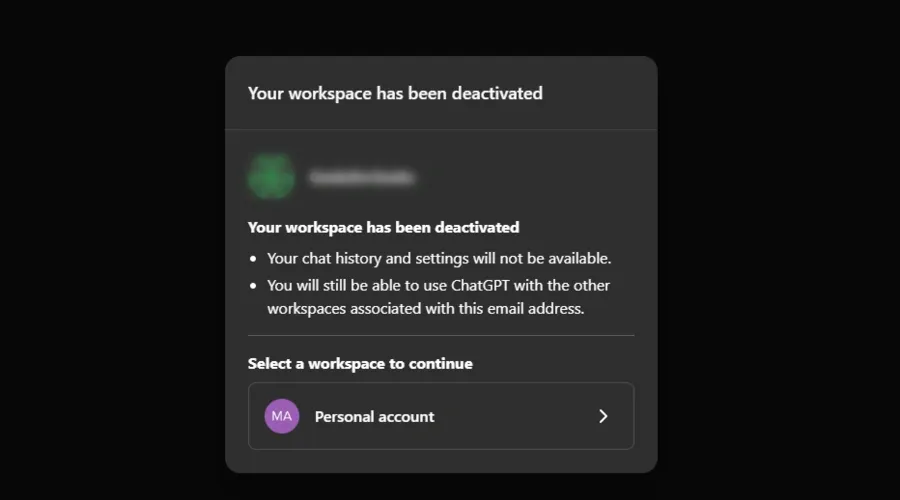
If you've encountered the "Workspace has been deactivated" message in ChatGPT, it means that your workspace has been temporarily suspended or disabled. Many users encounter this issue for various reasons, whether it's due to policy violations, inactivity, or technical glitches. Fortunately, there are several quick and effective solutions to help you regain access to your account and get back to utilizing the powerful capabilities of ChatGPT. In this guide, we will walk you through the steps to troubleshoot and fix your deactivated account, ensuring a smooth and hassle-free experience.
The "Your Workspace Has Been Deactivated" issue in ChatGPT typically arises when a Team workspace is no longer accessible to its users. This deactivation can occur for several reasons, primarily linked to subscription management. Common causes include:
To recover access to your deactivated ChatGPT workspace, follow these methods to troubleshoot and resolve the issue effectively:
Workspace deactivation can happen if there are security issues or pending account verifications. It’s important to check your account for any alerts or notifications regarding account status. Resolving these issues can often restore access to your workspace.
Quick Tip:
Regularly check for any account alerts or verification emails to stay on top of security issues or updates.
If there are any payment or subscription issues, your workspace could be deactivated. It’s essential to check your payment status and ensure there are no outstanding dues. Updating your payment information or clearing any unpaid balances can help reactivate your workspace.
Quick Tip:
Set up automatic payments to avoid missing subscriptions and ensure your workspace stays active without interruption.
If you're unable to resolve the deactivation issue on your own, reaching out to OpenAI support is an effective option. OpenAI's support team can assist in diagnosing the cause of the deactivation and may be able to help restore access to your workspace.
Quick Tip:
Include relevant details, such as error messages and screenshots, when contacting support to speed up the resolution process.
Deactivation may sometimes result from server-side problems or temporary system glitches. It’s useful to check OpenAI’s status page for any ongoing outages or maintenance. If there’s a server issue, you’ll need to wait for OpenAI to resolve it before regaining access.
Quick Tip:
Follow OpenAI’s official social media accounts for real-time updates on server status and outages.
If the deactivation was due to a violation of OpenAI's terms of service, you’ll need to review the terms to identify any breaches. Once you understand the violation, take corrective action or appeal to OpenAI to have your workspace reactivated.
Quick Tip:
Familiarize yourself with OpenAI’s terms of service to avoid accidental violations that could lead to deactivation.
Workspaces can be deactivated due to prolonged inactivity. If you haven’t accessed your workspace for a while, simply logging back in may restore it. In case it doesn’t reactivate automatically, contacting OpenAI support can help resolve the issue.
Quick Tip:
Regularly log into your workspace to prevent it from being flagged as inactive and deactivated.
Sometimes, browser or device problems can cause access issues. Clearing your browser cache or trying a different browser or device can help resolve these problems. Ensuring your browser and device are up to date can also prevent compatibility issues.
Quick Tip:
Use a different browser or try accessing the workspace on another device to eliminate browser-specific issues.
Network issues can interfere with accessing your workspace. Check if your internet connection is stable, and consider switching to a different network. A more reliable or faster connection, like mobile data, might help restore access to your deactivated workspace.
Quick Tip:
If on Wi-Fi, try switching to mobile data or vice versa to see if a more stable network resolves the issue.
Common reasons include:
In conclusion, if your workspace has been deactivated, there are several methods you can use to recover access, such as checking your account for issues, verifying your subscription status, or contacting OpenAI support. By following the steps outlined and resolving any potential issues, you can reactivate your workspace and continue using it without further interruptions.
To reactivate your deactivated ChatGPT account, log in with your credentials. If the account does not reactivate automatically, ensure there are no subscription or payment issues. If necessary, contact OpenAI support for further assistance.
Unfortunately, once a ChatGPT account is deleted, it cannot be recovered. If you need to access previous conversations or data, contact OpenAI support immediately before deletion is finalized.
To retrieve access to your ChatGPT account, simply log in using your username and password. If you encounter issues, check for any account-related notifications or contact OpenAI support for help.
If you're having trouble finding your ChatGPT account, try searching for your registered email or username on the login page. If you’ve forgotten your login details, use the “Forgot Password” option to reset them.
Your ChatGPT account may be deactivated due to:
- Inactivity: Prolonged lack of use.
- Payment Issues: Unpaid or expired subscriptions.
- Terms Violations: Breaching OpenAI’s terms of service.
- Security Concerns: Suspicious account activity.