
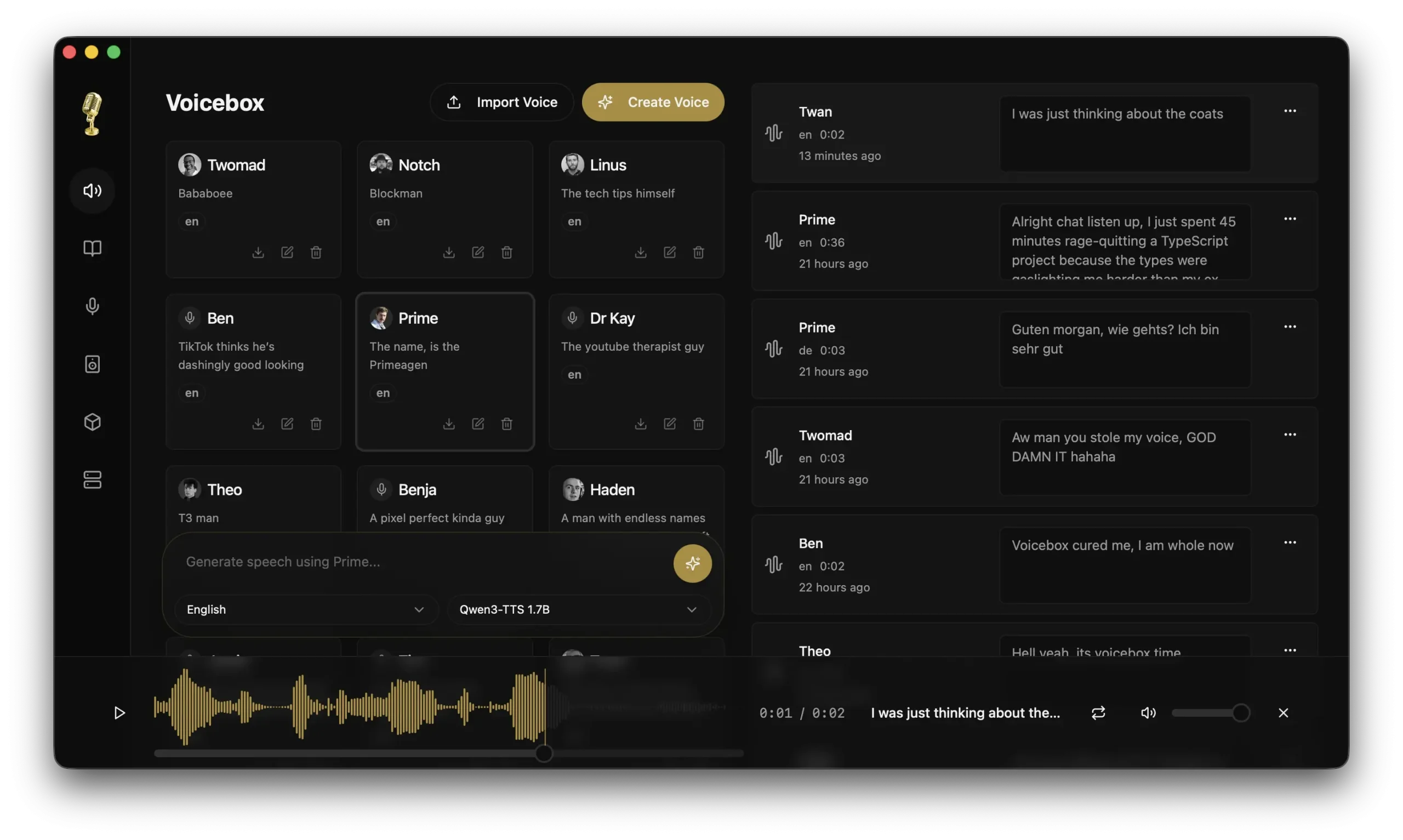
Voicebox is a free, open-source, local-first AI voice studio for voice cloning, text-to-speech generation, dictation, transcription, and multi-track audio projects.
It started as a Qwen3-TTS voice-cloning app, but the current release adds multiple TTS engines, global voice capture, local transcript refinement, and a built-in MCP server for AI agents.
The app is a self-hosted alternative to ElevenLabs for creators, developers, podcasters, and teams that want cloned voices and speech generation on their own hardware.
Your voice profiles, generated audio, captures, and model files stay local after the required model downloads.
Features
- Voice cloning: Creates cloned voice profiles from short reference audio and stores them locally.
- Multiple TTS engines: Supports Qwen3-TTS, Qwen CustomVoice, Chatterbox Multilingual, Chatterbox Turbo, LuxTTS, Kokoro 82M, and HumeAI TADA.
- Global dictation capture: Lets you hold a system hotkey, speak, and paste the cleaned transcript into the focused app.
- Local transcript refinement: Uses a local Qwen3 LLM to clean fillers, punctuation, repeated Whisper loops, and self-corrections.
- Voice profile personality: Adds optional personality text to a voice profile, then rewrites or composes spoken lines in that character locally.
- MCP server for agents: Exposes Voicebox through a local Model Context Protocol server so Claude Code, Cursor, Windsurf, Cline, and compatible clients can speak or transcribe through Voicebox.
- Stories editor: Provides a multi-track timeline for voice clips, imported audio, clip volume, regeneration, splitting, duplicate clips, and audio export.
- In-app recording and transcription: Records microphone or system audio, displays waveforms, and transcribes recordings via Whisper models.
- Generation history: Stores generated audio with searchable history, regeneration, versions, favorites, and failed-generation cleanup.
- GPU support: Supports Apple Silicon MLX, NVIDIA CUDA, Intel Arc XPU, DirectML, and CPU paths depending on engine and platform.
- Remote mode: Connects the desktop client to a GPU server on your local network so a stronger machine can handle inference.
Use Cases
- Content creators and podcasters: Generate voiceovers, podcast dialogue, character voices, narration, and reusable audio clips.
- Writers and developers: Dictate text into any focused app with a global hotkey, then let Voicebox refine the transcript locally.
- AI agent workflows: Give MCP-aware coding agents a local voice output path and a local transcription path.
- Game developers: Prototype character dialogue with consistent voices before recording final lines.
- Accessibility tools: Build text-to-speech and speech-to-text workflows around local voices and local transcription.
- Video production pipelines: Create voiceovers, organize takes, mix imported audio, and export timeline-based narration.
Supported TTS Engines
| Engine | Language Scope | Main Use |
|---|---|---|
| Qwen3-TTS 1.7B | 10 languages | Higher-quality local TTS and voice cloning. |
| Qwen3-TTS 0.6B | 10 languages | Lighter local TTS generation. |
| Qwen CustomVoice | Qwen3-TTS based | Preset voice generation with delivery instructions. |
| Chatterbox Multilingual | 23 languages | Zero-shot multilingual voice cloning. |
| Chatterbox Turbo | English | Low-latency English speech with expressive tags. |
| LuxTTS | English | CPU-friendly English TTS. |
| Kokoro 82M | Preset voices | Fast lightweight TTS. |
| HumeAI TADA | English and multilingual variants | Expressive speech generation. |
Chatterbox Turbo supports expressive tags such as [laugh], [sigh], and [clear throat]. Other engines may read those tags as literal text, so you should use expressive tags only when Chatterbox Turbo is selected.
How to Use It
1. Download the installer from the Voicebox download page or the Voicebox GitHub releases page.
| Platform | Install Path |
|---|---|
| macOS Apple Silicon | Use the macOS download page or the matching GitHub release asset. |
| macOS Intel | Use the macOS download page or the matching GitHub release asset. |
| Windows | Use the Windows installer from the download page or GitHub releases. |
| Linux | Build from source while packaged Linux releases remain limited. |
2. Launch Voicebox and download the models you need. Model downloads stay on your machine. The app now supports several engines, so the required download depends on the voice or transcription workflow you choose.
3. Open the Voice Profiles section and create a profile. You can upload an existing audio file or record directly in the app. Add a profile name, choose a compatible engine or language option, and save the profile.
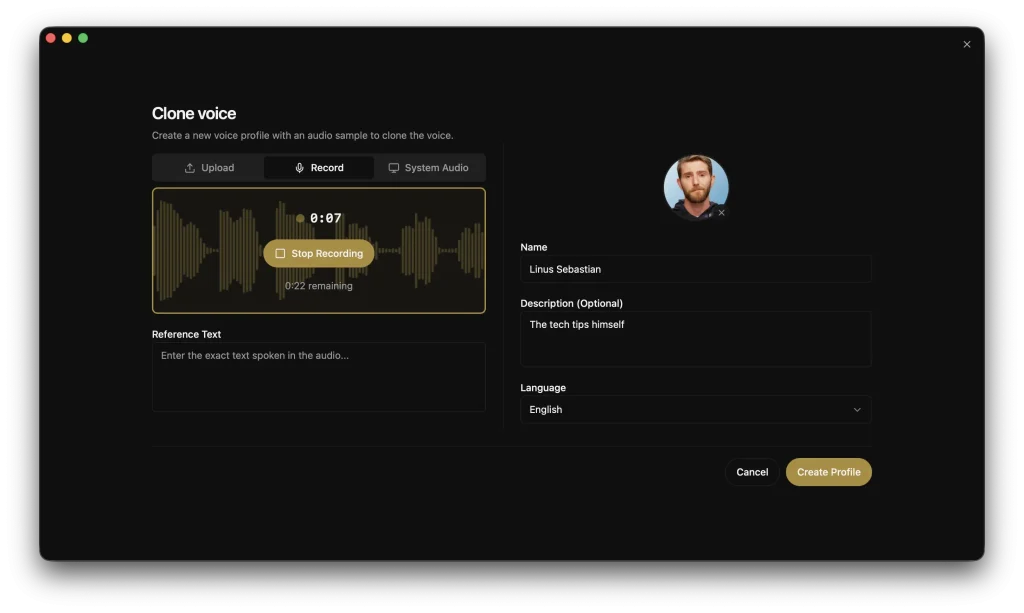
4. Open the generation panel, select your voice profile, choose a compatible TTS engine, type your text, and generate speech. Voicebox stores the result in the generation history so you can replay, favorite, regenerate, or reuse it later.
5. Open the Captures settings when you want dictation. Set a push-to-talk chord, a toggle chord, a transcription model, refinement settings, language lock, and default playback voice. Voicebox can paste the cleaned transcript into the app that had focus when capture started.
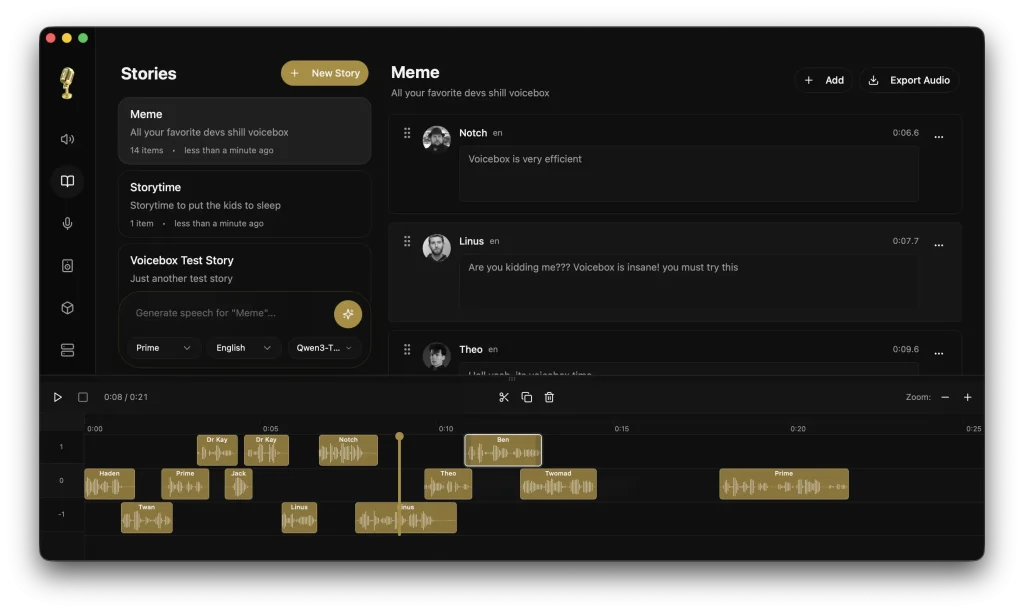
6. Open the Stories editor to place voice clips and imported audio on a timeline. You can trim, split, duplicate, adjust clip volume from 0 to 200%, regenerate speech clips, add tracks, zoom the timeline, and export the finished audio.
7. Use the local REST API when you want to control Voicebox from scripts or another app. The exact base URL depends on your local server configuration, but the app exposes endpoints such as POST /generate, POST /speak, POST /profiles/{id}/compose, and profile listing routes.
Generate speech:
curl -X POST http://localhost:8000/generate \
 -H "Content-Type: application/json" \
 -d '{"text": "Hello world", "profile_id": "abc123", "language": "en"}'
List all voice profiles:
curl http://localhost:8000/profilesCreate a new profile:
curl -X POST http://localhost:8000/profiles \
 -H "Content-Type: application/json" \
 -d '{"name": "My Voice", "language": "en"}'
8. Connect an MCP-aware agent when you want agent speech or transcription. Voicebox runs a local MCP server at http://127.0.0.1:17493/mcp. Claude Code can connect with this command:
claude mcp add voicebox --transport http --url http://127.0.0.1:17493/mcp --header "X-Voicebox-Client-Id: claude-code"The MCP server exposes voicebox.speak, voicebox.transcribe, voicebox.list_captures, and voicebox.list_profiles. Path-based transcription is restricted to loopback callers. This reduces the risk of exposing arbitrary local files when Voicebox binds beyond localhost.
9. Run Voicebox as a remote server when a desktop client needs a stronger GPU machine on the same network. Point the client to the server IP address and keep inference on the workstation.
Pros
- Local voice data: Your files stay on your machine.
- Open-source software: The code is available on GitHub.
- Multiple TTS engines: You can choose engines by task.
- Agent voice support: MCP clients can call Voicebox locally.
- Timeline editor: Stories supports multi-track audio work.
Cons
- Large model downloads: Some engines need gigabytes of storage.
- Hardware-dependent speed: CPU-only generation can be slow.
- Engine compatibility rules: Some profiles work only with specific engines.
- Local setup required: Voicebox is not a browser-only app.
Alternatives & Related Resources
- NeuTTS Air: Free, Private, Fast, On-Device Voice Cloning.
- Best Free AI Voice Cloning Tools
- Voicebox GitHub Repository: Source code, issues, release notes, and contribution history.
- Voicebox Download Page: Current desktop installers and platform download flow.
- Qwen3-TTS: One of the core text-to-speech models used by Voicebox.
- Qwen on Hugging Face: Model files and related Qwen resources.
- MLX Framework: Apple’s machine learning framework used for Apple Silicon acceleration.
- Whisper: The transcription model family used in Voicebox capture and transcription workflows.
FAQs
Q: Is Voicebox free?
A: Yes. Voicebox is a free, open-source desktop app. You still need enough local storage and hardware for the models you choose to download.
Q: Does Voicebox send my voice data to an external server?
A: Voicebox runs voice cloning, speech generation, capture storage, and transcript refinement locally. Model downloads require network access, but your voice profiles and generated audio stay on your machine.
Q: What languages does Voicebox support?
A: Language support depends on the selected engine. Chatterbox Multilingual covers 23 languages, Qwen3-TTS covers 10 languages, LuxTTS and Chatterbox Turbo focus on English, and other engines have their own profile rules.
Q: Can Voicebox work as open-source voice cloning software?
A: Yes. Voicebox can clone voices from reference audio, manage local voice profiles, and generate speech from cloned voices.
Q: Can I use Voicebox for dictation?
A: Yes. Voicebox v0.5.0 adds global capture. You can hold or toggle a hotkey, speak, and paste the refined transcript into the app that had focus when recording started.
Q: Does Voicebox support AI agents?
A: Yes. Voicebox includes a local MCP server with tools for speaking text, transcribing audio, listing captures, and listing voice profiles. MCP-aware clients can call those tools through the local Voicebox server.
Q: Does Voicebox support Linux?
A: Linux support is still more limited than macOS and Windows for packaged releases. Linux users should expect source-build requirements and platform-specific audio setup until packaged Linux releases become stable.
Q: How does Voicebox perform on a Windows PC without a dedicated GPU?
A: CPU-only generation can be slow, especially with larger engines. A supported GPU improves generation speed, and the best hardware path depends on the engine, platform, and installed backend.
Last Updated: June 22, 2026


Leave a ReplyCancel Reply