
Apache HTTP server is one of the most used web server in internet today, do to its flexibility, stability and a pleiad of features, some of which are not for the moment present in other web servers, such a rival Nginx.
Some of the most important features of Apache include the ability to load and run different types of modules and special configurations at runtime, without actually stopping the server or, worse, compiling the software each time a new module most be added and the special role played by .htaccess files, which can alter web server configurations specific to webroot directories.
By default, Apache web server is instructed to listen for incoming connection and bind on port 80. If you opt for the TLS configuration, the server will listen for secure connections on port 443.
In order to instruct Apache web server to bind and listen for web traffic on other ports than the standard web ports, you need to add a new statement containing the newly port for future bindings.
In Debian/Ubuntu based system, the configuration file that needs modified is /etc/apache2/ports.conf file and on RHEL/CentOS based distributions edit /etc/httpd/conf/httpd.conf file.
Open the file specific to your own distribution with a console text editor and add the new port statement as shown in the below excerpt.
# nano /etc/apache2/ports.conf [On Debian/Ubuntu]
# nano /etc/httpd/conf/httpd.conf [On RHEL/CentOS]
In this example we’ll configure Apache HTTP server to listen on connections on port 8081. Make sure you add the below statement in this file, after the directive that instructs the web server to listen on port 80, as illustrated in the below image.
Listen 8081
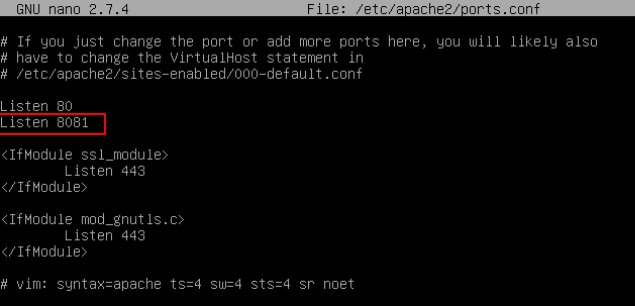
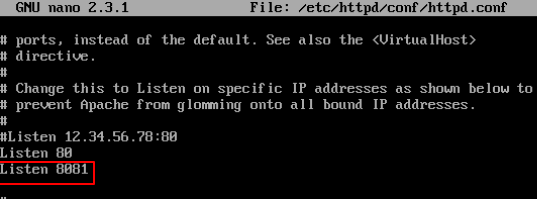
After you’ve added the above line, you need to create or alter an Apache virtual host in Debian/Ubuntu based distribution in order to start the binding process, specific to your own vhost requirements.
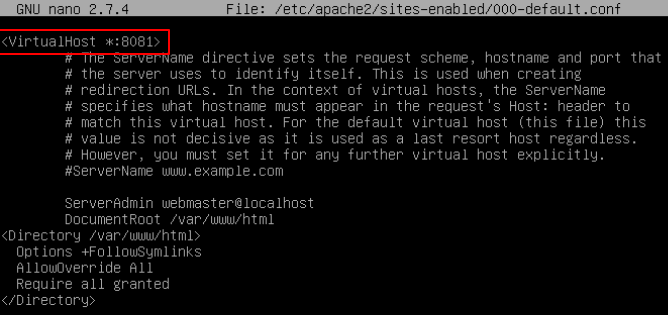
In CentOS/RHEL distributions, the change is applied directly into default virtual host. In the below sample, we’ll modify the default virtual host of the web server and instruct Apache to listen for web traffic from 80 port to 8081 port.
Open and edit 000-default.conf file and change the port to 8081 as shown in the below image.
# nano /etc/apache2/sites-enabled/000-default.conf
Finally, to apply changes and make Apache bind on the new port, restart the daemon and check local network sockets table using netstat or ss command. Port 8081 in listening should be displayed in your server network table.
# systemctl restart apache2
# netstat -tlpn| grep apache
# ss -tlpn| grep apache
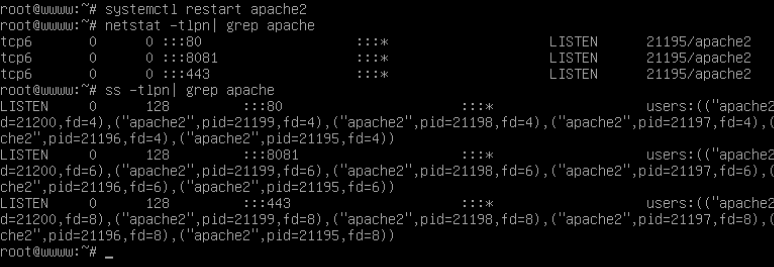
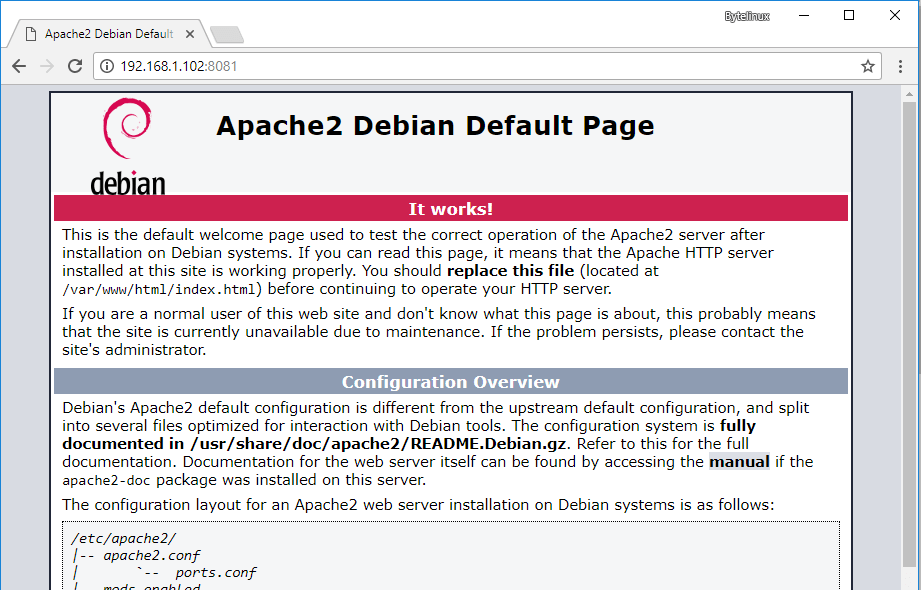
You can also, open a browser and navigate to your server IP address or domain name on port 8081. The Apache default page should be displayed in browser. However, if you cannot browse the webpage, return to server console and make sure the proper firewall rules are setup to allow the port traffic.
http://server.ip:8081
On CentOS/RHEL based Linux distribution install policycoreutils package in order to add the required SELinux rules for Apache to bind on the new port and restart Apache HTTP server to apply changes.
# yum install policycoreutils
Add Selinux rules for port 8081.
# semanage port -a -t http_port_t -p tcp 8081
# semanage port -m -t http_port_t -p tcp 8081
Restart Apache web server
# systemctl restart httpd.service
Execute netstat or ss command to check if the new port successfully binds and listen for incoming traffic.
# netstat -tlpn| grep httpd
# ss -tlpn| grep httpd
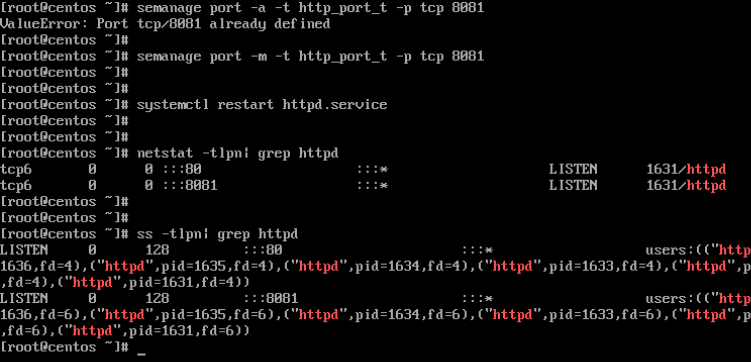
Open a browser and navigate to your server IP address or domain name on port 8081 to check is the new web port is reachable in your network.The Apache default page should be displayed in browser
http://server.ip:8081
If you cannot navigate to the above address, make sure you add the proper firewall rules in your server Firewall table.
If this article helped you solve a problem, consider buying a coffee. It helps keep TecMint free, supports the authors, and keeps the project going.




Got Something to Say? Join the Discussion... Cancel reply