VOOZH about

URL: https://www.tecmint.com/create-password-protected-zip-file-in-linux/

⇱ How to Create a Password Protected ZIP File in Linux


Skip to content

ZIP is a very popular compression and file packaging utility for Unix-like operating systems as well as Windows. While perusing through the zip man page, I discovered some useful options for protecting zip archives.

Read Also: How to Password Protect a Vim File in Linux

In this post, I will show you how to create a password protected zip file on the terminal in Linux. This will help you learn a practical way of encrypting and decrypting contents of zip archive files.

First install zip utility in your Linux distribution using the package manger as shown.

$ sudo yum install zip [On CentOS/RHEL]
$ sudo dnf install zip [On Fedora 22+]
$ sudo apt install zip [On Debian/Ubuntu]

How to Create Password Protected ZIP in Linux

Once installed, you can use the zip command with -p flag to create a password protected zip archive called ccat-command.zip from the directory of files called ccat-1.1.0 as follows.

$ zip -p pass123 ccat-command.zip ccat-1.1.0/

👁 Create Password Protected Zip File
Create Password Protected Zip File

However, the above method is absolutely insecure, because here the password is provided as clear-text on the command line. Secondly, it will also be stored in the history file (e.g ~.bash_history for bash), meaning another user with access to your account (more especially root user) will easily see the password.

Therefore, try to always use the -e flag, it shows a prompt allowing you to enter a hidden password as shown.

$ zip -e ccat-command.zip ccat-1.1.0/

👁 Create Password Protect Zip Archive
Create Password Protect Zip Archive

How to Unzip Password Protected ZIP in Linux

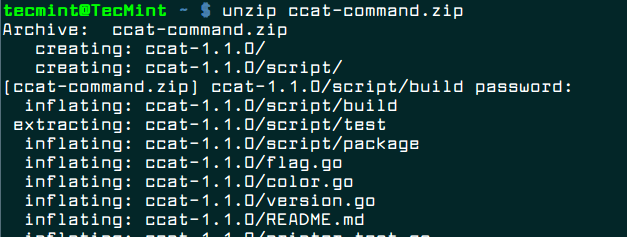
To unzip and decrypt the content of the archive file called ccat-command.zip, use the unzip program and provide the password you entered above.

$ unzip ccat-command.zip
👁 Decrypt ZIP Archive
Decrypt ZIP Archive

That’s It! In this post, I described how to create a password protected zip file on the terminal in Linux. If you have any queries, or other useful related tip/tricks to share, use the comment form below ping us.

If this article helped, share it with someone on your team.
TecMint Weekly Newsletter
Get the Learn Linux 7 Days Crash Course free when you join 34,000+ Linux professionals reading every Thursday.
Check your email for a magic link to get started.
Something went wrong. Please try again.
TecMint has been free for 14 years. Help keep it that way.
Google AI Overviews and tools like ChatGPT have cut into search traffic for independent tech sites like TecMint. Running this site costs over $2,000 every month for hosting, infrastructure, and paying authors to keep the content accurate and tested.

If this article helped you solve a problem, consider buying a coffee. It helps keep TecMint free, supports the authors, and keeps the project going.

☕ Buy Me a Coffee
Aaron Kili
Aaron Kili is a Linux and F.O.S.S enthusiast, an upcoming Linux SysAdmin, web developer, and currently a content creator for TecMint who loves working with computers and strongly believes in sharing knowledge.

Each tutorial at TecMint is created by a team of experienced Linux system administrators so that it meets our high-quality standards.

26 Comments

Leave a Reply
  1. The example:

    # zip -e ccat-command.zip ccat-1.1.0/
    

    Does not work on a folder, as it only compresses the folder and not its content. Indeed, in the output of the example we can get a hint of this fact based on the “(stored 0%)”, which means that the archive is compressed down to 0%, i.e., no actual content.

    To compress a folder and its content, encrypted, we need to add -r:

    # zip -e -r ccat-command.zip ccat-1.1.0/
    or 
    # zip -er ccat-command.zip ccat-1.1.0/
    

    will work. We will notice it because we get a comprehensive output and a statement of how much deflation applied to each and every file.

    Reply
  2. This worked by me in Ubuntu: zip --encrypt 2022-12-02_backup.zip -r folder_to_backup.

    Be good!

    Reply
    • @Jirka,

      Thanks for sharing the tip, hope it will help other Linux users…

      Reply
  3. It is not worked! work this: zip -P asdasdas archive.zip asdasdas.

    Reply
  4. Like others have said, needs to be recursive or a wildcard in the example you give.

    Reply
  5. It doesn’t work under cygwin, windows opens up the zip file without asking for a password. No protection whatsoever.

    Reply
  6. how to delete the existing password which we gave by zip -e command.

    Reply
  7. Hello Aaron,

    I thought it would be helpful to mention zip --help since there are different flags for the different versions & distros, but I believe --help is universal.

    For instance, my system / zip gives me -e for encryption and ~20 other flags, but not -p or -P so I know not to bother with them.

    Thanks for the article & excuse to play with something new. 8)

    Reply
    • @TODD

      True, zip --help gives more information on options.

      Reply
  8. On Fedora 30, was necessary to:

    # zip -P password -r zipfile.zip directory/
    
    Reply
    • @Bob

      Many thanks for sharing.

      Reply
    • Same under Debian 10

      Reply
  9. $ zip -e ccat-command.zip ccat-1.1.0/ is incorrect
    

    it should be

    $ zip -er ccat-command.zip ccat-1.1.0/
    

    this wasted my 30 mins

    Reply
    • @Prabhat,

      In our case, the same command worked perfectly on Ubuntu distro, may be some options differ in different Linux distros…

      Reply
  10. Password option is uppercase P, not lowercase as shown above.

    Reply
    • @dlchambers

      Okay, many thanks for mentioning. We’ll correct in the article.

      Reply
      • you did not changed yet..

        Reply
    • @dlchambers,

      Corrected the option in the article….

      Reply
  11. It doesn’t work option -e with your written method. Right syntax is:

    # zip -e ccat-command.zip ccat-1.1.0/*
    

    Do not forget about "*" at the end of line! Without "*" zip makes an archive including all files and folder above ccat-1.1.0 folder.

    Reply
    • @Werner_Holt

      Many thanks for this useful info, we will put this into consideration.

      Reply
      • Something strange, maybe I caught the bug yesterday. Now, it is working! But only when the folder ccat-1.1.0 doesn’t include other folder inside. If it has folders with files and so on, you must use option -r (“recursive”).

        This way:

        $ zip -e -r ccat-command.zip ccat-1.1.0/
        

        Do not work under root user! Without "#".

        Sorry for my false warning before!
        Thank you for your article!

        Reply
        • Sorry for my English)). Of course “caught”, not “catched”!

          Reply
  12. Doesn’t work…

    Reply
    • @Anon

      Have you tried out both methods, explained in the article?

      Reply
  13. cheers!

    I suggest the use of 7zip :)

    Reply
    • @max

      Thanks for the suggestion, we will check it out.

      Reply

Got Something to Say? Join the Discussion... Cancel reply

Free Course
Get a free Linux course before you go.
Subscribe to TecMint Weekly and get the Learn Linux 7 Days Crash Course free. Read by 34,000+ Linux professionals every Thursday.
Check your email for a magic link to get started.



