
Vim is a popular, feature-rich and highly-extensible text editor for Linux, and one of its special features is support for encrypting text files using various crypto methods with a password.
In this article, we will explain to you one of the simple Vim usage tricks; password protecting a file using Vim in Linux. We will show you how to secure a file at the time of its creation as well as after opening it for modification.
Suggested Read: 10 Reasons Why You Should Use Vim Editor in Linux
To install the full version of Vim, simply run this command:
$ sudo apt install vim #Debian/Ubuntu systems
$ sudo yum install vim #RHEL/CentOS systems
$ sudo dnf install vim		#Fedora 22+
Read Also: Vim 8.0 Is Released After 10 Years – Install on Linux
How to Password Protect a Vim File in Linux
Vim has a -x option which enables you to use encryption when creating files. Once you run the vim command below, you’ll be prompted for a crypt key:
$ vim -x file.txt

Warning: Using a weak encryption method; see :help 'cm'
Enter encryption key: *******
Enter same key again: *******
If the crypto key matches after entering it for the second time, you can proceed to modify the file.
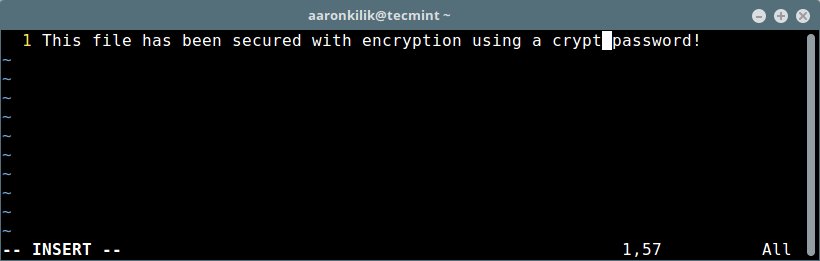
Once your done, press [Esc] and :wq to save and close the file. The next time you want to open it for editing, you’ll have to enter the crypto key like this:
$ vim file.txt

Need encryption key for "file.txt"
Warning: Using a weak encryption method; see :help 'cm'
Enter encryption key: *******
In case you enter a wrong password (or no key), you’ll see some junk characters.
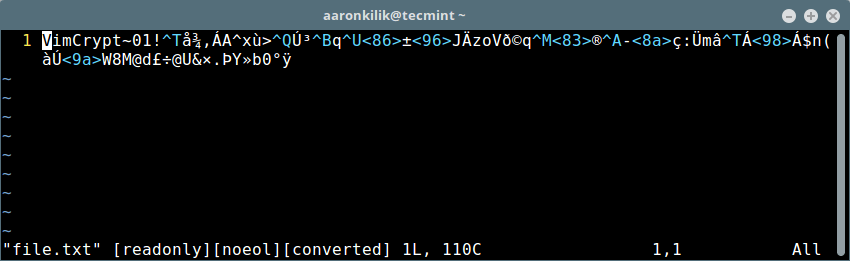
Setting a Strong Encryption Method in Vim
Note: There is a warning indicating that a weak encryption method has been used to protect the file. Next, we’ll see how to set a strong encryption method in Vim.

To check the set of cryptmethod(cm), type (scroll down to view all available methods):
:help 'cm'
Sample Output
 *'cryptmethod'* *'cm'*
'cryptmethod' 'cm' string (default "zip")
 global or local to buffer |global-local|
 {not in Vi}
 Method used for encryption when the buffer is written to a file:
 *pkzip*
 zip PkZip compatible method. A weak kind of encryption.
 Backwards compatible with Vim 7.2 and older.
 *blowfish*
 blowfish Blowfish method. Medium strong encryption but it has
 an implementation flaw. Requires Vim 7.3 or later,
 files can NOT be read by Vim 7.2 and older. This adds
 a "seed" to the file, every time you write the file
options.txt [Help][RO]
You can set a new cryptomethod on a Vim file as shown below (we’ll use blowfish2 in this example):
:setlocal cm=blowfish2
Then press [Enter] and :wq to save the file.
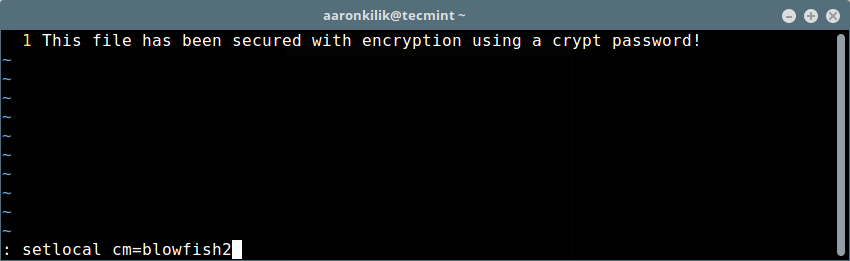
Now you should not see the warning message when you open the file again as shown below.
$ vim file.txt

Need encryption key for "file.txt"
Enter encryption key: *******
You can also set a password after opening a Vim text file, use the command:X and set a crypto pass like shown above.
Check out some of our useful articles on Vim editor.
- Learn Useful Vim Editor Trips and Tricks in Linux
- 8 Useful Vim Editor Tricks for Every Linux User
- spf13-vim – The Ultimate Distribution for Vim Editor
- How to Use Vim Editor as Bash IDE in Linux
That’s all! In this article, we explained how to password protect a file via the Vim text editor in Linux.
Always remember to appropriately secure text files that could contain secret info such as usernames and passwords, financial account info and so on, using strong encryption and a password. Use the feedback section below to share any thoughts with us.
If this article helped you solve a problem, consider buying a coffee. It helps keep TecMint free, supports the authors, and keeps the project going.




Got Something to Say? Join the Discussion... Cancel reply