
dutree is a free, open-source, fast command-line tool for analyzing disk usage, written in the Rust programming language, which is developed from the combination of durep (disk usage reporter) and tree (list directory content in tree-like format) command-line tools. As a result, dutree reports disk usage in a tree-like format.
You might also like:
dutree displays colored output, depending on the values configured in the GNU LS_COLORS environment variable. This environment variable allows for setting the colors of files based on their extension, permissions, and file type.
dutree Features:
- Show the file system tree.
- Supports aggregating of small files.
- Allows for comparing different directories.
- Supports excluding files or directories.
How to Install dutree in Linux Systems
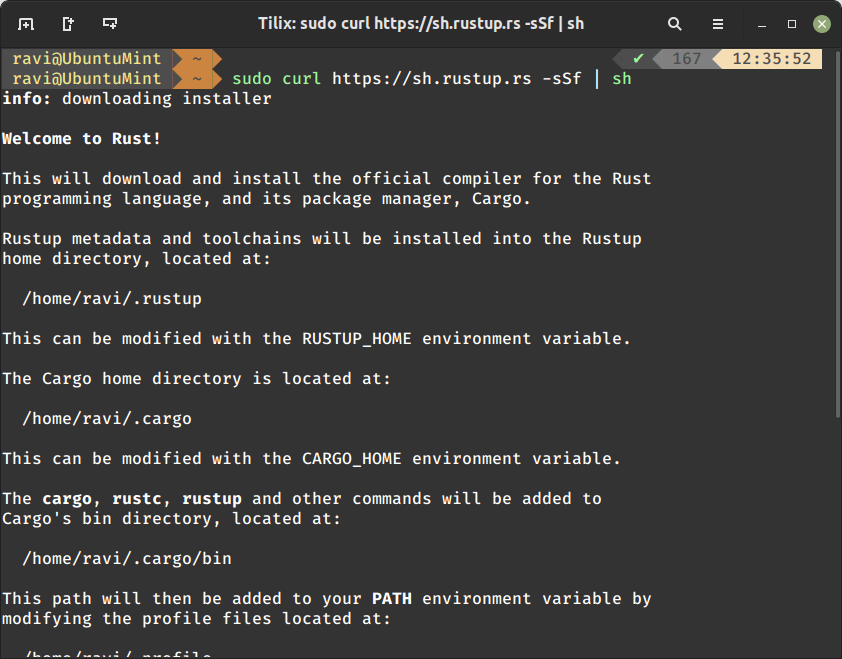
To install dutree in Linux distributions, you must have rust programming language installed on your system. If you don’t have Rust installed, you can use the following curl command to install it as shown.
$ sudo curl https://sh.rustup.rs -sSf | sh
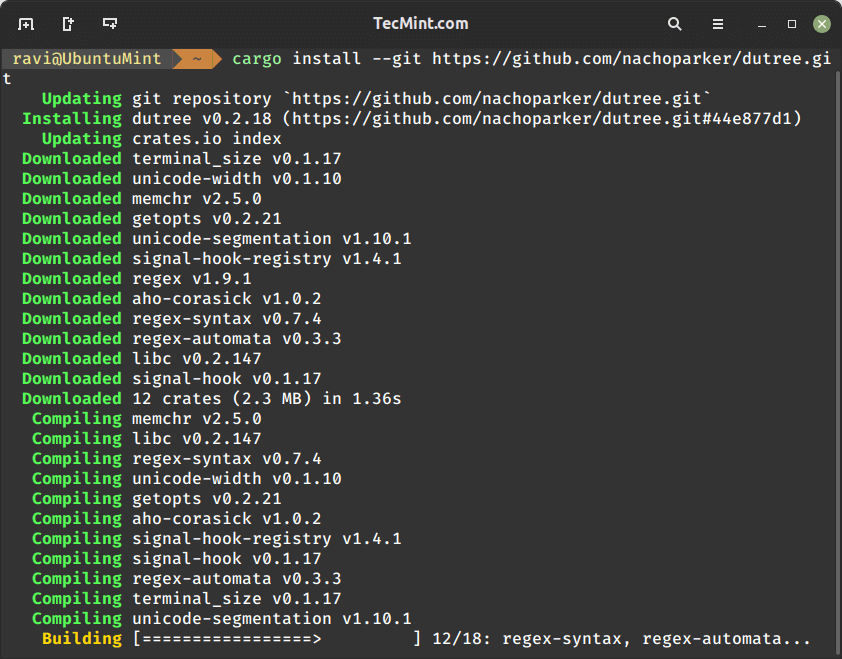
Once Rust is installed, you can run the following command to install dutree in Linux distributions as shown.
$ cargo install --git https://github.com/nachoparker/dutree.git
After installing dutree, it uses environment colors according to the variable LS_COLORS, it has the same colors ls –color command that our distro has configured.
$ ls --color
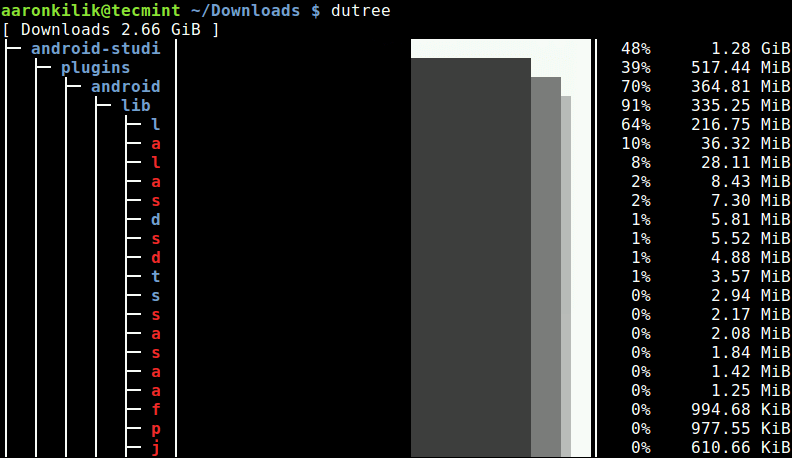
The simplest way of running dutree is without arguments, this way it shows a filesystem tree.
$ dutree
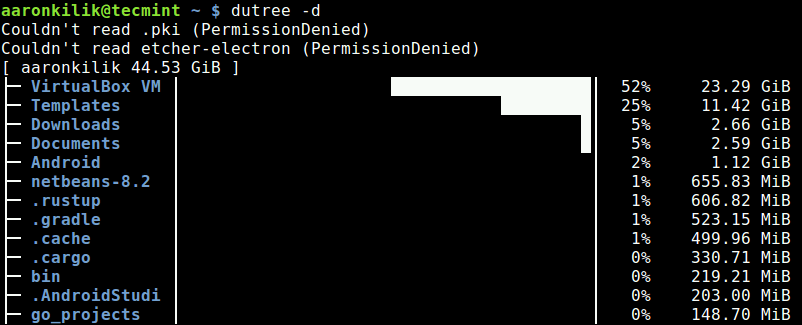
To display real disk usage instead of file size, use the -u flag.
$ dutree -u
Show Directories in Depth
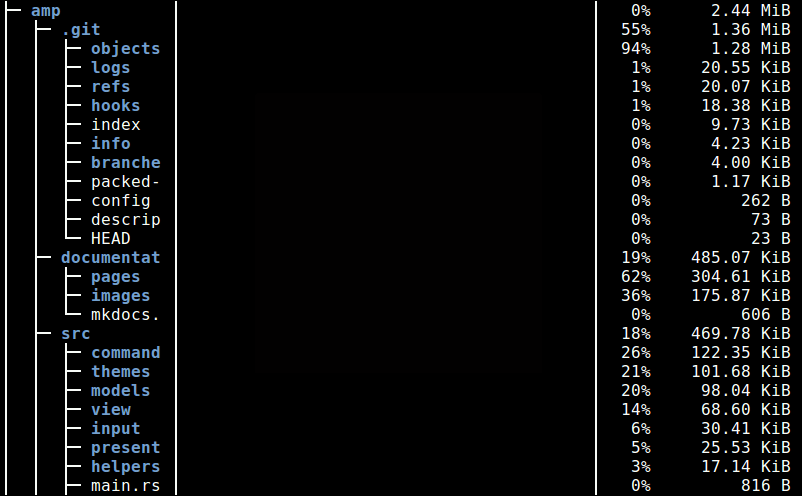
You can show directories up to a given depth (default 1), using the -d flag. The command below will show directories up to a depth of 3, under the current working directory.
For example if the current working directory (~/), then display the size of ~/*/*/* as shown in the following sample screenshot.
$ dutree -d 3
Exclude Files or Directories in Output
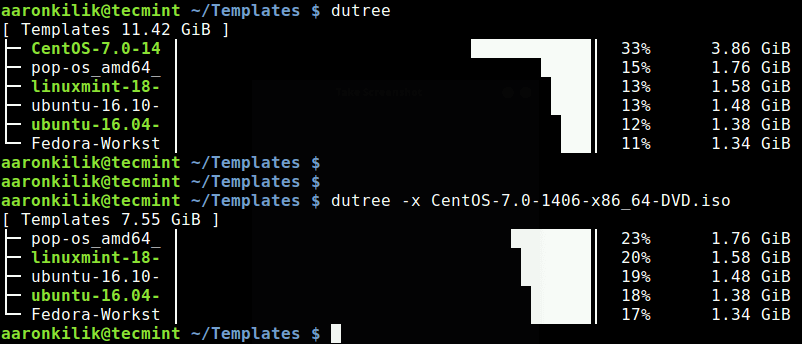
To exclude matching a file or directory name, use the -x flag.
$ dutree -x CentOS-7.0-1406-x86_64-DVD.iso
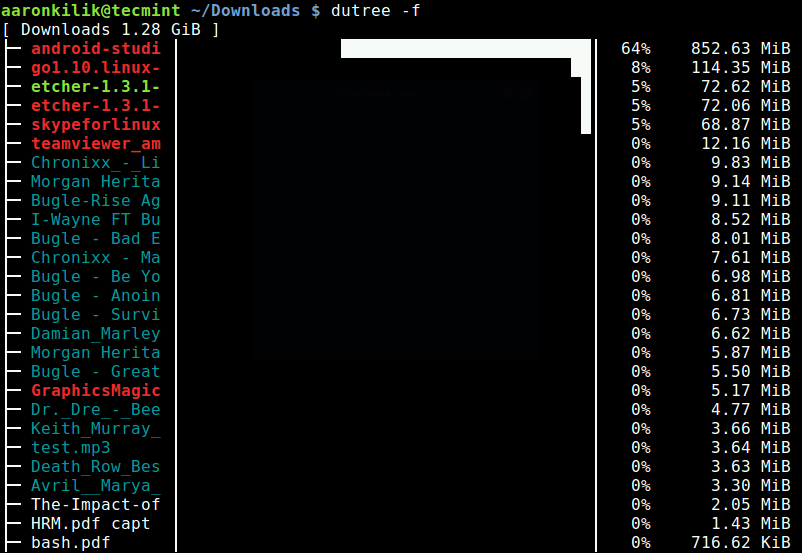
You can also get a quick local overview by skipping directories, using the -f option, like so.
$ dutree -f
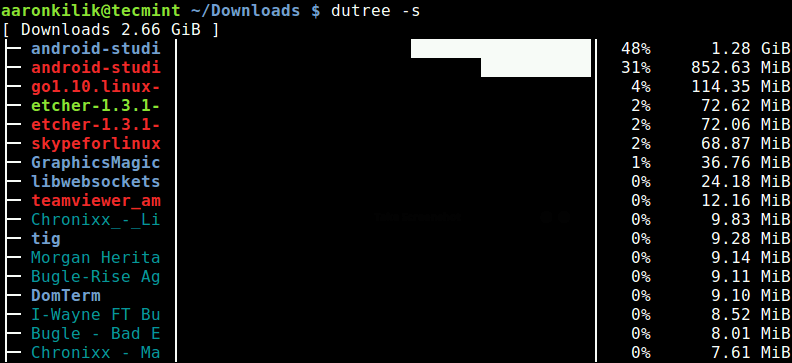
A full summary/overview can be generated using the -s flag as shown.
$ dutree -s
Aggregate Small Files
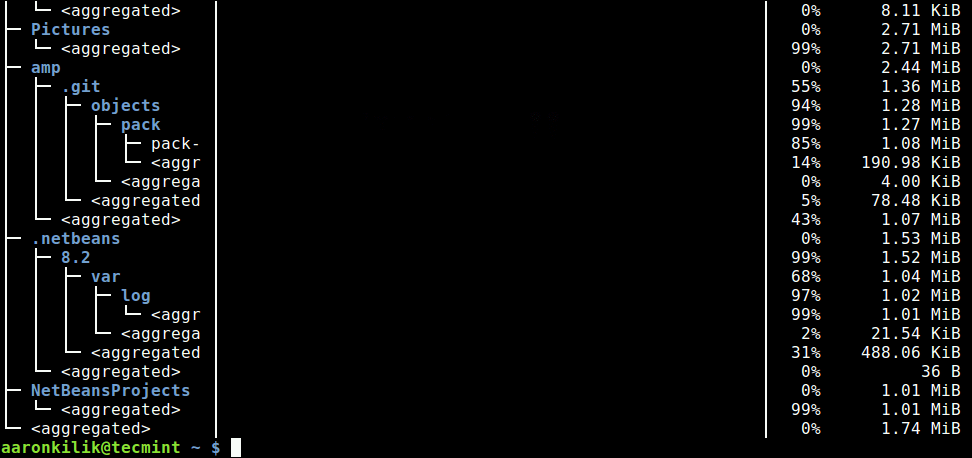
It is possible to aggregate files smaller than a certain size, default is 1M as shown.
$ dutree -a
Exclude Hidden Files
The -H switch allows for excluding hidden files in the output.
$ dutree -H
The -b option is used to print sizes in bytes, instead of kilobytes (default).
$ dutree -b
To turn off colors, and only display ASCII characters, use the -A flag like so.
$ dutree -A
You can view the dutree help message using the -h option.
$ dutree -h

Usage: dutree [options] [..]

Options:
 -d, --depth [DEPTH] show directories up to depth N (def 1)
 -a, --aggr [N[KMG]] aggregate smaller than N B/KiB/MiB/GiB (def 1M)
 -s, --summary equivalent to -da, or -d1 -a1M
 -u, --usage report real disk usage instead of file size
 -b, --bytes print sizes in bytes
 -x, --exclude NAME exclude matching files or directories
 -H, --no-hidden exclude hidden files
 -A, --ascii ASCII characters only, no colors
 -h, --help show help
 -v, --version print version number
dutree is a simple yet powerful command-line tool to show file size and analyze disk usage in a tree-like format, on Linux systems. Use the comment form below to share your thoughts or queries about it, with us.
If this article helped you solve a problem, consider buying a coffee. It helps keep TecMint free, supports the authors, and keeps the project going.





Got Something to Say? Join the Discussion... Cancel reply