
Apache web server is one of the most popular and widely used open-source web servers thanks to its stability and reliability. The web server commands a huge market, especially in web hosting platforms.
Be that as it may, you may get a “Forbidden – You don’t have permission to access / on this server” error on your browser after setting up your website. It’s quite a common error and a good chunk of users have experienced it while testing their site. So what is this error?
What Is the 403 Forbidden Error?
Also referred to as the 403 Forbidden error, Apache’s ‘Forbidden Error’ is an error that is displayed on a web page when you are attempting to access a website that’s restricted or forbidden.
It is a standardized HTTP status code indicating that the web server understands the request but is unable to authorize access due to permission issues.
It’s usually splashed on the browser as shown.
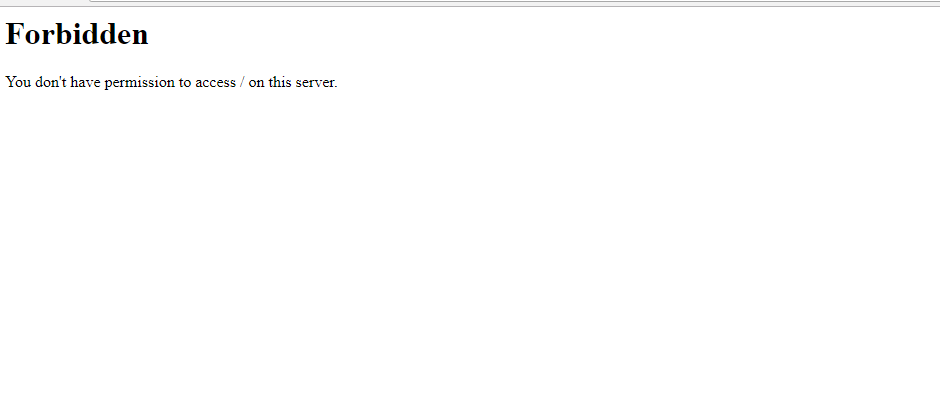
Additionally, the error can manifest in several ways on the browser as indicated below:
- HTTP Error 403 – Forbidden
- Forbidden: You don’t have permission to access [directory] on this server
- 403 Forbidden
- Access Denied You don’t have permission to access
- 403 forbidden requests forbidden by administrative rules
What Causes the 403 Forbidden Error?
The ‘403 Forbidden Error‘ occurs due to the following main reasons:
1. Incorrect File / Directory Permissions
This error can be triggered due to incorrect file/folder permissions on the webroot directory. If the default file permissions are not adjusted to grant users access to the website files, then the chances of this error popping on a web browser are high.
2. Misconfiguration of the Apache Configuration Files
This error can also be attributed to a misconfiguration of one of the Apache configuration files. It could be an incorrect parameter that has been included or missing directives in the configuration file.
3. Misconfiguration of .htaccess File
Another frequent reason for encountering this HTTP response code is a damaged or improperly configured .htaccess file. When this occurs, the 403 Forbidden error typically surfaces after modifying the .htaccess file.
Typically, users can address this by either generating a new .htaccess file or rectifying its configurations.
Fixing the Apache ‘403 Forbidden Error’
If you have encountered this error, here are a few steps that you can take to remedy this.
1. Adjust File Permissions and Ownership of the Webroot Directory
Incorrect file permissions & directory ownership are known to restrict access to website files. So, firstly, be sure to assign the file permissions recursively to the webroot directory as shown.
The webroot directory should always have EXECUTE permissions and the index.html file should have READ permissions.
$ cd /path/to/webroot/directory
$ sudo find . -type d -exec chmod 755 {} \;
$ sudo find . -type f -exec chmod 644 {} \;
The above find command is used to find all directories (folders) and files within the current directory (.) and set their permissions to 755 (directories) and 644 (files).
Additionally, adjust the ownership of files and directories to a specific user (tecmint) and group www-data or apache using the chown command as shown.
$ sudo chown -R tecmint:apache .
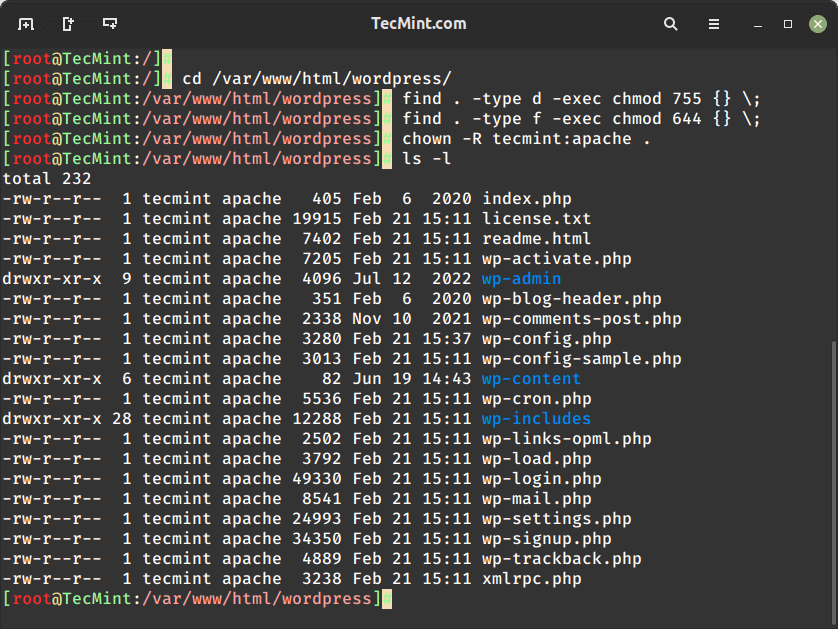
Finally, reload or restart the Apache webserver for the changes to take effect.
$ sudo systemctl restart apache2
OR
$ sudo systemctl restart httpd
If this does not resolve the issue, proceed to the next step:
2. Adjust Directives in Apache Main Configuration File
If you are on Debian-based Linux or RHEL-based distributions, open the main Apache configuration file, typically named httpd.conf or apache2.conf.
sudo nano /etc/httpd/httpd.conf # For Apache on CentOS/Red Hat
sudo nano /etc/apache2/apache2.conf # For Apache on Debian/Ubuntu
Locate the <Directory> section that corresponds to the web document root of your website and make sure that the AllowOverride directive is set to "All". This allows .htaccess files to override configuration settings.
<Directory "/var/www/html">
 Options Indexes FollowSymLinks
 AllowOverride All
 Require all granted
</Directory>
Replace the path /var/www/html to match the actual path of your website’s document root.
Save and exit and thereafter, restart the Apache.
sudo systemctl restart httpd # For Apache on CentOS/Red Hat
sudo systemctl restart apache2 # For Apache on Debian/Ubuntu
. Fix .htaccess File Configuration
If you have an .htaccess file in your web directory, check its configuration. A misconfigured configuration settings or any syntax errors can prevent users from accessing specific web content.
Comment out lines or remove the file temporarily to see if it resolves the problem.
If after trying all these steps you are still getting the error, then please check the configuration of your virtual host files.
We have detailed articles on how you can configure the Apache Virtual host file on:
You might also like:
Resolving the “Forbidden – You don’t have permission to access / on this server” error involves checking and adjusting file permissions, ownership, and server configuration.
I hope that the steps provided have helped you clear the 403 error.
If this article helped you solve a problem, consider buying a coffee. It helps keep TecMint free, supports the authors, and keeps the project going.



Got Something to Say? Join the Discussion... Cancel reply