VOOZH about

URL: https://www.tecmint.com/install-different-php-versions-in-ubuntu/

⇱ How to Install Different PHP (5.6, 7.0 and 7.1) in Ubuntu


Skip to content

PHP (recursive acronym for PHP: Hypertext Preprocessor) is an open-source, popular general-purpose scripting language that is widely used and best suited for developing websites and web-based applications. It is a server-side scripting language that can be embedded in HTML.

Currently, there are three supported versions of PHP, i.e PHP 5.6, 7.0, and 8.0. Meaning PHP 5.3, 5.4, and 5.5 have all reached the end of life; they are no longer supported with security updates.

In this article, we will explain how to install all the supported versions of PHP in Ubuntu and its derivatives with the most requested PHP extensions for both Apache and Nginx web servers using an Ondřej Surý PPA. We will also explain how to set the default version of PHP to be used on the Ubuntu system.

Note that PHP 7.x is the supported stable version in the Ubuntu software repositories, you can confirm this by running the apt command below.

$ sudo apt show php
OR
$ sudo apt show php -a
Show PHP Version Information
Package: php
Version: 1:7.0+35ubuntu6
Priority: optional
Section: php
Source: php-defaults (35ubuntu6)
Origin: Ubuntu
Maintainer: Ubuntu Developers <[email protected]>
Original-Maintainer: Debian PHP Maintainers <[email protected]>
Bugs: https://bugs.launchpad.net/ubuntu/+filebug
Installed-Size: 11.3 kB
Depends: php7.0
Supported: 5y
Download-Size: 2,832 B
APT-Sources: http://archive.ubuntu.com/ubuntu xenial/main amd64 Packages
Description: server-side, HTML-embedded scripting language (default)
 PHP (recursive acronym for PHP: Hypertext Preprocessor) is a widely-used
 open source general-purpose scripting language that is especially suited
 for web development and can be embedded into HTML.
 .
 This package is a dependency package, which depends on Debian's default
 PHP version (currently 7.0).

To install the default PHP version from the Ubuntu software repositories, use the command below.

$ sudo apt install php

Install PHP (5.6, 7.x, 8.0) on Ubuntu Using PPA

1. First start by adding Ondřej Surý PPA to install different versions of PHP – PHP 5.6, PHP 7.x, and PHP 8.0 on the Ubuntu system.

$ sudo apt install software-properties-common
$ sudo add-apt-repository ppa:ondrej/php
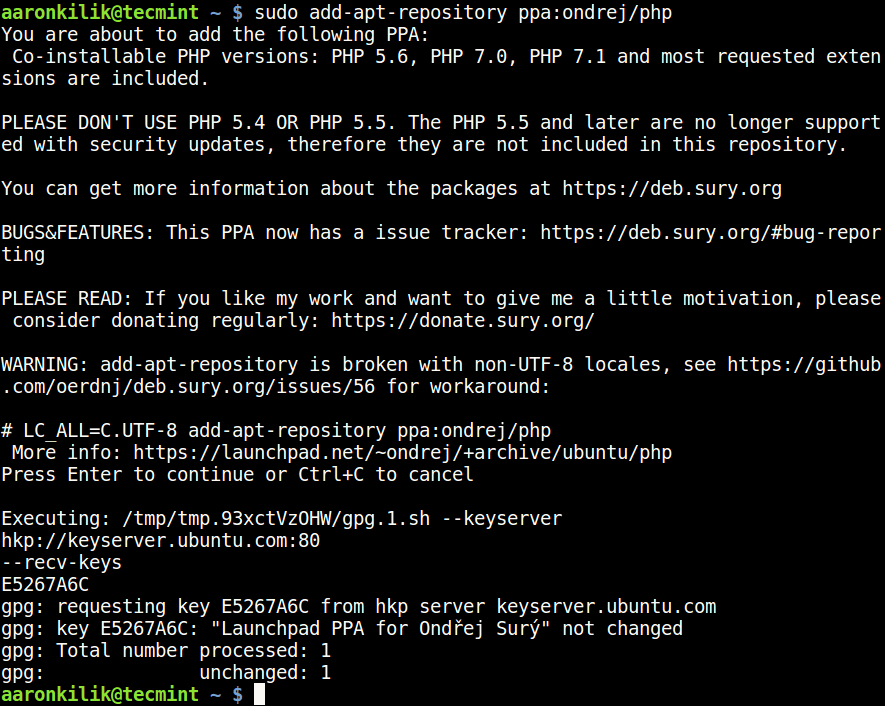
👁 Add PPA in Ubuntu
Add PPA in Ubuntu

2. Next, update the system as follows.

$ sudo apt-get update

3. Now install different supported versions of PHP as follows.

For Apache Web Server

$ sudo apt install php5.6 [PHP 5.6]
$ sudo apt install php7.0 [PHP 7.0]
$ sudo apt install php7.1 [PHP 7.1]
$ sudo apt install php7.2 [PHP 7.2]
$ sudo apt install php7.3 [PHP 7.3]
$ sudo apt install php7.4 [PHP 7.4]
$ sudo apt install php8.0 [PHP 8.0]

For Nginx Web Server

$ sudo apt install php5.6-fpm [PHP 5.6]
$ sudo apt install php7.0-fpm [PHP 7.0]
$ sudo apt install php7.1-fpm [PHP 7.1]
$ sudo apt install php7.2-fpm [PHP 7.2]
$ sudo apt install php7.3-fpm [PHP 7.3]
$ sudo apt install php7.4-fpm [PHP 7.4]
$ sudo apt install php8.0-fpm [PHP 8.0]

4. To install any PHP modules, simply specify the PHP version and use the auto-completion functionality to view all modules as follows.

------------ press Tab key for auto-completion ------------ 
$ sudo apt install php5.6 
$ sudo apt install php7.0 
$ sudo apt install php7.1
$ sudo apt install php7.2
$ sudo apt install php7.3 
$ sudo apt install php7.4
$ sudo apt install php8.0
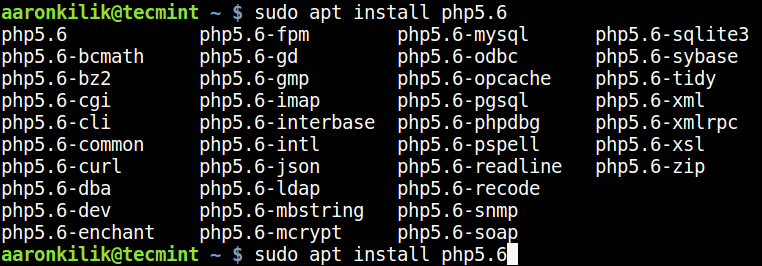
👁 Search PHP Modules
Search PHP Modules

5. Now you can install the most required PHP modules from the list.

------------ Install PHP Modules ------------
$ sudo apt install php5.6-cli php5.6-xml php5.6-mysql 
$ sudo apt install php7.0-cli php7.0-xml php7.0-mysql 
$ sudo apt install php7.1-cli php7.1-xml php7.1-mysql
$ sudo apt install php7.2-cli php7.2-xml php7.2-mysql 
$ sudo apt install php7.3-cli php7.3-xml php7.3-mysql 
$ sudo apt install php7.3-cli php7.4-xml php7.4-mysql 
$ sudo apt install php7.3-cli php8.0-xml php8.0-mysql 

6. Finally, verify your default PHP version used on your system like this.

$ php -v 

👁 Check Default PHP Version in Ubuntu
Check Default PHP Version in Ubuntu

Set Default PHP Version in Ubuntu

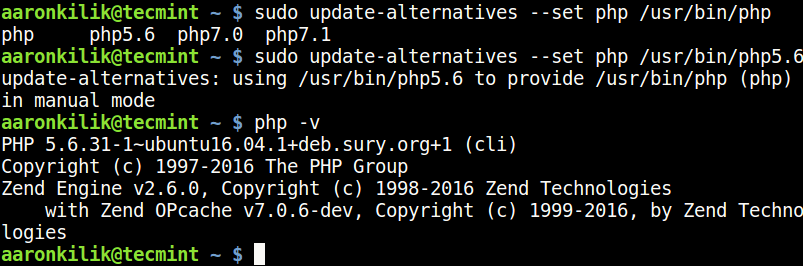
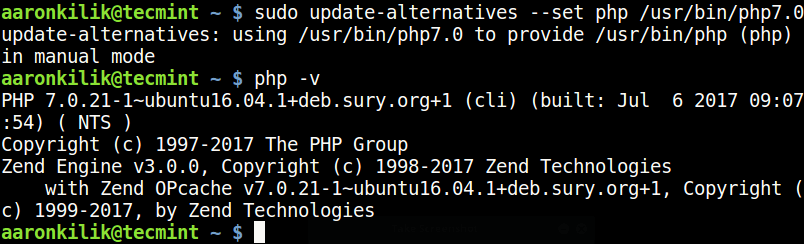
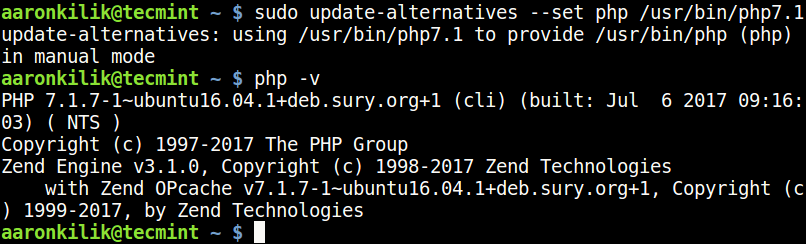
7. You can set the default PHP version to be used on the system with the update-alternatives command, after setting it, check the PHP version to confirm as follows.

------------ Set Default PHP Version 5.6 ------------
$ sudo update-alternatives --set php /usr/bin/php5.6
👁 Set PHP 5.6 Version in Ubuntu
Set PHP 5.6 Version in Ubuntu
------------ Set Default PHP Version 7.0 ------------
$ sudo update-alternatives --set php /usr/bin/php7.0
👁 Set PHP 7.0 Version in Ubuntu
Set PHP 7.0 Version in Ubuntu
------------ Set Default PHP Version 7.1 ------------
$ sudo update-alternatives --set php /usr/bin/php7.1
👁 Set PHP 7.1 Version in Ubuntu
Set PHP 7.1 Version in Ubuntu
------------ Set Default PHP Version 8.0 ------------
$ sudo update-alternatives --set php /usr/bin/php8.0

👁 Set PHP 8 Version
Set PHP 8 Version

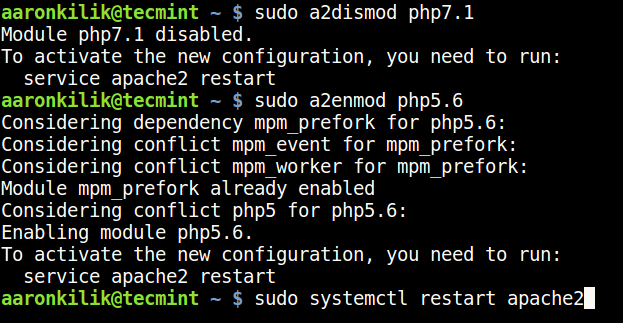
8. To set the PHP version that will work with the Apache web server, use the commands below. First, disable the current version with the a2dismod command and then enable the one you want with the a2enmod command.

----------- Disable PHP Version ----------- 
$ sudo a2dismod php5.6
$ sudo a2dismod php7.0
$ sudo a2dismod php7.1
$ sudo a2dismod php7.2
$ sudo a2dismod php7.3
$ sudo a2dismod php7.4
$ sudo a2dismod php8.0

----------- Enable PHP Version ----------- 
$ sudo a2enmod php5.6
$ sudo a2enmod php7.1
$ sudo a2enmod php7.2
$ sudo a2enmod php7.3
$ sudo a2enmod php7.4
$ sudo a2enmod php8.0

----------- Restart Apache Server ----------- 
$ sudo systemctl restart apache2
👁 Enable Disable PHP Modules for Apache
Enable Disable PHP Modules for Apache

9. After switching from one version to another, you can find your PHP configuration file, by running the command below.

------------ For PHP 5.6 ------------
$ sudo update-alternatives --set php /usr/bin/php5.6
$ php -i | grep "Loaded Configuration File"

------------ For PHP 7.0 ------------
$ sudo update-alternatives --set php /usr/bin/php7.0
$ php -i | grep "Loaded Configuration File"

------------ For PHP 7.1 ------------
$ sudo update-alternatives --set php /usr/bin/php7.1
$ php -i | grep "Loaded Configuration File"

------------ For PHP 7.2 ------------
$ sudo update-alternatives --set php /usr/bin/php7.2
$ php -i | grep "Loaded Configuration File"

------------ For PHP 7.3 ------------
$ sudo update-alternatives --set php /usr/bin/php7.3
$ php -i | grep "Loaded Configuration File"

------------ For PHP 7.4 ------------
$ sudo update-alternatives --set php /usr/bin/php7.4
$ php -i | grep "Loaded Configuration File"

------------ For PHP 8.0 ------------
$ sudo update-alternatives --set php /usr/bin/php8.0
$ php -i | grep "Loaded Configuration File"
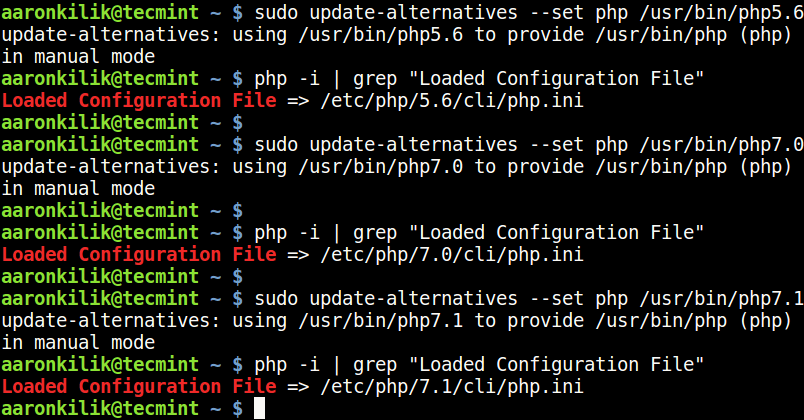
👁 Find PHP Configuration File
Find PHP Configuration File

You may also like:

  1. How to Use and Execute PHP Codes in Linux Command Line
  2. 12 Useful PHP Commandline Usage Every Linux User Must Know
  3. How to Hide PHP Version in HTTP Header

In this article, we showed how to install all the supported versions of PHP in Ubuntu and its derivatives. If you have any queries or thoughts to share, do so via the feedback form below.

If this article helped, share it with someone on your team.
TecMint Weekly Newsletter
Get the Learn Linux 7 Days Crash Course free when you join 34,000+ Linux professionals reading every Thursday.
Check your email for a magic link to get started.
Something went wrong. Please try again.
TecMint has been free for 14 years. Help keep it that way.
Google AI Overviews and tools like ChatGPT have cut into search traffic for independent tech sites like TecMint. Running this site costs over $2,000 every month for hosting, infrastructure, and paying authors to keep the content accurate and tested.

If this article helped you solve a problem, consider buying a coffee. It helps keep TecMint free, supports the authors, and keeps the project going.
☕ Buy Me a Coffee
Aaron Kili
Aaron Kili is a Linux and F.O.S.S enthusiast, an upcoming Linux SysAdmin, web developer, and currently a content creator for TecMint who loves working with computers and strongly believes in sharing knowledge.

Each tutorial at TecMint is created by a team of experienced Linux system administrators so that it meets our high-quality standards.

57 Comments

Leave a Reply
  1. If your terminal just hangs when running the ppa:ondrej/php repository you can edit the /etc/gai.conf file and uncomment the line:

    precedence ::ffff:0:0/96 100
    

    Then save and close the file and retry.

    Reply
  2. FYI I had to start out by doing :

    $ sudo apt install software-properties-common
    

    instead of :

    $ sudo apt install python-software-properties
    
    Reply
  3. Hi,

    Just a clarification. PHP isn’t an acronym (recursive or otherwise). PHP is an abbreviation (recursive if you like) of Hypertext PreProcessor. An acronym is a word (sound) made from the abbreviation (eg PIN “pin” is an acronym for Personal Identification Number & ATM “A T M” is an abbreviation of Automated teller Machine).

    Other than that, this is a great piece & saved my bacon by installing some older software that is PHP version dependent on a more current Ubuntu…

    Reply
    • @Simon

      According to the official website, “PHP (recursive acronym for PHP: Hypertext Preprocessor) is a widely-used open source general-purpose scripting language that is especially suited for web development and can be embedded into HTML.”https://www.php.net/manual/en/intro-whatis.php.

      However, thanks for sharing these useful insights. We are grateful.

      Reply
  4. Does anyone have an insight into why php extensions were not installed/enabled by default?

    Reply
  5. On step 5 you might want to check the php version for the cli.

    Reply
  6. How to set different PHP version for different web application, hosted on same Apache server.

    Reply
  7. How about php5.2?

    Reply
  8. This article is a savior for me. I really appreciate the simplicity of this article.

    Reply
    • @Ganesh

      We are glad that you find this article useful. Thanks for the feedback.

      Reply
  9. Nice, It is working for me. Thank You

    Reply
    • @Pravin

      Many thanks for the useful feedback.

      Reply
  10. Yeah, so this doesn’t work anymore.

    Reply
    • it makes apache2 faile to start.

      Reply
  11. this is the way I thing most shared hosting offers multiple version of PHP.

    Reply
  12. Great article!

    One more thing I want to know is if I can have two projects running under different PHP versions by adding this line “AddHandler application/x-httpd-php56 .php” in the .htaccess of each project. Is that correct?

    Reply
    • @Everton,

      I think it should work, give a try and see..

      Reply
      • This configuration is not working, How can we run different PHP versions in two projects?

        Reply
        • @David,

          The solution is, you keep switching the PHP versions for your projects…

          Reply
  13. Cool ^^, Good Explanation, Thank You Aaron !

    Reply
  14. So far, everything impeccable. Straight Forward for Debian 9 Tutorial.
    Thank you.

    Reply
  15. Only 5.6 works. Every time I try to enable one of the other 2 I get “ERROR: Module php7.1 does not exist!”

    Reply
    • @William,

      Have you enabled PPA as shown in this article for installing different PHP versions? Also may I know which version of Ubuntu you are using?

      Reply
  16. What is the command to disable and enable the php on nginx ? the above command is only available for the apache

    Reply
    • @aldo

      If you mean managing (starting, stopping, enabling, disabling etc..) PHP-FPM server, we will include that in the article. Thanks for the heads up.

      Reply
  17. If you are lazy, you can use this script for Ubuntu, Debian or Raspbian (but actually, it’s only working with Apache2, if requested, maybe I’ll prepare for Nginx). This install automatically PHP5.6, PHP7.0, PHP7.1, PHP7.2 with MySQL server, PostGreSQL server, SQLite package, PHP_CodeSniffer, PHPUnit and Composer.

    One line script install for Debian (or Rasbian), be sure that you have any PHP version installed before running this script!

    curl -L https://gitlab.com/franicflowsarl/php-installer/raw/master/install_debian.sh | sudo bash

    One line script install for Ubuntu:

    curl -L https://gitlab.com/franicflowsarl/php-installer/raw/master/install_ubuntu.sh | sudo bash

    How change PHP version (this will change for CLI and host).

    - sudo PHP5.6
    - sudo PHP7.0
    - sudo PHP7.1
    - sudo PHP7.2
    

    For more information, please read the README:

    Reply
  18. Very nice article. I’m preparing 1 script deployment with bash to recreate my website any time as it starting to get more and more page views per day. And my current Laravel 5.0 does not support PHP 7 yet, and soon I have to update to Laravel 5.3 which supports PHP 7, so juggling with 2 PHP versions is a must, and you help me understand this better. Thanks.

    Reply
  19. This example shows how to switch for the cli version. But can you provide an example about the browser

    Reply
    • @Jinformatique

      Okay, we will prepare an article about switching PHP versions for apps, thanks for the heads.

      Reply
  20. Really good but I’m still stuck with the same problem. I can install and all works fine but the CLI stays always on 5.5.7 and that creates me some problems as I need 7.1 for some CLI based solutions.

    After switching the php version and restarting apache I get the info that it won’t load the configuration file after running the “php -i | grep “Loaded Configuration File
    Loaded Configuration File => (none)

    Any hint about what can be creating this problem? Thanks!

    Reply
  21. Thank you great article, now i can work with 2 PHP versions.

    Reply
    • @Eleazar

      Welcome, many thanks for the feedback.

      Reply
  22. Work perfectly on ubuntu16.04, thanks

    Reply
    • @Ahmad

      That’s great, thanks for the feedback.

      Reply
  23. Thanks for the useful suggestion. appreciated

    Reply
    • @Sawan

      Welcome, many thanks for the feedback.

      Reply
  24. Thanks for informative article.

    Apparently Apache 2.4 can run more than one version of PHP i.e. I have sitB.mydomain.com that runs PHP 5.6 and I have siteB.MyDomain.com that runs PHP 7.1.

    Any idea how to do this?

    Reply
      • @Aaron

        Thanks … I had a look at the Nginx article but Apache is quite different. Looking forward to your upcoming article on it.

        Reply
  25. Thankyou so much !
    this helped a lot :)

    Reply
    • @Anmol

      Welcome, we are pleased to know this. Thanks for following us.

      Reply
  26. Great tutorial. Very useful. Thanks a lot.

    Reply
    • @Anderson

      Welcome, am glad that you found it useful. Thanks for the feedback.

      Reply
  27. This was the first tutorial with multiple php versions that worked for me. First off all thank you!

    To have a more complete tutorial you should may add the install commands for the mbstring extension of each php version.

    $ sudo apt-get install php7.0-mbstring
    

    Best Marcel

    Reply
    • @Marcel

      Okay, we will do that. May be we will update this article to include instructions on how to install modules for different PHP version. Thanks for feedback.

      Reply
  28. I have install php5.6 php7.0 php7.1 packages, also installed -cgi, -cli and many more modules for all versions, but only update-alternatives example changes cli version while changing apache php version gives error:

    lenya@JabbaDesktop:/etc/apache2$ sudo a2enmod php7.1
    ERROR: Module php7.1 does not exist!
    

    I have do the same for all versions, but somehow not all libapache2-mod-php was installed.

    So I do following to fix error: (libapache2-mod-php5.6 was only one already installed)

    $ sudo apt-get install libapache2-mod-php5.6 libapache2-mod-php7.0 libapache2-mod-php7.1
    

    After that a2dismod and a2enmod work as expected.

    Also, I have analyze install log and realized what update-alternatives example should be expanded to some thing like this:

    $ sudo update-alternatives --set php /usr/bin/php7.1
    $ sudo update-alternatives --set phar /usr/bin/phar7.1
    $ sudo update-alternatives --set phar.phar /usr/bin/phar.phar7.1
    $ sudo update-alternatives --set phpdbg /usr/bin/phpdbg7.1
    $ sudo update-alternatives --set php-cgi /usr/bin/php-cgi7.1
    $ sudo update-alternatives --set php-cgi-bin /usr/lib/cgi-bin/php7.1
    

    replace numbers with version you need..

    Reply
    • @LeonidMew

      This is really useful, many thanks for the feedback, and more so for th clear explanation.

      Reply
  29. Awesome article, Aaron! Thanks a lot!

    Reply
    • @Fabio

      Welcome, thanks for the kind words of appreciation, and also for following us.

      Reply
  30. On my server I’m still with the issue of having the wrong CLI version as it still show an old version not installed but apache uses the correct version. I need to find out how to have the correct CLI because some console applications need the correct version. The steps above will not help as it only changes the version used by apache. Any help on this? Thanks

    Reply
  31. This command doesn’t work (shows php cli ini):

    php –ini | grep “Loaded Configuration File”

    Reply
    • @Jaro

      If you are looking for the PHP-Apache config file, then it can be found in: /etc/php/PHP-VERSION/apache2/ directory (On Ubuntu/Debian).

      We will find a way of locating this using a simple command and let you know.

      Reply
      • Simple command to locate it :) Replace path with apache document root.
        Site blocks me from posting it here, so look at paste.ubuntu.com/26498320/

        Reply
        • @LeonidMew

          Thanks for the useful suggestion.

          Reply

Got Something to Say? Join the Discussion... Cancel reply

Free Course
Get a free Linux course before you go.
Subscribe to TecMint Weekly and get the Learn Linux 7 Days Crash Course free. Read by 34,000+ Linux professionals every Thursday.
Check your email for a magic link to get started.