
Fedora is an open source operating system, which is based on Linux kernel developed and it’s supported by RedHat. Fedora’s default desktop is GNOME environment with default interface GNOME Shell, Fedora have other desktop environments including KDE, MATE, Xfce, LXDE and Cinnamon.
Fedora available for different platforms such as x86_64, Power-PC,IA-32, ARM. Fedora workstation is very user friendly for every users, It can be installed in any desktop or Laptop, It can be used for developments, and much professional level. Two months ago on 9th December 2014, Fedora team released its new version called Fedora 21, and next version of Fedora 22 will be scheduled to released in mid 2015. Read Also:
- Fedora 21 Workstation Installation Guide
- 18 Things to Do After Installing Fedora 21 Workstation
- Fedora 21 Server Installation Guide
This quick guide will walk through the installation of Fedora 21 Workstation edition in dual-boot with Windows 8 on the same machine on the same hard drive.
System Requirements
To install Fedora 21 in dual-boot mode with Windows 8, the following minimum requirements should meet.
- Minimum 1 GHz Processor.
- Minimum 1 GB RAM.
- At least 40GB Hard disk with Unallocated space.
- Graphics supports with Direct x 9.
Before installing Fedora 21, you must have working Windows 8 installation, as it’s always good practice to install Linux after Windows installation and also make sure you must leave one Partition with Unallocated space for Linux (Fedora 21) installation.
Fedora 21 Installation with Dual Boot on Windows 8
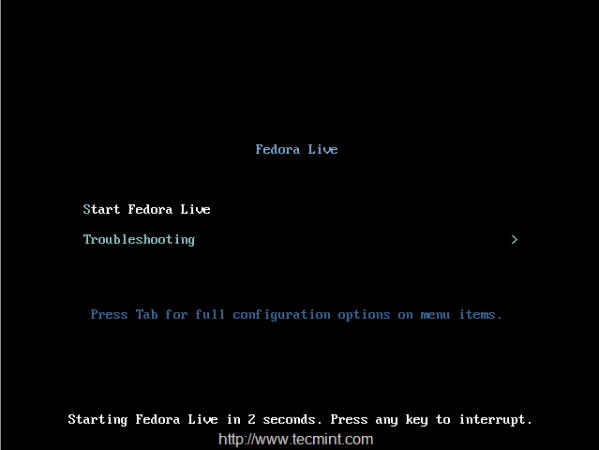
1. After installing Windows 8, go the official Fedora download page to Download Fedora 21 Workstation iso image and burn it into CD/DVD or UDB device and reboot your machine to boot the system with Fedora 21 Live media.
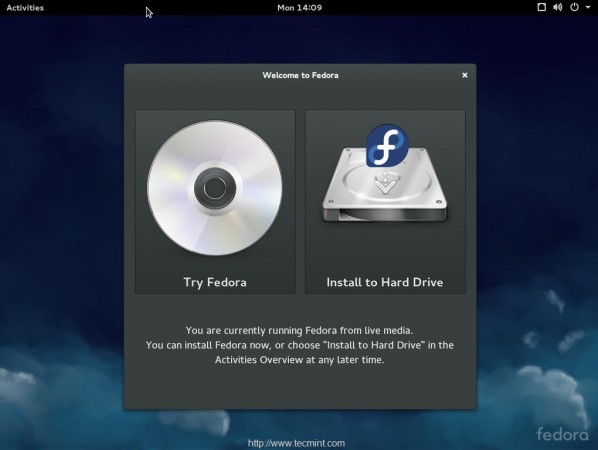
2. After booting, you will get the option ‘Try Fedora‘ to explore Fedora 21 before installing on the hard drive, or else you can choose ‘Install to Hard Drive‘ option to install Fedora 21 on the machine.
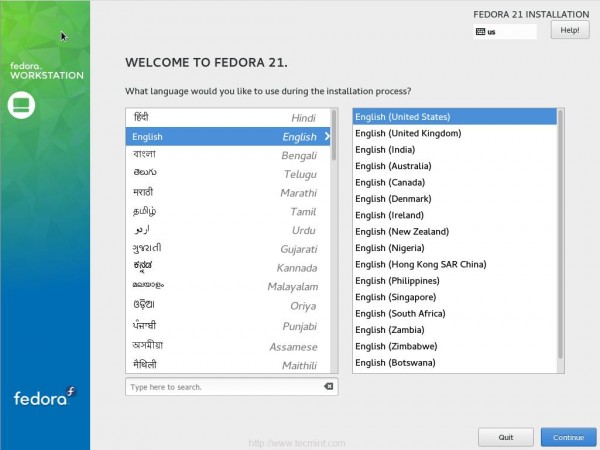
3. Choose the language for your installation process.
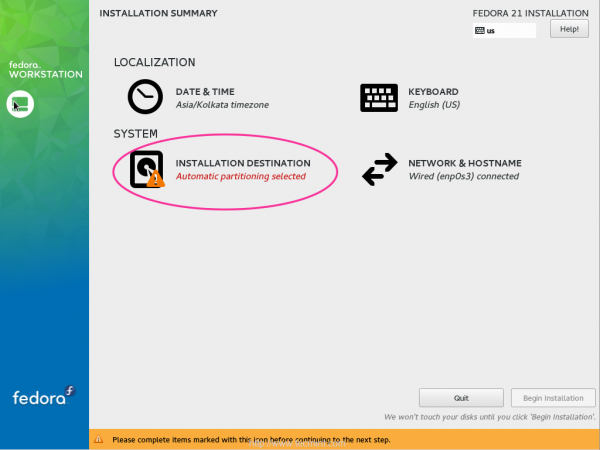
4. In this step, we need to define our Installation Destination. For choosing the install destination click on Install Destination in left side which marked with exclamation Symbol.
5. By default Fedora will choose the free space to get install the OS, because we have already left Unallocated space for Linux installation. Let me choose the advance partition setup for Linux install, For that we have to choose “I will Configure partitioning” and click on Done in top left corner for next step.
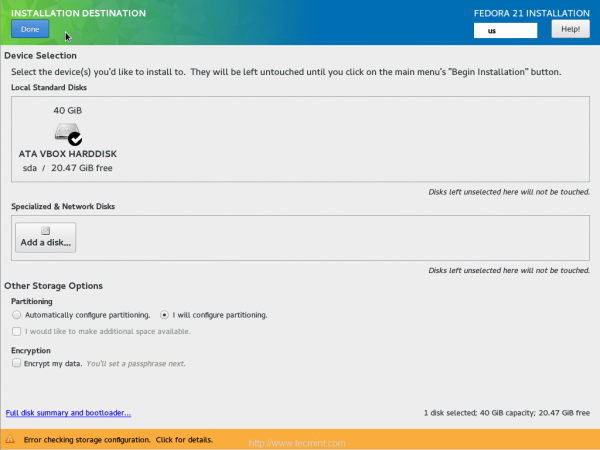
6. At bottom left corner, you can see Available Space with 20.47GB for Fedora 21 installation.
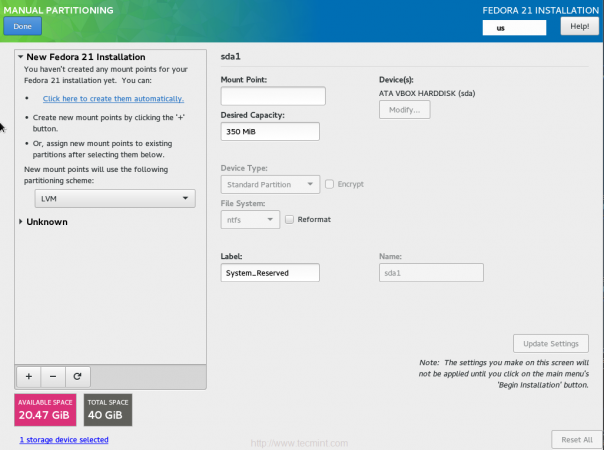
7. Choose the Partition scheme from Drop down menu and choose Standard Partition. Here you can see the already installed windows partitions.
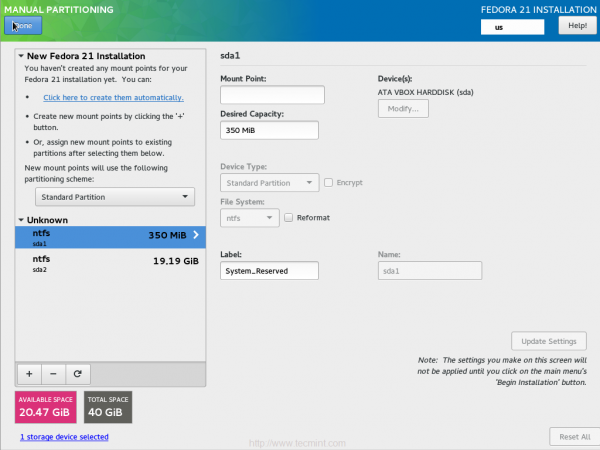
8. Select the “Available Space” and click on ‘+‘ sign to create /boot, / and swap mount points for fedora installation.
- /boot size 500MB
- /swap size 1GB
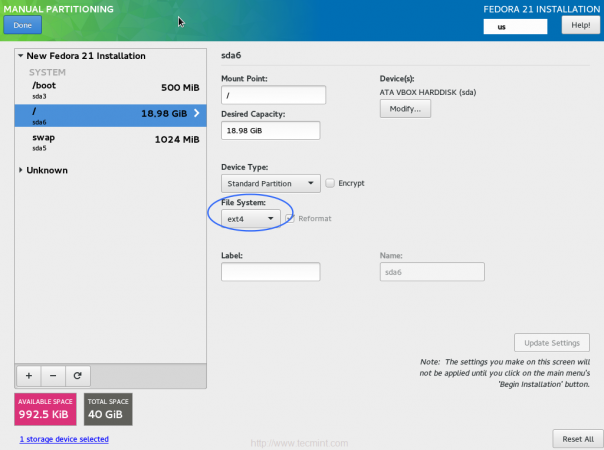
- / partition leave blank, because we’re using all available space.
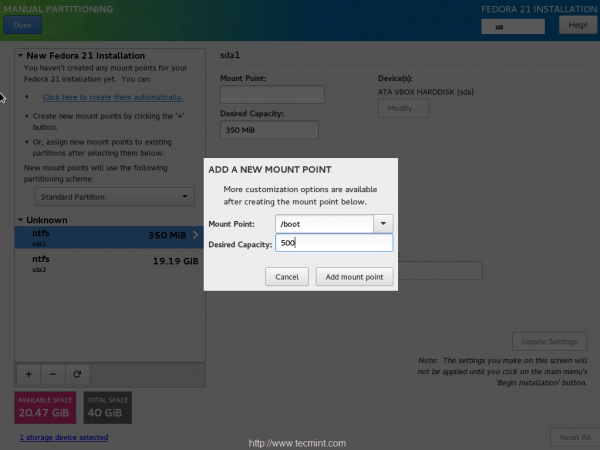
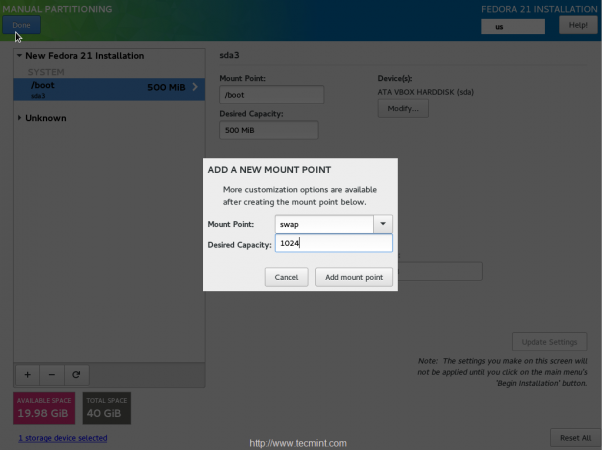

After creating all above three partitions, choose the file-system type as “ext4” for the Fedora installation.
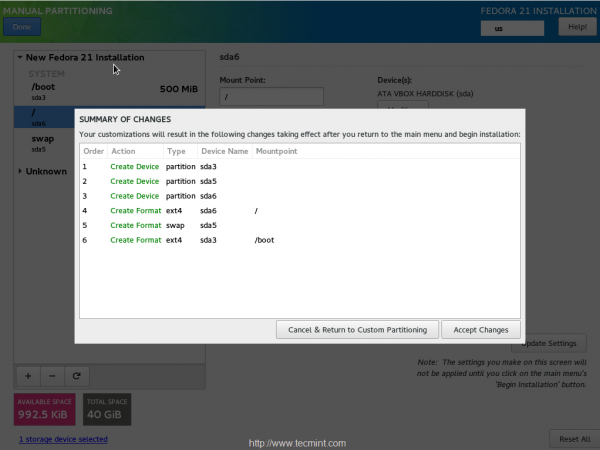
Click on Accept changes to configure the partition defined in above steps.
9. Now you can see the Installation Destination was completes successfully and click on ‘Begin Installation‘ to start installation process.
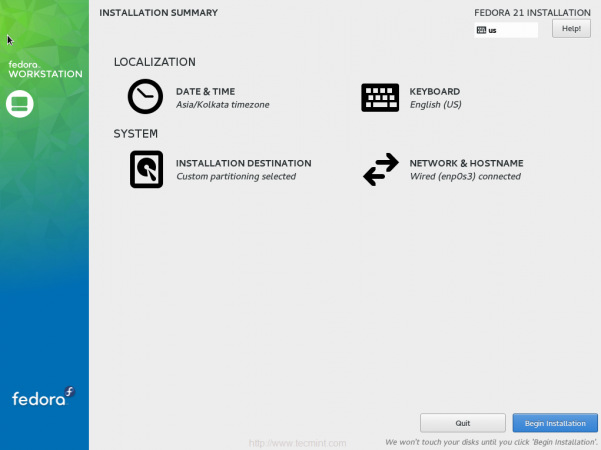
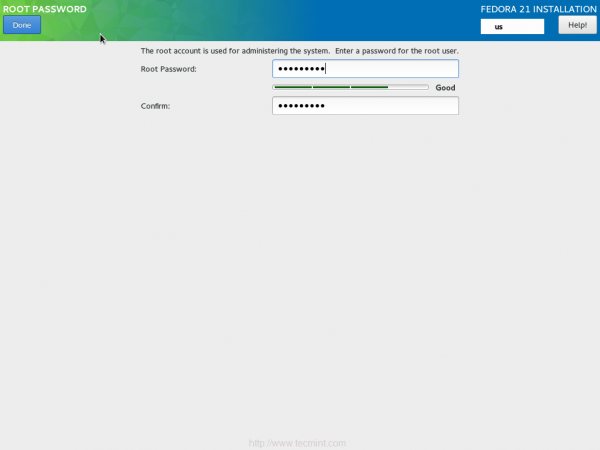
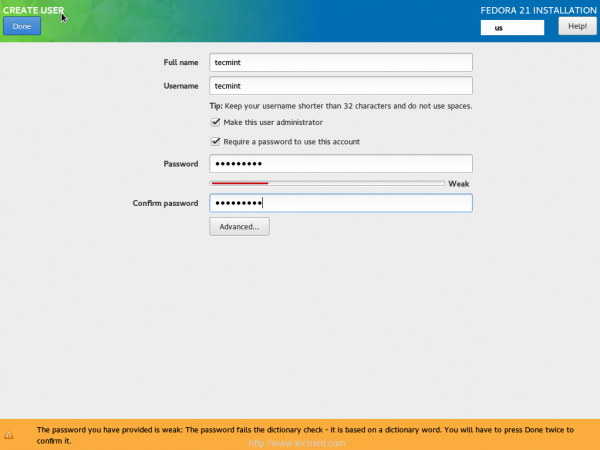
10. During installation process, you need to set a root password and also create a user or skip it.
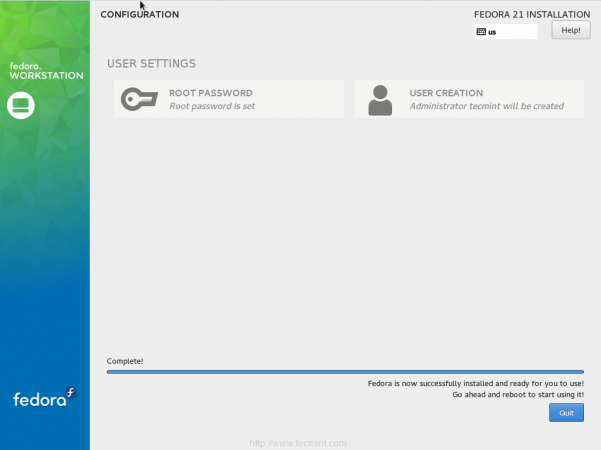
11. Click on Quit to reboot the machine after the Installation completes, at bottom you can see that Fedora is now Successfully installed and ready to use.
12. After system rebooting, you will see the Dual boot menu option for Fedora 21 and Windows 8, Choose Fedora 21 to boot the system into fedora desktop.
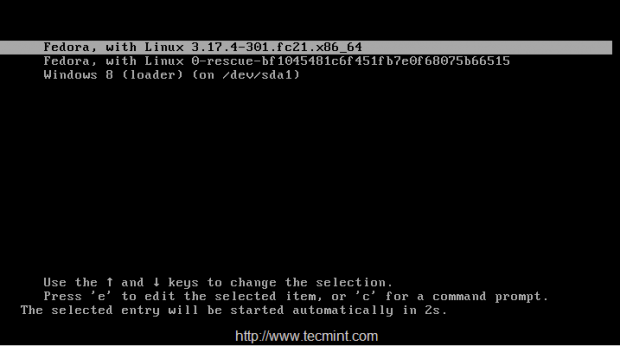
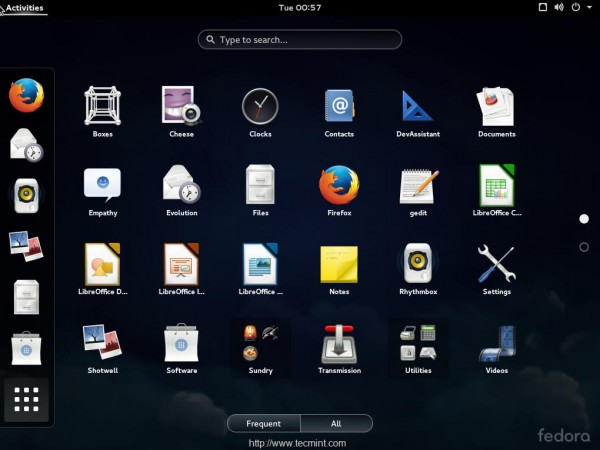
13. Now verify the partition, which we’ve defined for Linux and already existing windows partition by choosing Disk from Fedora Search bar.
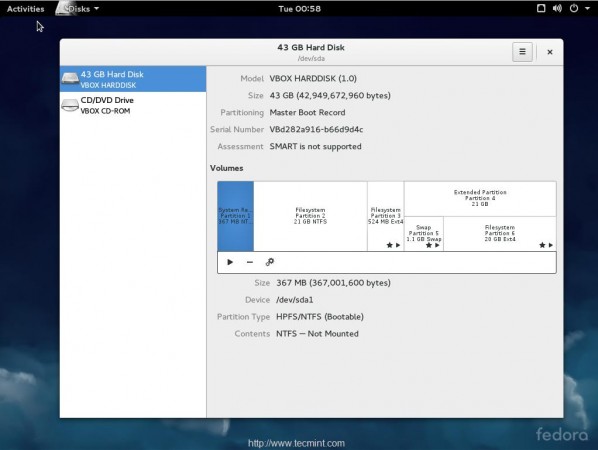
Here is the summary of dual-boot partition table for both Windows 8 and Fedora 21. That means we’ve successfully installed the Dual boot with Windows 8 and Fedora 21. To use Windows, you need to reboot and choose the window from GRUB Menu.
Conclusion
Here we have seen how to install Fedora 21 and Windows 8 with multi-boot option in a single Drive. Many of us, wonder how to install multi-boot with Linux. Hope this guide will help you to setup your dual boot machine in very quick way. Any query regarding above Setups? Feel free to leave your comments below, we will get back to you with solution to your comments.
If this article helped you solve a problem, consider buying a coffee. It helps keep TecMint free, supports the authors, and keeps the project going.




Got Something to Say? Join the Discussion... Cancel reply