VOOZH about

URL: https://www.tecmint.com/install-google-chrome-on-kali-linux/

⇱ How to Install Google Chrome on Kali Linux


Skip to content

Google Chrome is a cross-platform and free web browser that is widely used by regular users and tech enthusiasts alike. In this tutorial, you will learn how to install Google Chrome on Kali Linux.

Step 1: Update Kali Linux

To start off, we need to update the system packages and repositories. It’s always a good idea before getting started with anything else and so with that, launch your terminal and run the command:

# apt update
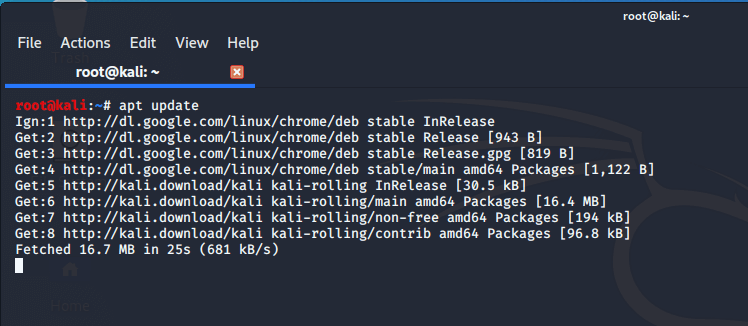
👁 Update Kali Linux
Update Kali Linux

Step 2: Download Google Chrome Package

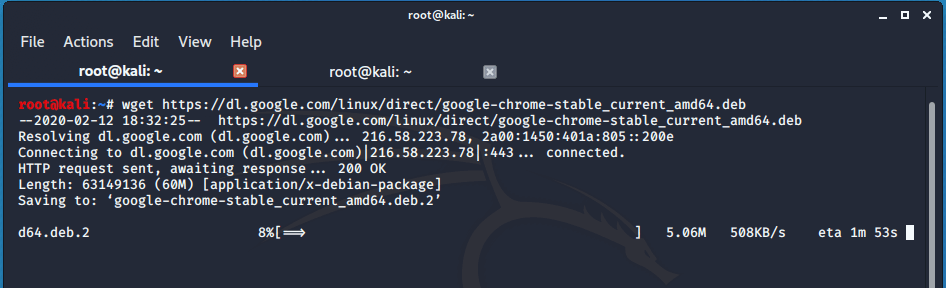
Once the system update is complete, download the Google Chrome Debian file using the command.

# wget https://dl.google.com/linux/direct/google-chrome-stable_current_amd64.deb
👁 Download Google Chrome in Kali Linux
Download Google Chrome in Kali Linux

Step 3: Install Google Chrome in Kali Linux

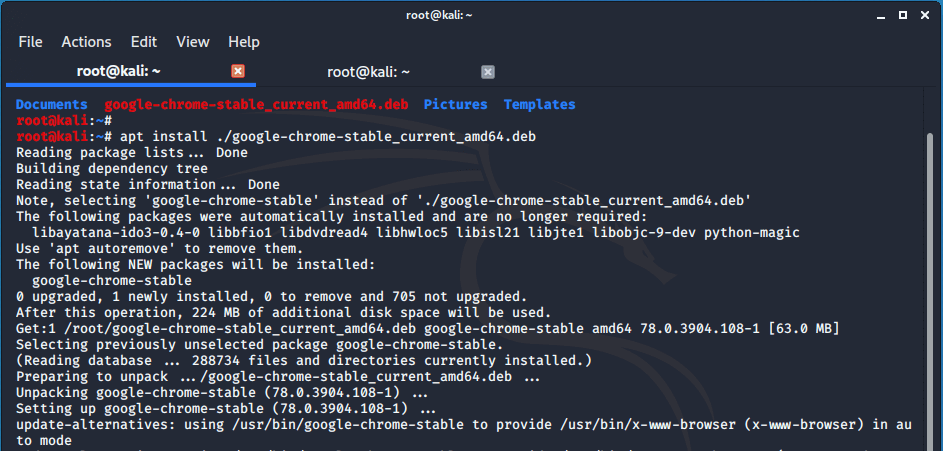
We can either use dpkg or apt package manager to install the package. In this case, we will use the apt package manager to install Google Chrome in Kali Linux.

# apt install ./google-chrome-stable_current_amd64.deb
👁 Install Google Chrome in Kali Linux
Install Google Chrome in Kali Linux

The installation will be completed after a few seconds depending on the speed of your PC.

Step 4: Launching Google Chrome in Kali Linux

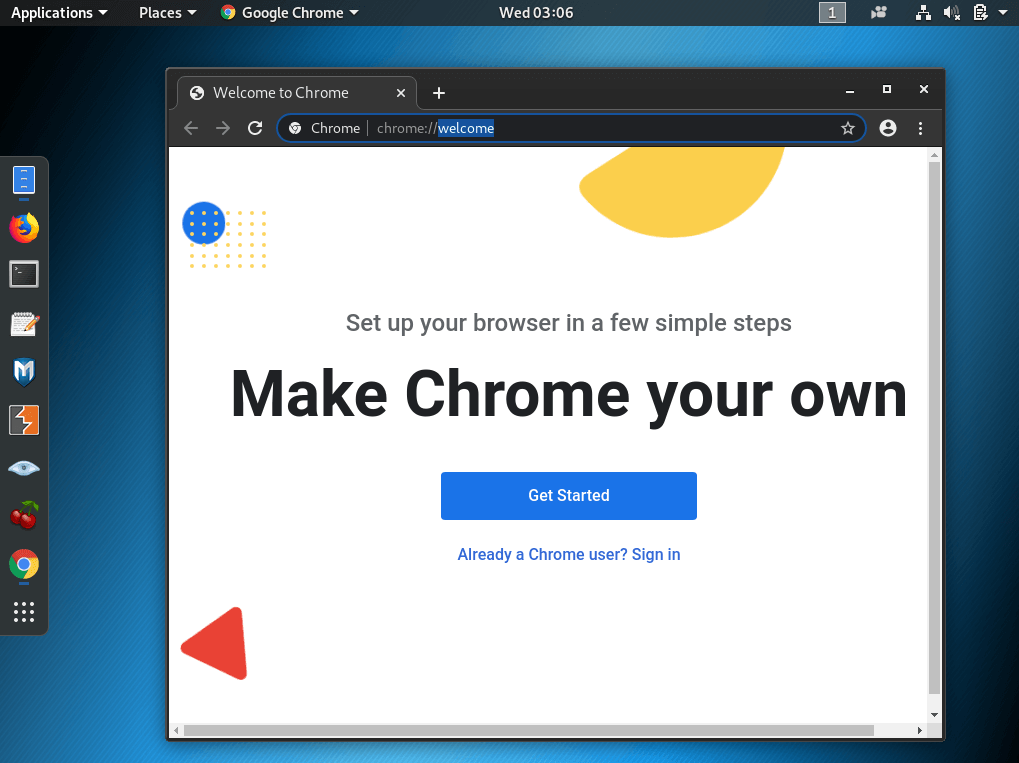
Upon successful installation of Google Chrome, launch it using the command.

# google-chrome --no-sandbox

The browser will pop open and you can begin signing in using your Google account.
👁 Google Chrome in Kali Linux
Google Chrome in Kali Linux
If this article helped, share it with someone on your team.
TecMint Weekly Newsletter
Get the Learn Linux 7 Days Crash Course free when you join 34,000+ Linux professionals reading every Thursday.
Check your email for a magic link to get started.
Something went wrong. Please try again.
TecMint has been free for 14 years. Help keep it that way.
Google AI Overviews and tools like ChatGPT have cut into search traffic for independent tech sites like TecMint. Running this site costs over $2,000 every month for hosting, infrastructure, and paying authors to keep the content accurate and tested.

If this article helped you solve a problem, consider buying a coffee. It helps keep TecMint free, supports the authors, and keeps the project going.
☕ Buy Me a Coffee
James Kiarie
This is James, a certified Linux administrator and a tech enthusiast who loves keeping in touch with emerging trends in the tech world. When I'm not running commands on the terminal, I'm taking listening to some cool music. taking a casual stroll or watching a nice movie.

Each tutorial at TecMint is created by a team of experienced Linux system administrators so that it meets our high-quality standards.

28 Comments

Leave a Reply
  1. Why is it necessary to run google-chrome with the --no-sandbox option?

    Chrome produces a warning saying that security and stability will suffer after doing so.

    Reply
    • @Christopher,

      Running Google Chrome with the `--no-sandbox` option may be necessary in certain scenarios, but it comes with potential security and stability risks. This option disables the sandboxing feature, which is designed to enhance security by isolating processes.

      While using `--no-sandbox` might resolve specific issues, it’s crucial to be aware that it exposes your system to potential vulnerabilities. It is recommended to use this option cautiously and consider alternative solutions if possible to maintain a secure browsing environment.

      Reply
  2. I have this error:

    Reading package lists... Done
    Building dependency tree... Done
    Reading state information... Done
    Note, selecting 'google-chrome-stable' instead of './google-chrome-stable_current_amd64.deb'
    Some packages could not be installed. This may mean that you have
    requested an impossible situation or if you are using the unstable
    distribution that some required packages have not yet been created
    or been moved out of Incoming.
    The following information may help to resolve the situation:
    
    The following packages have unmet dependencies:
     google-chrome-stable : Depends: libu2f-udev but it is not installable
    E: Unable to correct problems, you have held broken packages.
    
    Reply
    • @Jasyn,

      The error indicates that there are unmet dependencies for the ‘google-chrome-stable‘ package, specifically mentioning the missing ‘libu2f-udev‘.

      To resolve this error, you can try the following steps:

      sudo apt update
      sudo apt install libu2f-udev
      sudo apt --fix-broken install
      sudo dpkg -i ./google-chrome-stable_current_amd64.deb
      sudo apt install -f
      
      Reply
  3. Couldn’t install google on Kali linux, it is showing:

    $ wget https://dl.google.com/linux/direct/google-chrome-stable_current_amd64.deb
    
    Reply
  4. Are you running with root? use “su” and type ur password, then try again.

    Reply
  5. Just installed google chrome on my kali Linux thank you so much…

    Reply
    • Did you install Google chrome using the following repository?

      $ wget https://dl.google.com/linux/direct/google-chrome-stable_current_amd64.deb
      
      Reply
  6. Hey, I installed google chrome using these commands and it using the sandbox command but when I click on the icon from the applications menu it shows me it’s loading but then it just stops. Also, it shows me this:

    “[0527/035217.058538:ERROR:nacl_helper_linux.cc(307)] NaCl helper process running without a sandbox!
    Most likely you need to configure your SUID sandbox correctly”

    Reply
    • Was your problem solved? I am facing the same problem.

      Reply
  7. Facing this error pls tell me the solution

    E: Invalid archive member header
    E: Could not read meta data from /home/user/google-chrome-stable_current_amd64.deb
    E: The package lists or status file could not be parsed or opened.

    Reply
    • Ok, now it is fixed…

      Reply
      • We are glad you got that figured out.

        Reply
  8. Hey Pankaj, kindly run the following commands to clear the error:

    $ sudo rm /var/lib/dpkg/lock
    $ sudo rm /var/lib/dpkg/lock-frontend
    
    Reply
  9. rm: cannot remove ‘/var/lib/dpkg/lock‘: No such file or directory

    can anyone help me out with this ??

    Reply
    • Add sudo before apt install

      Reply
  10. error: dpkg was interrupted, you must manually run ‘dpkg –configure -a’ to correct the problem.

    please help me

    Reply
  11. Hi, i am getting this message. what should i do
    ( apt install ./google-chrome-stable_current_amd64.deb
    E: Could not open lock file /var/lib/dpkg/lock-frontend – open (13: Permission denied)
    E: Unable to acquire the dpkg frontend lock (/var/lib/dpkg/lock-frontend), are you root?)

    Reply
    • Hey Kibria. Please run the following commands to clear the error:

      $ sudo rm /var/lib/dpkg/lock
      $ sudo rm /var/lib/dpkg/lock-frontend
      
      Reply
  12. Thanks,

    This was so helpful after a long days of trial.

    Reply
    • We are glad that this guide was beneficial. Keep it Tecmint !

      Reply
  13. Thank you very much.

    Reply
    • You’re welcome Dwij.

      Reply
  14. :~# google-chrome –no-sandbox
    [3655:3655:0810/145140.897879:ERROR:browser_main_loop.cc(1469)] Unable to open X display.
    [0810/145141.036626:ERROR:nacl_helper_linux.cc(308)] NaCl helper process running without a sandbox!
    Most likely you need to configure your SUID sandbox correctly
    [0810/145141.036670:ERROR:nacl_helper_linux.cc(308)] NaCl helper process running without a sandbox!
    Most likely you need to configure your SUID sandbox correctly

    this error is showing

    Reply
  15. Hello Guys,

    Yes, this works. But if you closed the Terminal then the Chrome Browser closes automatically. To make this Permanent then Make a launcher with the same command. This will be executed fine.

    Reply
    • @Xitji,

      You can also launch Google Chrome from the Application Menu to avoid such problems..

      Reply
  16. Hi i am getting error like # "google-chrome --no-sandbox".

    Please help

    Reply
  17. Why would anybody willingly install malware on their computer?!

    The idea is to make and keep your computer secure. Installing any Google product compromises that security.

    Reply

Got Something to Say? Join the Discussion... Cancel reply

Free Course
Get a free Linux course before you go.
Subscribe to TecMint Weekly and get the Learn Linux 7 Days Crash Course free. Read by 34,000+ Linux professionals every Thursday.
Check your email for a magic link to get started.