VOOZH about

URL: https://www.tecmint.com/install-skype-in-arch-linux/

โ‡ฑ How to Install Skype on Arch Linux


Skip to content

Skype is a very popular chat application from Microsoft that allows you to chat and connect with your friends, colleagues and loved ones using free HD video and voice calls at absolutely no cost at all. At the time of writing this guide, the latest version of Skype for Linux is 8.56.0.103. Without much further ado, letโ€™s dive in.

Step 1: Update Arch Linux

Log in to your Arch Linux system as a sudo user and update the system using the command shown.

$ sudo pacman -Syy
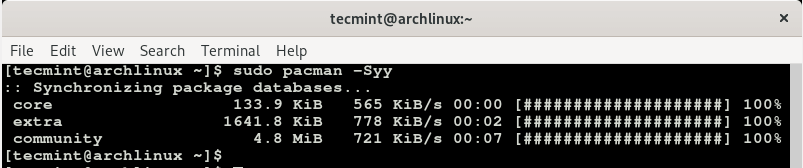
๐Ÿ‘ Update Arch Linux Packages
Update Arch Linux Packages

Step 2: Clone Skype for Linux Binary File

The AUR repository provides a binary package for Skype. Using git command, proceed and clone the Skype AUR package using the command shown.

$ sudo git clone https://aur.archlinux.org/skypeforlinux-stable-bin.git
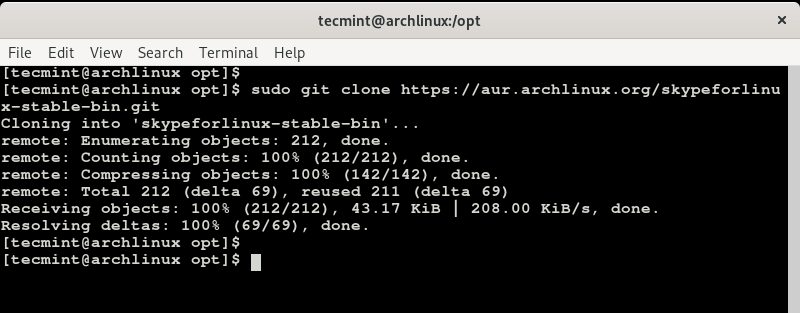
๐Ÿ‘ Clone Skype in Arch Linux
Clone Skype in Arch Linux

Step 3: Build the Skype AUR Package in Arch Linux

Before building the package, you need to change permissions for the cloned skypeforlinux directory from root to the sudo owner. So run the command.

$ sudo chown -R tecmint:users skypeforlinux-stable-bin
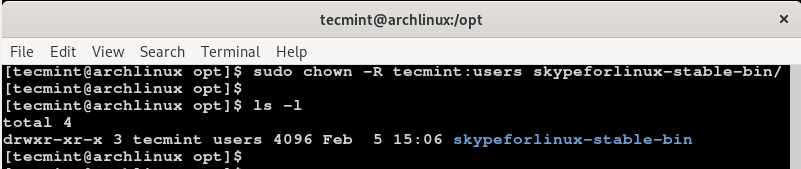
๐Ÿ‘ Change Permission on Skype Directory
Change Permission on Skype Directory

To build the Skype package, navigate into the folder.

$ cd skypeforlinux-stable-bin

Now build the Skype AUR package using the command.

$ makepkg -si
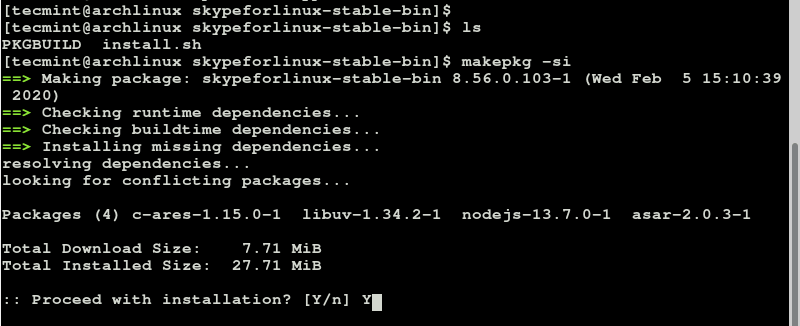
๐Ÿ‘ Build Skype in Arch Linux
Build Skype in Arch Linux

Type Y to proceed with the installation process and hit ENTER each time when prompted to install all the packages. This will take a bit of time, so you can relax as the installation goes on or grab a cup of tea.

Once the installation is complete, you can verify the installation of Skype by running the command.

$ sudo pacman -Q

๐Ÿ‘ Verify Skype Installation on Arch Linux
Verify Skype Installation on Arch Linux

We can see from the output that we have installed the latest version of Skype which is version 8.56.0.103-1. To display more information about the package run.

$ sudo pacman -Qi
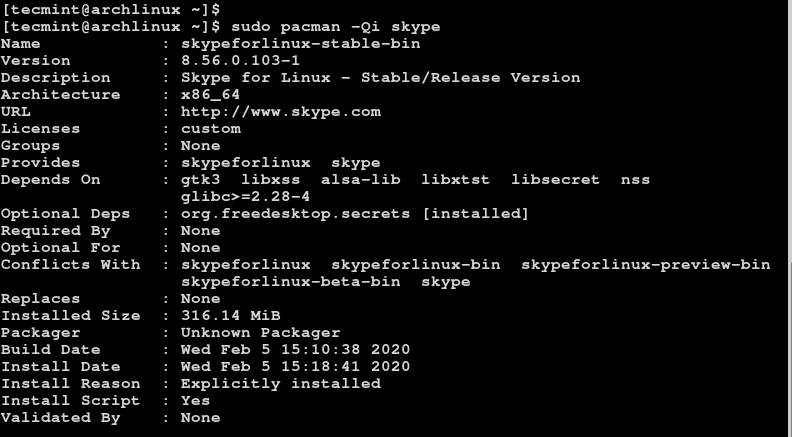
๐Ÿ‘ Check Skype Version Info
Check Skype Version Info

The command gives you a whole lot of information such as the version, architecture, build date, install date and installed size to mention just a few.

Step 4: Starting Skype in Arch Linux

To launch skype, simply type the command skypeforlinux on the terminal.

$ skypeforlinux
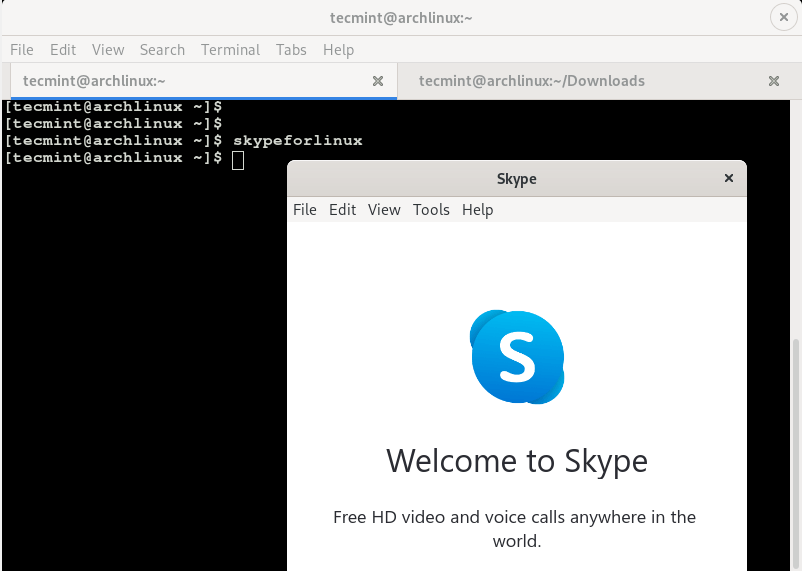
๐Ÿ‘ Start Skype in Arch Linux
Start Skype in Arch Linux

The Skype pop-up will appear and after hitting the โ€œLetโ€™s Goโ€ button, you will be prompted for the login credentials.
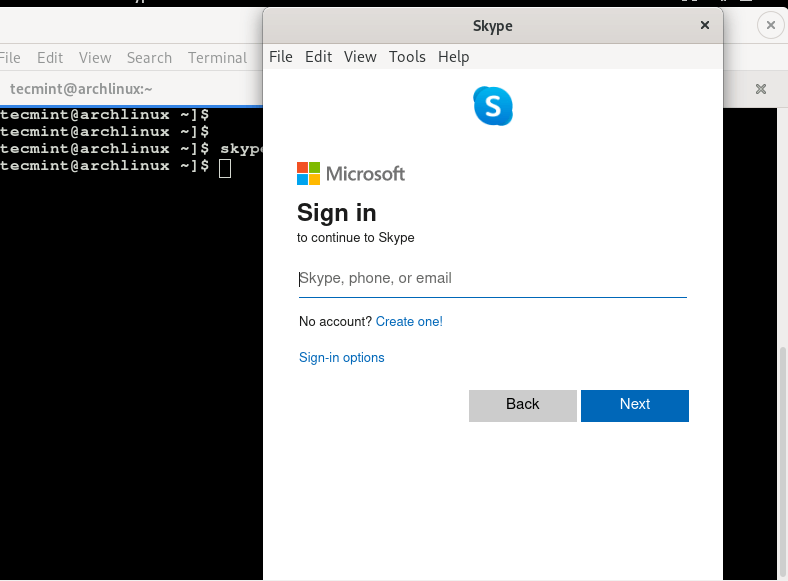
๐Ÿ‘ Skype Running on Arch Linux
Skype Running on Arch Linux

Upon providing your login credentials, you will be good to go! And this wraps up our short guide on how you can install the latest version of Skype on Arch Linux.

If this article helped, share it with someone on your team.
TecMint Weekly Newsletter
Get the Learn Linux 7 Days Crash Course free when you join 34,000+ Linux professionals reading every Thursday.
Check your email for a magic link to get started.
Something went wrong. Please try again.
โ˜•
TecMint has been free for 14 years. Help keep it that way.
Google AI Overviews and tools like ChatGPT have cut into search traffic for independent tech sites like TecMint. Running this site costs over $2,000 every month for hosting, infrastructure, and paying authors to keep the content accurate and tested.

If this article helped you solve a problem, consider buying a coffee. It helps keep TecMint free, supports the authors, and keeps the project going.

โ˜• Buy Me a Coffee
James Kiarie
This is James, a certified Linux administrator and a tech enthusiast who loves keeping in touch with emerging trends in the tech world. When I'm not running commands on the terminal, I'm taking listening to some cool music. taking a casual stroll or watching a nice movie.

Each tutorial at TecMint is created by a team of experienced Linux system administrators so that it meets our high-quality standards.

9 Comments

Leave a Reply
  1. Thank you very much for the recap. Easy to follow!

    Reply
  2. Thanks for the guide, really helpful, skype works perfectly.

    Many thanks

    Reply
    • Thank you for the kind words. We are glad that the guide was beneficial in helping you to install Skype.

      Reply
  3. Skype install successful but not working

    Reply
    • @Gulab,
      Any error you getting while starting Skype?

      Reply
  4. The Arch repo does not have skype. What repo are you using so I can curl it?

    Reply
  5. I would like tobe friend with your fabulous service regarding your good reputation

    Reply
  6. skype 4.3 requires pulseaudio and pavucontrol.

    Why would any one want to use pulseaudio. there are many problems with pulseaudio. It is a failure in that it is supposed to be simple and โ€œblack-boxโ€ but its not โ€“ I always have to dig in some configuration to make it work. It is also a failure in that it is supposed to simplify things, but it also makes it complicated; because it tries to guess what you want, is very intrusive, and when you change configurations it often doesnโ€™t know what to do. Lastly, it is painfully slow by design. It resamples every single audio โ€œmanuallyโ€. You literally have to choose between quick resampling or a good resampling. If you like to do anything computationally intensive while listening to music, give up. You canโ€™t. Thatโ€™s pulseaudio.

    Reply

Got Something to Say? Join the Discussion... Cancel reply

Free Course
Get a free Linux course before you go.
Subscribe to TecMint Weekly and get the Learn Linux 7 Days Crash Course free. Read by 34,000+ Linux professionals every Thursday.
Check your email for a magic link to get started.