VOOZH about

URL: https://www.tecmint.com/install-wordpress-in-ubuntu-lamp-stack/

⇱ How to Install WordPress Ubuntu Using LAMP Stack


Skip to content

For those who cannot afford the hustles of developing websites from scratch, there are now several content management systems (CMSs) such as WordPress that you can take advantage of to set up blogs as well as complete websites with a few clicks.

WordPress is a powerful, free, and open-source, highly pluggable, and customizable CMS that is being used by millions around the world to run blogs and fully functional websites.

It is easy to install and learn, especially for persons who do not have prior website design and development knowledge. With millions of plugins and themes available, developed by an active and dedicated community of fellow users and developers, that you can utilize to tailor your blog or website to work and look just the way you want.

Requirements:

  • A dedicated Ubuntu server with a registered domain name, I suggest you go for Linode hosting, which offers $100 credit to try it for free.

In this post, we shall run through the various steps you can follow, to install the latest version of WordPress on Ubuntu 20.04, Ubuntu 18.04, and Ubuntu 16.04 with LAMP (Linux, Apache, MySQL, and PHP) stack.

Install LAMP Stack on Ubuntu Server

First, we shall uncover the various steps for the installation of the LAMP stack before progressing to install WordPress.

Step 1: Install Apache Web Server on Ubuntu

First, update and upgrade the software package list and then install the Apache webserver using the following commands.

$ sudo apt-get update
$ sudo apt-get upgrade
$ sudo apt-get install apache2 apache2-utils 
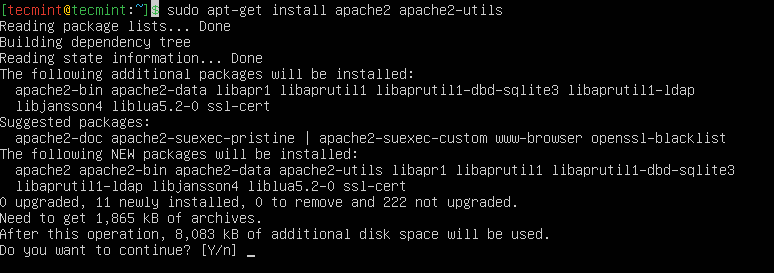
👁 Install Apache in Ubuntu
Install Apache in Ubuntu

We need to enable the Apache2 web server to start at system boot time, as well as start the service and verify the status as follows:

$ sudo systemctl enable apache2
$ sudo systemctl start apache2
$ sudo systemctl status apache2
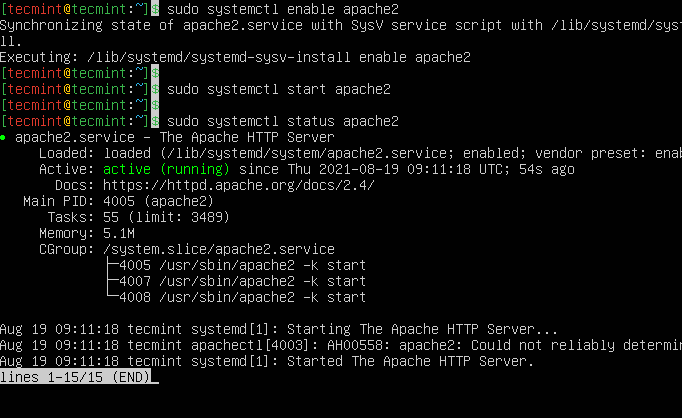
👁 Check Apache Status in Ubuntu
Check Apache Status in Ubuntu

Once you’ve started Apache, you then need to allow HTTP traffic on your UFW firewall as shown.

$ sudo ufw allow in "Apache"
$ sudo ufw status
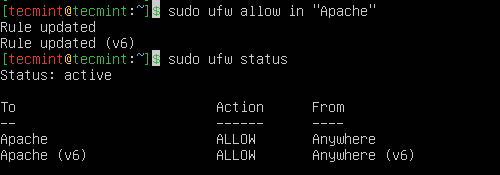
👁 Open Apache Port on UFW Firewall
Open Apache Port on UFW Firewall

To test whether the Apache server is running, open your web browser and enter the following URL in the address bar.

http://server_address
OR
http://your-domain.com

The Apache2 default index page will be displayed in case the webserver is up and running.
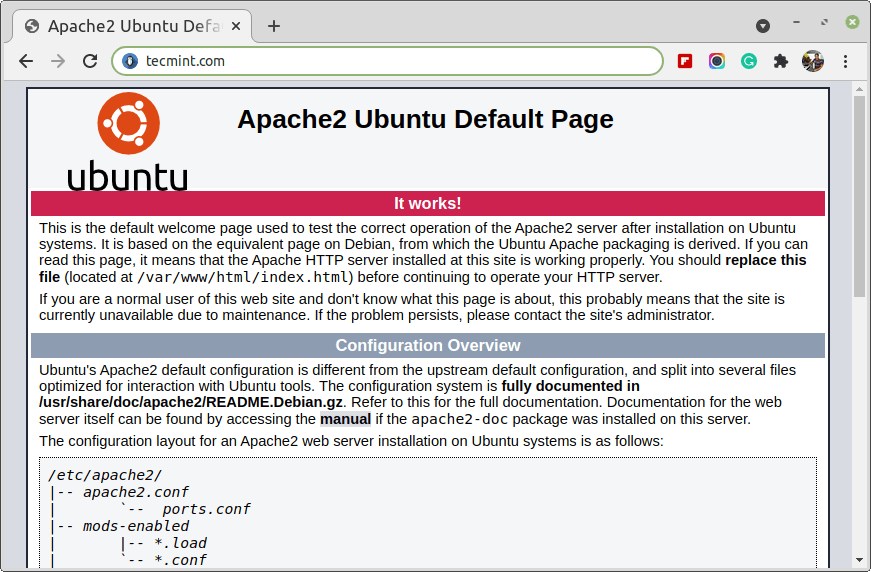
👁 Apache Default Page Under Ubuntu
Apache Default Page Under Ubuntu

Note: The Apache default root directory is /var/www/html, all your web files will be stored in this directory.

Step 2: Install MySQL Database Server

Next, we need to install the MySQL database server by running the command below:

$ sudo apt-get install mysql-client mysql-server
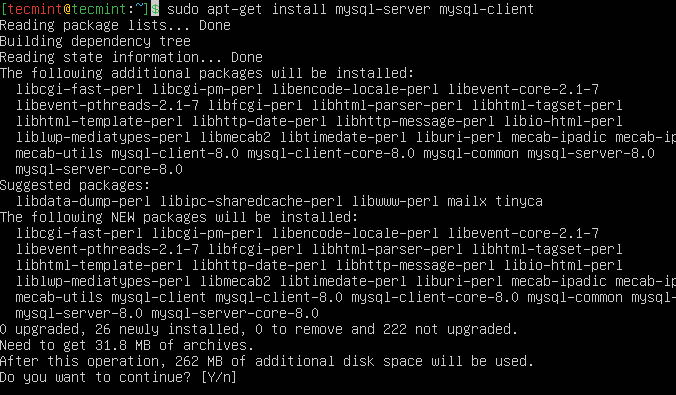
👁 Install MySQL in Ubuntu
Install MySQL in Ubuntu

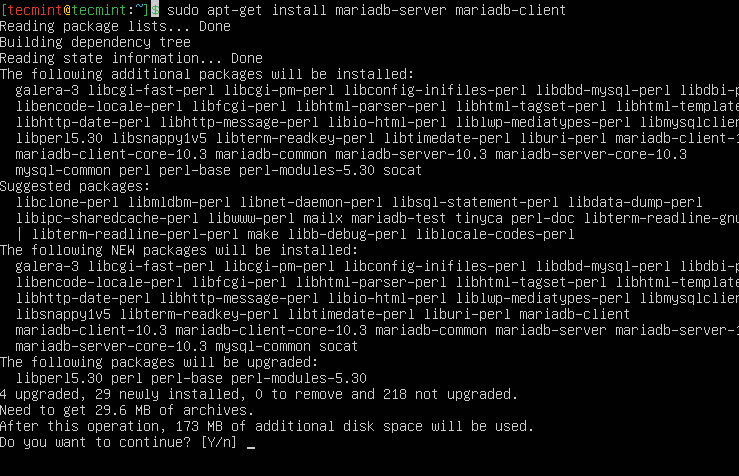
If you want to install MariaDB, you can install it using the following command.

$ sudo apt-get install mariadb-server mariadb-client
👁 Install MariaDB in Ubuntu
Install MariaDB in Ubuntu

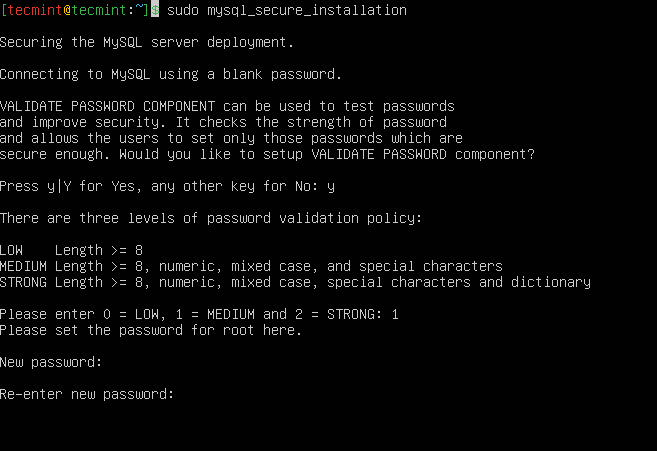
Once the database server is installed, it is strongly advised that you run a security script to remove insecure default settings and protect your database system.

$ sudo mysql_secure_installation 

Firstly, you will be asked to install the ‘validate_password’ plugin, so type in Y/Yes and press Enter and also choose the default password strength level.
👁 Set MySQL Root Password in Ubuntu
Set MySQL Root Password in Ubuntu

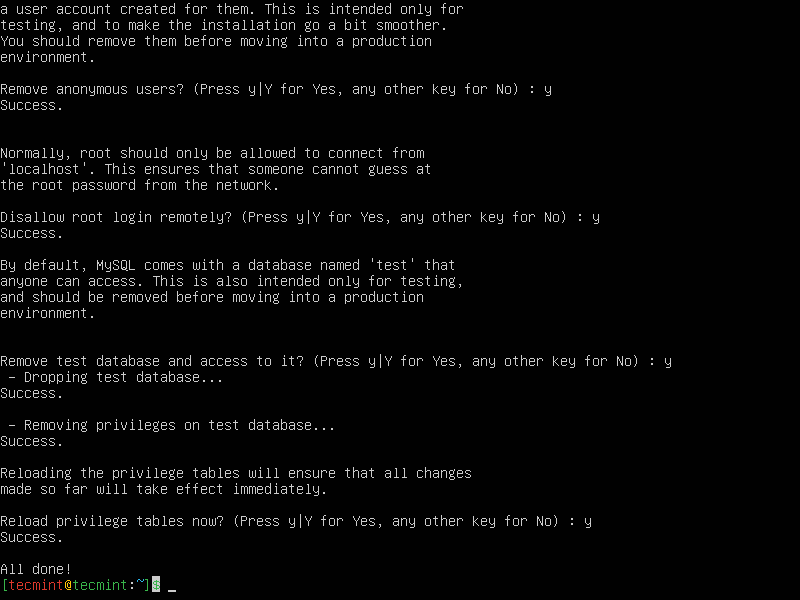
For the remaining questions, press Y and hit the ENTER key at each prompt.
👁 Secure MySQL in Ubuntu
Secure MySQL in Ubuntu

Step 3: Install PHP in Ubuntu

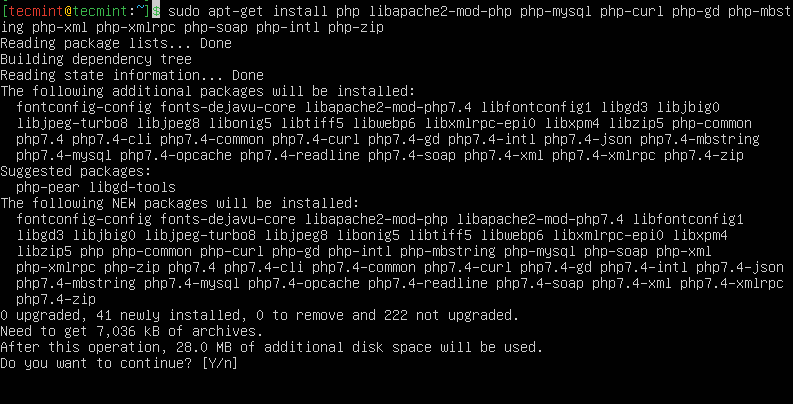
Last but not least, we shall install PHP and a few modules for it to work with the web and database servers using the command below:

$ sudo apt-get install php libapache2-mod-php php-mysql php-curl php-gd php-mbstring php-xml php-xmlrpc php-soap php-intl php-zip 
👁 Install PHP in Ubuntu
Install PHP in Ubuntu

Once PHP and all required extensions are installed, you need to restart Apache to load these new extensions.

$ sudo systemctl restart apache2

Furthermore, to test if php is working in collaboration with the webserver, we need to create a info.php file inside /var/www/html.

$ sudo vi /var/www/html/info.php

And paste the code below into the file, save it, and exit.

<?php 
phpinfo();
?>

When that is done, open your web browser and type in the following URL in the address bar.

http://server_address/info.php
OR
http://your-domain.com/info.php

You should be able to view the php info page below as a confirmation.
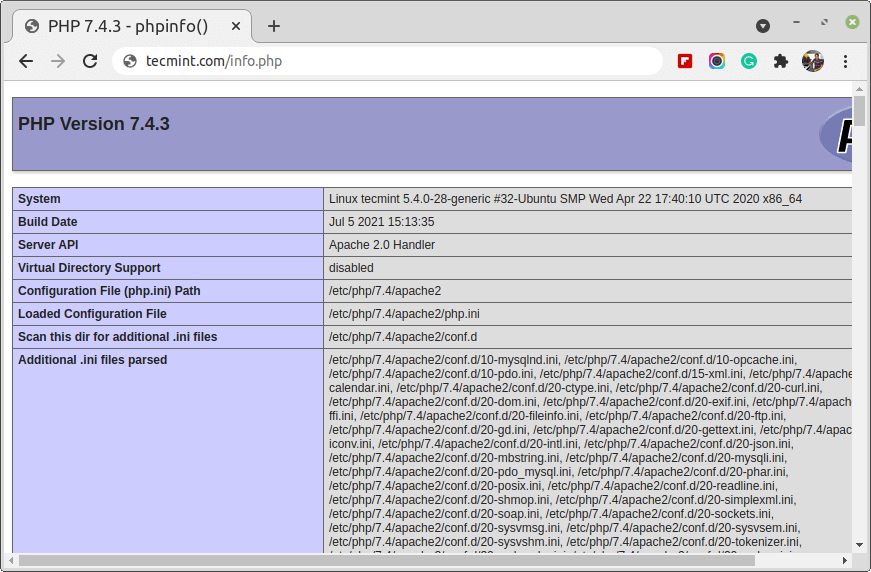
👁 Check PHP Info in Ubuntu
Check PHP Info in Ubuntu

Step 4: Install WordPress in Ubuntu

Download the latest version of the WordPress package and extract it by issuing the commands below on the terminal:

$ wget -c http://wordpress.org/latest.tar.gz
$ tar -xzvf latest.tar.gz

Then move the WordPress files from the extracted folder to the Apache default root directory, /var/www/html/:

$ sudo mv wordpress/* /var/www/html/

Next, set the correct permissions on the website directory, that is give ownership of the WordPress files to the webserver as follows:

$ sudo chown -R www-data:www-data /var/www/html/
$ sudo chmod -R 755 /var/www/html/

Step 5: Create WordPress Database

Execute the command below and provide the root user password, then hit Enter to move to the mysql shell:

$ sudo mysql -u root -p 

At the mysql shell, type the following commands, pressing Enter after each line of a mysql command. Remember to use your own, valid values for database_name, database user, and also use a strong and secure password as databaseuser_password:

mysql> CREATE DATABASE wp_myblog;
mysql> CREATE USER 'username'@'%' IDENTIFIED WITH mysql_native_password BY 'password';
mysql> GRANT ALL ON wp_myblog.* TO 'username'@'%';
mysql> FLUSH PRIVILEGES;
mysql> EXIT;
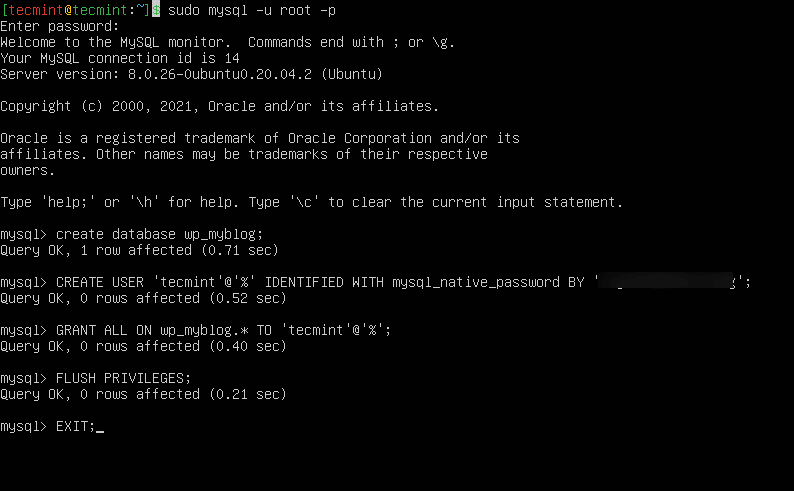
👁 Create WordPress Database
Create WordPress Database

Go the /var/www/html/ directory and rename existing wp-config-sample.php to wp-config.php. Also, make sure to remove the default Apache index page.

$ cd /var/www/html/
$ sudo mv wp-config-sample.php wp-config.php
$ sudo rm -rf index.html

Then update it with your database information under the MySQL settings section (refer to the highlighted boxes in the image below):
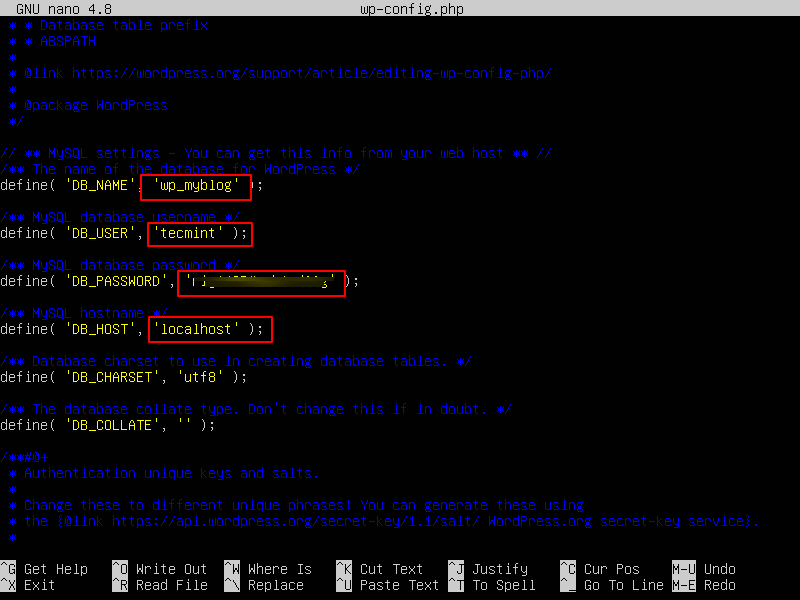
👁 WordPress MySQL Settings
WordPress MySQL Settings

Afterward, restart the web server and mysql service using the commands below:

$ sudo systemctl restart apache2.service 
$ sudo systemctl restart mysql.service 

Open your web browser, then enter your domain name or server address as shown.

http://server_address/info.php
OR
http://your-domain.com/info.php

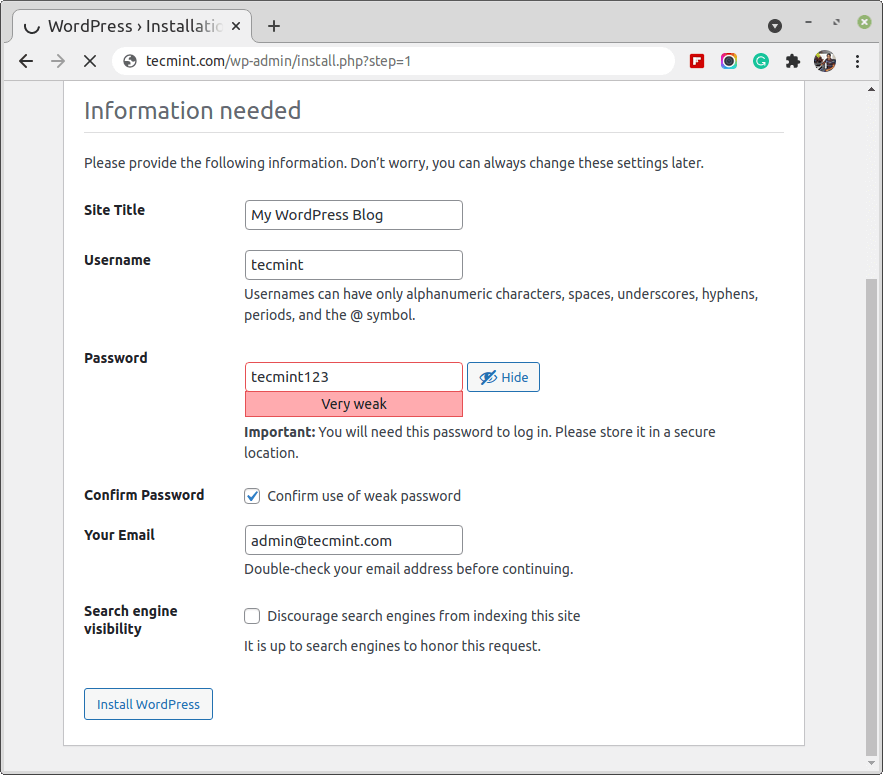
You will get the welcome page below. Read through the page and click on “Let’s go!” to proceed further and fill in all requested on-screen information.
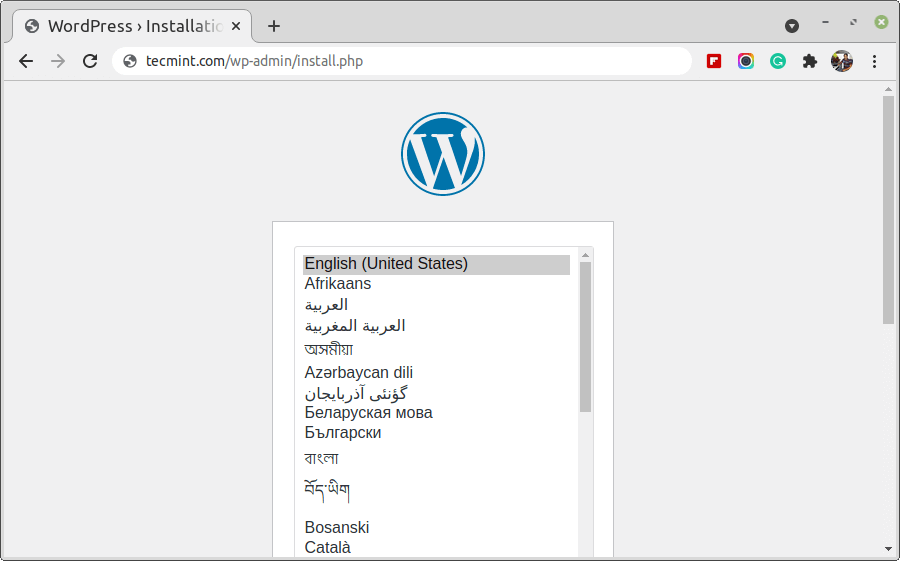
👁 Choose WordPress Language
Choose WordPress Language
👁 Set WordPress Details
Set WordPress Details
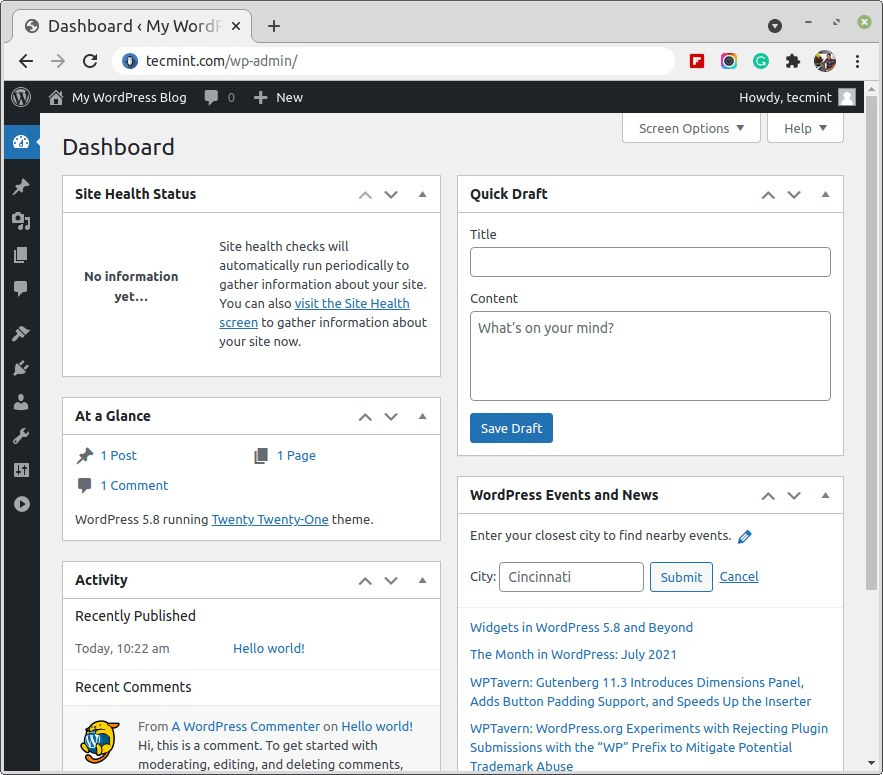
👁 WordPress Dashboard
WordPress Dashboard

Hoping that everything went on just fine, you can now enjoy WordPress on your system. However, to express any concerns or ask questions concerning the steps above or even provide additional information that you think has not been included in this tutorial, you can use the feedback section below to get back to us.

If this article helped, share it with someone on your team.
TecMint Weekly Newsletter
Get the Learn Linux 7 Days Crash Course free when you join 34,000+ Linux professionals reading every Thursday.
Check your email for a magic link to get started.
Something went wrong. Please try again.
TecMint has been free for 14 years. Help keep it that way.
Google AI Overviews and tools like ChatGPT have cut into search traffic for independent tech sites like TecMint. Running this site costs over $2,000 every month for hosting, infrastructure, and paying authors to keep the content accurate and tested.

If this article helped you solve a problem, consider buying a coffee. It helps keep TecMint free, supports the authors, and keeps the project going.
☕ Buy Me a Coffee
Aaron Kili
Aaron Kili is a Linux and F.O.S.S enthusiast, an upcoming Linux SysAdmin, web developer, and currently a content creator for TecMint who loves working with computers and strongly believes in sharing knowledge.

Each tutorial at TecMint is created by a team of experienced Linux system administrators so that it meets our high-quality standards.

200 Comments

Leave a Reply
  1. Hi,

    Everything worked fine until the end when I got en error of 500.

    Any idea why?

    Reply
  2. Hi, I installed this and it runs perfectly when I access it from my local IP.

    But i can not access it when typing my domain. Can you help me?

    Reply
  3. Hey! I am hosting different sites on my server. After following the tutorial I reach a 404, here’s my apache file:

     # The primary domain for this host
     ServerName mysite.xyz
     # Optionally have other subdomains also managed by this Virtual Host
     ServerAlias mysite.xyz *.mysite.xyz
     DocumentRoot /var/www/html/mysite.xyz/public_html
     
     Require all granted
     # Allow local .htaccess to override Apache configuration settings
     AllowOverride all
     Order allow,deny
     Allow from all
     
     # Enable RewriteEngine
     RewriteEngine on
     RewriteOptions inherit
    
     # Block .svn, .git
     RewriteRule \.(svn|git)(/)?$ - [F]
    
     # Catchall redirect to www.mysite.xyz
     RewriteCond %{HTTP_HOST} !^www.mysite\.xyz [NC]
     RewriteCond %{HTTP_HOST} !^$
     RewriteRule ^/(.*) https://www.mysite.xyz/$1 [L,R]
    
     # Recommended: XSS protection
     
     Header set X-XSS-Protection "1; mode=block"
     Header always append X-Frame-Options SAMEORIGIN
     

    Any idea what I am doing wrong here?

    Reply
  4. Please update this guide for Ubuntu 20.04.

    The configuration commands for MySQL have been deprecated.

    Reply
  5. Thank you, great article in setting up WordPress on Linux.

    You are the best…:)

    Reply
    • @Ahmed

      Welcome, thanks for the useful feedback.

      Reply
  6. Hi, After giving mysql_secure_installation, I got this error:

    ERROR 2002 (HY000): Can't connect to local MySQL server through socket '/var/run/mysqld/mysqld.sock' (2 "No such file or directory")

    What should I do? I use Linux Mint. Thanks

    Reply
    • @ambars

      Check if the mysql service is running, it should be started automatically in Ubuntu:

      $ sudo systemctl status MySQL
      

      Otherwise, start and enable it like this:

      $ sudo systemctl start mysql
      $ sudo systemctl enable MySQL
      
      Reply
      • I had similar issues, just to add to future refs to this. Stop Nginx/Apache2 “sudo service apache2 stop” then “sudo service MySQL start” solves this issue.

        Reply
  7. like jayjay said, doing ‘sudo chmod -R 755 /var/www/html/‘ is a silly idea. You are giving read and execute permissions on everything to the world.

    Better way of doing this would be:

    # find /var/www/html -type d -exec chmod 0755 {} \;
    # find /var/www/html -type f -exec chmod 0644 {} \;
    

    Setting all directories to 755 and all files to 644. once you’re finished with the .htaccess it also advised to chmod that to 600 too so you don’t even have read access from the world or group.

    Reply
  8. Thank you for the blog, it works well, except the “due to “mv wp-config-sample.php wp-config.php” I was not able to get the page. so I revert the changes and give wp-config-sample.php.” issue.

    Reply
  9. Thank you! Thanks to you I was able to create my blog in WordPress :)
    Regards!

    Reply
    • @Multiselect

      Welcome. Thanks for the feedback.

      Reply
  10. due to “mv wp-config-sample.php wp-config.php” I was not able to get the page. so I revert the changes and give wp-config-sample.php. Then I only I am able to see given page.

    Reply
  11. I had an error: bash: syntax error near unexpected token `’DB_NAME’,’ when updating MySQL information. Help me, please.

    Reply
    • @Sultan

      There is a difference between ‘DB_NAME‘ and ’DB_NAME’. Please cross-check this, in case you have copied and pasted.

      Reply
  12. I seem to have some sort of permission errors, I cannot publish pages, I get update failed when ever I try to add a new page

    Reply
  13. sudo chmod -R 755 /var/www/html/ is not a good idea. You give executable status to ALL files.

    Reply
  14. Then update it with your database information under the MySQL settings section (refer to the highlighted boxes in the image below):

    I do not understand about this

    Sorry for bad English

    Reply
    • @SUTAN

      The screenshot is not actually included but all you need to do in that step is enter database connection settings. Check out the command section(dark blue).

      Reply
  15. Followed all the steps but I am still seeing the Apache2 Ubuntu Default Page and not the WordPress welcome page. Any ideas?

    Reply
    • @Leandri,

      Remove default index.html page from Root directory.

      Reply
  16. Good article, but there is some problem how to connect WordPress with MySQL and how data can be retrieved from MySQL to WordPress and vice versa ??

    Reply
    • @Onir

      Go the /var/www/html/ directory and rename existing wp-config-sample.php to wp-config.php, then update it with your database information under the MySQL settings section. Refer to Step 5: Create WordPress Database.

      Reply
      • Where is this MySQL “settings section“? When I try to use define(...); while logged in, I get a syntax error. That part is extremely vague.

        Reply
  17. Hi, everything worked well thanks, but when I’m in WordPress and go to customize the site I’m shown the Apache2 Ubuntu Default Page :( and not the site.

    Hope you can help me.
    Thanks

    Reply
    • @Artem,

      Remove that default Apache web page from that location..

      Reply
      • Amazing! Thank you. Worked.

        Delete the index.html in ‘/var/www/html‘ if you have the same issue.

        Reply
  18. I stopped at step 2 (with this error) in this guide :(

    The following packages have unmet dependencies:
    mariadb-server : Depends: mariadb-server-10.1 (>= 1:10.1.40-0ubuntu0.18.04.1) but it is not going to be installed
    E: Unbale to correct problems, you have held broken packages.
    

    Do you have any solution to solve this error?

    Thanks, Kim

    Reply
    • @Kim,

      Run the following command to fix these dependencies.

      $ sudo apt-get install -f
      
      Reply
      • After running the command: "sudo apt-get install -f".

        I tried to run the command: "sudo apt-get install mariadb-server mariadb-client" again. But still got the same error.

        Is there other things that can solve this problem ??

        Thanks, Kim

        Reply
        • @Kim,

          First remove the installed MariaDB using the following commands.

          $ sudo apt-get remove --purge mariadb-server
          $ sudo apt-get autoremove
          $ sudo apt-get autoclean
          

          Once removed, try to install MariaDB again.

          $ sudo apt-get install mariadb-server mariadb-client
          
          Reply
  19. When i try the http://server-address – it shows me the Apache Ubuntu default page, did I miss something?, I was able to access the config file thru http://server-address/wp-admin/setup-config.php.

    Reply
    • @Lester,

      Please remove the default index.html page in /var/www directory.

      Reply
  20. I followed the instructions and this worked great! Built it on an EC2 Instance ion AWS and shut it down over night. When i restarted the server in the morning, It no longer starts the WP site. I have checked the services to ensure Apache and mySQL services are running.

    I’m not a Linux engineer, but what else do i need to check to get it started?

    It all installed fine :(
    Thanks

    Reply
    • @James,

      Any error you getting on the browser while checking WordPress?

      Reply
  21. Had some issue at the PHP install a bit, but followed these instructions and got it working :-)

    Reply
    • @seth

      Oh, that’s great! We are glad that this worked well for you. Thanks for the feedback.

      Reply
  22. # mysql -u root -p
    Enter password: 
    ERROR 1045 (28000): Access denied for user 'root'@'localhost' (using password: YES)
    

    Cannot go any further..

    Reply
    • @Dr2232,

      Please set the MySQL password as explained in the article, and then connect to mysql.

      Reply
  23. Help please I am stuck on step 3 and I am getting the following error messages:

    E: Couldn't find any package by glob 'php7.0-mysql'
    E: Couldn't find any package by regex 'php7.0-mysql'
    E: Unable to locate package libapache2-mod-php7.0
    E: Couldn't find any package by glob 'libapache2-mod-php7.0'
    E: Couldn't find any package by regex 'libapache2-mod-php7.0'
    E: Unable to locate package php7.0-cli
    E: Couldn't find any package by glob 'php7.0-cli'
    E: Couldn't find any package by regex 'php7.0-cli'
    E: Unable to locate package php7.0-cgi
    E: Couldn't find any package by glob 'php7.0-cgi'
    E: Couldn't find any package by regex 'php7.0-cgi'
    E: Unable to locate package php7.0-gd
    E: Couldn't find any package by glob 'php7.0-gd'
    

    What should I do?

    Reply
    • @Freeman,

      Are you sure you are using Ubuntu 16.10 or 16.04? please confirm this first. If you are using older Ubuntu 14.04, then PHP 7 is not available from the standard Ubuntu repositories (2016-01-02).

      You could use the PPA ppa:ondrej/php.

      $ sudo apt-add-repository ppa:ondrej/php
      $ sudo apt-get update
      $ sudo apt-get install php7.0
      
      Reply
  24. You forgot to delete index.html – Did you test your steps? Ubuntu 16!

    Reply
    • @Catypus

      Oh, yes, I tested but forgot to include it the guide. We shall update article to reflect this.

      Reply
  25. Hello,

    I have setup vista CP + WP but i am getting issue to edit files through ftp and can’t upload images in admin.

    Reply
  26. I am having issues with restarting mysql. It says it failed because the control process exited with error code.

    Reply
  27. I installed wordpress on ubuntu and I am trying various plugins but how I will check plugin is working on website, I mean will it show changes just by writing IP address on browser or any other process to check plugins effect working or not .

    Reply
    • @ashish

      Refer to the documentation of a plugin, if you want to know how ti works or how to use it.

      Reply
    • @Mr.S

      Okay, thanks for the addition, but, adding wordpress parameter depends on your website root(where actual wordpress files are stored).

      Reply
  28. I think a missing step that everyone is likely to hit is the need to remove the “index.html” from the root directory. I removed and things got immediately better. The next hurdle for me is figuring out why the mod-rewrite rules are not working (or that’s what I’m assuming is happening) … basically anything outside the root directory is coming as not found.

    Reply
  29. Hi,

    Thanks for sharing the information. I really need to setup a WordPress on my Linux server, I have one more Question is 512 ram is enough for WordPress on VPS server?

    Reply
    • @Gurjeet,

      At least you need 1GB of RAM to run a WordPress on a Linux VPS server.

      Reply
  30. At the final step when I enter my wordpress website it says THIS SITE CAN’T BE REACHED and my IP address took too long to respond.

    This problem is driving me crazy PLEASE HELP!

    Reply
    • @Ben

      Ensure that there is connectivity to your server, if you are running a firewall, check if client requests are allowed via port 80(HTTP) to the web server. You can try pinging your server.

      Reply
  31. “then update it with your database information under the MySQL settings section (refer to the highlighted boxes in the image below):”

    I got stuck at this step. Where should I do all these? Is it I have to go to mysql -u root -p and then type all those command?

    Reply
    • @Sara

      Do that in the wp-config.php file. Remember, you first have to create the database after running mysql -u root -p, then you add those settings(database host, database name, database username and user password) in the wp-config.php.

      Reply
      • Thank you for your respond. When I proceed, I keep on getting the message below. Can you please help me once again?

        E325: ATTENTION
        Found a swap file by the name "/var/tmp/wp-config.php.swp"
        

        Why do I keep getting this message when I try to update my database information?

        Reply
        • @Sara,

          When a file is not properly closed, it will create a temporary file with same name as extension .swp, deleting this file will solve problem.

          # rm -rf /var/tmp/wp-config.php.swp
          
          Reply
  32. I’m setting this up on a home server. I had LAMP installed already, and my server IP address would load my “index.html” file. After loading WordPress, it still loads the “index.html” file (so no changes from pre-installation.) If I rename the “index.html” file, then nothing loads. What have I missed in my configuration? I can’t get to the “Let’s Go” welcome page. Thanks!

    Reply
    • @Benjamin

      Remove the default Apache index.html page and you will get the WordPress page, something like this:

      $ sudo rm /var/www/html/index.html
      
      Reply
      • I was having the same problem as Benjamin and I followed your recommendation by removing the default Apache index.html page, now when I load my localhost page I just get an error page that says “Error establishing a database connection”. I followed the tutorial, or I thought I did, do you have any idea what the problem could be?

        Reply
  33. I have no experience on this, I got stuck on step 2 of step 1. When I type this into virtual box it as a command.

    $ sudo systemctl start apache2
    

    It does nothing, i get the enable part but nothing when i do start?

    I am I suppose to type those in together then enter? if so how do you make it hit return to start a new line

    Reply
    • @J
      The command:

      $ sudo systemctl start apache2
      

      shows no output, to check if Apache2 server has been started yet, simply run this command:

      $ sudo systemctl status apache2
      

      Thanks.

      Reply
  34. Error establishing a database connection. I double and triple checked that my login details are right. I also checked that my database is up and running.
    Only thing I’m not sure is that in:

    mysql> GRANT ALL PRIVILEGES ON wp_myblog.* TO 'your_username_here'@'localhost' IDENTIFIED BY 'your_chosen_password_here';

    should I include the ' ' or delete them and replace with my username just. The same question about ' ' in the wp-config.php file.

    Reply
    • @kke

      You can use the same username in wp-config file here, as long as that user is responsible for managing the wordpress database:

      mysql> GRANT ALL PRIVILEGES ON wp_myblog.* TO ‘your_username_here’@’localhost’ IDENTIFIED BY ‘your_chosen_password_here’;

      Reply
  35. Works like a charm !

    Great job putting this together.

    Reply
    • @Venkatachalam

      We are glad that this worked well for you, thanks for the feedback.

      Reply
    • so can you please copy an example ?

      Reply
  36. I followed all the steps, but when I entered my server address in my browser it shows the apache2 default page index. Really need help. Thank you.

    Reply
    • @Chris

      Remove the default Apache index.html page and you will get the WordPress page.

      Reply
  37. Thank you so much. Very helpfull.

    Reply
    • @Mohit

      Welcome, many thanks for the feedback.

      Reply
  38. This blog save my day.. thanks a lot

    Reply
    • @Rahul

      We feel good to know this, thanks for the feedback.

      Reply
    • @Jack

      Thanks for the recommendation, we will find a way to add instructions to host multiple wordpress sites to this article or prepare a whole new article.

      Reply
      • THANK YOU! I have an IIS+PHP+Wordpress+MySQL setup, and host 9 websites from my house. I’d LOVE the stability and security of Linux as the backend, so I’m interested in making the leap! I’m marking this comment for follow-up via email. :) Thanks!

        Reply
        • @Jack

          Okay, Linux is great, stable, secure and flexible. I am pretty sure you will enjoy using it. Thanks for the feedback.

          Reply
  39. I am not able to edit my wp-config.php file as it has Read-Only permission. How do I edit it?

    Reply
    • @Hemant

      Use sudo command to gain root privileges:
      $sudo vi /path/to/file

      Reply
    • By doing this you are changing the permission to write also.

      $ sudo chmod -c 644 path/to/your/file
      
      Reply
      • @spetto

        Great, thanks for the addition.

        Reply
  40. When I tried to do this, I got a forbidden error.

    Reply
    • @John

      What did you try in particular? Or in what step did you get the error?

      Reply
      • it’s okay now, I deleted the instance and set up a new wordpress site.

        Reply
  41. This was pretty great. I followed the step and could get wordpress running on my server. However, when I navigate to http://server_address, I still get the apache test page not the wordpress landing page.

    Reply
    • @Nassar,

      Remove the default Apache index.html page and you will get the WordPress page.

      Reply
      • Thank you @Ravi. This worked.

        Reply
  42. I followed these directions using Ubuntu Server 16.04 LTS. When connecting from another computer, it tells me “Error establishing a database connection.” Any thoughts?

    Reply
    • @Richard

      Provide the correct database settings(host, database name, user and user password) in the wp-config.php file. Then try to connect once more.

      Reply
  43. This is by far the best explanation that I have seen for WordPress installation on Ubuntu Using LAMP Stack. Thank you very much. Very straight forward direction. Nicely written!

    Reply
    • @msrobin

      Welcome, we truly appreciate these kind words of appreciation. Thanks for following us.

      Reply
  44. I really found it helpfull , easy to reproduce steps!

    Thanks

    Reply
  45. It seems your syntax is incorrect I copy and paste from your line:

    define(‘DB_NAME’, ‘database_name_here’); /** MySQL database username */ define(‘DB_USER’, ‘username_here’); /** MySQL database password */ define(‘DB_PASSWORD’, ‘password_here’); /** MySQL hostname */ define(‘DB_HOST’, ‘localhost’); /** Database Charset to use in creating database tables. */ define(‘DB_CHARSET’, ‘utf8’); /** The Database Collate type. Don’t change this if in doubt. */ define(‘DB_COLLATE’, ”);

    replace as you suggest but get the following error for all the entries

    ERROR 1064 (42000): You have an error in your SQL syntax; check the manual that corresponds to your MySQL server version for the right syntax to use near ‘define(‘DB_COLLATE’, ”)’ at line

    Reply
    • @callum

      Please, open the file wp-config.php:
      $sudo vi wp-config.php

      Then change the settings(database name, user, user password, host etc…) according to your database server configurations.

      Reply
  46. Great tutorial until i get to the section “then update it with your database information under the MySQL settings section (refer to the highlighted boxes in the image below):”

    I am sitting looking at command prompt how do i do the next section?

    Reply
    • @callum

      Create your wp-config.php file:
      $sudo mv wp-config-sample.php wp-config.php
      $sudo vim wp-config.php

      open and configure your database information in there.

      Reply
  47. Very helpful, many thanks…

    Reply
    • @Frank

      Welcomes, many thanks for the feedback.

      Reply
  48. Nice post. It was so helpful to me. Thanks so much for shared your knowledge

    Reply
    • @Felipe

      Thanks for the kind words of appreciation, i glad that you found this article useful. Many thanks, also for following us.

      Reply
  49. So I followed the instructions and when I try to go to localhost I get a blank page. But the source for the page is as follows.

    <?php
    /**
     * Front to the WordPress application. This file doesn't do anything, but loads
     * wp-blog-header.php which does and tells WordPress to load the theme.
     *
     * @package WordPress
     */
    
    /**
     * Tells WordPress to load the WordPress theme and output it.
     *
     * @var bool
     */
    define('WP_USE_THEMES', true);
    
    /** Loads the WordPress Environment and Template */
    require( dirname( __FILE__ ) . '/wp-blog-header.php' );
    

    What did I do wrong?

    Reply
    • @Tom,

      That means PHP not installed on the system, please follow the instructions carefully…

      Reply
  50. I’m new to the Linux OS and able to install my first php library i.e wordpress by myself. super easy to use instruction. Please keep up the good work.

    Many Thanks

    Reply
    • @Ravi

      Welcome, thanks for the kind words of appreciation. We always intend to offer simple, easy-to-follow and useful instructions in out guides, for Linux users with a special consideration for newbies.

      Reply
  51. very good explaination

    Reply
    • @srk

      Many thanks for the kind words of appreciation.

      Reply
  52. Nice! thank you. just got WordPress installed on my new Mint server in Virtual Box on my MacBook pro

    Reply
    • @Tech4Eleven.com

      Welcome, many thanks for appreciating this piece of work and for the feedback as well.

      Reply
  53. Hello, thank you for this guide. Is this a good guide for a production server facing the internet? Are there any other steps that need to be taken in order to properly configure a production web server? Additional security, etc…

    Reply
    • @Matt

      It is a good guide for production server, however, though you also need additional security measures, tips or best practices not mentioned here.

      If you need any support, do contact us at [email protected].

      Reply
  54. hi, how can add my domain on this server? i just install and the address is my ip address?

    Reply
  55. Thank you! Easy, painless install on Ubuntu Mate 17.04 using this tutorial. The only additional step I needed to take was renaming the original Apache index.html page so that I would be directed to index.php by default.

    Reply
    • @Brendan

      Oh sure, we’ll add this to the guide. Thanks for reading, and for the feedback.

      Reply
      • Shame you forgot to do it.

        Reply
        • @Terence

          No one is perfect, we sometimes forget the smallest things. However, though, we’ll update the article to include it.
          Thanks for the feedback.

          Reply
    • How did you do that please?

      Reply
  56. Thank you Aaron!

    Great job easy installation and no problems.

    Just had a small one with the mysql creating user and granting privileges.

    Reply
    • @Mero

      Many thanks for reading, and for the feedback.

      Reply
  57. One item that I found needs to be added into this is after creating the database, it helps to do a :

    USE ; otherwise, MySQL doesn’t always change the database focus – this is particularly relevant if the password is wanting to be changed for the internal MySQL account.

    Reply
  58. Thanks for all your help. I was able to follow along on my up to date Linux Mint box up to the final steps of restarting the web server and mySQL:

    $ sudo systemctl restart apache2.service 
    $ sudo systemctl restart mysql.service 
    

    When I enter that, I always get the same error message:
    command not found

    I have rebooted, but I still encounter the same problem. When I go to localhost, I still only get the Apache2 Ubuntu Default Page, not WordPress.

    Second, for the step just above it, the config stage, I used the define DB_NAME, DB_USER and DB_PASSWORD from the actual online install of my site, although I presume at the fresh starting point it does not make much difference since the DB that will be used locally will be, well, local, and can have its own name, user and pw. So my question is this. Are we putting this info in there so that when WordPress does start up and go to create the DB, it uses that info provided?

    Thanks so much for all your help and info!

    Reply
  59. Very nice and useful tutorial, hats off to you !!!

    Reply
    • @Pascal

      Hope you enjoyed every bit of the article, and thanks for the useful feedback.

      Reply
  60. Great article specially code + photo it helps a lot thanks..

    Reply
    • @amin

      Hope you enjoyed it, many thanks for the feedback.

      Reply
  61. Thanks for this awesome guide, it helped a ton! I had a problem trying to connect to WP server after installing everything and editing my wp-config.php file. After a while of trouble shooting I realized the build file required the presence of the wp-config-sample.php file. I changed the name back to that ( so basically I ignored the $ sudo mv wp-config-sample.php wp-config.php ) and it came out fine.

    Reply
  62. I am new to Linux and WordPress, this helped me out a lot! Should the user create unique authentication keys and salts for this?

    Reply
    • @Isaac

      Not really, you can use the same credentials(username and password) for logging into the system here, or else create a new user for the database; hope that is what you meant.

      Many thanks for the feedback.

      Reply
  63. I love the conciseness of it. I’ve been working with *nix for years now and it’s great to have a simple article with clear commands; without any bloated discussion of why they should be run. I love that the lines don’t have a LF at the end so I can paste in without it executing. Keep it up!

    Reply
    • @Gibbs

      Hope you enjoyed reading it. We always intend to keep our articles simple, direct but with a lot of details to help a Linux user(especially with high consideration of newbies). Thanks a ton for the kind words of appreciation.

      Reply
  64. Very useful tutorial, totally hassle-free. Thanks a lot !

    Reply
    • @Jérôme

      Welcome, thanks for the useful feedback.

      Reply
  65. I am getting database error
    checked config.php
    ERROR ESTABLISHING A DATABASE CONNECTION
    help me

    Reply
    • @hari

      Check your database connection settings(i.e host, database name, user username and password). Ensure that they are correct as explained in Step 5 of the guide.

      Reply
  66. Hello, it’s really helpful but i have a question, why whenever i want to open the home and it doesn’t come out.. can you help me?

    Reply
    • @Tiara

      If you still have the Apache default page in your web server root, remove it like this:
      sudo rm /var/www/html/index.html

      Then you should be able to view the home page.

      Reply
  67. Hi Aaron, Thanks a lot. Simply I can say that just follow steps and anyone can simply install wordpress. Thank you very much. Only point that we need to remove index.html file as after all done, it used to come to Apache page. Rest all great. I sorted out it by checking one of comment.

    Once again thank you and wish you good luck… Cheers!!!

    Reply
    • @Prashant

      Welcome, hope you enjoyed the article. Our aim is to always make guides that are practical, simple, direct and effective for the reader. And many thanks for following us.

      Reply
  68. This worked pretty well, sometimes the copy paste adds an extra space in the .php file. The only thing I haven’t found a way to fix is when I try to add a theme that is zipped, PHP says the file is too big and the php.ini file needs an update.

    well looked and there is no setting I can find that sets the max file size.. my file is 4 mb.. any ideas?

    Reply
    • @Ed Terry

      This is possibly as a result of allowed file upload size, you can change it in the php.ini file using the variable below(take note of your PHP version to find location of the config file):
      sudo vi /etc/php/7.0/apache2/php.ini
      upload_max_filesize = 2M(set this to an appropriate size)

      Reply
  69. why we are changing permissions as below?

    sudo chown -R www-data:www-data /var/www/html/

    Reply
    • @Vignesh

      To change ownership of all files/sub-directories under /var/www/html to user www-data and group www-data. www-data is a user/group created specifically for web servers such as Apache.

      Reply
  70. Thank you VERY much for this free & detailed guide. I ran into a few bumps but I got it solved. You are the best. Thank you. It is people like you who put in the hard hours posting excellent documentation that makes life easy for the rest of us.

    Reply
    • @Stephen

      Welcome, hope you enjoyed it and many thanks for the useful feedback.

      Reply
  71. I did everything correctly but it still displays the ordinary apache2 page, the info.php thing worked but wordpress doesn’t

    Reply
    • @ahmedhara

      Remove the Apache default page like this:
      sudo rm /var/www/html/index.html

      Reply
  72. HELP! i can’t put the php code on the vi editor…

    Reply
    • @ariel

      Simply open the info.php file and type the php code in the file as shown.

      Reply
  73. This is easily my favorite installation guide. It doesn’t miss a thing and is straight to the point. I think it took me less than five minutes to set up my desktop sandbox server.

    I’ve done this before but always need a guide and this is my favorite

    Thanks

    Reply
    • @Joseph

      Good to know, many thanks for appreciating our work and following us.

      Reply
    • I have to thanks, Great job Aaron! This should be a template for other installation guides? It took literally 10 min to set up the WordPress on our server.

      Reply
      • @Mahesh

        Sure, welcome and thanks for the kind words of appreciation. Always remember to follow Tecmint for the best, up-to-date guides and more.

        Reply
  74. While uploading any file under WordPress, it asking to provide FTP details, so can you please tell me how to create FTP account and how to configure it properly?

    Reply
  75. Worked on the first try on ubutun 14.x
    thanks!

    Reply
    • @ubuntu user

      Welcome, and many thanks for following us as well as the useful feedback.

      Reply
  76. My wordpress setup page is not loading. I even tried the fix from Anthony K above. Any suggestions?

    “I also had to modify `/etc/php/7.0/apache2/php.ini`:
    From:

    short_open_tag = Off
    To:
    short_open_tag = On
    To get the browser to load the WordPress page.”

    Reply
    • @Mark

      There could be a an issue with your configs, try to check and make sure they are correct. Alternatively, if you have the default web server page(.html), try to remove it.

      Reply
      • I removed the index.html page from /var/www/html/ but the default Apache page still shows up. I’ve followed all of the steps carefully and they have gone smoothly, but the WordPress setup page still doesn’t appear.

        Reply
        • @Evan

          Did you use the correct URL, if not try using the one in the screenshot.

          Reply
          • Thanks for responding. I fixed the issue by reinstalling WordPress. However, I was working on developing a WordPress theme when I refreshed the page to see the changes I made, and suddenly every WordPress page I visit (including wp-login.php) is just blank. I’m not sure what happened, all I did before refreshing was create a .css file in my theme’s folder.

  77. I also had to modify `/etc/php7.0/apache2/php.ini`:
    From:

    short_open_tag = Off
    
    To:
    
    short_open_tag = On
    

    To get the browser to load the WordPress page.

    Reply
  78. Thanks for the tutorial. Easy to follow. I did have a problem getting up the WordPress page when I entered http://server-address (in my case localhost). It bought up the apache default test page, so I had to go in and rename or delete the index.html file in /var/www/html. Page now comes up straight away.

    Reply
  79. The newest Ubuntu Server 16.04 LTS and their built-in LAMP stack required the following addition to the PHP section:

    $ apt-get install php7.0-cli
    $ sudo a2dismod mpm_event 
    $ sudo a2enmod mpm_prefork
    

    I’m not sure if that’s what solved my issue, or in combination with the following that I also did, before forgetting to restart apache2:

    $ sudo apt-get install php-fpm
    $ sudo a2enconf php7.0-fpm
    $ sudo service apache2 restart
    

    Disclaimer: I don’t know anything about Linux/UNIX/etc — I was just trying to get a little LAMP Ubuntu wordpress server going in Hyper-V. However, after PHP configuration, apache2 failed to start.

    Cheers!

    Reply
  80. Excellent its very helpful

    Reply
    • @Ashok

      Many thanks for appreciating our efforts.

      Reply
  81. I’m trying to get through this process on a fresh Linux mint os. Step 3, creating the info.php inside /var/www/html I do the sudo vi command and get asked for the root password into the file. But for some reason when i paste the code provided I get this. And am unable to even save the file.

    I have had success in the past installing, but everytime I see the Apache 2 Ubuntu Default Page, I’m right back to square 1. Could it be permissions? Or am I simply pasting this he wrong way? Any help would be greatly appreciated, even if you know another linux distribution that would ease the pain. I’m new to linux and had kali before mint, I like to keep it all open source as I cant really take the crap from windows anymore. Cheers and Thanks in advance.

    Reply
    • @Charlie,

      I think you not familiar with VI editor, better use nano editor to add the php code to info.php file under /var/www/html directory..

      Reply
  82. Great tutorial kudos! Probably the most error free experience I’ve had, however a couple of things went wrong for me.

    1. WordPress was installed in my user folder and not /var/www/html
    2. /var/www/html didn’t have permissions to rename/delete wp-config-sample.php so had to use:

    $ sudo chmod -R 777 /var/www/html
    

    Thanks
    Don

    Reply
  83. I’ve gone through this Tutorial twice, and I keep getting the “Error establishing a database connection” Error, what could I be doing wrong/ how can I fix it?

    Reply
    • @Jessie,

      Please make sure that your MySQL database is running and also make sure that you’ve added correct MySQL database settings in wp-config.php file..

      Reply
      • I got it working, I was using the computer name in the host name slot, once i figured out the error of my ways I got it working, Thanks!

        Reply
  84. After renaming wp-config-sample.php to wp-config.php you have mentioned “update it with your database system under MySQL settings section” where can i find it in Ubuntu ?

    Reply
    • @Anirudhh,

      You find under /var/www/html/ the wp-confing.php file, update it with the database settings.

      Reply
      • What will be my database settings?

        Reply
        • @Madhav

          Use the settings in the article to guide you on defining settings(such as database_name, user_name, password,hostname etc) appropriate to your environment.

          Reply
  85. Can you add or explain how I would get a .Org or .Com to work with this. I am trying to set up a website and cannot figure this part out. I have my DNS record setup with my host. I just don’t know on Ubuntu what configs needs to be done.

    Reply
  86. Having my database connection info just setting in that file seems questionable. Are there any security concerns here?

    Reply
    • @Jeff,

      Nothing to worry, its usual that all database settings are placed in config file of application only, no security concerns it will not expose to world..

      Reply
  87. How can I do multiple installs in my Ubuntu desktop ? directories ?

    Reply
    • @Mahade?

      Simple, create directories and install WordPress on each directory with separate database.

      Reply
  88. Good tutorial, worked for me on 16.10 after also removing the Apache default page.

    Reply
  89. Hi
    Thanks for the instructions, Unfortunately I am a newbie to Linux commands etc, I am having trouble copying and pasting this step.

    Furthermore, to test if php is working in collaboration with the web server, we need to create a info.php file inside /var/www/html.

    $ sudo vi /var/www/html/info.php
    

    And paste the code below into the file, save it and exit.

    When that is done, open your web browser and type in the this address http://server_address/info.php. You should be able to view the php info page below as a confirmation.

    please can you advise me in lehmans terms how to do this?

    sorry and thanks
    Regards
    Sean

    Reply
  90. I’ve followed these instructions and success fully installed WordPress. But when i click to the ‘Visit site’ link from the dashboard, it takes me to Apache2 default page instead of the wordpress welcome page. Can you help me to solve this ?

    Reply
    • @Nena

      Try to remove the Apache2 default page like so:

      sudo rm /var/www/html/index.html

      This should work.

      Reply
      • Thank you , this worked

        Reply
        • @NenaRahim

          Welcome, thanks for the feedback.

          Reply
  91. I noticed a typo in step 4.

    $ tar-xzvf latest.tar.gz

    should read
    $ tar -xzvf latest.tar.gz

    there should be a space between tar and -xzvf

    Reply
    • @Joe,

      Thats really a good catch man, yes there should be a space between tar and -xzvf option, corrected in the writeup.

      Reply
  92. I’ve followed these instructions twice from scratch. not sure what I’m doing wrong but when I go to http://server-address, it takes me to Apache2 default page “it works” instead of the wordpress welcome page. Any ideas on what I’m doing wrong? Thanks in advance

    Reply
    • @Sunja

      You need to remove the Apache2 default page like so:

      sudo rm /var/www/html/index.html

      This should work.

      Reply
      • Thank you, this worked!

        Reply
        • @Welcome, thanks for always staying connected to Tecmint.

          Reply
      • May want to add that to the steps above! Thanks!

        Reply
  93. Thanks Aaron. You’ve got a typo in the tar process for the WP file: should be “tar -zxcf” not “tar-xzvf“. For newbies staring at the “tar-xzvf: command not found“, it’s confusing. A Google search turned up the answer, but it’s not readily apparent.

    Also, if you change the name of the wp-config.sample.php file, WordPress won’t find it when it initially comes up. You’ll get a “Sorry, I need a wp-config-sample.php file to work from. Please re-upload this file from your WordPress installation.”

    when you connect to WP from the browser. I changed it back and got the config screen. One more thing for newbies or the inattentive: when you go into the config file to change things, make sure you note that you are using your sql name (probably root)/password.

    I used vi to make the changes, which was kinda’ nice to use again after 35 years (now where’s my cheat sheet… :^)

    Bottom line, it works. Thanks and cheers,
    -mark

    Reply
    • @Mark

      Welcome, and many thanks for the wonderful suggestions and feedback. As for the typo, we shall correct it in the writeup. Lastly, i hope the newbies will find your insights useful and helpful.

      Reply
  94. Nice tutorial. How to make multiple wordpress installations?

    Reply

Got Something to Say? Join the Discussion... Cancel reply

Free Course
Get a free Linux course before you go.
Subscribe to TecMint Weekly and get the Learn Linux 7 Days Crash Course free. Read by 34,000+ Linux professionals every Thursday.
Check your email for a magic link to get started.