
This article is a part of our Linux Tricks and Tips series, in this article we will cover some basic usage of cat command (most frequently used command in Linux) and tac (reverse of cat command – print files in reverse order) with some practical examples.
Read Also: 13 Useful ‘cat’ Command Examples in Linux
Basic Usage of Cat Command in Linux
Cat command, acronym for Concatenate, is one of the most used commands in *nix systems. The most basic usage of the command is to read files and display them to stdout, meaning to display the content of files on your terminal.
# cat file.txt

Another usage of the cat command is to read or combine multiple files together and send the output to a monitor as illustrated in the below examples.
# cat file1.txt file2.txt file3.txt
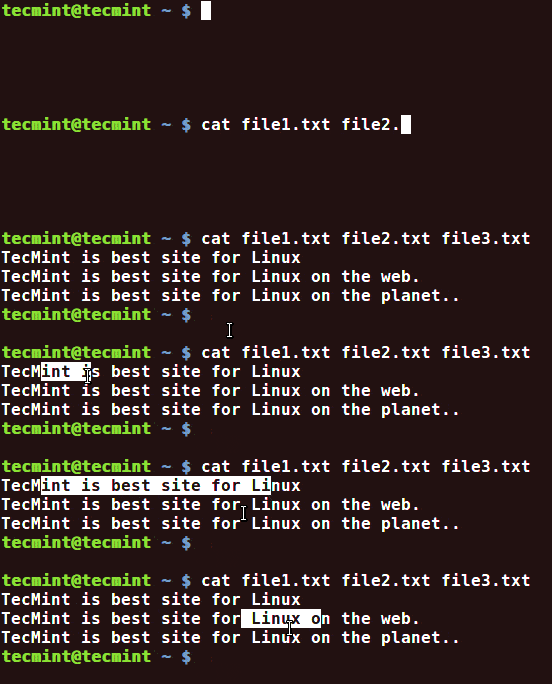
The command can also be used to concatenate (join) multiple files into one single file using the “>” Linux redirection operator.
# cat file1.txt file2.txt file3.txt > file-all.txt

By using the append redirector you can add the content of a new file to the bottom of the file-all.txt with the following syntax.
# cat file4.txt >> file-all.txt
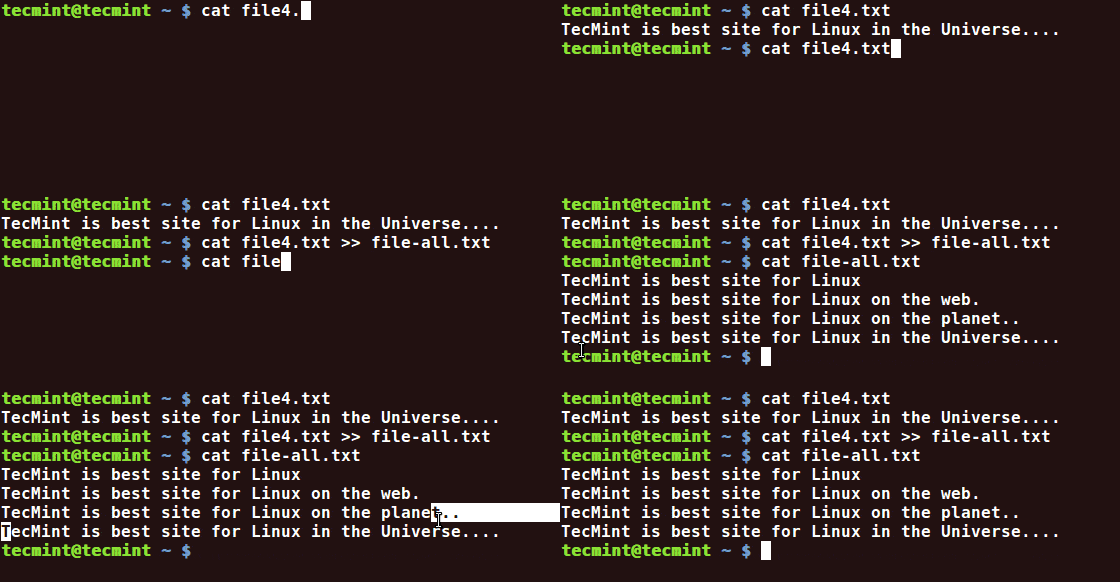
The cat command can be used to copy the content of file to a new file. The new file can be renamed arbitrary. For example, copy the file from the current location to /tmp/ directory.
# cat file1.txt > /tmp/file1.txt
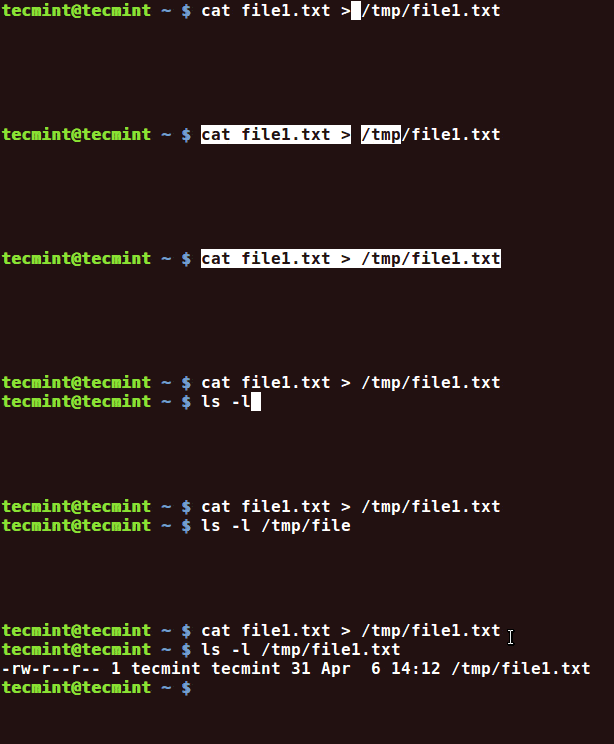
Copy the file from the current location to /tmp/ directory and change its name.
# cat file1.txt > /tmp/newfile.cfg

A less usage of the cat command is to create a new file with the below syntax. When finished editing the file hit CTRL+D to save and exit the new file.
# cat > new_file.txt
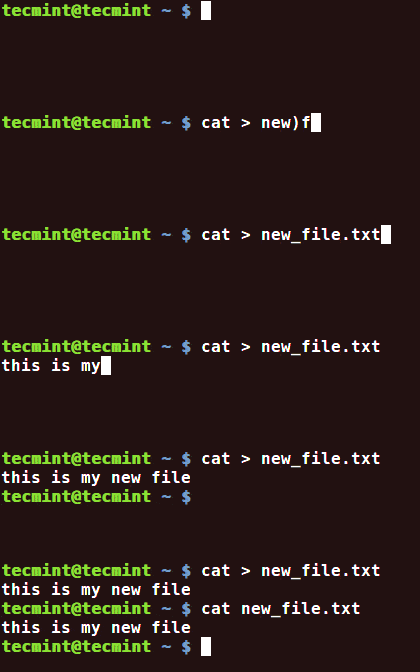
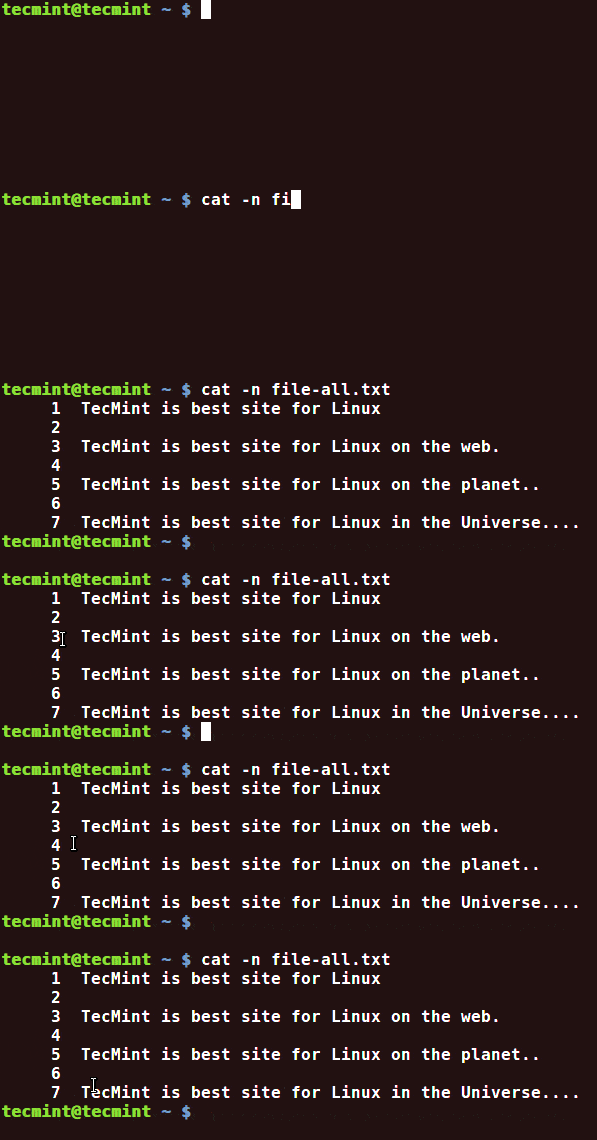
In order to number all output lines of a file, including empty lines, use the -n switch.
# cat -n file-all.txt
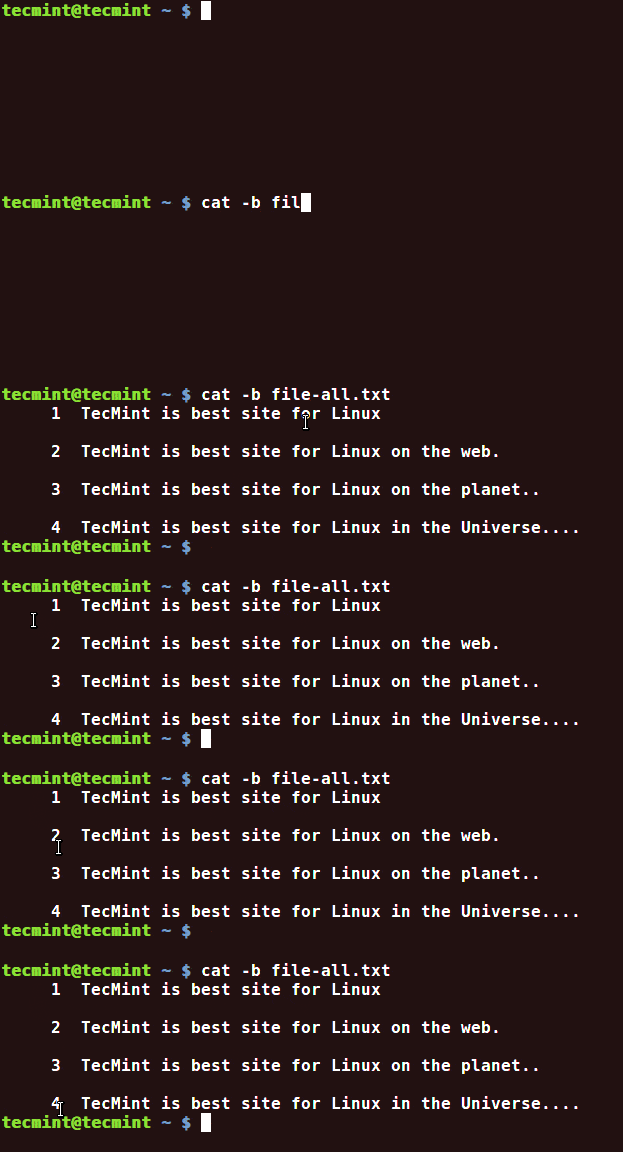
To display only the number of each non-empty line use the -b switch.
# cat -b file-all.txt
Want to learn more about Linux cat command? then read our article about 13 Useful ‘cat’ Command Examples in Linux.
Learn How to Use Tac Command in Linux
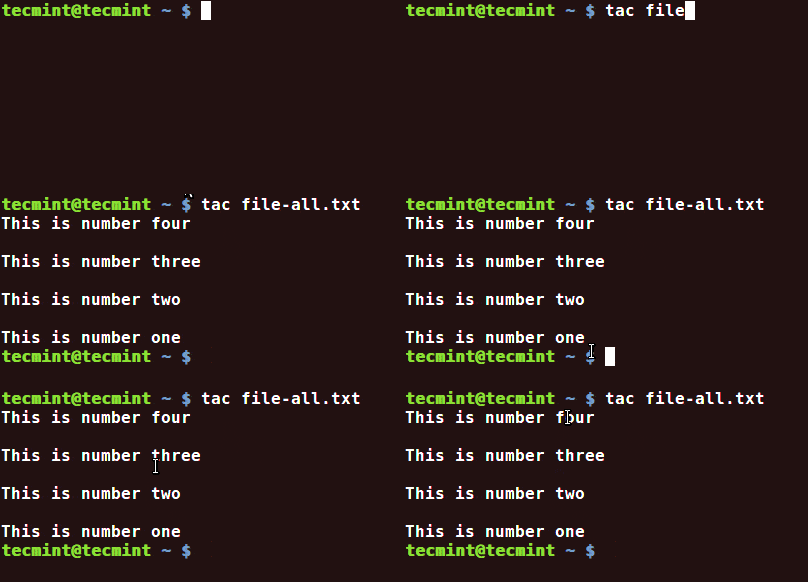
On the other hand, a lesser known and less used command in *nix systems is tac command. Tac is practically the reverse version of cat command (also spelled backwards) which prints each line of a file starting from the bottom line and finishing on the top line to your machine standard output.
# tac file-all.txt
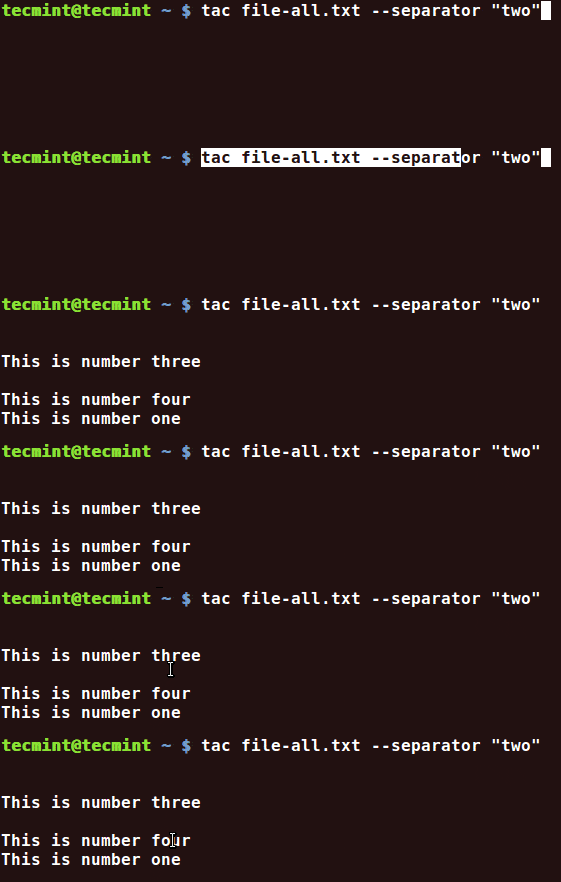
One of the most important option of the command is represented by the -s switch, which separates the contents of the file based on a string or a keyword from the file.
# tac file-all.txt --separator "two"
Next, most important usage of tac command is, that it can provide a great help in order to debug log files, reversing the chronological order of log contents.
$ tac /var/log/auth.log

Or to display the last lines

$ tail /var/log/auth.log | tac
Sample Output
tecmint@tecmint ~ $ tac /var/log/auth.log
pr 6 16:09:01 tecmint CRON[17714]: pam_unix(cron:session): session closed for user root
Apr 6 16:09:01 tecmint CRON[17714]: pam_unix(cron:session): session opened for user root by (uid=0)
Apr 6 16:05:01 tecmint CRON[17582]: pam_unix(cron:session): session closed for user root
Apr 6 16:05:01 tecmint CRON[17583]: pam_unix(cron:session): session closed for user root
Apr 6 16:05:01 tecmint CRON[17583]: pam_unix(cron:session): session opened for user root by (uid=0)
Apr 6 16:05:01 tecmint CRON[17582]: pam_unix(cron:session): session opened for user root by (uid=0)
Apr 6 16:00:01 tecmint CRON[17434]: pam_unix(cron:session): session closed for user root
....
tecmint@tecmint ~ $ tail /var/log/auth.log | tac
Apr 6 16:09:01 tecmint CRON[17714]: pam_unix(cron:session): session closed for user root
Apr 6 16:09:01 tecmint CRON[17714]: pam_unix(cron:session): session opened for user root by (uid=0)
Apr 6 16:05:01 tecmint CRON[17582]: pam_unix(cron:session): session closed for user root
Apr 6 16:05:01 tecmint CRON[17583]: pam_unix(cron:session): session closed for user root
Apr 6 16:05:01 tecmint CRON[17583]: pam_unix(cron:session): session opened for user root by (uid=0)
Apr 6 16:05:01 tecmint CRON[17582]: pam_unix(cron:session): session opened for user root by (uid=0)
Apr 6 16:00:01 tecmint CRON[17434]: pam_unix(cron:session): session closed for user root
Apr 6 16:00:01 tecmint CRON[17434]: pam_unix(cron:session): session opened for user root by (uid=0)
Apr 6 15:55:02 tecmint CRON[17194]: pam_unix(cron:session): session closed for user root
Apr 6 15:55:01 tecmint CRON[17195]: pam_unix(cron:session): session closed for user root
...
Same as cat command, tac does an excellent job in manipulating text files, but it should be avoided in other type of files, especially binary files or on files where the first line denotes the program that will run it.
If this article helped you solve a problem, consider buying a coffee. It helps keep TecMint free, supports the authors, and keeps the project going.






Got Something to Say? Join the Discussion... Cancel reply