
In our earlier articles on this blog, we used the Wine program to install and run windows based applications on Debian-based and and other Red Hat-based Linux distributions.
There is another open source software available called PlayOnLinux that uses Wine as its base and gives feature-rich functions and a user-friendly interface to install and run windows applications on Linux.
The purpose of PlayOnLinux software is to simplify and automates the process of installing and running Windows applications on Linux platforms. It has a list of applications where you can automate each installation process as much as you can.
What is PlayOnLinux?
PlayOnLinux (POL) is an open-source gaming framework (software) based on Wine, that allows you to easily install any Windows-based applications and games on Linux operating systems, via the use of Wine as a front-end interface.
The following are the list of some interesting features to know.
- PlayOnLinux is license-free, with no need for a Windows License.
- PlayOnLinux uses base as Wine.
- PlayOnLinux is open-source and free software.
- PlayOnLinux is written in Bash and Python.
In this article, I will guide you on how to install, setup, and use PlayonLinux on RHEL-based distributions such as Fedora, CentOS Stream, Rocky Linux, AlmaLinux, and Debian-based distributions such as Ubuntu and Linux Mint
How to Install PlayOnLinux in Linux Distributions
To install PlayOnLinux, you need to add a software repository and install the PlayonLinux software using the following commands.
On RHEL-based Systems
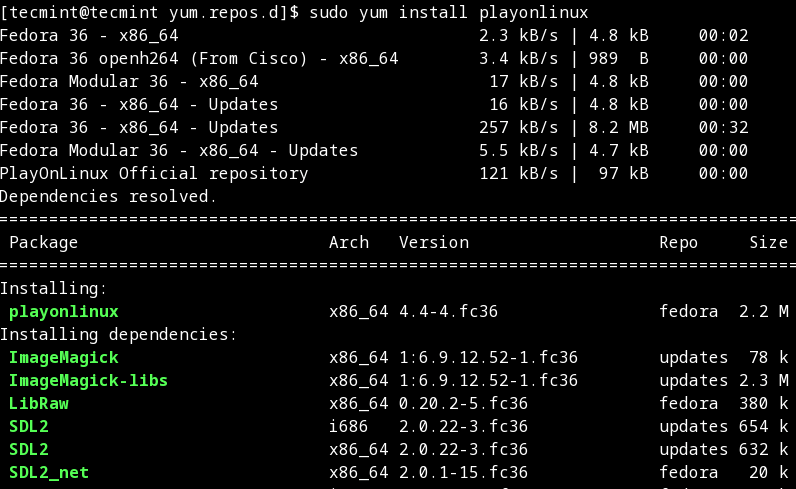
To install PlayonLinux on RHEL-based distributions such as Fedora, CentOS Stream, Rocky Linux, and AlmaLinux use the following commands.
$ cd /etc/yum.repos.d/
$ sudo wget http://rpm.playonlinux.com/playonlinux.repo
$ sudo yum install playonlinux
On Debian Systems
For the Debian Bullseye 11 and Debian Buster 10 versions.
$ sudo apt update
$ sudo apt install playonlinux
With the Debian 9 Stretch repository
# wget -q "http://deb.playonlinux.com/public.gpg" -O- | apt-key add -
# wget http://deb.playonlinux.com/playonlinux_stretch.list -O /etc/apt/sources.list.d/playonlinux.list
# apt-get update
# apt-get install playonlinux
With the Debian 8 Jessie repository
# wget -q "http://deb.playonlinux.com/public.gpg" -O- | apt-key add -
# wget http://deb.playonlinux.com/playonlinux_jessie.list -O /etc/apt/sources.list.d/playonlinux.list
# apt-get update
# apt-get install playonlinux
On Ubuntu Systems
For the Ubuntu 22.04 and Ubuntu 20.04 versions.
$ sudo apt update
$ sudo apt install playonlinux
For the Ubuntu 18.04 version.
$ sudo wget -q "http://deb.playonlinux.com/public.gpg" -O- | sudo apt-key add -
$ sudo wget http://deb.playonlinux.com/playonlinux_bionic.list -O /etc/apt/sources.list.d/playonlinux.list
$ sudo apt-get update
$ sudo apt-get install playonlinux
How do I Start PlayOnLinux
Once it’s installed, you can start the PlayOnLinux as a normal user from the application menu or use the following command to start it.
# playonlinux
OR
$ playonlinux
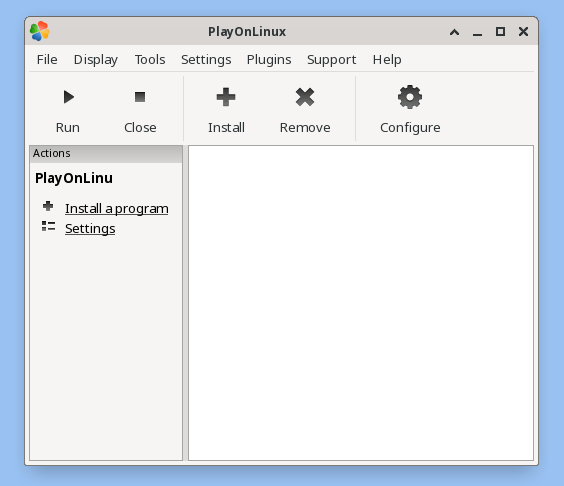
Once it’s done, click on the ‘Install‘ button to explore available software or search for software. playonlinux provides some supported games, you can search them using the ‘Search‘ tab as shown below.
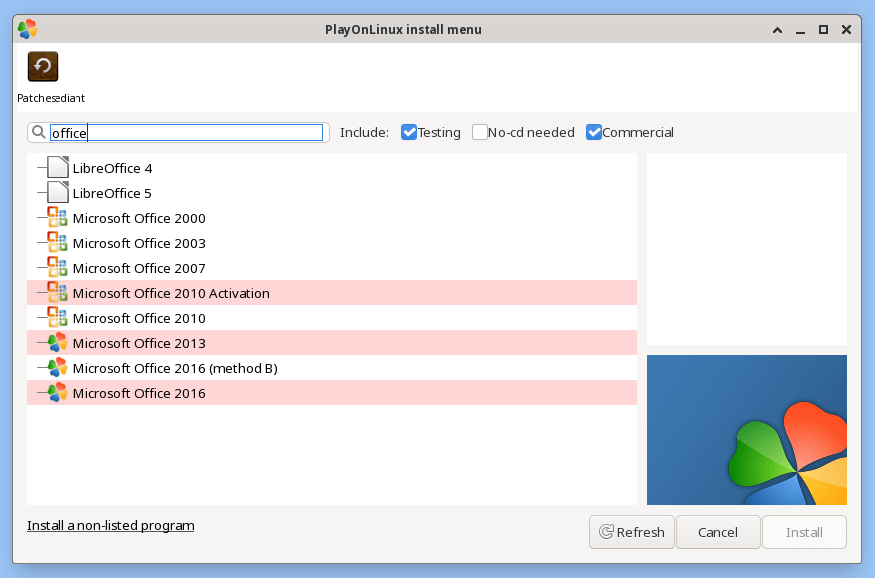
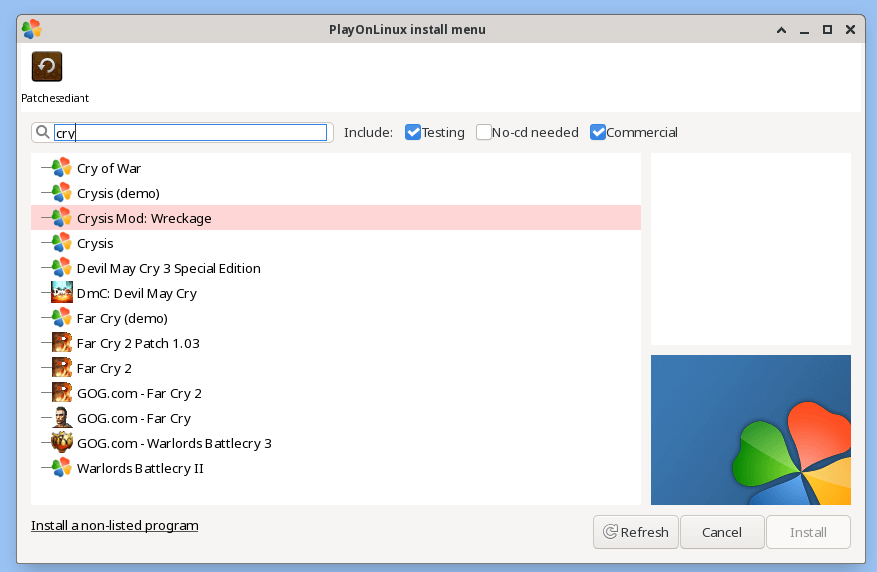
This way, you can search and install as many as Windows-supported applications and games on your Linux.
If this article helped you solve a problem, consider buying a coffee. It helps keep TecMint free, supports the authors, and keeps the project going.


Got Something to Say? Join the Discussion... Cancel reply