VOOZH about

URL: https://www.tecmint.com/reset-forgotten-root-password-in-centos-7-rhel-7/

⇱ Single User Mode: Resetting/Recovering Forgotten Root User Account Password in RHEL/CentOS 7


Skip to content

Have you ever encountered a situation when you missed your user account password on a Linux System? And the situation can be worse if you forgot the root password. You cannot perform any system wide changes. If you forget user password, you can easily reset it using root account.

What if you forget your root password? You cannot reset root account password using user account. Since user account is not permitted to perform such task in general.
👁 Reset Forgotten root Password in CentOS 7 and RHEL 7
Resetting/Recovering Forgotten Root User Account Password

Well here is the guide which will take you out of any such situation if you ever get into it. Here in this article we will be taking you to the journey of resetting your RHEL 7 and CentOS 7 root password.

This very morning I turned my RHEL 7 Linux server to find out that it has been locked. Either I messed up with password I changed last night or I have really forgotten it.
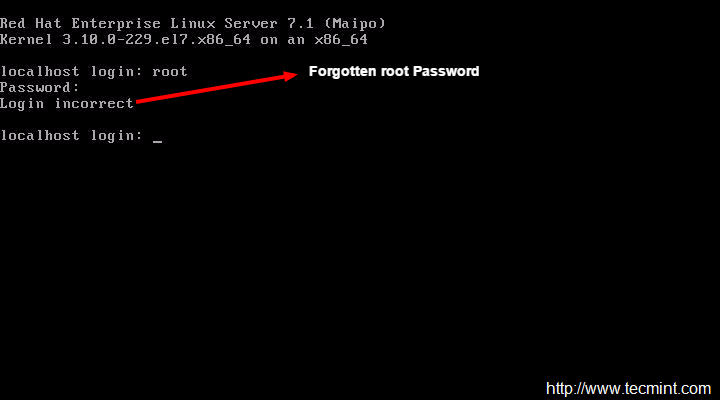
👁 Forgotten root Password
Forgotten root Password

So what should I do now? Should I login using my user account and try changing root password?
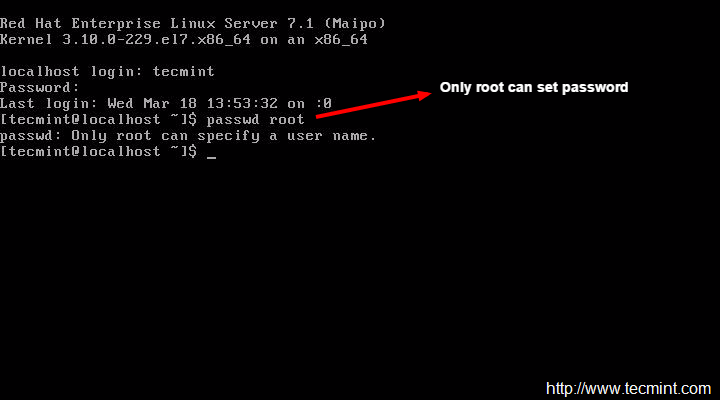
👁 Only Root User Can Set Password
Only Root User Can Set Password

Oops I got “Only root can specify a user name” and I lost my control over root account. So I planned to boot into single user mode. To do this reboot the Server as soon as you get the below screen press 'e' (stands for edit) from keyboard.
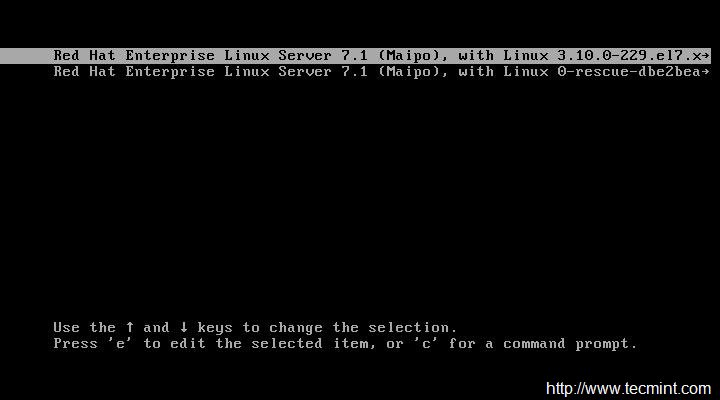
👁 Press 'e' to Edit Boot Menu
Press ‘e’ to Edit Boot Menu

After you press 'e' from keyboard you would see a lot of text which may be clipped as per the size of your screen.
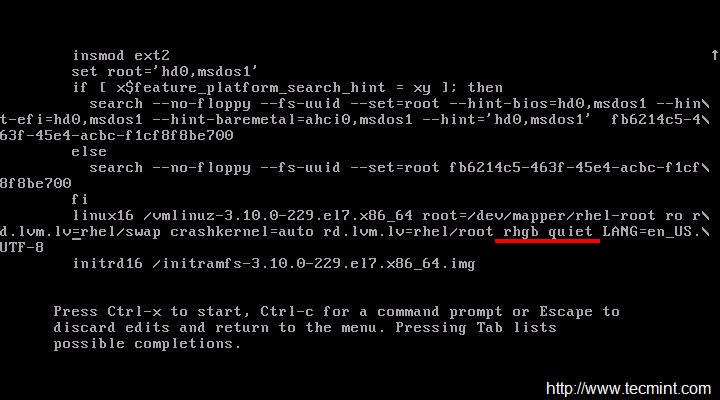
👁 Grub Configuration
Grub Configuration

Search for the text “rhgb quiet” and replace it with “init=/bin/bash” without quotes.
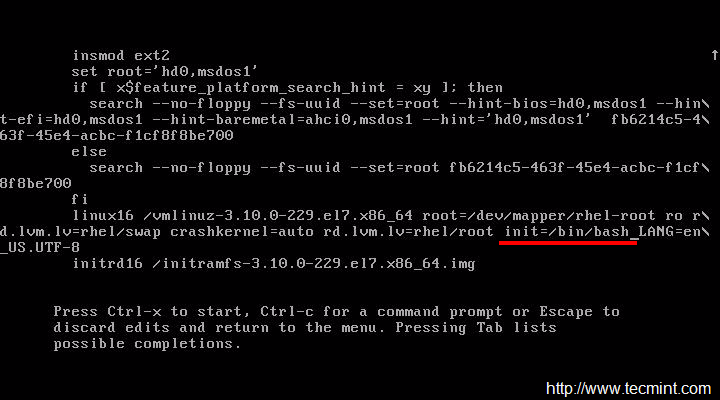
👁 Enable Shell
Enable Shell

Once done editing press 'ctrl+x' and it will start booting with specified parameter. And you will get bash prompt.
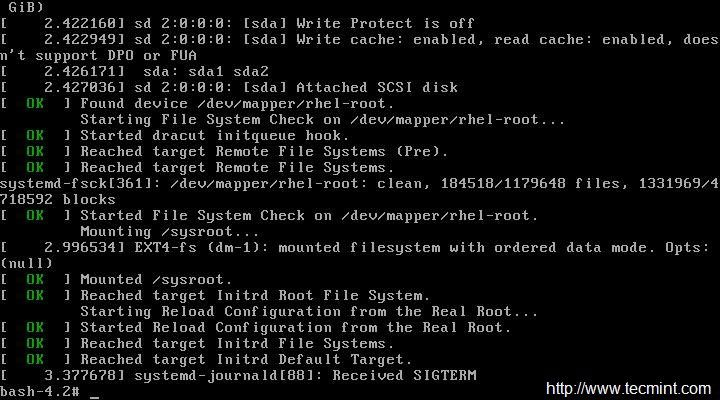
👁 Booting System
Booting System

Now check the status of root partition by running following command on the single user mode.

# mount | grep root
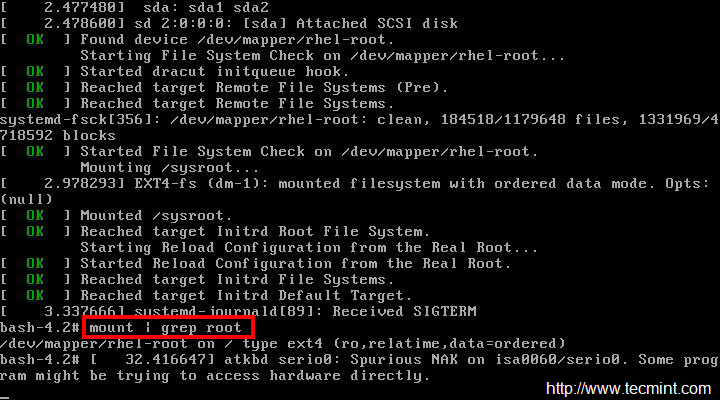
👁 Check Root Mount Status
Check Root Mount Status

You may notice that root partition is reported to be 'ro' (Read Only). We need to have read-write permission on root partition to change the root password.

# mount -o remount,rw /

Also cross check, if the root partition is mounted with read-write permission mode.

# mount | grep root
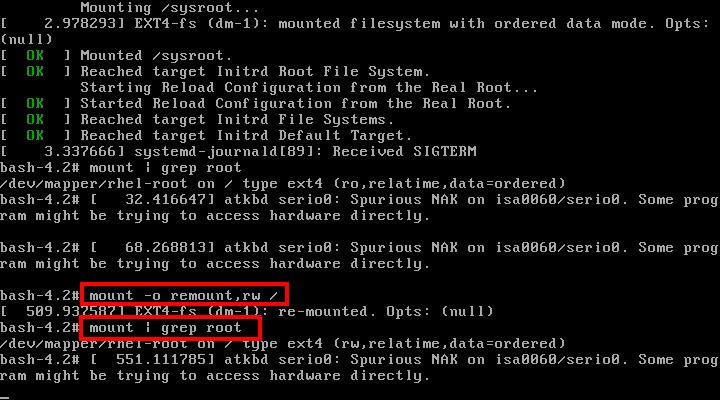
👁 Set Permissions on Root Partition
Set Permissions on Root Partition

Now you can change the root password by typing the passwd command. But that is not done. We need to relabel SELinux context. If we skip relabeling the whole SELinux context we would be able to login using using password.

# passwd root
[Enter New Password]
[Re-enter New Password]
# touch /.autorelabel
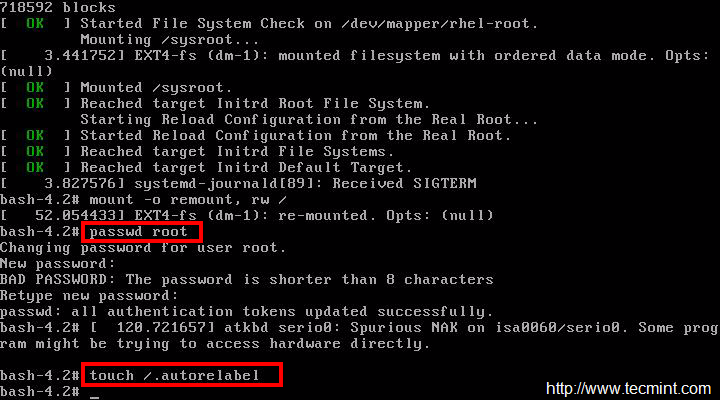
👁 Reset root Password
Reset root Password

Reboot and login again to root account and see if everything works ok or not?

# exec /sbin/init
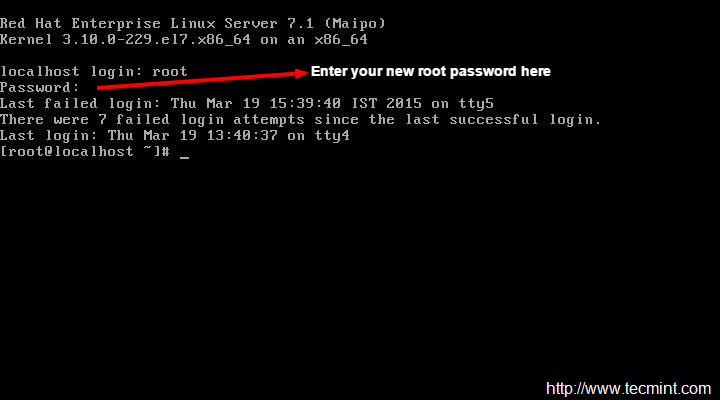
👁 Login root User
Login root User

Clear in the above image that we have successfully log-in to RHEL 7 box by resetting root password from single user mode.

The above steps clearly showed how to login to RHEL 7 and CentOS 7 machine by resetting root password from single user mode.

That’s all for now. I’ll be here again with another interesting article soon. Till then stay tuned and connected to Tecmint. Don’t forget to provide us with your valuable feedback in the comments below. Like and share us and help us get spread.

If this article helped, share it with someone on your team.
TecMint Weekly Newsletter
Get the Learn Linux 7 Days Crash Course free when you join 34,000+ Linux professionals reading every Thursday.
Check your email for a magic link to get started.
Something went wrong. Please try again.
TecMint has been free for 14 years. Help keep it that way.
Google AI Overviews and tools like ChatGPT have cut into search traffic for independent tech sites like TecMint. Running this site costs over $2,000 every month for hosting, infrastructure, and paying authors to keep the content accurate and tested.

If this article helped you solve a problem, consider buying a coffee. It helps keep TecMint free, supports the authors, and keeps the project going.
☕ Buy Me a Coffee
Avishek
A Passionate GNU/Linux Enthusiast and Software Developer with over a decade in the field of Linux and Open Source technologies.

Each tutorial at TecMint is created by a team of experienced Linux system administrators so that it meets our high-quality standards.

26 Comments

Leave a Reply
  1. After successfully getting into single user mode and getting to root shell, I type command “passwd” to reset the root password and I receive

    "changing password for user root."
    "passwd: permission denied"
    

    Selinux is disabled, FIPS mode off, I’ve tried to figure out why this is happening to my server all of the sudden and cannot log into it anymore with any account.

    Reply
    • @Bob,

      Have you mounted your root filesytem in read/write mode? if not do:

      # mount -o remount,rw /
      

      Or edit the kernel booting options, change ro init=/sysroot/bin/sh to rw init=/sysroot/bin/sh and boot your system and run these commands:

      chroot /sysroot
      passwd root
      touch /.autorelabel
      reboot
      

      You now should be able to loggin as root user.

      Reply
      • So I did mount read and write, etc. But every time I got to reset the password, I would get “permission denied“. But I finally figured out the fix: when you get to root shell, run the command “authconfig --updateall” and all PAM config auth files and other functions that are called up by the /etc/pam.d/ config files will be recreated.

        Removing whatever hardened lockdown restriction was applied that locked you out, to begin with. I wasted 20 hrs working on this stupid issue. Hope this works for someone else who can’t change the root password in single-user mode or emergency mode.

        Reply
  2. I have tried above steps but it didn’t work, still not taking a new password that I have set through the above steps. Please suggest how to resolve this?

    Reply
    • Try running the command “authconfig --updateall” at root shell in single/maintenance/emergency mode. Should fix the issue

      Reply
  3. I don’t have root account in my centos 7, and i forgot my user account password.

    What can i do sir?

    Reply
    • @Vijay,

      root user created by default in each Linux installation, if you don’t know the password, you can set one using this guide.

      Reply
  4. Hi,

    I had problem with single user mode when I changed file in single user mode and reboot my changes lost, I searched a lot but nothing found to solve my issue.

    any idea?

    Reply
  5. Thanks, It helped to restore the root password.

    Reply
  6. Hello

    Thanks it works and My Problem works fine

    Reply
  7. Hi,

    I tried a the similar step, but it says user root not found..

    Reply
  8. Hello Sir,

    My problem is centos 7 desktop password change is simply but I want how to lock and security not Change simply next time?

    Please sir help me out quickly…

    Reply
  9. it is really good explaining method.
    thanks a lot…

    Reply
  10. Thank you so much
    you helped me … my server was down and I wasn’t able to login in root password

    I tried many techniques to recover root password but I failed

    and your topic helped me so that I want to thank you from the deep of my hart <3

    Reply
  11. Very Helpful. Screen shots are awesome ! It saved me …

    Reply
  12. Procedure works OK. The only one comment.:In grub configuration change:

    root=/dev/mapper/rhel-root ro
    into:
    root=/dev/mapper/rhel-root rw

    After boot, root partition will be already mounted as rw. Then follow procedure
    – change password
    – touch relabel file
    – reboot

    Reply
    • @Radkowski,

      Thanks for the tip about grub configuration changes, hope it will helpful to other users..

      Reply
  13. I don’t really reply to these generally but this is very misleading and incorrect from what I really had to do to make the system boot to single user mode

    Reply
    • @Paul,

      Could you please share your guidelines with us so that other users can also benefit from your trick..

      Reply
  14. Okay guys, I need some help here. I have tried the above example several times. All new minimal install vms. Every time I do it I still cant log in. what could I possible be doing wrong. Im using Centos 7. I tried it dmaraid s way as well.

    Reply
    • do not give password less than 8 characters.
      it says ok but NOT ok.

      Reply
  15. instead of init=/bin/bash you could also just type single at the end of that line to boot to the single user mode ;-)

    Reply
  16. Please post configuring networking using nmcli in RHEL7

    Reply
  17. Good thanks for the heads up, we really forget root password and this tutorial will help. Thanks again.

    Reply
  18. The official training for RHSCA 7 describes the “change root password” procedure as below:

    Append “rd.break” to the kernel command line that starts with linux16 (this will break just before control is handed from the initramfs to the actual system) (sometimes it is needed to delete also everything after “…mapper/rhel-root ro” and append here)

    mount -o remount,rw /sysroot

    chroot /sysroot

    passwd

    touch /.autorelabel

    “exit” and again “exit” and you are done.

    Reply
    • rd.break works always, this one does not work if your home is encrypted, and that is why

      Reply

Got Something to Say? Join the Discussion... Cancel reply

Free Course
Get a free Linux course before you go.
Subscribe to TecMint Weekly and get the Learn Linux 7 Days Crash Course free. Read by 34,000+ Linux professionals every Thursday.
Check your email for a magic link to get started.