
Brief: The cron job scheduler does not support scheduling jobs to run at an interval of seconds. In this article, we will show you a simple trick to help you run a cron job every 30 seconds or x seconds in Linux.
Are you new to the cron job scheduler and want to run a job every 30 seconds? Unfortunately, cron does not allow for it. You can not schedule a cron job to run every x second. Cron only supports a time interval of at least 60 seconds (i.e 1 minute). To run a cron job every 30 seconds, you need to employ the trick we have explained below.
You might also like:
In this guide, we will also cover many other examples to run a job or command, or script every x second. But let’s start by covering how to run a cron job every 30 seconds in Linux.
Run Cron Job Every 30 Seconds in Linux
To achieve the above task, create two entries in the crontab. The first job will run the date command after every minute (60 seconds), then the second entry makes use of the sleep command to delay for a specified amount of time (30 seconds in this case) and invoke the date command again.
You need to add the following entries in the crontab (cron table), and open it for editing using the following crontab command (the -e flag enables editing):
# crontab -e
Add the following cron entries to the file.
* * * * * date>> /tmp/date.log
* * * * * sleep 30; date>> /tmp/date.log
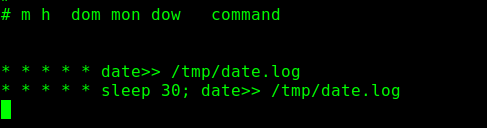
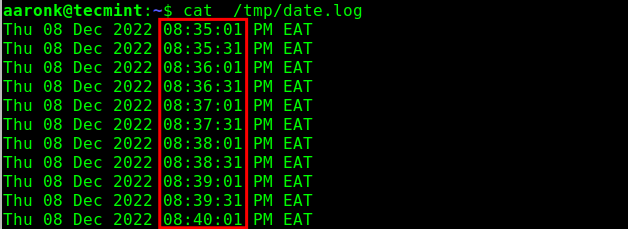
Now if you check the contents of the /tmp/date.log file, you should see that the date command is run every 30 seconds. We can use the cat command to view the file and check the time column to confirm, as follows:
$ cat /tmp/date.log
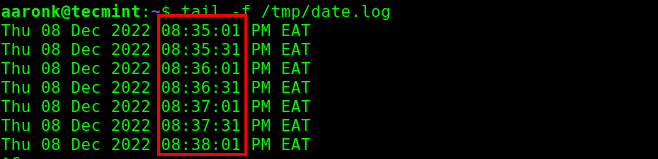
You can also watch the file getting updated in real-time. To do that, use the tail command with the -f flag.
$ tail -f /tmp/date.log
Run Cron Job Every 10 Seconds in Linux
Let’s look at more examples. This one shows how to run a cron job every 10 seconds. The trick is to simply play around with the sleep command number of seconds:
* * * * * date>> /tmp/date.log
* * * * * sleep 10; date>> /tmp/date.log
* * * * * sleep 20; date>> /tmp/date.log
* * * * * sleep 30; date>> /tmp/date.log
* * * * * sleep 40; date>> /tmp/date.log
* * * * * sleep 50; date>> /tmp/date.log
Once again if we watch the /tmp/date.log file, it should be updated every 10 seconds based on the above crontab entries:
$ tail -f /tmp/date.log
Here is another example of executing the date command after every 15 seconds:
* * * * * date>> /tmp/date.log
* * * * * sleep 15; date>> /tmp/date.log
* * * * * sleep 30; date>> /tmp/date.log
* * * * * sleep 45; date>> /tmp/date.log
Finally, to run a cron job every 20 seconds, you can have something like this:
* * * * * date>> /tmp/date.log
* * * * * sleep 20; date>> /tmp/date.log
* * * * * sleep 40; date>> /tmp/date.log
Also, here are more articles for you to learn job scheduling using cron:
- How to Create and Manage Cron Jobs on Linux
- Cron Vs Anacron: How to Schedule Jobs Using Anacron on Linux
Now you know it! We have shown you different examples to run a cron job every x second in Linux. Read the cron man pages (by running man cron and man crontab commands) for more information.
If you know any useful cron command tips or tricks, please share them in the comments below.
If this article helped you solve a problem, consider buying a coffee. It helps keep TecMint free, supports the authors, and keeps the project going.






Got Something to Say? Join the Discussion... Cancel reply