
We mostly rely on integrated tools in Linux to get the system information in GUI, with little or no change with the change in Desktop Environment. A classic look of GUI System information tool on my Debian Jessie.
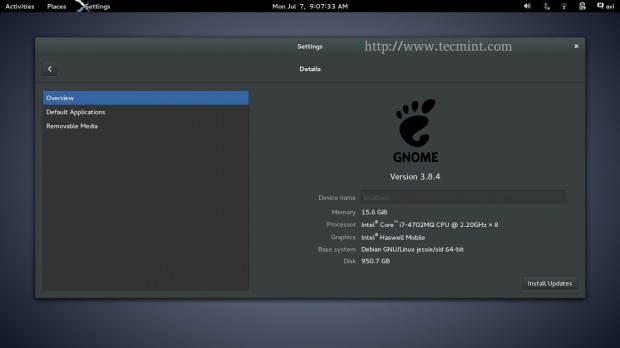
When it comes to Command Line Interface, we have commands which shows all the system information but there is no single command capable of providing all the information at once. Yeah! We can always write an script to perform all these tasks but it is not feasible for everyone.
There exists a tool “screenFetch” which has all the above said features and more than that.
What is screenFetch?
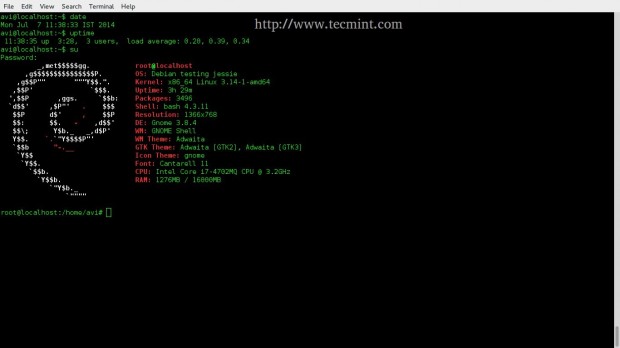
ScreenFetch is a System Information Tool designed primarily for Bash Shell but function with other shell environment as well. The tool is smart enough to auto-detect the Linux distribution you are using and generate the ASCII logo of the distribution with certain valuable information to the right of logo. The tool is customizable to the point, you can change colours, set no ASCII and taking screen-shot after displaying information.
A list of valuable System Information screenFetch shows are:
- User_name@Host_name
- OS
- Kernel
- Uptime
- Packages
- Shell
- Resolution
- DE
- WM
- WM Theme
- GTK Theme
- Icon Theme
- Font
- CPU
- RAM
How to Install screenFetch in Linux
We can get screenFetch either using git clone or by downloading source files directly from the link below. Check the ‘Download ZIP‘ link to the right bottom, download the zip file from there and unzip it.
Alternatively, you can also grab the package using wget command as shown below.
$ wget https://github.com/KittyKatt/screenFetch/archive/master.zip
$ unzip master.zip
We don’t need to install the script, just move the the extracted folder under /usr/bin and make it executable.
$ mv screenFetch-master/screenfetch-dev /usr/bin
$ sudo mv screenFetch-master/screenfetch-dev /usr/bin/
Change the name of screenFetch-dev binary file to screenfetch, for use with ease.
$ cd /usr/bin
$ sudo mv screenfetch-dev screenfetch
$ chmod 755 screenfetch
Now we are going to test ‘screenfetch‘ command right from terminal to see the overall information of our system.
$ screenfetch
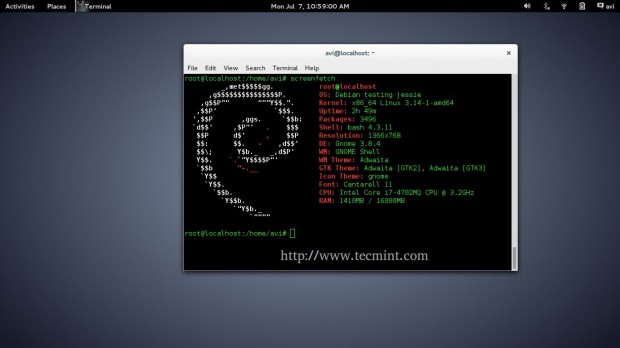
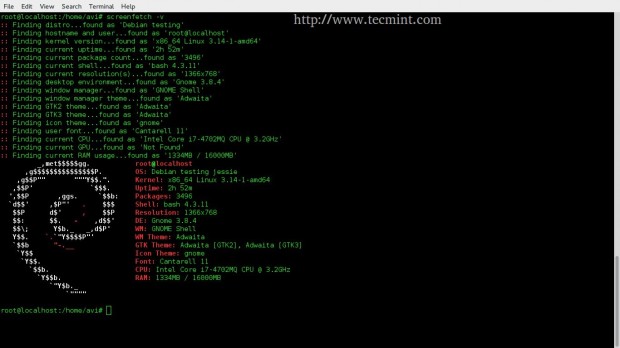
Running screenFetch command using ‘-v‘ (Verbose) option, here is the output of the same.
$ screenfetch -v
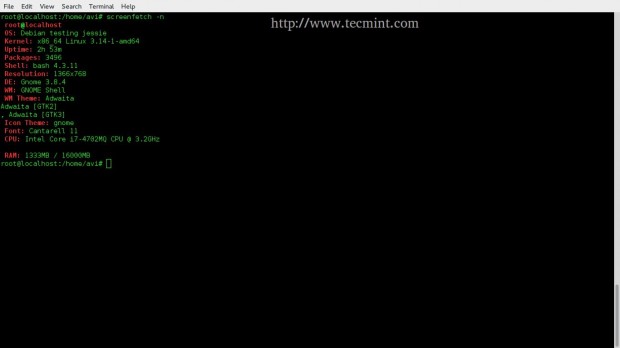
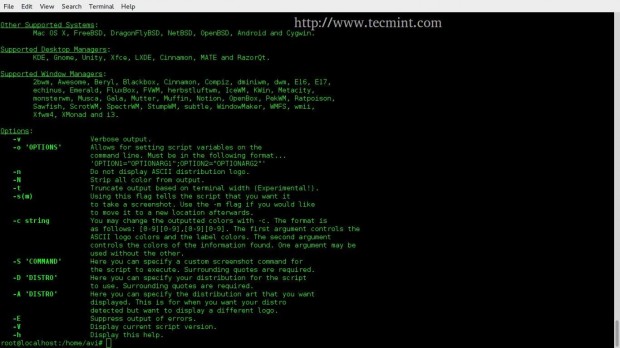
Hide ASCII logo of corresponding Linux Distribution using switch ‘-n‘.
$ screenfetch -n
Strip all output colour using ‘-N‘ option.
$ screenfetch -N
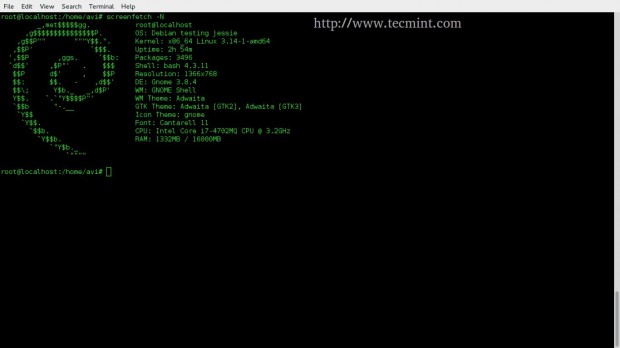
Truncate output in terminal, based upon the width of the terminal using switch ‘-t’.
$ screenfetch -t
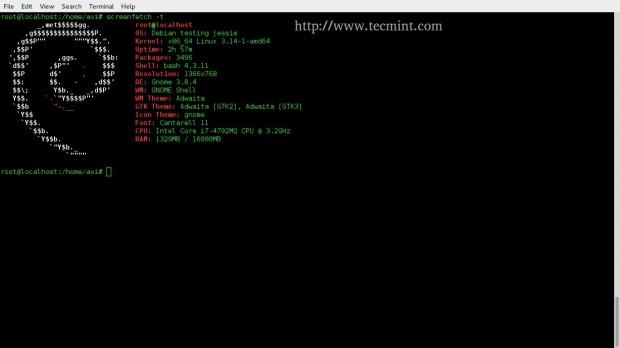
Suppress errors in output with ‘-E‘ option.
$ screenfetch -E
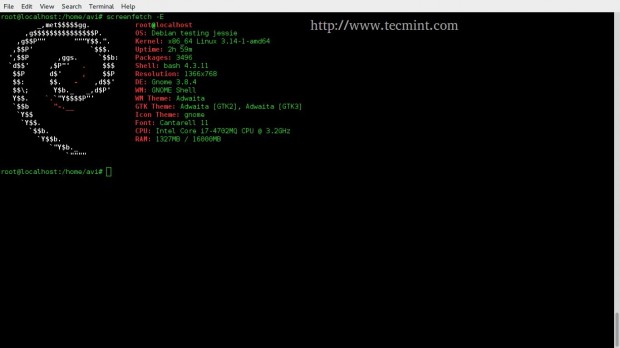
Show current Version ‘-V‘.
$ screenfetch -v
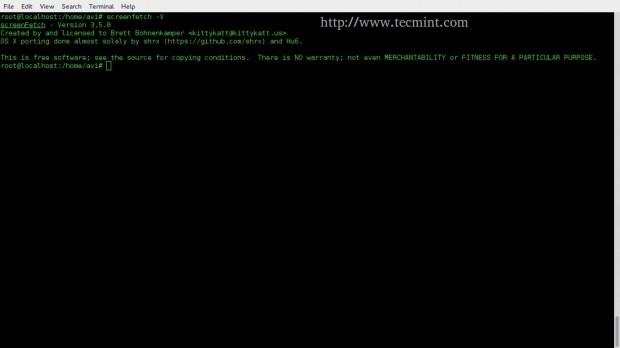
Show options and help ‘-h‘.
$ screenfetch -h
Use screenfetch at User Login
It would be a nice prank to use this script such that as soon as an user logs into the shell, the script run and output is displayed.
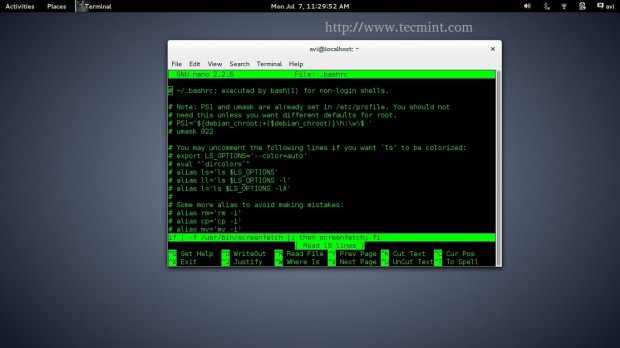
To perform the such task we must add the line below, as it is to the end of ~/.bashrc file.
if [ -f /usr/bin/screenfetch ]; then screenfetch; fi
After adding, above line, the ~/.bashrc file now looks like.
Logout and again login to check if it is effective or not. What I got was.
Conclusion
The screenFetch is a very nice tool which works out of the box, the installation was a cake-walk and it is working without a single glitch even in the latest Debian testing. The current version is 3.5.0 which is still maturing gradually. The system information it shows as soon as an user logs into Bash Shell is glossy. This wonderful tool is worth trying and everyone of you must give it a try. It would be nice if we get the screen-shot of yours’ distribution.
That’s all for now. I’ll be here again with another interesting article very soon. Till then stay tuned and connected to Tecmint.com. Like and share us, help us get spread. Don’t forget to provide us with your valuable feedback in the comment section below.
If this article helped you solve a problem, consider buying a coffee. It helps keep TecMint free, supports the authors, and keeps the project going.


Got Something to Say? Join the Discussion... Cancel reply