
Zeit is an open-source GUI tool for scheduling jobs via “crontab” and “at”. It is written in C++ and released under GPL-3.0 License. It is an easy to use tool that provides a simple interface to either schedule a one-time job or iterative jobs. Zeit also comes with an alarm and timer which uses sound and notify the user.
Zeit Features
- Schedule, modify or remove CRON jobs.
- Schedule or remove AT jobs.
- Schedule, modify or remove Timer/Alarm.
- Modify environment variables.
How to Install Zeit in Linux
For Ubuntu and Ubuntu-based distributions, a stable release can be installed by adding the PPA repository as mentioned below.
$ sudo add-apt-repository ppa:blaze/main
$ sudo apt update
$ sudo apt install zeit
You can also try the development version of Zeit by adding the following PPA repository.
$ sudo add-apt-repository ppa:blaze/dev
$ sudo apt update
$ sudo apt install zeit
For other Linux distributions, you can build it from sources as shown.
$ git clone https://github.com/loimu/zeit.git
$ mkdir build && cd build
$ cmake ..
$ make -j2
$ ./src/zeit
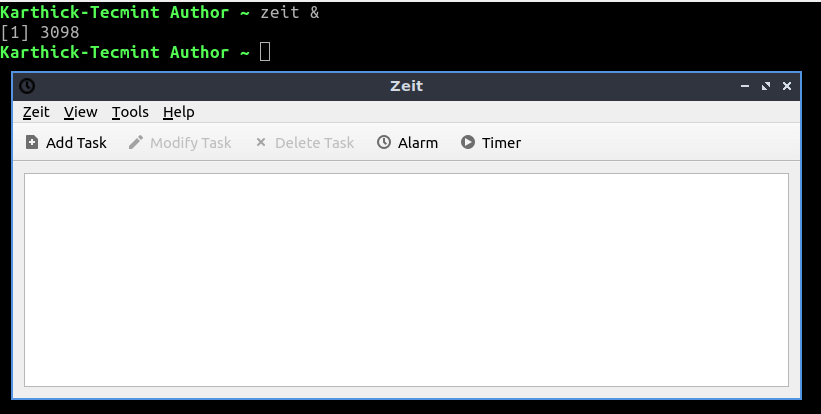
To launch Zeit, simply type.
$ zeit &
Run Non-Periodic Commands Using at Command
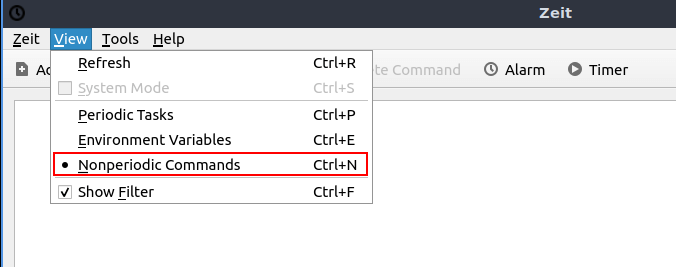
Non-periodic commands allow the scheduling command to run one time. Yes, you are right. It is using the “at” command. Go to “VIEW → SELECT NONPERIODIC COMMANDS” or Press “CTRL+N”.
Choose “Add Command” as shown in the below image and add the entry. I am scheduling a command to run at 17:35. This command will create an empty log file in the Downloads folder with today’s date added to the file name as shown below.
NOW=$(date +%F); touch /home/tecmint/Downloads/log_${NOW}.txt
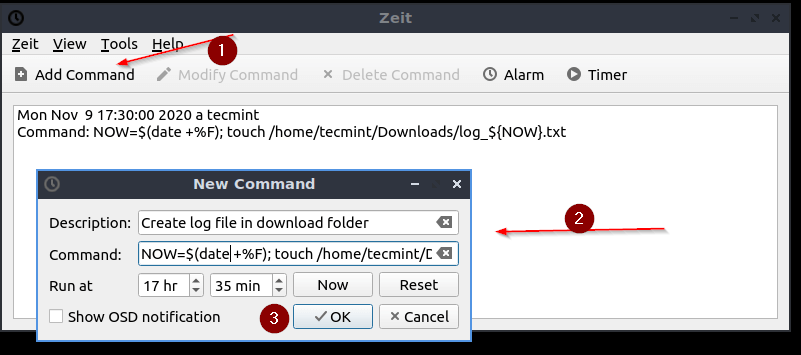
Now there is an entry added. You cannot modify the scheduled command but it is possible to delete the command before it runs using “Delete Command“.

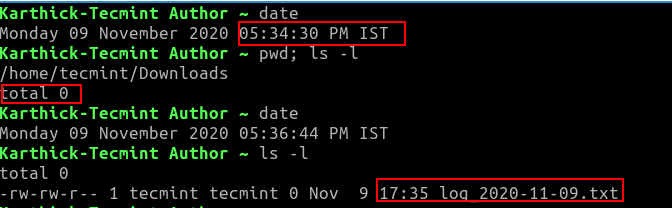
At 17:35 my command ran fine and created an empty log file.
Run Periodic Tasks Using Cron Jobs
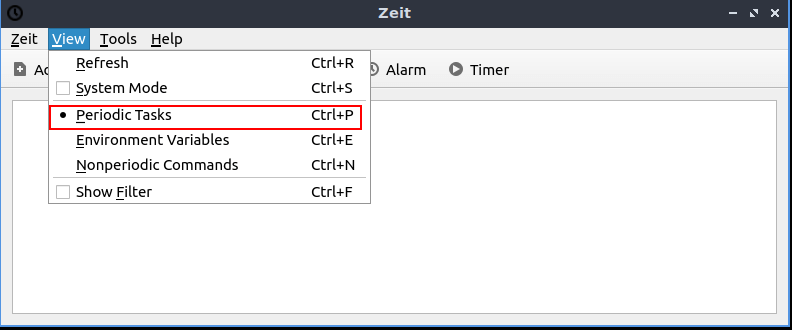
To schedule Cron jobs, choose “periodic task” or press “CTRL + P“. By default zeit will launch with “Periodic task“.
Enter a description, command, and scheduled time and press ok to add the entry to crontab.
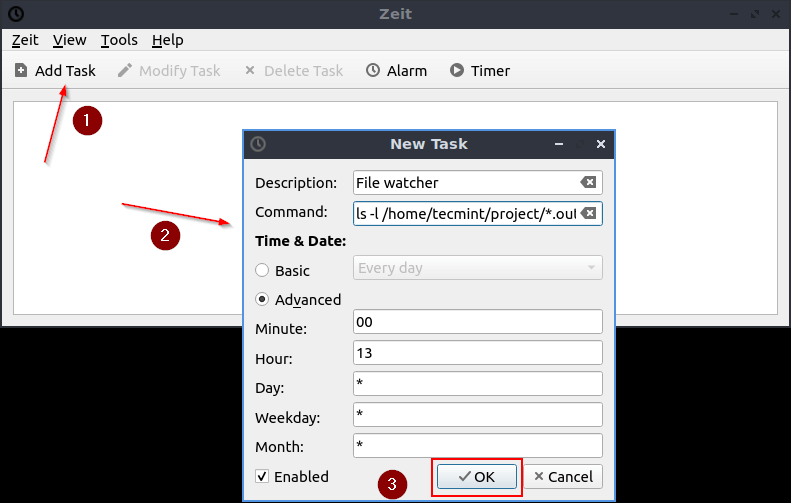
Now my job is scheduled to run daily at 13:00.

You can check the crontab using “crontab -l” where the entry will be added automatically.
$ crontab -l

In addition to “at” and “crontab“, there is two feature to use alarm/timer which reminds us by invoking the sound. This entry will also be added to the crontab.
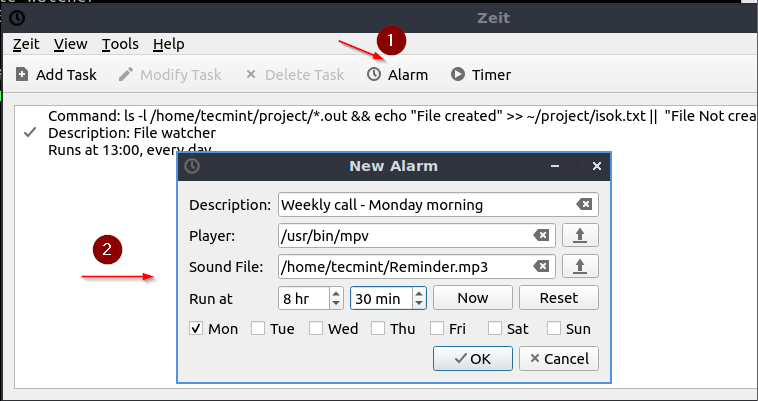
That’s it for this article. Explore Zeit and share your feedback with us.
If this article helped you solve a problem, consider buying a coffee. It helps keep TecMint free, supports the authors, and keeps the project going.




Got Something to Say? Join the Discussion... Cancel reply