
Even after years, the debate between Windows 11 and Windows 10 continues, with the primary aspect often being performance. Some find Windows 11 faster, while others favor Windows 10 on older hardware. But there's one thing both sides agree on: Windows 11 comes with more bloatware than the previous iterations. And it's often these apps that affect your laptop's performance, even when you are not actively using them. Over the last few days, I have been trying to speed up my Windows 11 laptop without modifying any core components, and disabling the background activity of a few apps did have an impact on performance.
Honestly, I have never extensively relied on most of the apps that are included in the default Windows setup. Sometimes, it's because better alternatives exist, and in other instances, the app simply doesn't align with my use case. For instance, I am not into gaming, so gaming-related apps are automatically an added strain on my system's resources. If you are in a similar situation and want to maximize your Windows 11 laptop's performance, consider disabling background activity for apps you don't use or uninstall them altogether. Even if you choose the latter, there's always the option to reinstall these from the Microsoft Store.
OneDrive
Useful only for cloud backups
OneDrive is Windows' native cloud storage solution that some use, but many don't. And even for the latter set of users, it's configured by default and runs in the background, actively consuming a share of your system's resources. It's one of the first apps that I disable on a new Windows install. For me, an external drive has always been a much better backup solution compared to cloud storage.
Even for those who do use OneDrive, the process can be a real resource hog. When it's syncing large files, the CPU and memory consumption can show a massive spike, affecting your laptop's overall performance. So, disabling OneDrive might be a smart choice after all.
Microsoft Teams
Better alternatives exist for it
Microsoft Teams is another app that comes preinstalled on Windows and is infamous for high resource consumption. Again, many use Microsoft Teams, but others, like me, rely on Google Meet or Zoom. So, having an app like Microsoft Teams running in the background can strain the system's resources, especially on older laptops with low RAM. Besides, if Microsoft Teams is configured to load at startup, it will have an effect on the laptop's boot time.
Now, disabling Microsoft Teams or limiting its background activity has no effect on the core functioning of Windows. Everything else runs the same. But you might witness a boost in performance, just like any other resource-intensive app.

5 Microsoft apps that consume a lot of your laptop's resources
You may or may not be surprised who the culprits are.
Microsoft Edge
One of the biggest resource hogs
Microsoft Edge is Microsoft's native browser and is installed by default on all new Windows PCs. While it's less resource-intensive than Google Chrome, the browser isn't as lightweight as some open-source alternatives like Brave. So, on older PCs, or even some with low RAM, Microsoft Edge can be a resource hog.
Even after I had switched to another browser and changed most of the default configuration, Microsoft Edge still had active processes, as evident from the Task Manager, quietly eating into the system's resources. Although it's not recommended to uninstall Microsoft Edge, given its deep integration into Windows, I still limited its activity by modifying the built-in settings to minimize resource consumption.

8 Windows features you should replace with third-party apps
You can do so much better
Phone Link
It's rarely used by most
Phone Link is certainly useful to a few. It lets you connect your PC and smartphone to view notifications, place calls, and do a lot more directly from the PC, streamlining the experience. But it's not something everyone uses, or even needs. I don't recall ever using it. My phone and PC are two standalone devices, and I like using them individually.
Phone Link can impact the system's performance, even if it's active only in the background. Personally, I haven't had much trouble with it, but reports suggest that the app can lead to increased CPU or RAM usage when the system is idle. This usually stems from caching issues or active syncing operations. So, if you don't use Phone Link, uninstalling it might prove helpful.
Microsoft 365 Copilot
Consumes significant memory even in the background
Microsoft 365 Copilot is a relatively new addition to Windows PCs, but one that's honestly not needed by many. There are several AI tools available on the web that perform similar operations.
Coming to its resource consumption, on my laptop, Microsoft 365 Copilot, when launched, consumed between 250 and 300 MB of memory. And even after I closed it, the app had noticeable memory consumption in the background. So, if you don't need it, disabling or uninstalling Microsoft 365 Copilot can prove to be a smart decision.
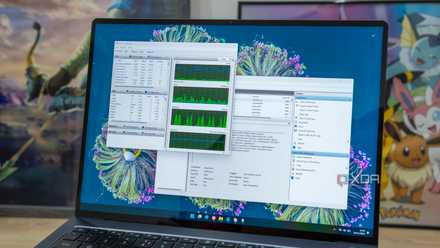
7 apps that could be slowing your Windows performance
Is your Windows laptop feeling sluggish? These seven apps could be affecting performance.
Xbox Game Bar
Useful particularly to gamers
Windows has several built-in Xbox-related processes and components, including the Game Bar. It's an easily accessible overlay that lets you capture screenshots, record the screen, and monitor system performance. It's aimed at improving the gaming experience, but Game Bar can be used for other tasks. For instance, Microsoft recommends Game Bar as an alternative to the Steps Recorder.
If you are not a gamer, the Game Bar isn't really of much practical use. As for its screen capturing and recording functionality, the same can be achieved with Snipping Tool, a nice, lightweight, native tool in Windows. I agree, uninstalling or disabling Game Bar wouldn't deliver a massive boost in performance. But this will free up some resources that it quietly eats in the background.
Windows 11 isn't slow; there are just too many active processes
As I said earlier, Windows 11 can be an upgrade over Windows 10 on supported modern PCs without hardware constraints. And without the additional background apps eating into the resources, you can make it even faster. Keep in mind that this isn't an exhaustive list. Some of you may have apps pre-installed by the OEM that need another look. In general, the idea is to limit background activity without altering the core software components. And once you do, Windows 11 will, in all likelihood, run smoother.