
Hard drives and SSDs have a habit of failing at inopportune moments (although when is a good time for storage to fail?), underscoring how important having a regular backup strategy is for keeping your data safe. While there are plenty of backup programs available, from specialized server backup solutions for VMs to solutions for single programs, the professional world tends to lean on open-source backup solutions.
These programs can back up at the file level, with full disk images, and many other common tasks. The entries in this list are also free to use, so consider donating to any solutions you decide to use long-term as a show of thanks to the community. Whether you're backing up your daily driver, your home lab, or your laptop, the right backup tool gives you peace of mind when you know you have a copy of your essential data.
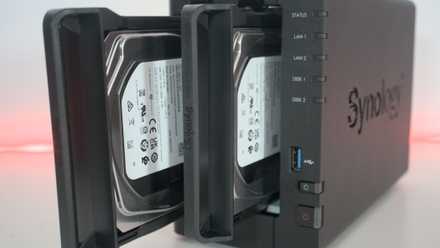
How to follow the 3-2-1 backup rule for NAS and protect your data
Keep it secret, keep it safe

6 Bacula
The most popular open source backup tool for full system backups
Bacula is one of the most trusted names in backup software, with every feature you could want from a backup solution. It uses a client-server architecture to keep stored data segregated from devices while offering central management and backup to many types of storage media. You can use it on Windows, macOS, and Linux, and is easily scalable to however many devices you need to back up.
It's fast, uses TLS for communication between the daemons that run the backup and restore operations, and uses checksum computation to ensure the integrity of stored backups. It can be fairly complex to set up for the first time, but the GUI is well laid out, it's got a huge community of support for tutorials, and once set up it can happily run automated backups to your required schedule.
Bacula
5 Kopia
Self-host your own backup solution on the hardware or cloud service you prefer
We love being able to self-host our services, which makes Kopia a natural fit for home lab experiments and household NAS users. We also love free availability and an open-source ethos, and it's got those as well. Installed via a Docker container, it's easily managed either from CLI or a web-based GUI, depending on where you're most comfortable.
You can store snapshots or specific repositories and mount them to fish out single files if needed while backing up to your choice of local storage, NAS, cloud storage, or remote servers using Rclone, WebDAV, or SFTP. That's awesome for following a 3-2-1 backup plan, as you can run one task and get your required copies. Or you could create your own Kopia repository server and back up everything to a centralized storage solution you control.
Kopia
4 UrBackup
GUI-based backup tool that uses a server-client architecture
Every backup system is different, and UrBackup takes a client-server approach to keeping your data safe. This feature ensures that backups are kept separate from system data in case of ransomware attacks. Because it's got more of an active hand in the backup process, the client can save time and space while backing up as it watches for file changes, marking them for when the next backup task runs. This means less time is taken for the backups, but also less space is used, and it reduces that further with deduplication to remove redundant data copies.
It's great for dealing with a larger number of client devices, as the server lets you manage backups centrally. You can even get backups over the internet if your mobile devices are off your home network when the next scheduled task is due. It can also backup files that can be tricky to back up, like currently used Outlook .pst files. It works on Windows, Linux, and FreeBSD, and there are server packages for several Linux-based NAS devices.
UrBackup
3 BorgBackup
This deduplicating backup solution is fast and easy to set up
Borgbackup, or Borg for short, is a very useful tool for those who primarily use Linux machines. It's perfect for use in the home lab for quick and data-efficient backups, as it supports data compression and encryption. The deduplicating feature is its star power, though, only backing up that data that's changed since the last backup run, saving you precious storage space on your server or wherever else you're storing your backups.
But it's more powerful than that. It lets you move files or folders around on your host computer without those changes counting as a change. It saves your data as snapshots, which it calls Archives, stored in repositories, which are directories for storing archives. It's efficient to use, and because you can use append-only data access, it's resilient to ransomware if set up correctly.
BorgBackup
2 Timeshift
Powerful Linux tool that works with snapshots, similar to Time Machine
Timeshift is a snapshot-based backup and restoration tool with similar functionality to Apple's Time Machine. It's currently maintained by the Linux Mint project, but it will also work on any Linux distribution like Ubuntu. You can use Rsync or Btrfs to back up your files, but Rsync has advantages in that you can mount the snapshots in the file manager and find individual files to restore if you don't want to restore the entire backup. This is also handy for periodically checking if the backups are working properly.
You can schedule the frequency of snapshots to whatever you prefer, although the longer the time between them, the less useful they are in disaster recovery. If you have plenty of storage space on the target drive, you could do hourly snapshots if you wanted, and there's also the option for creating a snapshot on every boot, which could come in handy. Restoring only takes a few mouse clicks, making it quick to fix issues with a single computer running Linux.
Timeshift
1 Clonezilla
Clone and restore partitions or full disks at the bare metal level or deploy system images
Clonezilla is a little more hands-on than the rest of this list. It runs from a live CD or USB and requires you to be present during the cloning or backup process. It enables you to back up your computers at the partition level, including any hidden partitions that some backup options might miss. You can store the created images on external storage drives or NAS file shares and recover them in much the same way. Because it can identify only used blocks on the wide range of file systems it supports, the resulting images are space-saving, but it can also use DD to copy unsupported file systems without knowing its content.
This makes it useful for those with a single computer to back up, but Clonezilla can also be used as a deployment server and image up to 40 computers at once. This involves creating one backup image from a preconfigured computer and then restoring that image to the networked machines via Multicast so that they all have the same configuration.
Clonezilla
Open-source backup solutions are some of the most popular tools around
Finding the right backup program for your needs will depend on your system configuration and whether you need file-level backup, full operating system images, or something in between. Whatever your needs, you'll be able to find an open-source solution that works. Once your backup software is running and you have a scheduled strategy, it's also important to test your backups periodically with restore operations.

Open Source Software Licensing: Why it matters
We've all used open-source software, but licensing is more important than you think.