
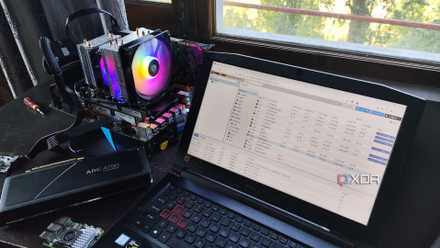
While you're staging new experiments in your home lab, you might be tempted to avoid backing up your servers, code, or container data because you know it'll all get torn down once you're done. But it's never too early to think about backups, because not saving a record of your experiments is counterproductive. You don't need a ton of storage space and can get away with a relatively low-powered NAS for your backups, but what's more important is knowing which tools to use to run those backups and which of those tools either help you start from scratch or can restore your home lab to the state preceding disaster.
5 things you should back up in your home lab
You're going to break things, here's how you get back on track.
5 VM snapshots and copies
Make a copy once you've set things up, but before you start experimenting
Virtual Machines (VMs) are an awesome way to test software and operating systems while retaining flexibility and effectively using hardware resources. They're easily cloned to another storage drive, which should be your first task once you've set the VM up from scratch. That way, no matter what happens during your experiments, you can always swap in a fresh copy of the VM and start again.
While many users also set up snapshots, these are incomplete for backup purposes and won't contain all the necessary metadata or associated information you want. Plus, they're stored in the same physical location as your VMs, so if something happens to the hardware, you've lost your backups. For home lab use, Veeam is free to license for up to ten workloads and can automatically back up your VMs and more, either to on-premises or cloud storage options.

7 common mistakes to avoid while backing up a virtual machine
Stay safe from critical errors when backing up virtual machines by avoiding these situations
4 Ansible
Document your build process so you can repeat it
While most backup tools worry about keeping the end result safe, Ansible provides a documented process for installing packages and dependencies on virtual machines when starting new projects. Plus, you can use the same scripting language to poke at devices and get backups as long as they accept SSH connections. It's all powered by YAML scripting, which is platform-agnostic and can build your entire home lab from scratch, if you so wish. Everything from auto-deploying VMs and containers to installing and configuring backups can be handled with Ansible Playbooks, and then all you really need to back up is the script files to run.
But that's not all. Because Ansible is platform-agnostic, we can use it to back up configuration files from our firewalls, switches, and other networking equipment. Some of this is easier done if our home lab uses a Fortinet firewall, or one from Cisco. But with some poking around on your hardware, you can pull the configuration from pfSense firewalls, Mikrotik switches, or even cheap consumer devices from TP-Link and other vendors. Running the Ansible Playbook then automatically pulls the files you need, ensuring you have backups to restore your network configuration at any time.

A beginner's guide to Ansible automation
Why bother with the tedious aspects of server management when Ansible can do all the heavy lifting?
3 Terraform
Thinking of Infrastructure-as-Code brings many benefits
Another way to back up your home lab is to treat your infrastructure as code and use tools like Terraform to automate resource redeployment. After all, setting up VMs takes time, and gets tedious. It's far more relaxing to write a Terraform template that will automate the process for you so you can treat your home lab as code. This not only gives you a powerful way to recover from issues but also a fully documented process for your setup, which could come in handy as you add more aspects to your home lab. It also supports tons of platforms, including cloud providers, Docker, Kubernetes, Proxmox, and more.

I use Terraform to automatically provision VMs on Proxmox - here's how
While it may seem rather daunting, Terraform is an amazing automation tool for provisioning virtual machines on your home lab
2 Proxmox Backup Server
Automate your backup needs for when the inevitable happens
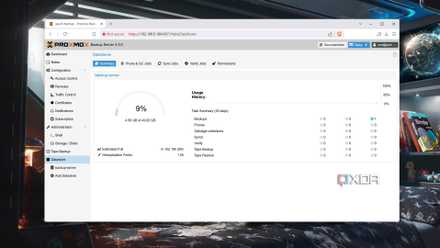
Proxmox is one of our favorite ways to manage VMs and containers. It provides a bare-metal hypervisor for increased performance of virtualized tasks. With all that power comes responsibility, and one of the tasks you'll want to handle is backups. Yes, you do already get snapshot utilities in Proxmox for quick restoration of mishaps, but adding Proxmox Backup Server into your home lab gives you deduplication, so your backups take up less space.
That means you can use a less powerful machine to host those backups or a corner of another server. We don't recommend using the machine Proxmox is installed on, though, as it's all too easy to lose access to it through your experiments. And you get granular restore to add to the ability to restore entire machines or volumes, all wrapped in a well designed UI.
A beginner's guide to Proxmox Backup Server
The perfect means to protect your virtual machines from unforeseen circumstances... and your experiments
1 Kopia
Self-host this awesome backup solution and keep your home lab safe
Want a way to back up and restore multiple devices in your home lab while easily restoring individual clients? You might want to look at Kopia, a free and open-source backup program that you can self-host and quickly get running to implement your backup plan. Installation is a breeze thanks to it coming in a Docker container, and both the GUI and CLI options for management are well-thought-out.
It can back up snapshots on your schedule and store them in a repository you designate. That repository could be a local hard drive, another network-attached drive, or a cloud storage service such as Amazon S3 or Backblaze B2. Cloud storage can be your offsite copy, making it easy to run a 3-2-1 backup plan. Or you could create your own Kopia server and store your repository backups there, wherever you wish to fit them in your home lab. Restoring data can be as simple as mounting a repository in your file manager, navigating to the file(s) you want, and moving a copy back to your storage drive.

6 reasons I self-host Kopia on my NAS to keep all my backups safe
Not backing up your devices at home? Self-host Kopia and give it a try today.
Backing up your home lab so you can restore it at a moment's notice is the wisest thing you'll do all-day
You should always be backing up your data, whether it's personal files or those generated in your home lab experiments. The ability to restore files, VMs, or whole servers with a few commands is powerful and helps you recover from a disaster. After all, a home lab is for learning and recovery processes are part of that journey. Keeping documentation of what you're changing is only part of the equation, but the good news is that you can automate many of the backup processes so you can concentrate on learning new skills.
How to follow the 3-2-1 backup rule for NAS and protect your data
Keep it secret, keep it safe