
The hunt for the perfect IDE is a trap. Every time you commit to the AI intelligence of Cursor or the massive extension ecosystem of VS Code, you end up compromising on something else — like the seamless cloud orchestration of Google Antigravity.
So, I stopped compromising. Instead of forcing myself into a single editor, I built a hybrid workflow that maximizes the unique strengths of each. Here is how I made them play nice together, and why a multi-tool stack might just boost your developer productivity.
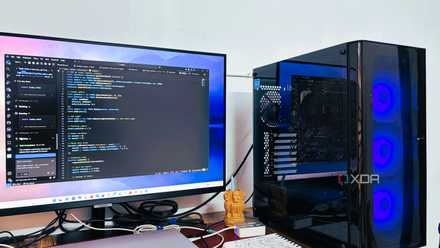
Google Antigravity supports VS Code extensions, but I found myself needing fewer of them
The extension era is over.
The myth of the ‘all-in-one’ editor
The core problem
Every time a flashy new development tool dropped, or a major update hit the tech timeline, I would find myself flattening my workspace. I would spend an entire weekend migrating my keybindings, porting over extensions, and reconfiguring my environment. But it was a trap.
What I eventually realized is that the modern dev ecosystem is moving far too fast for any single application to stay a master of every single trade.
For example, if an editor gives me a world-class, community-driven extension ecosystem that I have spent years fine-tuning, its AI integration usually feels like an afterthought.
On the flip side, if an editor is built from the ground up to be an AI-native powerhouse, it often lacks local stability. I even tried some of the performance-focused IDEs like Zed, but they felt barebones for some of my complex projects.
Google Antigravity
The ‘Vibe coding’ playground
When I’m in the mood to just build — when an idea hits me, and I want to spin up a prototype, experiment with a new framework, or just vibe code without getting bogged down by infrastructure — Google Antigravity is the first tool I launch.
Google Antigravity removes the worst part of starting anything new: the initial environmental friction. I don’t have to worry about broken local dependencies, messed-up Docker containers, or node_modules consuming my local disk space.
It gives me an isolated, highly optimized workspace running in the cloud. I can focus on high-level logic and fast creation, and let the platform handle backend details behind the scenes.
If I’m spinning up a brand new project from scratch just to see if an idea works, Antigravity lets me jump straight from an empty folder to a running, cloud-synced app in a few minutes.
If I’m working on something that requires spinning up heavy service stacks, database containers, or intensive cloud-aligned architectures, I don’t want my laptop fans spinning at maximum speed. Running it on Antigravity’s cloud workspace infrastructure leaves my local machine unburdened.
Vanilla VS Code
The reliable maintenance rig
When I’m dealing with an old production codebase, I close the AI editors and boot up my trusted, vanilla VS Code.
You can think of it as my reliable maintenance rig. Here, I am the sole author. I don’t want autonomous agents running background terminal scripts, and I don’t want a chat sidebar trying to predict how to rewrite a legacy function.
When I need to open a repository written three years ago to hunt down a specific dependency bug or fix a breaking hotfix, I don’t want AI indexing the whole folder.
VS Code lets me go in, make a surgical edit, and get out without any noise. Also, when I am auditing a massive pull request, solving complex multi-branch merge conflicts, or digging through a project’s deep commit history using GitLens, I prefer the stability of standard VS Code.
When I want to write pure, uninterrupted code, I go with VS Code. In Cursor or Antigravity, the constant inline code suggestions can actually break my train of thought when I am working through tight, highly customized architectural logic.
I paid for Gemini, Claude, and Copilot for a month, but only one of them is worth the subscription
The AI subscription winner is not who you think.
Cursor
The AI precision weapon
Because Cursor is built from the ground up to be AI-native, its understanding of code context is on another level. Features like Composer allow me to edit code across multiple directories simultaneously just by describing what I want to achieve.
When I need to rewrite a core logic pattern that touches five different components at once, doing it manually is a recipe for typos. Cursor handles the grunt work of updating files across the entire workspace instantly.
If I’m jumping into a messy project or trying to integrate a dense third-party API wrapper, I use Cursor to index the folder. I can simply highlight a block of code and ask, ‘Why did the previous developer set this up this way, and how do I extend it safely?’
Since all three editors share the same VS Code core, keeping them in sync is simple. I don’t have to relearn hotkeys or fight different interfaces.
I purposefully keep my standard VS Code lean, fast, and free of heavy AI plugins. Meanwhile, I let Cursor lean entirely into its AI capabilities.
Maximizing developer velocity
Splitting your loyalty between VS Code, Cursor, and Google Antigravity might sound chaotic on paper. But by letting each application do exactly what it was engineered to do best, you stop fighting the limitations of a single ecosystem.
So what are you waiting for? Stop looking for the perfect, all-in-one editor to arrive. Look at the tools on your desktop right now, find the friction point, and get back to what actually matters: shipping clean code.