
If you’re as fond of Linux flavors as I am, you’ve probably contemplated ditching Windows altogether and moving to a cool distribution altogether. But despite its bloated nature and a hive of privacy-invasive “features,” not everybody can go completely Windows-free. Perhaps you need it for your PowerShell scripting escapades. Or maybe your workloads involve extensive use of Adobe Creative Cloud.
Fortunately, there are a couple of ways you can use Linux as your primary computing environment while relegating Windows for specific tasks. Dual-booting used to be the most common method back in the day, and it still holds up pretty well for most tasks. But if you’ve got a spare Proxmox node with even remotely decent specs, you can use it to run a Windows 11 virtual machine – one that’s even better than dual-booting for power users.

I run Hyper-V instead of VirtualBox on Windows 11, and it's faster and free
VirtualBox may be simpler, but Hyper-V is better for power users
Instantaneous snapshots alone make a PVE-based Windows 11 VM worth it
And you don’t have to swap operating systems on your daily driver half the time
Although Windows has the System Restore facility to recover your system when things go south, it’s nowhere near as simple or instantaneous as the system-wide snapshots you can create for a virtual machine. On a dual-boot configuration, you won’t be able to access either operating system while the recovery process is underway. For folks whose dev environments are as chaotic as mine, you’ll have to wait several minutes for System Restore to work its magic.
Not to mention, you’ll have to switch between Linux and Windows when you need to work on specific tasks. Sure, it’s not a deal-breaker thanks to modern SSDs, but it can be a bit of a pain when you need to work with both operating systems at the same time.
Meanwhile, deploying Windows 11 as a virtual machine on a Proxmox node lets you use snapshots to quickly recover from any mishaps. And having botched my fair share of PowerShell scripts over the years, let me tell you that restoring a broken VM takes a fraction of the time as System Restore. Plus, you can always access the client machine even if the Windows VM goes offline. Or even use them in tandem, if that’s what your workload demands.
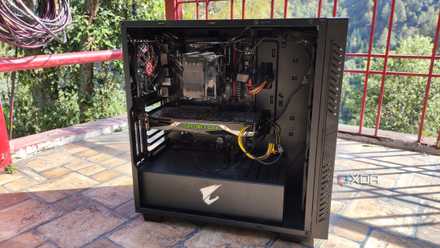
Your old gaming PC is overkill for a home server, and that's exactly why it's perfect
It may be too slow for games, but it can handle most server tasks like a champ
With the right settings, your virtualized Windows setup can even replace your daily driver
GPU passthrough is way easier than you’d think
I’ll be brutally honest here: a Windows 11 VM won’t be able to hit the same level of performance as a bare-metal instance running in a dual-boot environment. That said, if you can harness the uber-powerful virtualization provisions of Proxmox, you can close the performance gap quite a bit. And I’m not talking about allocating ample resources, either. Setting the CPU model to host lets the Windows machine use the underlying processor without extra virtualization layers, thereby making the overall experience even more responsive.
Then there’s the GPU passthrough part of the equation, which turns a simple Windows 11 tinkering VM into a behemoth capable of crushing everything from demanding games to GPU-heavy applications. I’ve used GPU passthrough on both Intel and Nvidia cards – including a decade-old Pascal GPU that’s no longer actively supported – and the results were nothing short of stellar. Personally, I’d recommend manually setting up GPU passthrough (and it’s a lot easier than most newcomers imagine), but tools like PECU make this process a breeze. Heck, you don’t even need a dummy plug with Sunshine + Moonlight to access your GPU-powered Windows 11 VM, as Parsec is more than enough for your remote display needs. But if you’re not planning to configure GPU passthrough, switching the display to SPICE can cut down the typical latency that VMs are infamous for.
But a dual-boot setup isn’t always a bad choice
Sadly, a Windows 11 VM can’t run games with kernel-level anti-cheats
As much as I prefer my Proxmox-based Windows 11 virtual machine, there are situations where a dual-boot configuration is simply better. Although most games work well on a Windows 11 VM, titles with kernel-level anti-cheat checks are the exception. I did manage to get Helldivers 2 up and running without any issues during an experiment, but considering that it’s possible to get banned for doing so, I wouldn’t risk playing it on a VM. Meanwhile, other titles with kernel-level anti-cheat would outright refuse to boot, making a dual-boot environment better if you want to run esports titles that won’t run on a VM.
Likewise, if your Proxmox server isn’t powerful enough to drive a Windows 11 VM, or you don’t have a spare GPU you can hook up to the virtualized environment, installing Windows alongside Linux and switching between them as the situation calls for it is the way to go if your workloads are even remotely demanding.
But for folks who just need a separate tinkering environment, running Windows 11 as a virtual machine is a terrific option. The ability to create snapshots and restore them without spending several minutes staring at the Windows recovery screen alone makes a Proxmox-based setup worth it for dev environments. And if you’ve got a spare GPU lying around, you can use your Windows 11 VM for gaming, video-editing, and LLM-hosting tasks.
Proxmox
Proxmox is an open-source platform built on Debian Linux designed for server virtualization.