
If you’ve been a part of the PC master race for as long as I have, you’ve probably upgraded your gaming machine enough times to have some spare hardware lying around. Or maybe you skipped the Ship of Theseus situation altogether by replacing your entire system with a shiny new PC. Either way, if you’re not actively using your old gaming companion, there are a bunch of ways to breathe some new life into it – like turning it into a home server.
Interestingly enough, if you check out the minimum hardware requirements on Proxmox, TrueNAS, and other server platforms, you’d realize they can work on any ol’ PC, including dinosaur systems. But let me tell you this: the fact that your PC is overkill for server tasks is actually a good thing, as it can let you work on projects that a budget system or cheap mini-PC would struggle to handle.
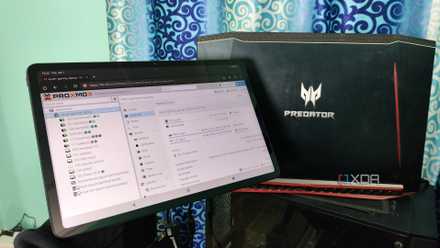
I used an old gaming laptop as a home server, and it beats most entry-level mini-PCs
My outdated behemoth of a laptop doubles as a powerful server node
Gaming machines have enough system resources to power dozens of virtual guests
They may be outdated for modern titles, but LXCs and VMs are fair game
Unlike triple-A titles and typical e-sports titles, where you’ll need faster clock speeds to drive up the FPS and stay ahead of the curve, your CPU’s performance matters little in home labs. In fact, the number of cores and threads matter a lot more than boost clocks, but as long as you have a 6-core (or heck, even a 4-core) processor, your machine can easily handle several containers and a few VMs (especially if you go the CLI route). Source? Yours truly, who built a PVE server years ago with a Ryzen 5 1600 that’s somehow still good enough to run over a dozen LXCs, a GUI-equipped Debian VM, and an Arch virtual machine.
If anything, you’ll need a decent amount of RAM for demanding home server tasks. But considering that we’re talking about a gaming machine, your old companion should have at least 8GB of memory – and that’s plenty for average server tasks. For reference, I’d been using my first-gen Ryzen system with 16GB of RAM for the first couple of years, and although its 6-core, 12-thread processor sounds like a bottleneck, I’ve had plenty of situations where the memory utilization metrics would hit the red zone, while the CPU would chug along nicely at 50% usage. In fact, I recently had to toss another 16GB DDR4 stick into the machine just to get a 26B model running with MoE offloading on this nearly 10-year-old machine. While we’re on this subject.
Even your outdated GPU will come in handy for certain server projects
It can serve as a terrific LLM-hosting workstation
Besides the superior CPU and memory provisions of your gaming PC, you’ve probably got a GPU stuffed in your outdated rig, and it’s a surprisingly great addition to your makeshift workstation. On the self-hosting front, certain apps can make good use of your GPU’s processing capabilities. For example, if you’re planning to run a Frigate-powered Network Video Recorder on your server, you can arm it with your graphics card for AI-powered object detection, and it’s significantly more powerful than a CPU-only setup when you’ve got a bunch of security cameras in your home. Likewise, even a dinosaur GPU can run hardware-aided transcoding tasks in Jellyfin (or Plex, if you’re willing to toss extra money for its premium license). Even Immich can harness your GPU for machine learning-aided facial recognition, object detection, and smart search tools.
But leaving these standalone tools aside, your gaming GPU’s biggest utility lies in its ability to run LLMs. No, I’m not talking about tiny 4B, 7B, or 9B models, either. Ever since Mixture of Experts models have started making the rounds, even an old GPU can host massive LLMs, provided your gaming machine has enough RAM. Heck, I’ve deployed a Gemma-4-26B-A4B on a GTX 1080 – a decade-old GPU that’s hooked up to my ancient first-gen Ryzen rig. Considering my token-generation rates are almost always above 15t/s, you’re bound to get better performance if your graphics card is even remotely better than mine (which isn’t really that high of a bar when you’re pitting a modern mid-range card against something released ten years ago).
And that’s just LXCs and containers. On the virtual machine front, you can deploy a remote gaming VM that pairs with your GPU to run older titles, though the virtualized nature of this setup will result in slightly lower performance than a bare-metal configuration. I tend to avoid VM passthrough these days, as I’ve got multiple LXCs hooked up to my GPU, and attempting to access the same graphics card from different virtual machines is impossible on an SR-IOV-less setup such as mine.
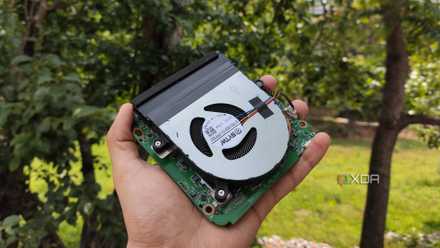
I used an Intel N100 mini-PC as a standalone Proxmox node – it went really well
Besides being able to self-host multiple containers, it can even run a few VMs
Gaming-centric mobos tend to have plenty of expansion headers
You can arm them with several PCIe cards
Unless your outdated gaming PC has a Mini-ITX motherboard, you’re bound to have a bunch of spare PCIe ports on your system, even if your massive GPU covers more than one. While these empty sockets are fairly useful for ordinary systems, their real utility comes into light once you start building your home lab. Let’s say your aged gaming machine has 1G Ethernet capabilities. Arming it with a 2.5GbE network card can enhance its file transfer speeds, provided you have a switch that supports this standard. Having an extra Ethernet at your disposal also lets you set up virtualized firewall instances without configuring VLAN-based workarounds.
On the storage front, you can add extra SATA ports to your machine, toss in a couple of HDDs, and use it as a backup rig. Alternatively, you can use NVMe-to-PCIe adapters to use these blazing-fast drives as virtual guest storage pools instead of relying on slow hard drives.
With the right tweaks, your system won’t siphon too much energy, either
The biggest complaint about reusing old systems as servers isn’t their utility – it’s their tendency to hog extra power compared to mini-PCs and thin clients. Truth be told, outdated PCs are definitely less energy efficient than their modern counterparts. However, there are a bunch of ways you can reduce your aged gaming companion’s electricity-guzzling tendencies.
Score deals on PC parts to rebuild your home server
If you’re a pixel-pushing overclocker like me, you might want to turn those boost clock speeds all the way down before arming your old rig with a home server platform. Likewise, enabling Eco-Mode, ASPM, C-states, and other power-saving options may seem preposterous to FPS-chasers, but these settings can go a long way in reducing your PC’s power consumption. Finally, if you’re on Proxmox, I’d recommend setting the CPU scaling governor to powersave, as it can massively cut the idle wattage of your makeshift home server.