
A 3D slicer is one of the essential tools that every 3D printing enthusiast needs in their arsenal. After designing your files in a 3D modeling program, you export them to the slicer, mostly in STL, OBJ, or 3MF format, which turns them into instructions that the 3D printer understands, called the G-code. The G-code contains commands like how the nozzle should move, speed settings, layer height, and temperature settings, together with other settings. Beyond slicing the file, a 3D slicer is also helpful for customizing the settings of your design to achieve the best results. Below are five popular free 3D slicers you can use in your next project.
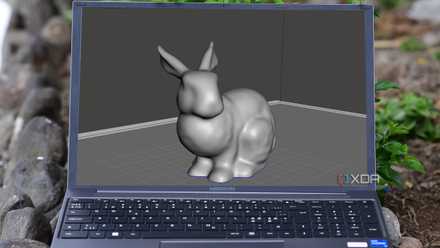
5 reasons why I use Meshmixer to edit my meshes
Meshmixer comes with tools specifically designed for editing meshes and ensuring that they are ready for 3D printing.
5 Cura
The most popular free 3D slicer
Cura is a free open-source 3D printer slicer for Windows, Mac, and Linux. It is compatible with most common FDM 3D printers, and the printer profiles have been tested for thousands of hours to ensure they give the best results. If you own an Ultimaker 3D printer, you can integrate it into the software, and there is also a CAD plugin option to integrate popular 3D modeling software like SolidWorks, Autodesk Inventor, and Siemens NX, so you can design your files and send them to the software with ease.
Cura is compatible with various file types, such as STL, OBJ, 3MF, X3D, PNG, JPG, GIF, and BMP. You can extend Cura's functionality by installing various plugins from Ultimaker Marketplace. After slicing the file, there is an option to preview how it will be 3D printed and even know the time and the size of the material you need.
7 issues I faced while 3D printing as a beginner and how I fixed them
Don't let failed prints deter you
4 Orca slicer
Advanced 3D printer slicer
Orca Slicer is a fork of Bambu Studio, and it’s gaining a lot of popularity, especially among those who own Bambu 3D printers. Its interface looks almost similar to Bambu Studio's, but it offers more features and functionalities than Bambu Studio. In addition to 3D slicing tools, Orca Slicer has interesting features, like an AI error detection tool, which helps identify printing problems and provides a detailed report. Calibration tools are also helpful for fine-tuning the 3D printer settings to achieve optimal print quality.
The latest version of Orca integrates with Obico, a website for managing multiple 3D printers remotely. You can monitor your 3D printer remotely within Orca Slicer and see the print progress in real time. The slicer also contains an extensive library of 3D models you can slice and send directly to your 3D printer.

5 tips every 3D printing beginner needs to know
Get acquainted with these 5 tips to help get started in 3D printing easily and avoid the common mistakes.
PrusaSlicer
Slice single and multi-material designs
PrusaSlicer was initially based on Slic3r, and it has advanced and supports many other 3D printers besides Prusa machines. For Prusa 3D printers, you get over 180 tested profiles for the popular filaments and resins. Custom support features are available that are useful for adding supports directly to the model, and there are custom meshes that you can use as support blockers.
Working on multi-material designs is easy. You can color your design in a few clicks using the smart fill and brushstroke tools. Importing the STEP file to the slicer is possible without converting it to STL, so you don’t need to switch between programs to do the conversion. Prusa Slicer supports Repetier Host, Octoprint, and Flash Air cards, which help manage 3D prints remotely and send the G-code to the 3D printer over a network.
You can import files in most of the standard 3D printing file formats. Then, click on the software's 3D print tool, and the slicer will open in a new tab. Choose your 3D printer, and the slicer interface will launch. In terms of the tools, settings, and interface, it's almost similar to Cura.
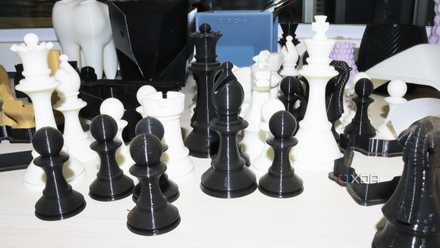
5 things I wish someone told me before I started 3D printing
Get to know of these five issues I wish I knew before starting 3D printing to help save you time, material, and money along the way.
3 SelfCAD slicer
An online slicer with 3D modeling tools
In addition to being a 3D modeling software, SelfCAD comes with a free slicer. Unlike many other 3D modeling tools that require exporting models to third-party slicers after the design process, SelfCAD allows you to design, slice, and prepare prints all within a single platform. The slicer of SelfCAD runs online, though there is a downloadable version for the 3D modeling software. This is helpful for those who prefer working on the browser.
You can import files in most of the standard 3D printing file formats, then click on the 3D print tool of the software, and the slicer will open in a new tab. Choose your 3D printer, and the slicer interface will launch. It’s almost similar to Cura in terms of the tools, settings, and interface.
2 Slic3r
One of the first advanced slicers
Slic3r was developed in 2011, and unlike other slicers like Orca and PrusaSlicer, Slic3r is not based on any previous work. It is open-source, and a community collaborates on GitHub to improve it. The software has many configuration options for fine-tuning the 3D printer settings, and it also has a command line interface that allows it to be used from the shell.
Slic3r has an auto-repair tool for fixing non-manifold issues. It also has an option to cut meshes into multiple solid parts. It supports Octoprint integration and has a print spool queue feature for controlling multiple 3D printers.
1 Chitubox free
Slice resin 3D prints for free
If you are into resin 3D printing, the free version of Chitubox can help you prepare your designs for LCD3D printing. Later, if you want advanced features, you can upgrade to a paid version. Chitubox comes with profiles for most resin 3D printers and intuitive parameter settings that you can adjust based on your needs.
Once you download and launch the software, you will see a section for choosing your 3D printer. Once you do so, a new window will launch containing the various settings you can customize. After connecting your 3D printer, you can transfer files via LAN. Working with supports is easy in Chitubox. You can either add them manually or generate them automatically, and there is an Auto Support feature for editing the supports.
Resin 3D prints usually require escape holes for excess resin to drain out during 3D printing and post-processing. To address this, Chitubox has a Dig Hole tool that makes adding holes to your files easy.
Generate the G-code for free
After creating your 3D models or downloading them from 3D model repositories, you don't need to pay for slicing software, as the above 3D slicers can cater to your needs. Each has its strengths, and you can try each and determine which one best suits your printer, materials, and workflow preferences. The advantage is that each allows you to tweak the settings based on your preferences, giving you complete control over the slicing process.